Knowledge Base Article
How to Record a Material Donation
A material donation is a gift of physical goods rather than cash: food for a pantry, clothing, school supplies, household items, building materials. Argenta tracks what came in, what it was worth, and who gave it, and it puts the donated goods straight into your material inventory. For the full field-by-field walkthrough, see Add Material Donations.
Record the donation
- Choose Materials Management > Material Donations and click Add New. A short form opens asking for the Donor and the Date of Donation. Fill those in and click Add & Enter Details, and Argenta creates the record and opens it in the Material Donation Workspace on Donation Details. Cancel & Exit leaves nothing behind. From here on, only admins and master builders can change the donation; everyone else sees it read only.
- Fill in the two required fields: Date of Donation and Donor. Start typing the donor's name to find them, or use the add icon to create the constituent on the spot.
- Add the details you track: Our Associated Team Member (who received the goods), Material Donation Status, Material Donation Type, Material Donation Category, and a Donation Description.
- Turn on Receipt Given once the donor has their receipt. Tie the gift to a fundraising effort with Associated Campaign or Associated Event.
- Click Save All Changes & Continue or Save All Changes & Exit.
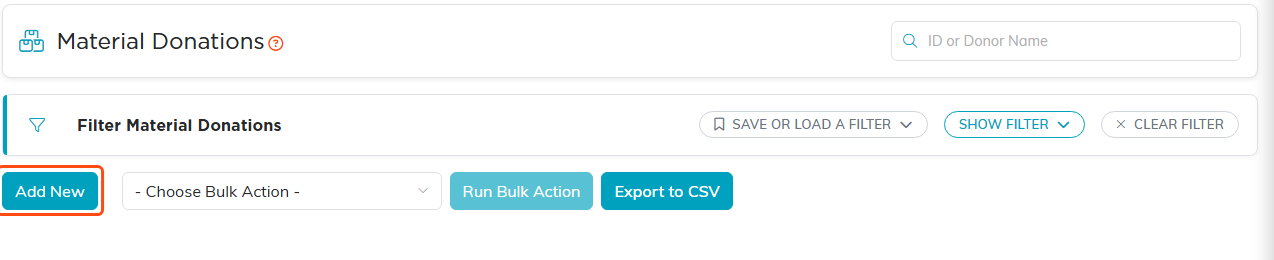
Add New asks for the donor and the date, then creates the record and opens the workspace.
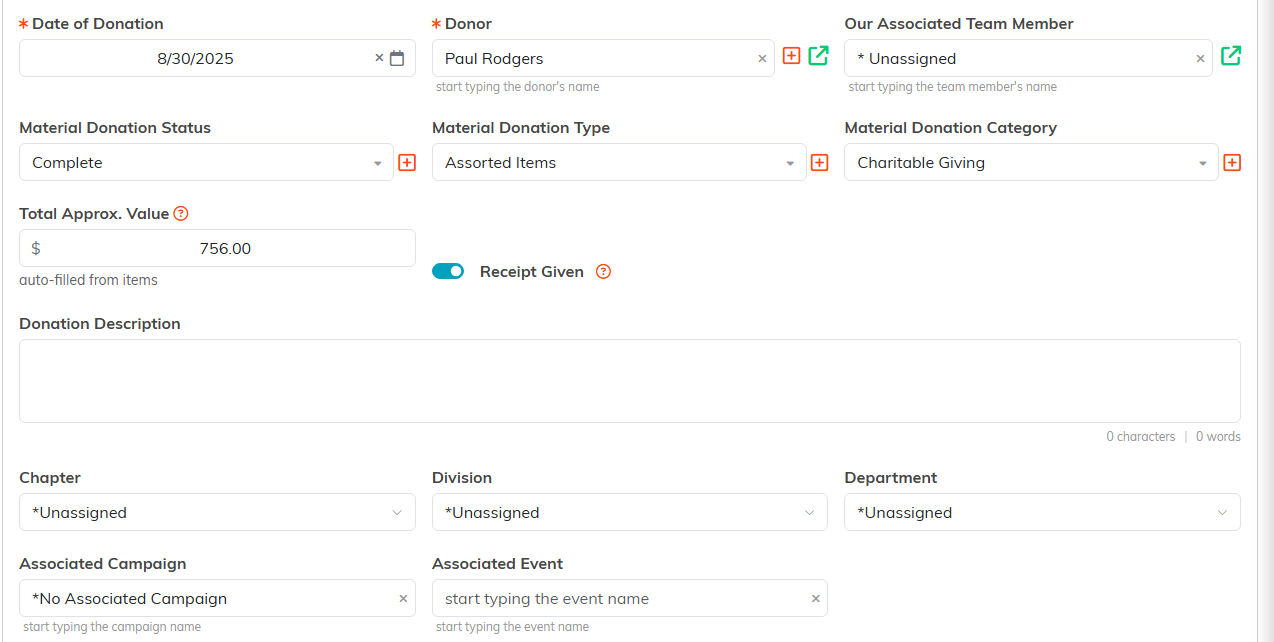
Date of Donation and Donor are the two required fields.

Either save button finishes the record.
Status, type, and category are your own classification codes, so the choices in those lists are whatever your team has set up.
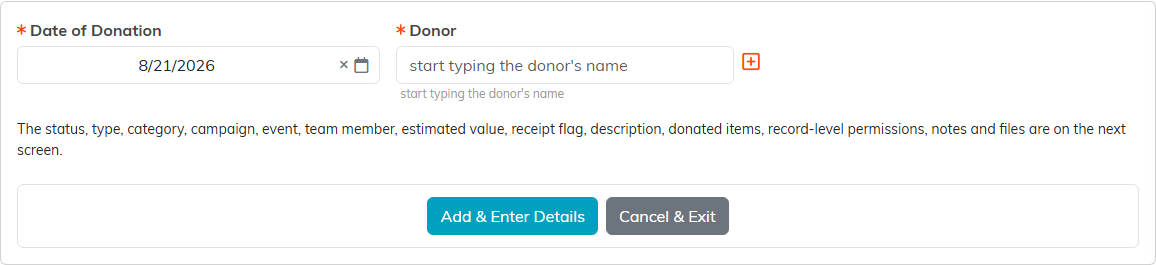
Donor and date first. Cancel & Exit leaves nothing behind.
Itemize what came in
Open the Donation Items page in the workspace. There is no separate add-an-item step: the page lists the material items you already track, and you record a donation by typing a number in QTY Donated next to each item that came in, then saving. Use the row's save icon for one line or Save All Changes for everything at once.
Two things happen when you save:
- Your inventory goes up. The quantity you enter is added to that item's on-hand count automatically. You do not add it to inventory a second time.
- The donation value updates. Total Approx. Value on Donation Details is recalculated from the items and their per-unit values, which is why that field is marked as auto-filled.
Editing works the same way in reverse. Lowering a quantity or clearing it to zero takes that stock back out. If doing so would push the item's on-hand count below zero, Argenta stops with a Not Enough Inventory message and skips that one line; everything else you changed still saves.
If an item you received is not in the list yet, add it first in Material Inventory.
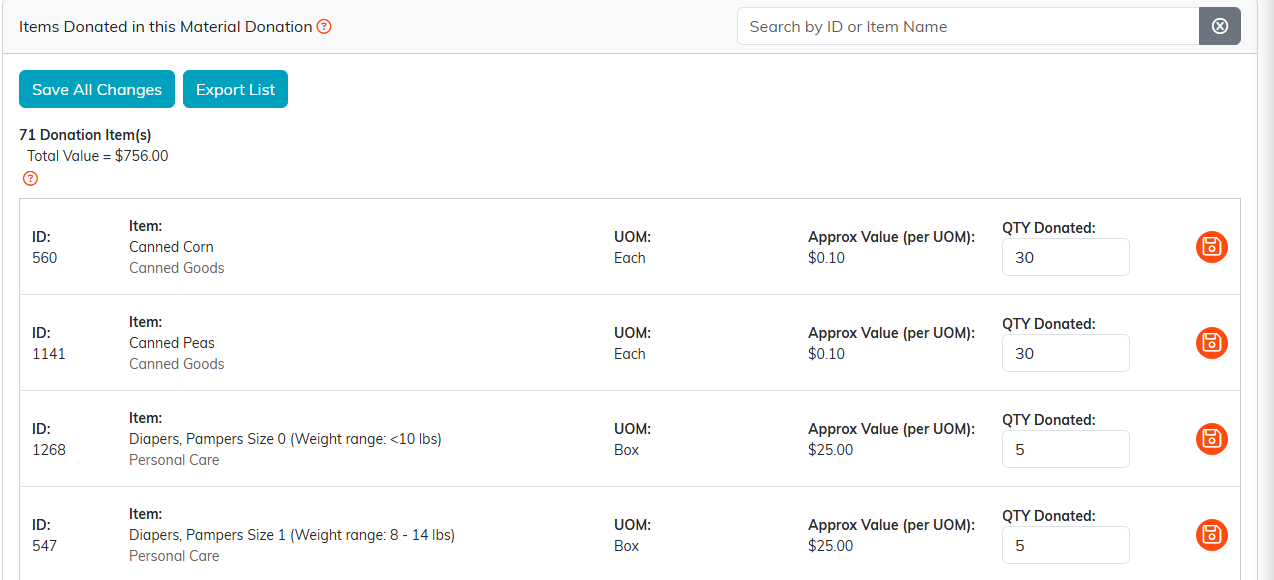
Type what came in beside each item, then save.
Send the donor their confirmation
For a donation you record here, Argenta never emails the donor on its own. Saving the record sends nothing. (A donation that came in through your public material donation form already emailed the donor this confirmation when they submitted it.) When you are ready, click Send Donor The Confirmation Email on Donation Details (there is also an envelope icon in the workspace title bar) and the donor gets their itemized confirmation. The panel then shows who it went to and when, and the button changes to Send It Again.

Saving sends nothing. This button does.
Material donation or in-kind donation?
- Material donation: physical goods you take into inventory and hand out again. Tracked here, in Materials Management.
- In-kind donation: donated goods or services that support your operations. Tracked in Fundraising. See How to Record and Track In-Kind Donations.
When the goods go back out the door to the people you serve, record that as a distribution. See How to Create a Material Distribution.
