Knowledge Base Article
How To Add Material Items Into Inventory
Argenta keeps three separate inventories. Product inventory is for the products your organization sells. The lending library is for items you lend out and expect back. Material inventory is for the donated goods you take in and hand out again, and it is the one this article covers.
Create your material items first. Until an item exists here, you cannot record it on a donation or a distribution, because both of those work by entering a quantity against an item that already exists.
Add an item
- Choose Materials Management > Material Inventory from the main menu. The list shows every material item you track.
- Click Add New. That opens the Add A New Material Inventory Item page.
- Fill in the item:
- Item Name. The one field you have to complete. Leave it blank and the page tells you it is required. It holds up to 250 characters.
- Item Description. Optional, but worth writing. It shows up next to the item everywhere you pick from a list.
- Item Category. Chosen from your own classification codes. Use the add icon (admins and master builders only) on the field to create a new category on the spot.
- Unit of Measure. How you count the item: each, case, box, and so on. It starts on the first unit in your list.
- Approximate Value. The per-unit value. Argenta multiplies it by the quantity to value your inventory and to value donations of this item.
- Beginning Qty. How many you have on hand right now.
- SKU or Reference Number. Your own reference for the item.
- Click Add Material Item. Argenta saves the item and returns you to the list. Cancel & Exit leaves without saving.
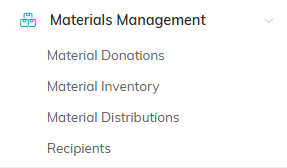
Material Inventory sits under Materials Management on the main menu.

Add New opens the page where you create the item.
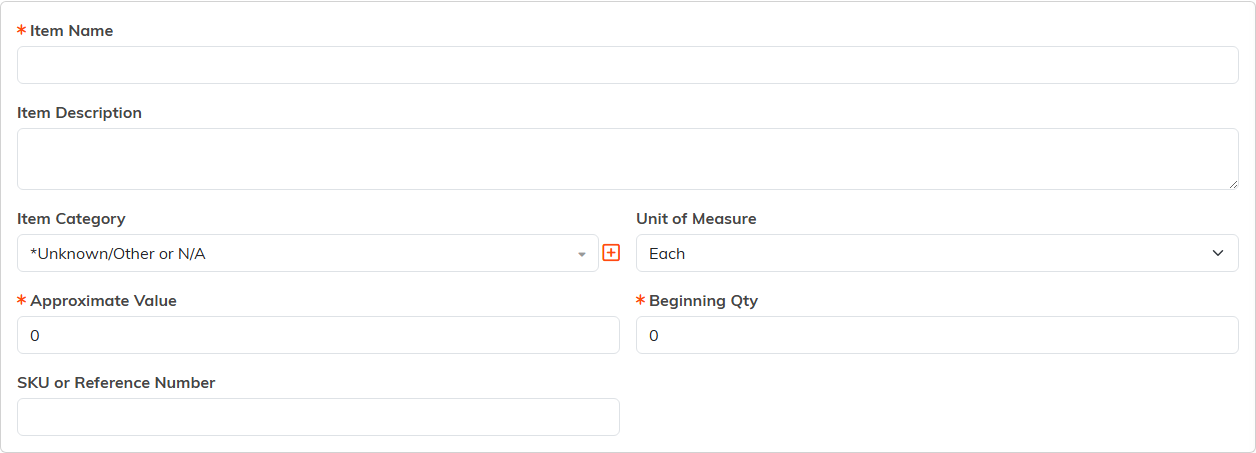
Item Name is the only field you have to fill in.

Add Material Item saves and returns you to the list.
Approximate Value and Beginning Qty both default to zero, so an item saves even if you skip them. Neither can be less than zero: a negative Beginning Qty or Approximate Value is refused with a message, on the form and in a Material Items import. Set them anyway, or the item's value and stock will read as zero until you go back and fix them.
Change the quantity on hand
To correct a count by hand, find the item in the list and click the purple Manually Change Number in Inventory icon. That opens Material Item Inventory Adjustment, which shows the item, its unit of measure, and its current number in inventory.
Enter the amount you are adding or removing, not the new total:
- Enter QTY To Add To Inventory, then click Add To Inventory.
- Enter QTY To Remove, then click Remove from Inventory.
Argenta will not let you remove more than you have. Leave the box empty and it asks you for an amount. Either action returns you to the list, and Cancel All & Exit leaves the count alone.
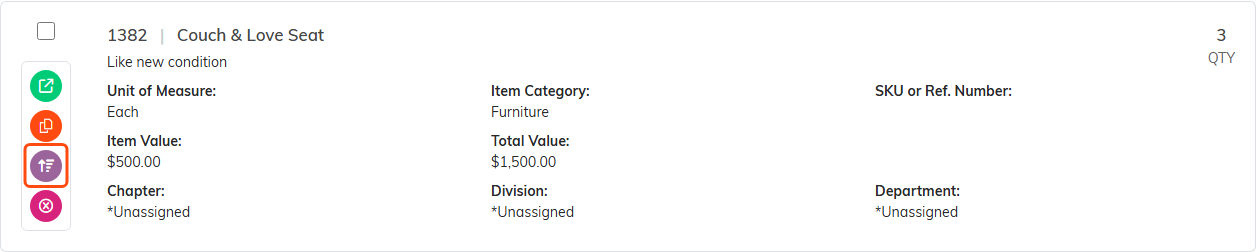
The purple icon on the row opens the manual adjustment.
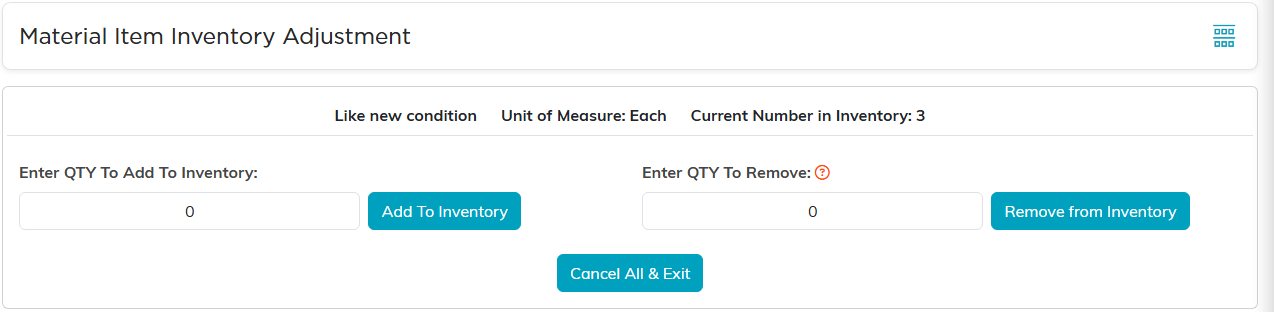
Enter the amount you are adding or removing, not the new total.
What else moves your inventory
Most stock movement happens on its own, as a side effect of the work you are already recording:
- Donations add stock. Entering a QTY Donated on a material donation adds that quantity to the item's on-hand count. See How to Record a Material Donation.
- Distributions remove stock. Entering a QTY Distributed takes it back out, and Argenta blocks you from distributing more than you have. See How to Create a Material Distribution.
Because of that, the manual adjustment page is for corrections and for stock that arrives outside a donation record, not for routine intake.
Working with the list
Each row carries its quantity on hand, unit of measure, category, SKU, per-unit value, and total value. Alongside the open and delete icons there is Copy & Add New, which is the fastest way to add a run of similar items. The copy starts with 0 on hand, so it adds no stock or value until you record a donation or an adjustment for it. Filter the list by category, unit of measure, or a total value range, and use Export to pull the whole list out as a spreadsheet.
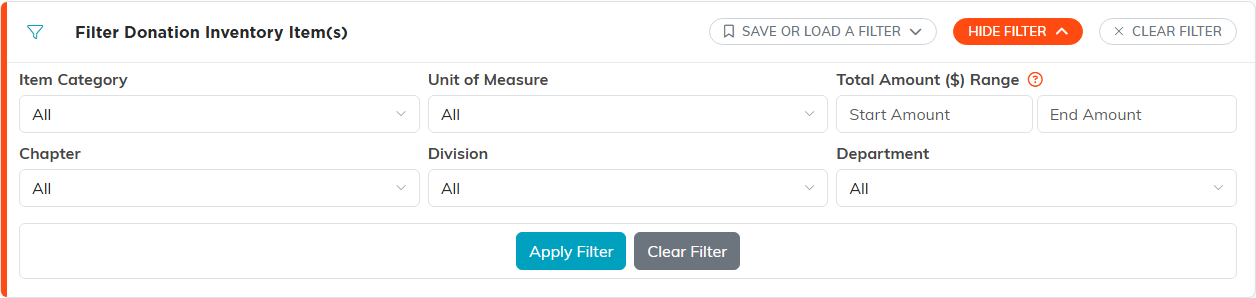
Show Filter opens the category, unit of measure, and value range filters.
