Knowledge Base Article
Add Fiscal Donations
A fiscal donation is a monetary gift made by an individual, household, or organization to your nonprofit. Argenta's donation manager tracks every gift, and because it is built right into the accounting system, it records the gift in your books in the same step. Here is how to enter one.
Start a new donation
From the left-hand menu, choose Fundraising > Donations to open your list of fiscal donations. Click Add New. A short form opens asking for the Donor and the Donation Date. Fill those in and click Add & Enter Details, and Argenta creates the donation and opens it in the Fiscal Donation Workspace on the Donation Details tab, ready for you to fill in the rest. Cancel & Exit leaves nothing behind.
The workspace has six tabs: Donation Details, Connections, Refunds, Donation Files, Donation Notes, and Record Permissions. Most of your work happens on Donation Details.
Each tab of the Fiscal Donation Workspace has a short Show Me How To Use This Page video at the top right; click it to watch, and use its chapters to jump to the part you need.
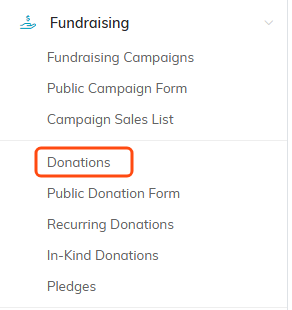
Donations sits under Fundraising in the main menu.

Add New opens a short form for the donor and the donation date.

The six tabs. Most of the work happens on Donation Details.

The donation is created when you click Add & Enter Details, not before.
Fill in the donation details
Enter as much or as little as you need. Only two fields are required, marked with an orange asterisk in the app: Donor and Donation Date. The Donation Amount is never blank: an empty one reads and saves as 0.
- Record Level Permissions - Two switches at the top. Set As View Only lets other users see the record but not change it. Lock This Record hides it from everyone except you, master admins, and users you grant access on the Record Permissions tab.
- Add To General Journal - Turn this on to post the donation to your books. When it is on, choose the Fund the gift belongs to, the Deposit / Bank Account Used the money goes into, and the Account from your chart of accounts to record it against. If the gift came in by credit card and carries a Stripe merchant fee, that fee shows here and can be opened.
- Donor (required) - Start typing the donor's name and select them. Use the open icon to jump to the donor's record, or the add icon to create a new donor on the spot. Need help? See Add Donors.
- Donation Date (required) - Type a date or pick it from the calendar.
- Donation Amount - The dollar amount of the gift.
- Payment Method - How the gift was paid, such as cash, check, or credit card.
- Check # / Reference # - An optional check or reference number.
- Payment Point of Entry - Where the gift came in, for example online or U.S. mail.
- Donation Type and Donation Category - Optional ways to classify the gift. If the value you need is not listed, add it right from the dropdown.
- Chapter, Division, Department - Tie the gift to a part of your organization, or use these to control who can see the record.
- Soft Credit Constituent - Credit a second constituent for helping bring in the gift, such as a spouse or a solicitor, without double-counting the money.
- Solicited By (Team Member) - The staff member who solicited the gift.
- Receipt Was Given, Thank You Was Sent, and Keep Donor Anonymous - Switches you can flip as you complete each step. Anonymous keeps the donor's name off public-facing lists.
- Is Tribute - Turn this on if the gift honors or memorializes someone, then enter the Tribute Name and an optional Tribute Note.
- Description / Other Info and Specifically Designated Purpose - Free-text notes about the gift and any purpose the donor designated it for.
Political teams also see District and Precinct fields, plus a "Made with Federally Permissible Funds?" question and the donor's Employer, Occupation, and Location of Employer.
When everything looks right, click Save All & Continue to save and stay on the record, or Save All & Exit to save and return to the list. You can also Copy & Add New to start another gift from this one, or Delete This Record. A gift will not delete while it is attached to a recurring schedule, while it sits in a deposit, while it has a refund, or when Argenta generated it from a payment.

The two record permission switches at the top.
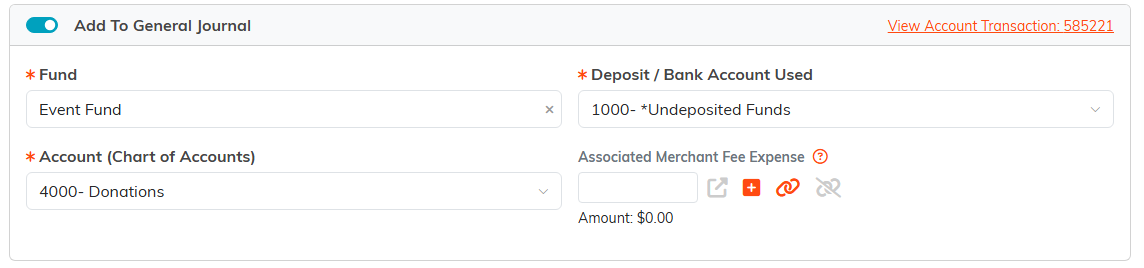
Turn this on and the gift posts to your books in the same step.

Donor and Donation Date are the only required fields. The amount can stay at zero.

How it was paid, its reference number, and where it came in.

Optional ways to classify the gift.

Flip these as you work through each step. Anonymous keeps the name off public lists.

These also control who can see the record.

Soft credit lets you thank a second person without counting the money twice.

Turn on Is Tribute and the name and note fields appear.
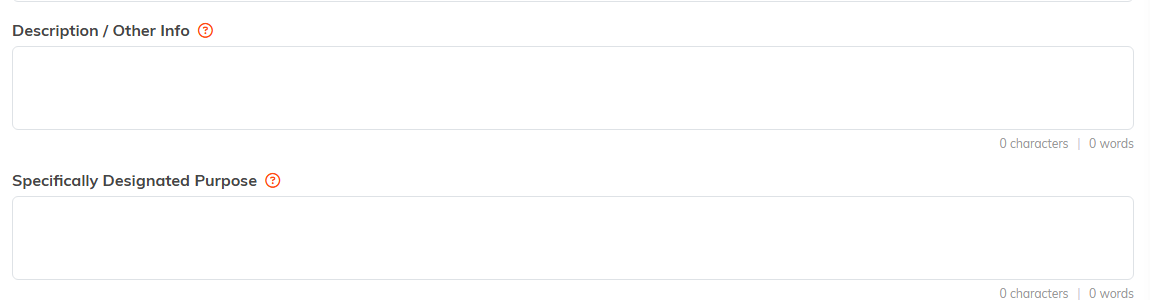
Free text for the gift and any purpose the donor named.

The buttons at the bottom of the record.
Send a receipt
Once a donor is selected, use Send Donor A Receipt to email a receipt automatically, or Print Receipt to open the receipt, where Export To PDF saves a copy you can email or mail.

These three sit at the top of the record, once a donor is selected.
Make it recurring
If this gift repeats on a schedule, click Make Recurring, choose how often it should recur (Monthly or Annually), and click Add Recurring Transaction. Argenta then adds each future donation for you automatically. You can see every recurring gift under Fundraising > Recurring Donations.
When Argenta will not let you delete a gift
Four things stop a donation from being deleted. In every case Argenta tells you which one applies and leaves the gift in place.
- The gift is attached to a recurring schedule. A gift carrying an automatic recurring schedule will not delete while that schedule exists. Remove the schedule first under Fundraising > Recurring Donations, then delete the gift. See How to Set Up and Track Recurring Donations.
- The gift has been added to a deposit. Remove it from the deposit first, then delete the gift.
- The gift has a refund. Delete the refund on the donation's Refunds tab first, then delete the gift.
- Argenta generated it from a payment. The tax-deductible part of an auction purchase, a campaign sale or an event ticket cannot be deleted on its own. Reverse the payment instead: the message names the payment to refund, or the sale or ticket to reverse, so the gift and the payment are corrected together. Its amount cannot be edited here either, because it follows the sale and any refunds of it. Moving it to another income account is refused when a refund of the ticket has already reversed part of it on the current account; post that change through the General Journal instead.
The other tabs
- Connections - Link the gift to a related campaign, event, or program so it shows up in that record's financials.
- Refunds - Issue a full or partial refund against this gift. Click Issue A Refund, enter the refund category, date, amount, method, and reference number, then click Apply This Refund.
- Donation Files - Attach files to the gift, such as a copy of the check. See Add Related Files.
- Donation Notes - Keep notes on the gift. See Add A Note To The Notes Section.
- Record Permissions - Name the users who can still edit this donation when it is view only, or open it when it is locked.
Recording a gift made through a giving platform, such as a workplace-giving or peer-to-peer site? Donation Details has a 3rd Party Giving toggle for that. See Add A 3rd Party Donation for the full walkthrough.
