Knowledge Base Article
Add A Note to the Notes Section
Notes let you keep the story behind a record with the record. You will find a notes area on constituents of every type, and on grants, mission trips, events, campaigns, tasks, and most other records in Argenta. Notebooks work differently: each notebook note opens on its own page with a title. Use them to tell your team what you are working on, or anything extra they should know.
Add a note
- Open the record and go to its notes area. On most records that is a page in the workspace, named for the record (Donation Notes, Task Notes, Chapter Notes, and so on).
- Click Add A New Note. The Add Note box opens.
- Type your note. It is a free-form area with no length limit, so put in as much or as little as the situation needs.
- Click Add This Note. Cancel closes the box without saving.
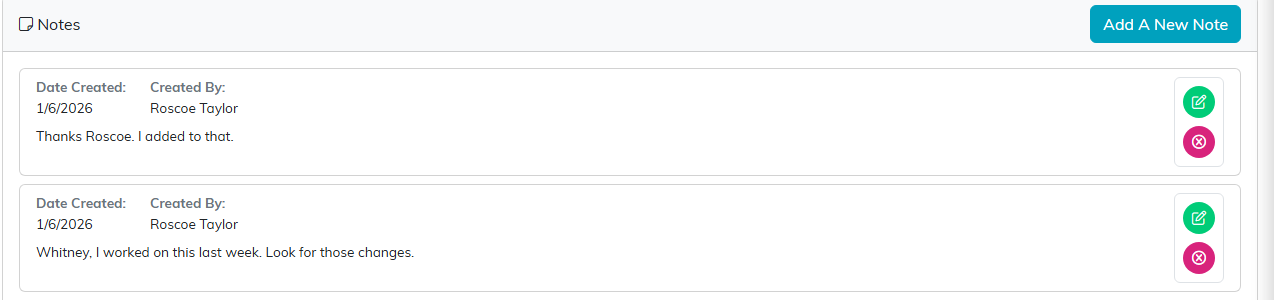
Every notes tab works the same way, whatever the record.
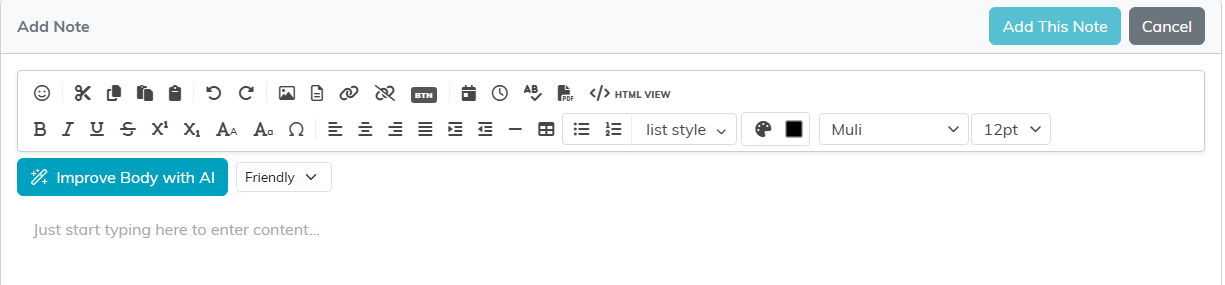
Type the note, then click Add This Note.
Edit or delete a note
Notes are not write-once. Each note in the list carries two icons:
- The edit icon opens it as Edit Note. Change the text, then click Save & Continue to save and stay in the box, or Save & Exit to save and close it. Cancel leaves without saving.
- The delete icon removes the note.

Green edits the note, pink removes it.
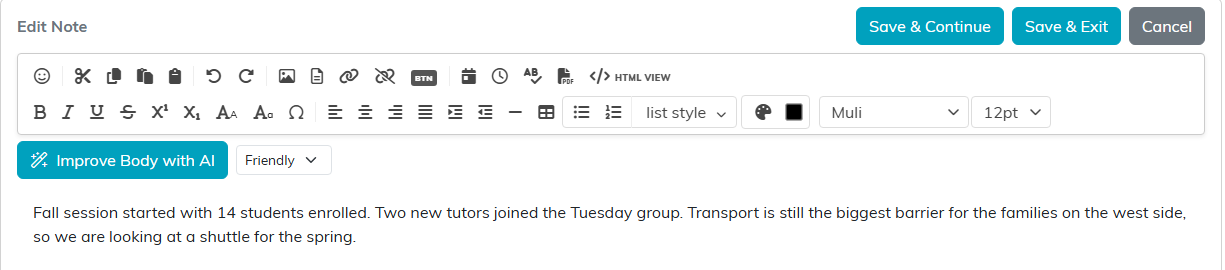
Editing opens the same box with your text in it.
Adding the same note to many records at once
If you need the same note on a whole group of constituents, for example everyone you spoke to at an event, do not add them one at a time. Use the bulk action instead. See How To Create Bulk Notes.
