Knowledge Base Article
Add Related Files
Argenta lets you attach related files to records all across the system. Constituents, districts, events, programs, tasks, notebooks, and most areas within general financials all let you upload and attach documents. It is a good way to keep everything to do with a record in one place.
The files area shows up as a page or a section on the record you are working on, usually named for the record itself. Wherever you see it, you can attach whatever documents belong there.
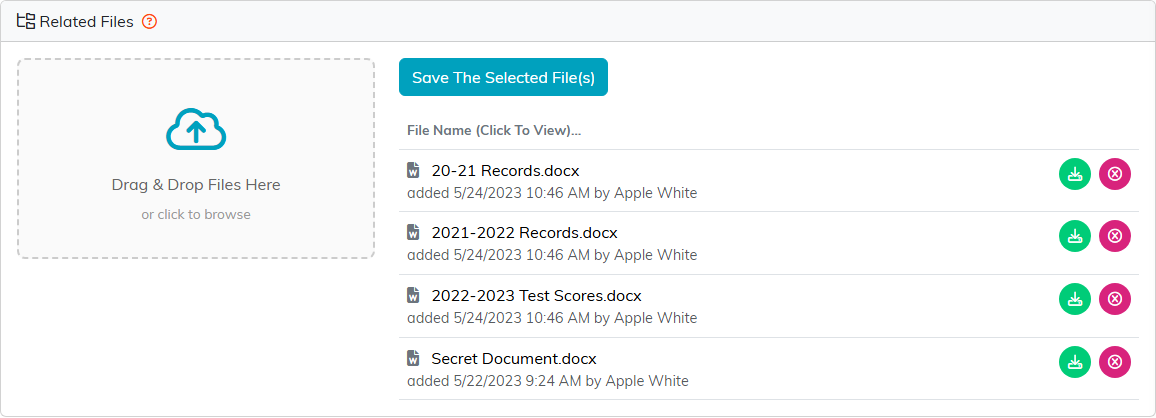
Related Files as it appears on a record, here on a constituent.
Upload a file
There is one upload box and it works two ways. Drag a file from your computer onto the box marked Drag & Drop Files Here, or click the box, which also says or click to browse, to pick a file the usual way. You can select more than one file at a time.
Your chosen files appear in a Selected Files list beside the box. Click Save The Selected File(s) to finish attaching them. Once the upload completes, they appear in the file list below.
Save the record itself before adding files to it.
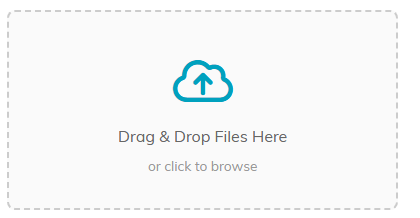
Drop files on the box, or click it to pick them the usual way.
Open a file
Click the file's name in the list and it opens in a new browser tab. The column is labeled File Name (Click To View) as a reminder.
Under each file's name is the date and time it was added and, if they are on your team, who added it. The description, if the file has one, sits between the name and that line.
Whether the file displays in your browser or downloads is up to your browser, not Argenta. PDFs and images usually display; Word and Excel files always download. See Viewing Files Without Downloading in Argenta.
There is also a download icon beside each file if you want the copy rather than the preview.
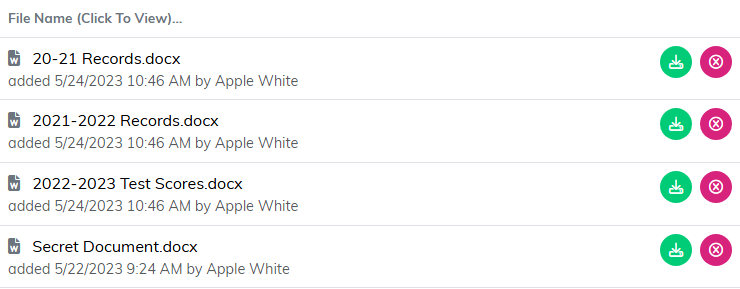
The column heading is the reminder: click the name and the file opens in a new tab.
Delete a file
Click the pink circle X icon to the right of the file name. Argenta asks you to confirm first, so you have a chance to back out. Once you confirm, the file is removed.

The pink circle X removes the file. Argenta asks you to confirm first.
Related files or the Document Library?
- Attach a file to a record when it belongs to that one donor, event, or grant.
- Put it in the Document Library when it is an organization-wide document such as a template, a form, or a policy. See Add Documents in the Document Library.
