Knowledge Base Article
Sending Emails Related To Campaigns
Once a campaign exists you will want to tell people about it. Argenta sends campaign email in three steps: build the list of who gets it, build the template, then send. Everything you send this way reports back on the campaign, so you can see opens, bounces, and unsubscribes next to the money raised.
Step 1. Build the mail room list
A mail room list is just the group of constituents you want to email. You can build one from almost any list page in Argenta (constituents, donors, leads, members, event guests). Starting from your constituents:
- Go to Constituents (CRM) > Constituent List.
- Filter or search down to the people you want, then tick their checkboxes. To take everyone matching your filter, open - Choose Bulk Action - and pick Select All Records That Meet The Current Filter Criteria.
- In the same dropdown choose Create A New Mailroom List With Selected Records, then click Run Bulk Action. (Adding to a list you already have? Choose Add Selected Records To An Existing Mailroom List instead.) These Mail Room actions only appear for users with the Mail Room Manager permission, and for Master Admins.
- The Create A New Mail Room List window opens. Switch on the list type you need, Email, Text (SMS), or Postal Mail (you can pick more than one), give it a Mail List Title, and click Add This List.
Name the list something you will recognize in six months. More on lists in How to Create and Manage Email Lists in the Mail Room and Add Constituents to the Argenta Mail Room.
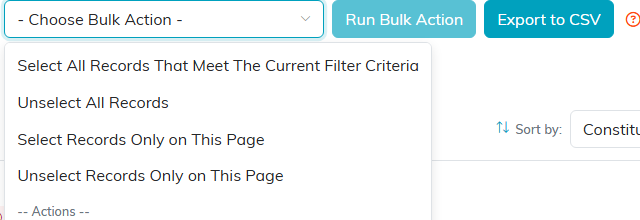
The first option takes everyone your filter found, not just this page.
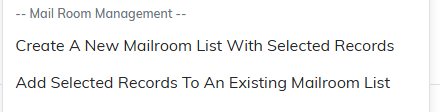
Further down the same dropdown is the Mail Room Management section.

Pick the action, then click Run Bulk Action.
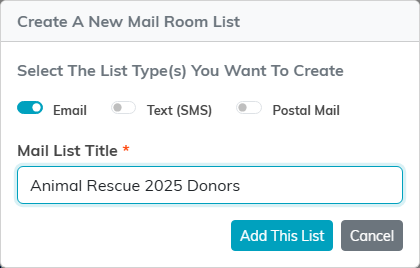
Switch on the list types you need, name it, and click Add This List.
Step 2. Build the template
Two ways in. From the campaign, open the Email Batches tab and click Pick A Template & Send Email. Or go straight to Communication > Email Templates.
On the templates list, Start From A Template opens the gallery of finished designs, Add New starts you on a blank one, and clicking an existing template's open icon reuses it. All three land you in the Email Template Workspace, which has three tabs, but they get there differently. Add New asks for a Template Name first, then you click Add & Open The Designer. Picking a finished design from the gallery drops you straight into the designer with that design loaded.
On Template Details, give the template a Template Name and set Associated Campaign to this campaign. That link is what makes the send report back on the campaign, so do not skip it. Chapter, Division, Department, and (for political organizations) District and Precinct are optional and tie the template to one part of your organization. Click Save All Changes.
On Template Design, write the email:
- Subject. Required. This is the line people decide on. Improve Subject with AI will rewrite it for you in a friendly, formal, or brief tone if you want a second opinion.
- From Email Address. Required. If you have validated the address with us, it shows as the from address. If not, the email goes out from our own notifications address, and replies still reach your Reply To address. See Validating An Email Address.
- The editor. Write the body, add images, links, and attachments. The merge tag button personalizes it, so you can open with the recipient's first name instead of "Dear Friend". See Complete Guide to Using Email Merge Tags in Argenta.
One thing to avoid: do not copy and paste an image into the body. Use the image button in the editor and upload it, or it will not arrive.

Pick A Template and Send Email starts you from the campaign.

Start From A Template opens the gallery. Add New gives you a blank one.
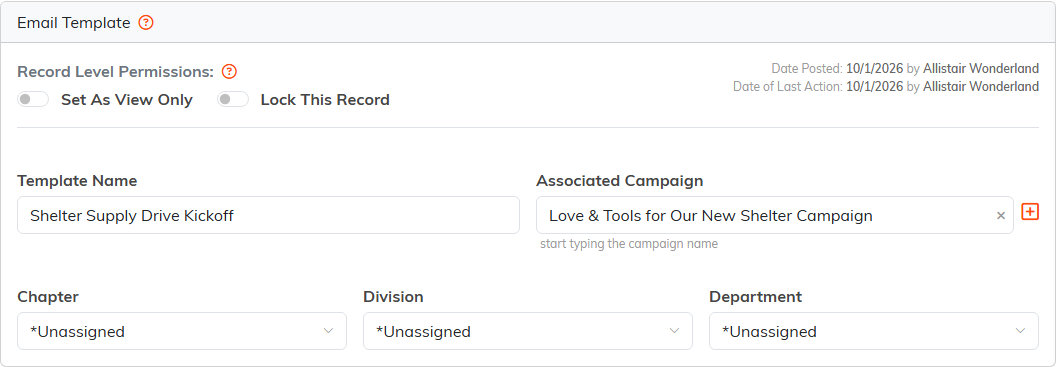
Associated Campaign is the link that makes the send report back. Do not skip it.

The subject is the line people decide on.
From Email Address is required.
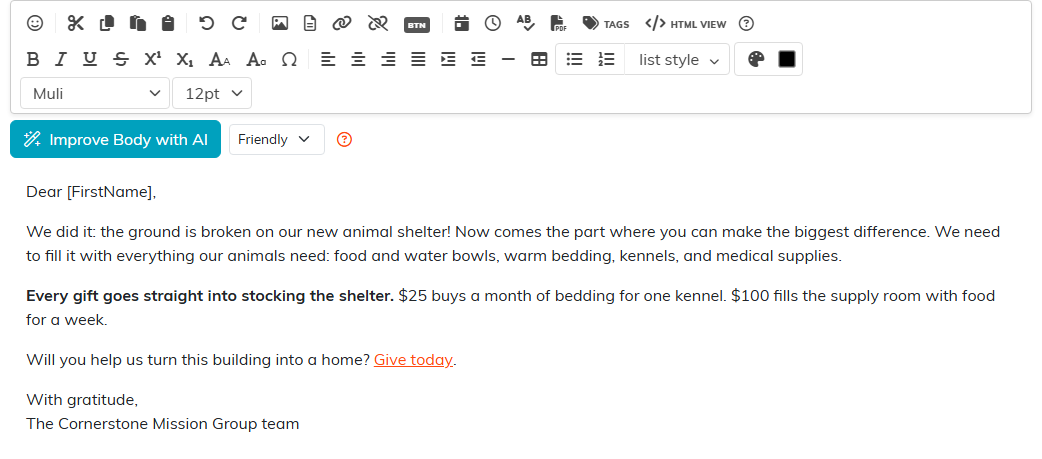
The editor holds the body. Use the image button to add pictures.
Step 3. Send it
On the Template Design tab, click Use This Template. Argenta saves the template and opens the New Campaign page with its subject, From address and body filled in. The campaign link comes with it, so the send reports back on the campaign as long as you started from this template.

Use This Template takes the email to New Campaign to send.
- Audience. Under Send To, choose A Mail Room List and pick the list you built in Step 1. Argenta shows how many people it will reach, and who it leaves out and why.
- From. Check the Send From address. Add anyone under Copy All Selected Team Members who should get a copy.
- Preview and test. Preview As shows the email as any recipient will get it, and Send A Test sends a copy to you, so you can read it in a real inbox before the whole list gets it.
- Send Time. Leave it on Now, or pick a later time (see How to Choose When a Mail Room Email Sends).
When all five steps are ticked, click Send and confirm. The full walkthrough is in How to Send an Email From the Mail Room.
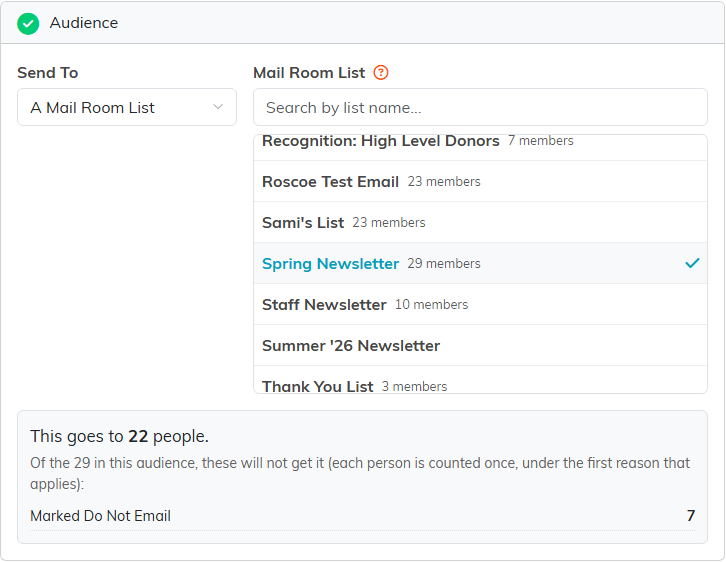
Pick your list and the count appears before you send.
What happens after
The send becomes a batch on the campaign's Email Batches tab, with the template name, subject, and who sent it. The campaign's Analytics & Metrics > Email Marketing screen then tracks emails sent, opened, not opened, bounced, unsubscribes, and spam reports, with a per-batch breakdown so you can see which subject line did best.
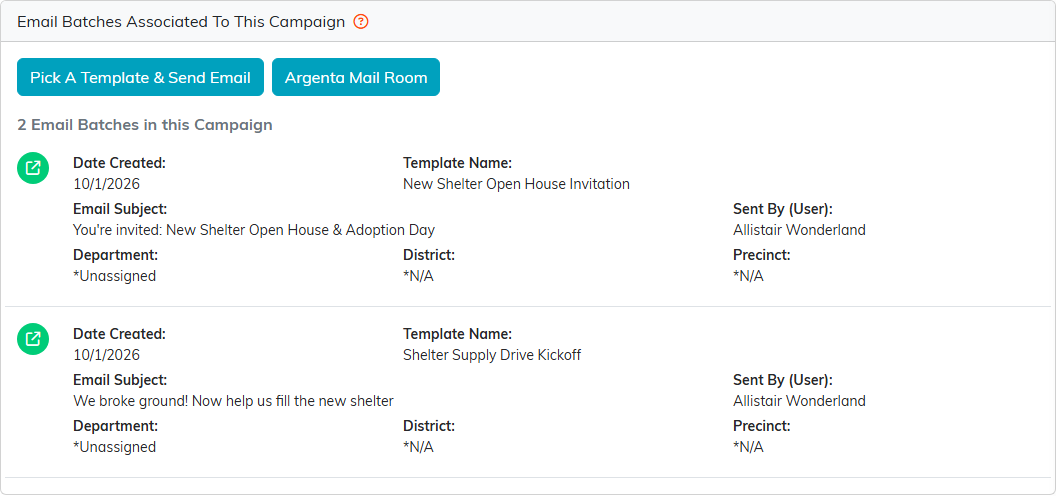
Every send lands here as a batch on the campaign.
A batch opens on its Report tab, which shows how the email did: real opens, clicks, unsubscribes, bounces and the gifts that came in during the 30 days after it, including gifts coded to this campaign. See How to Read an Email's Report: Opens, Clicks, Gifts and Sharing.
Open a batch with its open icon, then choose Emails, and you see everyone it went to and how far each email got: Sent, Opened or Bounced. The count at the top adds them up, and Filter by Status narrows the list to one of them.
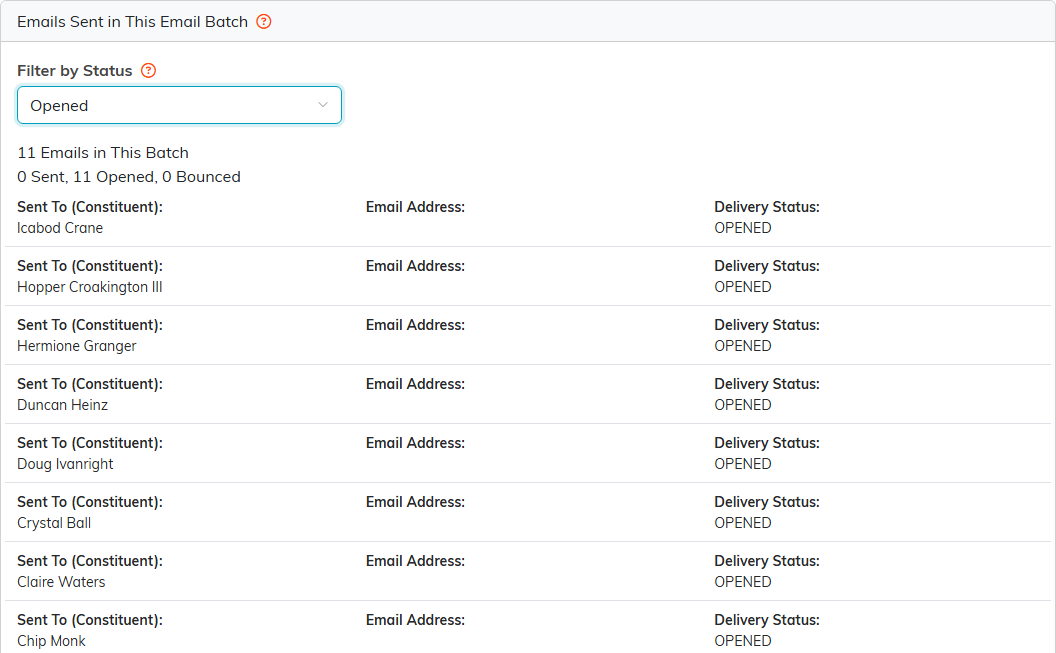
The people who opened this batch. Email addresses are hidden in this picture.
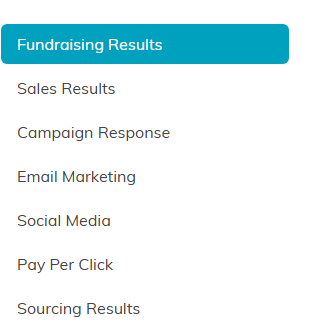
Email Marketing sits in the Analytics and Metrics list.
Worth telling your constituents once: ask them to whitelist argentasoftware.com so your email does not land in spam. More on batches in Working with Email Batches.
