Knowledge Base Article
How to Send an Email From the Mail Room
Every email you send from the Mail Room goes through one page, New Campaign. It walks you through five steps, shows how many people the email will reach before you send it, lets you see it the way a recipient will and send yourself a test, and saves your work as a draft as you go.
Before you start: New Campaign opens for a user with the Mail Room Manager permission or an admin. The one exception is an Event Manager emailing the participants they ticked on the guest list of a program they can open: New Campaign then opens for that selection only, as a Program Message, with a test to their own address and no drafts, Workspace Menu or Sender Health. A view-only user sees a message saying the account cannot send email.
Open New Campaign
- In the Mail Room, click Send Email in the workspace menu, or the Send Email card under Quick Actions.
- On an email template, click Use This Template. Argenta saves the template, then opens New Campaign with its content, its subject and, when the template has one, its Send From address already filled in.
- On an event's Guests page, tick the people you want, choose Send An Email To Selected Records from the bulk action menu, and click Run Bulk Action. New Campaign opens with those people as the audience.
- Reopen a draft from the Drafts list in the Mail Room (see Drafts below).
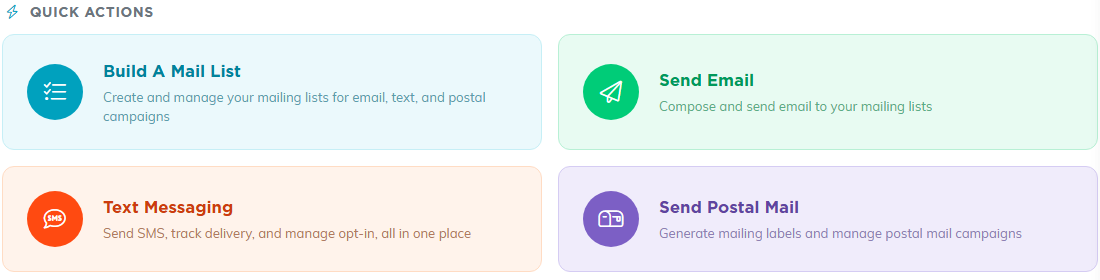
Send Email under Quick Actions opens New Campaign.
Each step has a number beside its title, and the number turns into a green check when the step is complete. The Review panel on the right shows the same five checks, and its Send button turns on only when all five are ticked.
Step 1: Audience
Choose who gets the email under Send To:
- A Mail Room List sends to everyone on an email list you built. Pick the list, or search for it by name. Each list shows how many members it has, so two lists with the same name are easy to tell apart.
- Everyone Who Chose A Topic sends to the people who asked for that topic on your email preferences page and still accept marketing email.
- One Person sends to a single constituent. Start typing a name to find them.
- The Records I Selected appears only when you came from a list page with people ticked. A Back to the list link takes you back. If you switch to another choice, the selection is dropped.
As soon as you choose, Argenta works out who it will reach and shows This goes to a number of people. Below that it lists everyone in the audience who will not get it, each counted once under the first reason that applies:
- Outside the records you can send to
- No email address
- Marked Do Not Email
- Deceased
- Unsubscribed from your marketing email
- Address bounced or reported spam (cleaned)
- Shares an address with someone already getting it, so two records at one address get one email
- Already received this exact subject line
That last one matters when you resend. Argenta sends a subject line to a person only once, so to send the same message to the same people again on purpose, change the subject. Because of this, the count is checked again whenever you change the subject and leave the subject box.
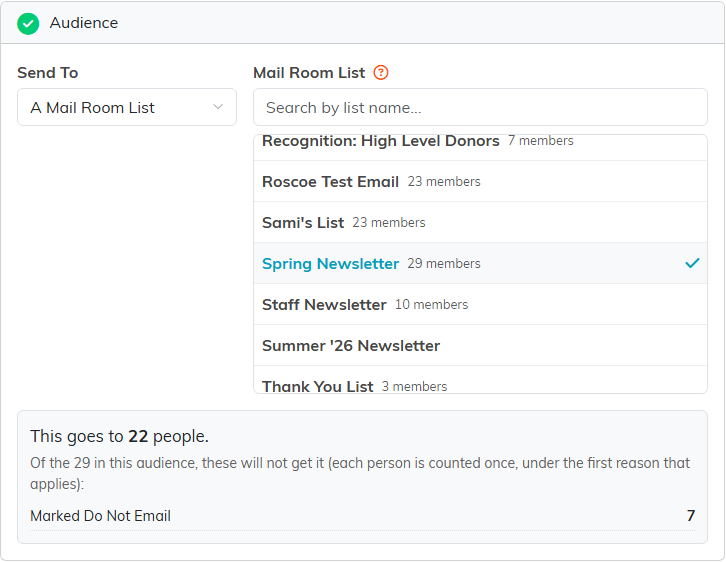
Pick the list and the count appears underneath, with the people it leaves out and why.
If you came from an event's Guests page, this step also asks for a Message Type. A Program Message is about the event the people are registered for, so it still reaches someone who has unsubscribed from marketing email. Keep it to what a registered person needs for that event. It is offered only when everyone you selected holds a current registration. Otherwise the email goes as a Marketing Message, and the page tells you how many of your selection are registered.
Step 2: From
- Send From Email Address is required. Your organization's verified addresses appear under the box, and clicking one fills it in. If you type an address that is not verified, the email still goes, but from Argenta's own notifications address, and replies still reach your Reply To address. Verify the address under Email Settings to send as it.
- Display From Name is the name people see in their inbox. Leave it blank to use your organization's name.
- Reply To Email Address starts as your own address. Clear it and replies go to the Send From address.
- Copy All Selected Team Members sends each teammate you tick a copy of the email. Their copy is not personalized, and they are not part of the count.
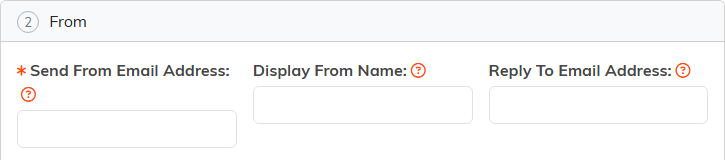
Send From is the one required box in this step.
Step 3: Subject and preview text
- Subject is required, up to 150 characters. Next to it you can add an emoji, insert a Merge Tag, or click Improve With AI for a suggested rewrite.
- Preview Text is optional, up to 150 characters. It is the line most inboxes show after the subject, and it does not appear in the opened email.
Merge tags work in the subject as well as the body. A tag can carry fallback text after a bar, used for anyone who has no value: [FirstName|Friend] reads Friend for someone with neither a first name nor a nickname on file. A plain [FirstName] already falls back to the person's nickname and then to Friend. Anything in brackets that is not a merge tag is sent exactly as you typed it.
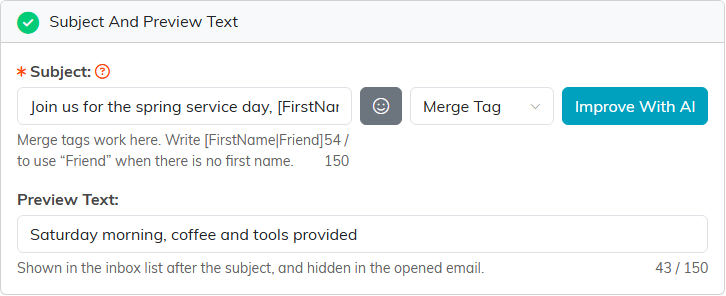
A fallback after the bar covers anyone with neither a first name nor a nickname.
Step 4: Content
Start the body one of three ways: Start From A Template to use one of your email templates, Start From A Gallery Design to use one of Argenta's finished designs, or Start Blank. If the editor already has something in it, Argenta asks before replacing it. Then edit the email in the editor, or use Improve Body with AI.
Do not copy and paste images into the email. Upload them with the editor's image tool instead.
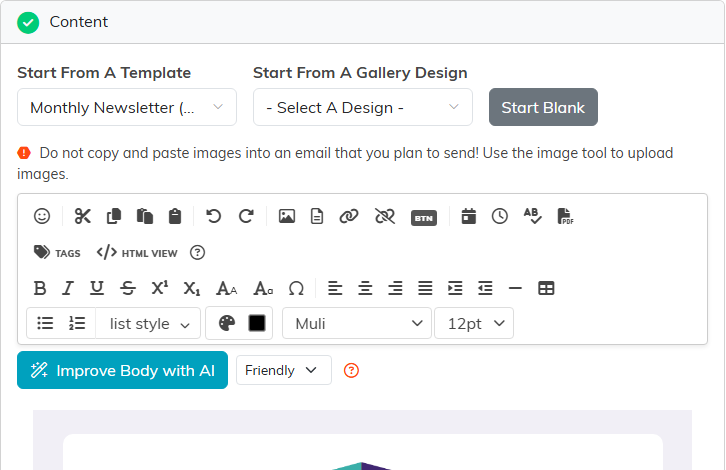
Pick a starting point, then edit the email below.
Step 5: Send time
Under When To Send, choose Now, a date and time in your team's time zone, that time in each recipient's own time zone, or the best time for each person. The last two have their own rules; see How to Choose When a Mail Room Email Sends.
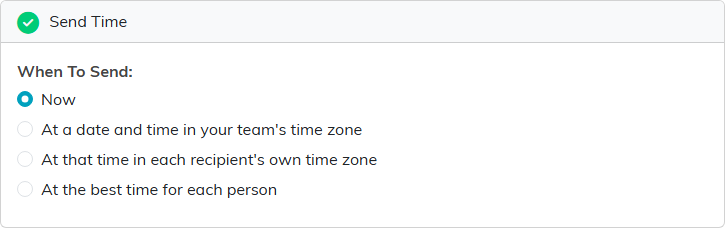
Now is the default.
See it the way a recipient will
Preview As shows the email exactly as one person will get it, with their merge tags filled in. It starts on the first person in your audience. Pick someone else from the list, or search for anyone you can see. Click Desktop or Phone to change the width, and Refresh after you edit. The box under the buttons shows the inbox line: the subject and the preview text.
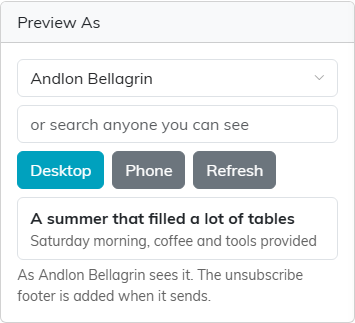
Pick a person, then switch between desktop and phone.
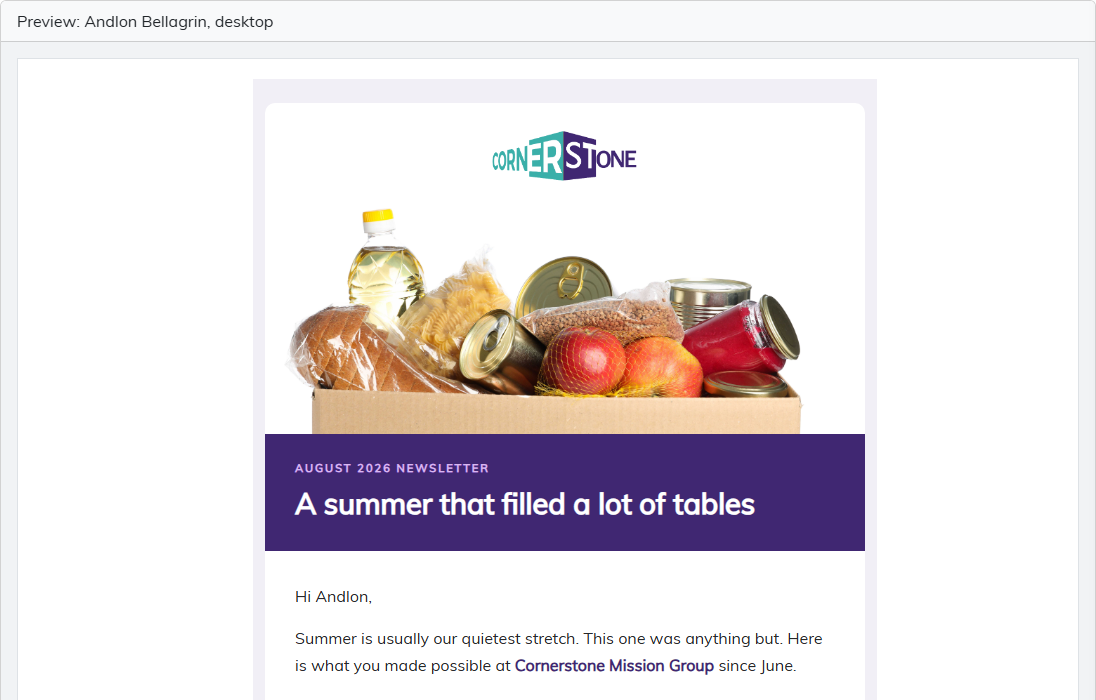
The preview fills in that person's merge tags, so the greeting uses their name.
Send yourself a test
Under Send A Test, enter up to five addresses separated by commas. The box starts with your Reply To address. Click Send Test. The test goes out as the person you are previewing, with [TEST] before the subject. It is not recorded on anyone and does not stop them getting the real email. Each user can send 20 tests an hour.
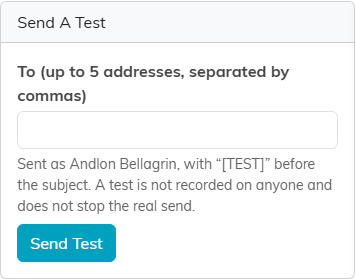
A test is a real email to the addresses you type, with [TEST] in the subject.
Checks
The Checks card looks over the email for you: whether every image has alt text, whether the From address is verified (once you have chosen one in Send From), whether your organization's postal address prints in the footer, and whether every merge tag has a value or a fallback for the person you are previewing. Click Check Links And Content to also test the links, up to the first 25. The checks warn you; none of them stops you from sending.
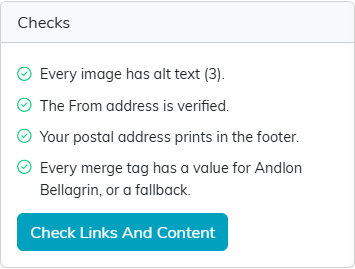
Green means that check passed. A warning tells you what to fix.
Sender Health
For any audience other than one person, the right side of the page also shows Sender Health, the same card that sits at the top of the Mail Room home page. It covers the last 30 days and marks each line it can judge Good, Watch or Act now (a plain count, like cleaned addresses, carries no mark):
- Sending domain: whether your own sending domain is authenticated, so inboxes trust your email. If it is not, the card links you to set it up.
- Bounce rate: under 2% is Good, up to 5% is Watch, and above that is Act now.
- Spam complaint rate: under 0.1% is Good, up to 0.3% is Watch, and above that is Act now.
- Cleaned addresses: how many contacts have an address that bounced, drew a spam complaint or was suppressed, so Argenta leaves them out of every send.
- Sends this month, against your plan's monthly limit when it has one.
- Sends stopped for safety: any send Argenta or a staff member stopped to protect your sending reputation, with a link to review it.
Every line marked Watch or Act now tells you what to do about it.
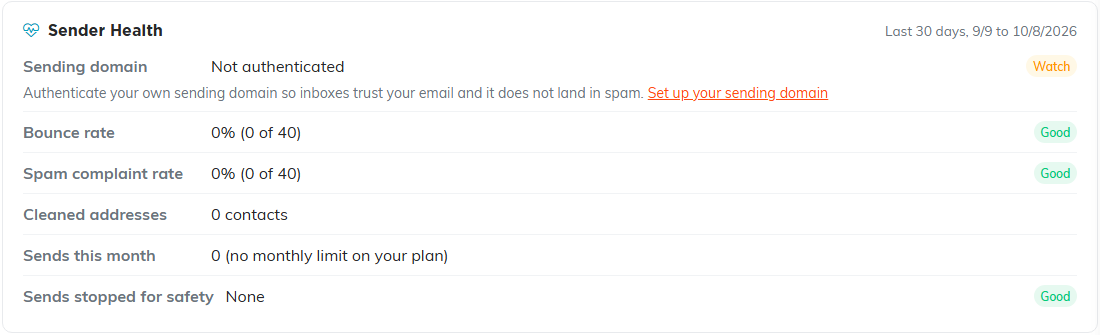
Sender Health, with the one line that needs attention marked Watch.
Send it
When all five steps are ticked, click Send, or Schedule if you chose a later time. Argenta asks you to confirm, naming the subject and how many people it goes to.
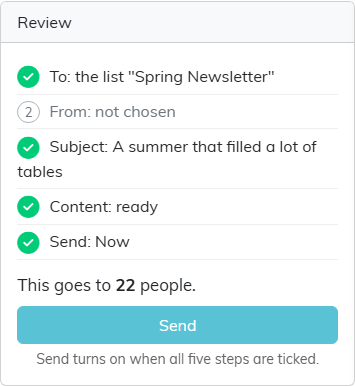
Here From is not chosen yet, so Send stays off.
Argenta then prepares the email in the background with a progress bar. You can leave the page; the send carries on without it. When it finishes, the page says how many people will receive it, and how many were skipped because they already had this subject line. Click View Campaign Report to follow opens, clicks and bounces, or New Campaign to start another.
Drafts
New Campaign saves your work as a draft every few seconds once you have chosen an audience or started writing. The top of the page shows when it last saved. Discard Draft deletes it, after asking, and nothing is sent.

The saved time and Discard Draft sit at the top of the page.
Drafts are listed in the Mail Room under Drafts, with the subject, the audience, and when and by whom each was last saved. Click one to reopen it. Drafts belong to your whole team, so a teammate can pick up where you left off. A draft is deleted once it has been sent.

Click a draft to carry on where you stopped.
