Knowledge Base Article
Add Constituents to the Argenta Mail Room
The Mail Room is where Argenta handles email, text, and postal outreach. You add constituents to a mailing list in two ways: in bulk from any constituent grid, or one at a time from the list itself. You can do this for any constituent type (Members, Donors, Volunteers, and so on), and from other records like event guests.
Add Constituents in Bulk from a Grid
This is the fastest way to build or grow a list. We'll use Members as the example.
- Open the grid you want, for example Constituents (CRM) > Members from the left menu.
- Narrow the grid with the filter if you want a specific group, then select the records: check individual rows, or pick Select All Records That Meet The Current Filter Criteria from the bulk actions menu.
- Open the bulk actions menu and choose one of:
- Create A New Mailroom List With Selected Records, to build a brand-new list.
- Add Selected Records To An Existing Mailroom List, to drop them into a list you already have. These Mail Room actions only appear for users with the Mail Room Manager permission, and for Master Admins.
- If you're creating a new list, the Create A New Mail Room List window opens: turn on the list type(s) you want, Email, Text (SMS), or Postal Mail, enter a Mail List Title, and click Add This List. If you're adding to an existing list, pick the list you want and Argenta adds the people it can.
Either way the confirmation tells you what actually happened, not just that something did. A new list shows a line per list type, such as Email list: N of M added., and is headed Nobody Was Added when none of them could go on. Adding to an existing list reads N of M record(s) added to the mailing list, or is headed Nothing Was Changed. Anyone held back has no address for that list type, is marked Do Not for it, is inactive, or (on an existing list) was already on it. People locked or set to View Only for you are skipped too, on a line of their own. A selected record that could not be matched to a person at all is counted separately, because that is a problem on the record itself rather than a contact preference.
To limit who can see a list, open the list and use its Record Permissions tab. Permissions are set on the list itself now, not while you create it.
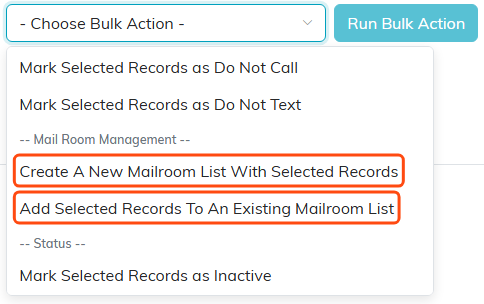
Both bulk routes sit under Mail Room Management.
Add Constituents One at a Time
You can also add people to a list by hand.
- In the left menu, open the Mail Room, then click Manage Mailing Lists.
- Find your list and click the green open icon to go to its List Members page.
- Click Add A Constituent, search for the person by name, and add them. Repeat for anyone else you want on the list.
- If somebody cannot go on the list, Argenta tells you and names the reason: no email address or Do Not Email on an email list, no complete mailing address or Do Not Mail on a postal list, and no phone number or Do Not Text on a text list.
