Knowledge Base Article
Working with Email Batches
Every time you send an email from a template in Argenta, it goes out as an Email Batch, whether it's a single email or thousands. Every batch is saved so you can track how each send performed.
Finding Your Email Batches
Open Email Batches from the left menu. You'll see every batch you've sent, along with how each one did: its Delivered, Real Opens, Clicks, Unsubscribes and Bounces rates. To dig into a single batch, click its open icon.
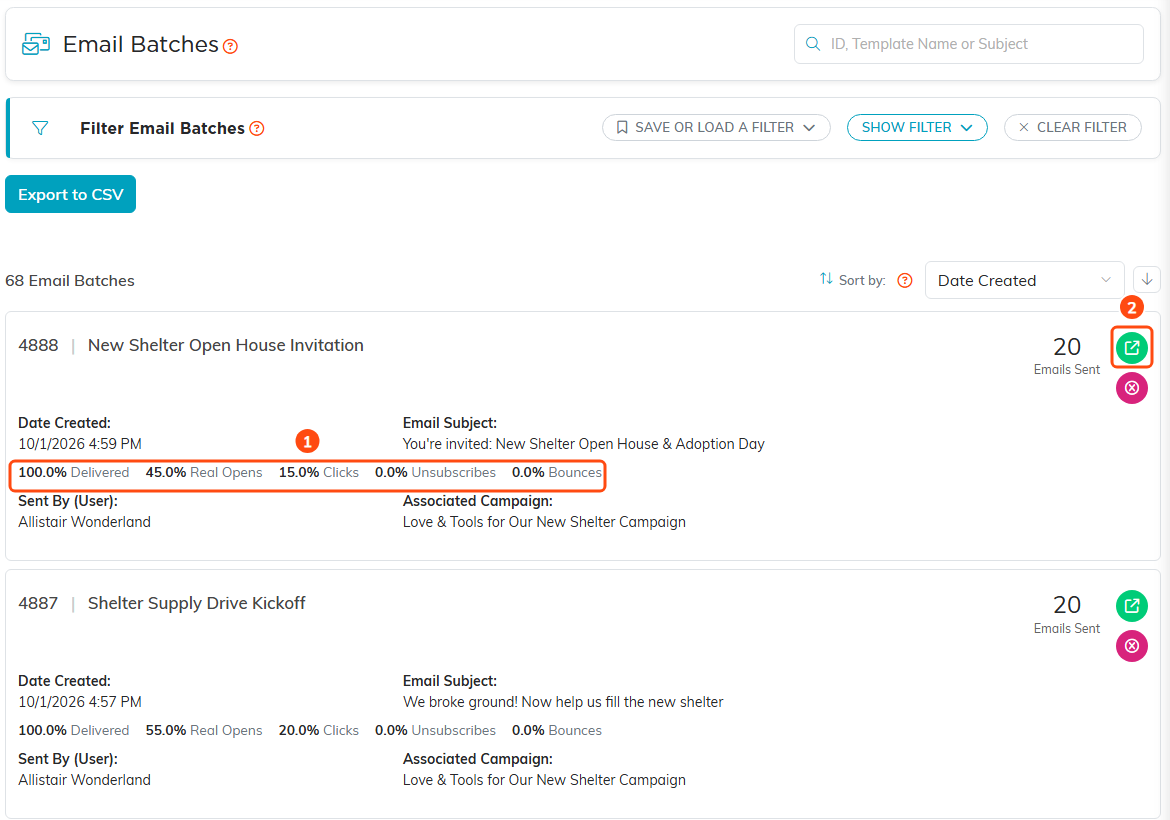
Every batch your team has sent, with its rates (1) and the open icon (2).
The Email Batch Workspace
Opening a batch takes you to the Email Batch Workspace, which opens on its Batch Details tab and has seven tabs:
- Batch Details: The batch's key information, the send date, the template name, the subject line, and the campaign it's tied to. You can change the associated campaign here. This tab also holds the record-level permissions, Set As View Only and Lock This Record. While a send is scheduled, sending, paused, stopped for safety or canceled, a Sending card here shows its progress and lets you pause it, edit the emails not yet sent, resume it or cancel the rest, as its state allows (a send stopped for safety can only have the rest canceled); see How to Choose When a Mail Room Email Sends.
- Template: A read-only look at the exact template that went out, the from address, greeting, subject, and body, so you can see precisely what recipients received.
- Emails: The full list of the emails in this batch and their status, so you can see who was sent to and how each message did.
- Unsubscribes: Everyone who unsubscribed from this batch. When someone unsubscribes from one of your emails, Argenta automatically marks Do Not Solicit on their constituent record. That withdraws marketing consent only, so transactional notices such as signup confirmations still reach them. Their Do Not Email flag is left alone; set that yourself to stop every email.
- Complaints: Anyone who reported the email as spam. If a supporter says they aren't getting your emails, check here first.
- Report: How the email did: delivered, real opens, clicks, unsubscribes, bounces and spam complaints, the links people clicked, the gifts that came in afterwards, and the people behind each figure. You can share the totals with a link or a PDF; see How to Read an Email's Report: Opens, Clicks, Gifts and Sharing. The Mail Room's Recent Sends and its View Campaign Report button open a batch straight on this tab.
- Record Permissions: Control who can view or edit this batch. Add a user so they can still edit it when it is view only, or open it when it is locked.
If you change anything on the Batch Details tab, clicking another tab saves it first.

The batch workspace and its tabs, opening on Batch Details.
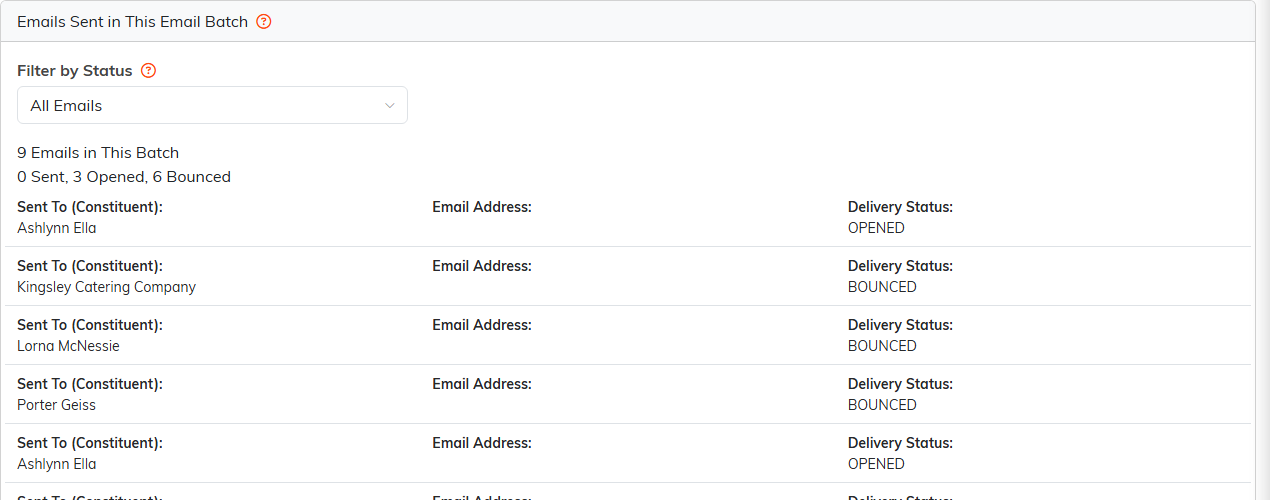
The Emails tab, one row per recipient with its delivery status.
What the Batch Tells You
Argenta tracks each batch's performance for you: how many emails were sent, opened, and clicked, how many bounced, how many people unsubscribed, and how many reported the message as spam. Together these numbers show you how the send performed and who to follow up with. They are all on the batch's Report tab.
