Knowledge Base Article
Where to Find Public Form URLs in Argenta
Public form links live in two places in Argenta, and knowing which is which saves a lot of hunting. Your organization-wide forms are in the left menu. The link for one specific event, campaign, auction, or waiver lives on that record.
Organization-wide forms: the left menu
In the left sidebar, open Our Public Interfaces (the globe icon). What you see depends on which parts of Argenta your organization uses, so your list may be shorter or longer than this one:
- Public Campaign Form and Public Donation Form, if you use Fundraising.
- Public Email Form, for newsletter and mailing-list sign-ups.
- Public Text Opt-In Form, for text-message sign-ups.
- Public Event Form, if you use Event Management.
- Volunteer Interest Form, which every organization has, and Volunteer Task Sign-Up Form, if you use Volunteerism.
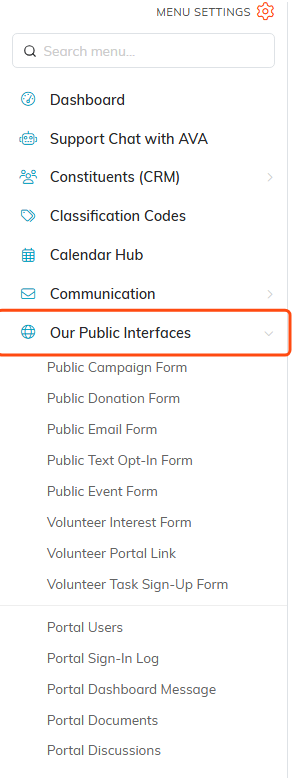
Which menu items hand you a link
This is the part that trips people up, so it is worth saying plainly.
- Public Email Form, Public Text Opt-In Form, and Public Donation Form give you the link directly. The email and text forms show the URL in a read-only box with a copy icon and an open-in-new-tab icon beside it, and the email form also gives you embed code for your own website. The donation form puts its link on a Share This Form card, with a Copy button and a QR code.
- Public Campaign Form and Public Event Form do not. Those two pages are Default Settings pages, where you set how every new campaign or event form should look. There is no single link, because the real link belongs to an individual campaign or event.
- Volunteer Interest Form and Volunteer Task Sign-Up Form open the live public form in a new tab. Copy the URL out of your browser's address bar.


The link for one specific record
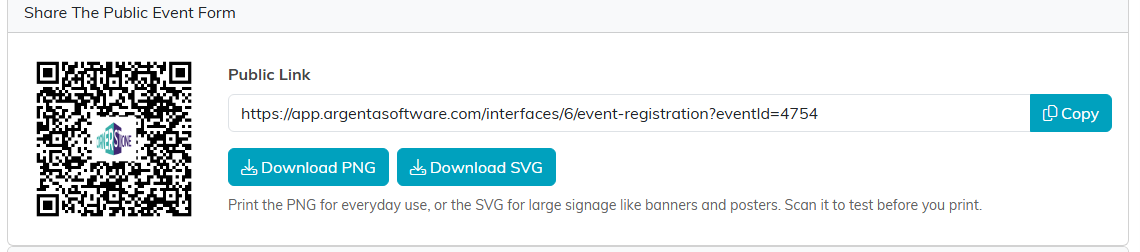
For a single event, campaign, auction, or volunteer task group, open that record and go to its Public Form Design tab. At the top you will find a sharing card with:
- Public Link. The URL in a read-only box with a Copy button.
- A QR code, branded with your organization's logo in the middle.
- Download PNG and Download SVG. Use the PNG for everyday printing and the SVG for large signage like banners and posters.
Campaigns show two cards, one for the donation form and one for the sales form, because a campaign can use both.
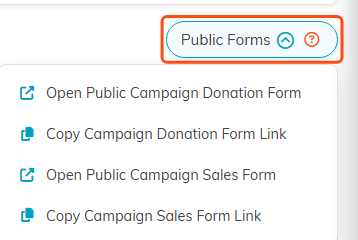
There is a second shortcut on some records. Open the record and look for the Public Forms dropdown near the top, which offers an open link and a copy link without leaving the page you are on. Campaigns, auctions, and volunteer task groups all have it.
Waivers work the same way, with the link and QR code on the Publish tab. See How to Create, Share, and Track Waivers in Argenta. Surveys keep their Share link on the Details tab once the survey is published, covered in Getting Started with Surveys.
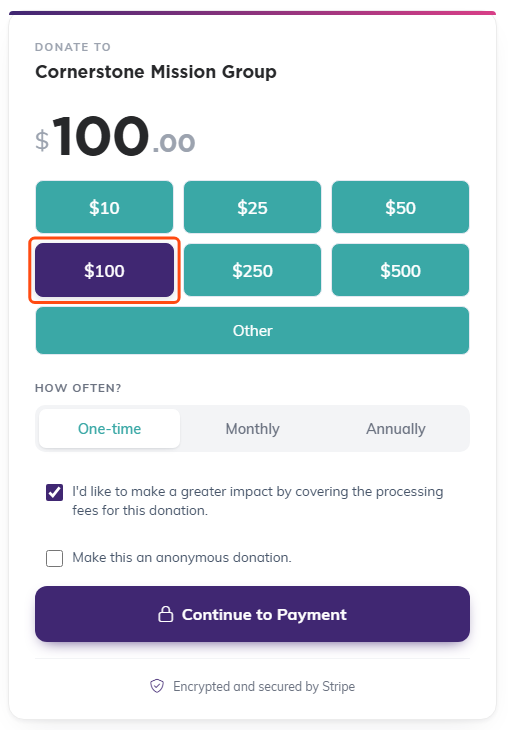
Filling in the gift amount for the donor
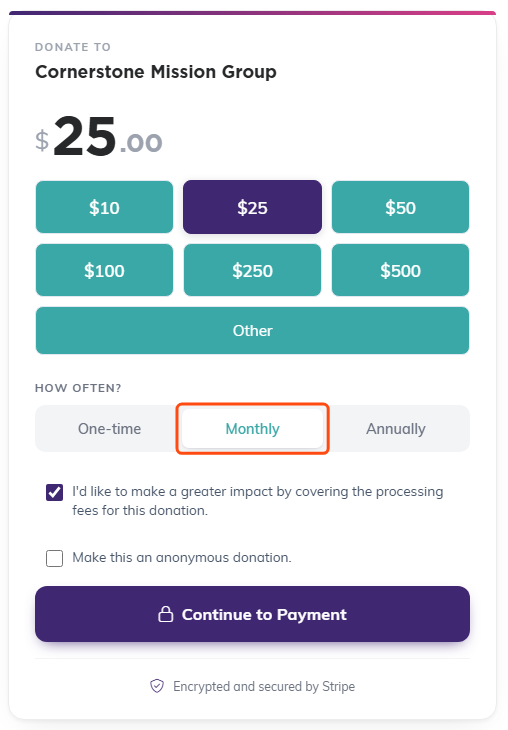
Your donation form link can arrive with an amount already in it, so a donor who clicks a Give $100 button in your appeal email sees $100 waiting for them instead of an empty form.
Add ?Amount=100 to the end of the link. If your link already has something after a question mark, such as ?CampaignID=12, join the second one with an ampersand instead: ?CampaignID=12&Amount=100.
- If the amount matches one of the buttons on your form, that button opens already selected.
- If it does not match a button, it goes in the Other box where the donor can see and change it.
- Nothing is locked. The donor can still give a different amount.
- Cents are fine, so ?Amount=25.50 works. If the amount is missing or does not make sense, the form simply opens at $0.00 the way it always has.
Give each button in an email its own link, so a Give $50 button carries ?Amount=50 and a Give $250 button carries ?Amount=250. Send yourself a test first and click every button.
Saying how often, not just how much
The same donation link can also say how often, so a Give $25 A Month button in your appeal opens the form already set to Monthly rather than One-time. Add &Recurrence=monthly, or ?Recurrence=monthly when it is the only thing after the question mark.
- monthly opens the form on Monthly.
- yearly, annual and annually all open it on Annually, which is how that choice is labelled on the form. Use whichever of the three words suits your own button.
- none, onetime and one-time open it on One-time.
- Anything else is ignored and the form opens on One-time exactly as before. Either way the donor can still change it.
Put the two together for a complete appeal button: ?Amount=25&Recurrence=monthly.
Pointing a volunteer link at one location
A volunteer task sign-up link can open on a single location, so a family lands on their own school or site instead of the whole list. Add ?location= and the location name, for example ?location=Lincoln Elementary, joining it with an ampersand if the link already has something after a question mark. Capitalization does not matter.
If every shift at that location has been taken, the page says so at the top and still lists everything else that is open, so a full location points somebody somewhere useful instead of looking broken.
Check it before you share it
The design pages for the email and text forms each have a Save & Preview button that saves your edits and opens the real form in a new tab. The donation form designer keeps your changes as a draft instead: Preview Draft shows it privately, and Publish puts it live. Use them. It is much easier than finding a typo after the link is on a flyer.
If you print a QR code, scan it yourself once before the print run.

The short link and the QR code
Each of those sharing cards, and the donation form's Share This Form card, gives you a short link. It looks like argentasoftware.com/s/ followed by a short code. Short links already printed on a flyer or sent out keep working, because the link opens on either address. That short link is what the Copy button copies, and it is what the QR code on the same card points at.
You do not have to create it or switch it on. It is there the first time you open the card, and it is the same link every time you come back, so a code you printed last month still works today.
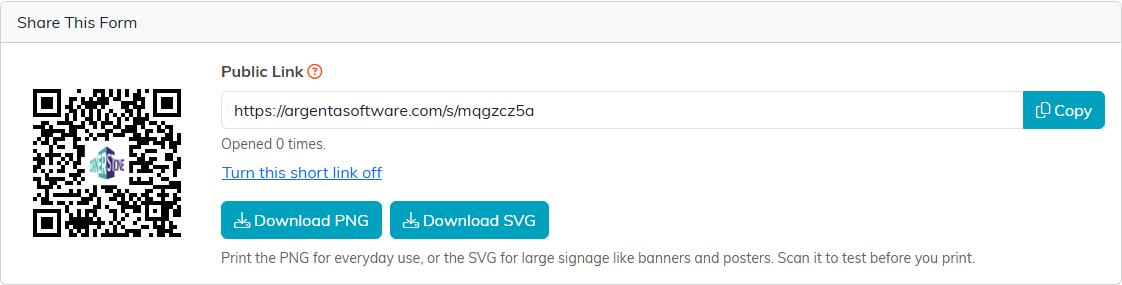
Opened, just under the link, counts how many times somebody has followed it. A link preview, the little card a chat app or an email draws when it spots a web address, does not count as an open, so the number stays a count of real people.
Turn this short link off retires the link. A code already printed on a flyer stops leading anywhere, which is what you want once the form behind it has closed. Meanwhile the card, and the Copy link actions on the record, switch to the form's full address, which keeps working. Turn it back on later and you get the same code back, still carrying the opens it had already counted.
Documents work a little differently, because a document has no Share card at all while the file is private. There the switch Anyone with the link can open this file does the same job: switch it off and the short link retires with it, switch it back on and the same link comes back.
Portal links
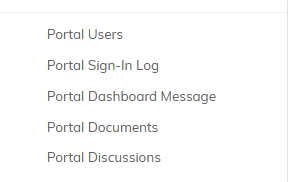
If your organization uses portals, the portal links and their settings are in the same Our Public Interfaces menu: Portal Users, Portal Sign-In Log, Portal Dashboard Message, Portal Documents, and Portal Discussions.
Good places to put your links
- On your website, as a button or a menu item.
- In your email signature and your newsletter.
- In social posts, where a short link and a clear ask do the work.
- As a QR code on printed flyers, table tents, and event signage.
Taking payments through any of these forms means connecting Stripe first. See How To Setup Your Stripe Connection.
