Knowledge Base Article
How to Create, Share, and Track Waivers in Argenta
The short version: Argenta's Waivers tool lets you build a waiver once, publish it, and share a link or QR code so people can read and sign it from any phone or computer. Every signature is saved as a permanent, tamper-evident record you can search, filter, print, and export. You will find it under Operations in the left menu. Only team admins can add or edit waivers. Signed Waivers also opens for Constituent Managers (and constituent read-only users), Event Managers and Participant Managers; anyone else does not see Waivers in the menu.
What you can do with Waivers
- Build a reusable waiver in your own words.
- Ask for exactly the details you need: date of birth, phone, address, emergency contact.
- Add your own questions and flag any answer a staff member should look at.
- Cover children under a parent or guardian's signature.
- Collect a real electronic signature, drawn or typed.
- Set waivers to expire after a set number of months, or never.
- Share by link, by QR code, or run a sign-in kiosk at your event.
- Keep every signed waiver as a searchable, printable record.
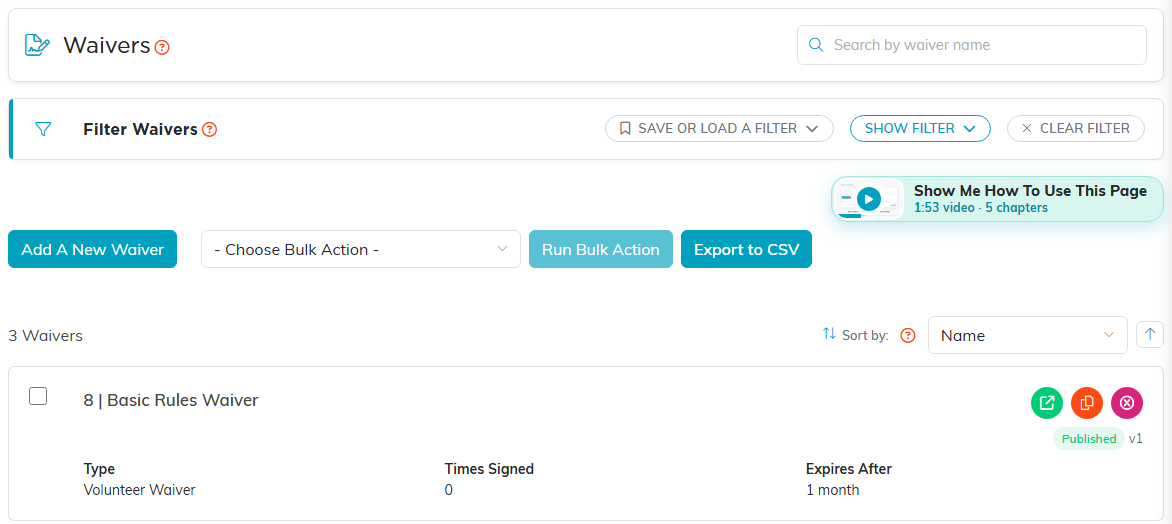
Every waiver you build lives here.
Build a waiver
Go to Operations > Waivers and click Add A New Waiver. Argenta asks for the Waiver Name first, which is the only required field. Click Add & Enter Details and the waiver is created, opening the Waiver Workspace, organized into five tabs: Waiver Details, Waiver Form Design, Waiver Questions, Publish, and Signed Waivers. Each tab saves on its own when you move to another, so you will not lose your work.
Every Waivers page, from the Waivers list to each tab of the Waiver Workspace, has a short Show Me How To Use This Page video near the top right; click it to watch, and use its chapters to jump to the part you need.

The five tabs of a waiver. You work left to right.
1. Waiver Details (the settings)
The Settings card holds everything about how the waiver behaves.
- Waiver Name. The title people see at the top of the page they sign, so give it a name they will recognize. This one is required.
- Expires After (months). How long a signature stays valid before that person needs to sign again. Enter 0 for a waiver that never expires.
- Waiver Type and Category are optional labels that help you organize a growing list.
- Intro Text. An optional line shown above the waiver, for example "Please read carefully and sign before your first session."
Below that, three groups of switches:
- What we ask people for. Turn on only what you need: Date of birth, Phone number, Address, Emergency contact, and Ask to join the mailing list. A name is always asked for. Ask to join the mailing list adds an optional tick box to the signing page, worded "You can email me about news and events" and kept separate from the waiver itself. Ticking it subscribes the signer to General Email Communications, so they appear under Mail Room > Subscriptions. Leaving it unticked changes nothing: it never unsubscribes anyone.
- Children. An adult may add children to this waiver lets one person cover a whole family. Turning that on reveals A parent or guardian must sign for them, which you almost certainly want, because a waiver signed by a minor generally has no legal force.
- Other. Email them a copy of what they signed sends every signer their own copy of the signed waiver, and is on unless you turn it off; with it off nobody is emailed and the signing form stops offering a copy. Also Allow kiosk mode (sign-in on a shared tablet) and Active. Turning Active off is how you retire a waiver: its signing link stops working, and everything already signed stays exactly as it was. A waiver anyone has signed cannot be deleted at all, because each signature is a legal record of the version that person agreed to.
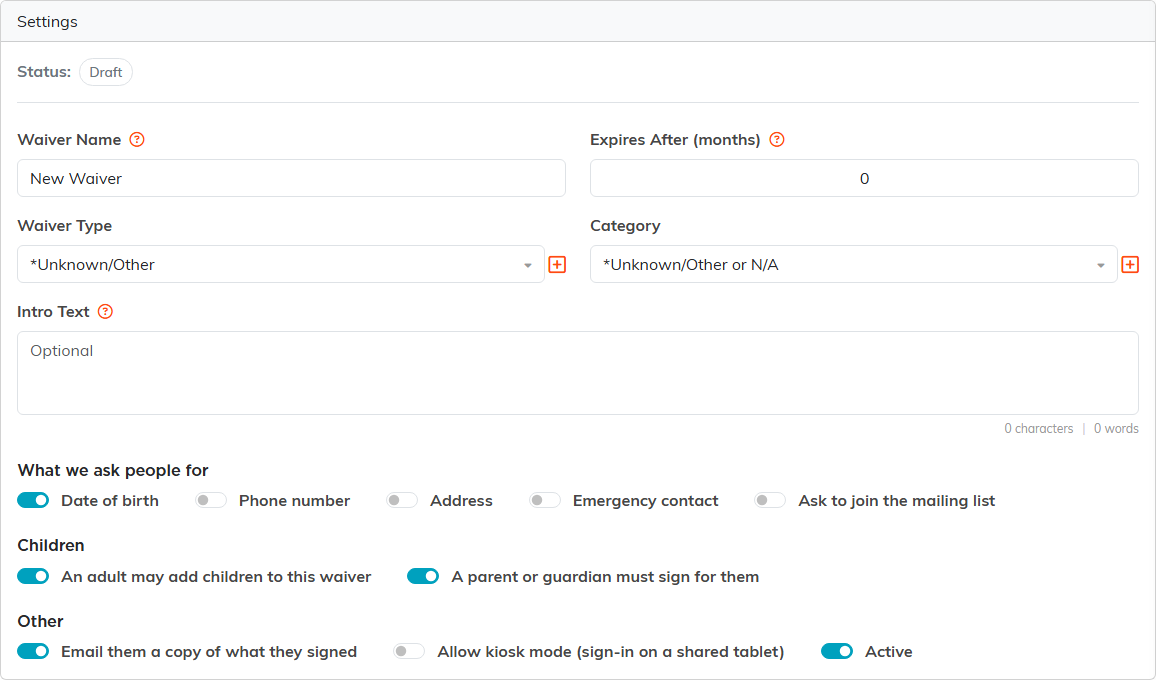
A brand new waiver starts as a Draft with these defaults. Every switch here changes what the signer is asked.
2. Waiver Form Design (your wording)
Type or paste the actual text of your waiver here. This is the agreement people read and agree to. Editing it later never changes anything that has already been signed.
Below it, the Spanish Version (Optional) card takes Waiver Name In Spanish, Introduction In Spanish and The Waiver In Spanish. Fill it in and people can sign in English or Spanish. Leave it blank and the waiver stays English only.
To fill it in for you, click Translate to Spanish at the top of that card. It fills in every Spanish field from your English, the questions on the Waiver Questions tab and their choices included. If the waiver already has some Spanish, it asks before replacing all of it. Nothing is saved or published until you do: read it over, then save. A waiver is a legal release, so have someone who reads Spanish check it before you publish. If the translation cannot be trusted or does not finish, you get a message saying why and nothing is changed.
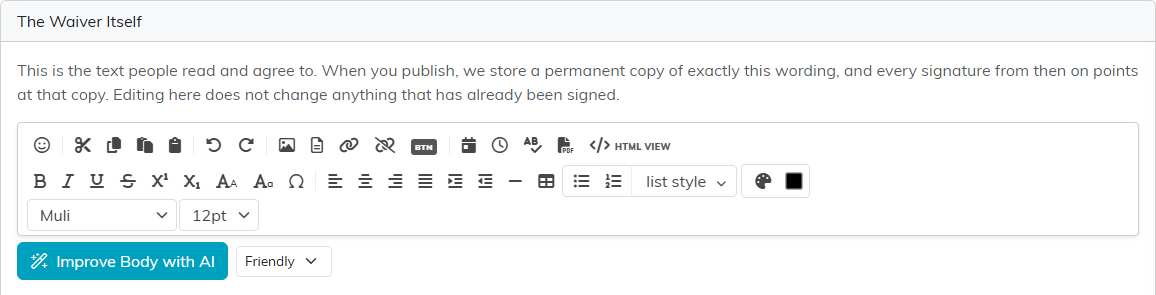
This is the wording people agree to. Publishing freezes a copy of it, so later edits never change what someone already signed.
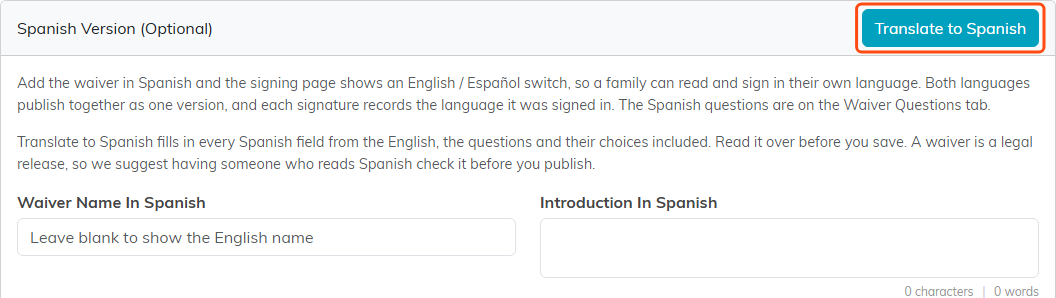
The Spanish Version card, with Translate to Spanish at the top.
3. Waiver Questions (optional)
Click Add A Question to ask things like "Any allergies?" or "Do you have a heart condition?" For each question you set:
- Question. What you are asking.
- Answer Type. One of Text box, Checkbox, Choose from a list, Date, or Initials. Choosing from a list adds a Choices (one per line) box, and you have to type at least one choice into it. The tab will not save a Choose from a list question with an empty Choices box, and it names the question so you can find it. A question left that way would show the person signing an empty space with nothing to pick, and a required one would stop the waiver being signed at all. Every question also needs its text: save with an empty Question box and the tab asks you to type the question or remove it with the X on its row, which asks you to confirm first.
- Flag the waiver if they answer. Type the answer that should raise a flag, and leave it blank to never flag. The person signing never sees which answer sets one off.
- Required and Ask for each person on the waiver. Leave the second off and the question is asked once for the whole waiver. A required Checkbox has to be ticked before the waiver can be signed, so it works for an attestation the person has to actively agree to, such as confirming an age.
- Also save the answer to the signer's record. Choose a field here and the answer is copied onto that person's own record when they sign, so it never has to be typed in again by hand. You can save to Date of Birth, Place of Birth, Social Security (last 4), Maiden Name, Sex, or Driver's License Number. This is only offered on questions asked once for the whole waiver, because a per-person question has no record of its own to write to. If the answer is blank or does not fit the field it is skipped, so it can never wipe something already on the record.

Optional, and empty until you add one.
When the waiver has a Spanish version, each question also takes a Question In Spanish (Optional), and a list question takes Choices In Spanish (one per line, in the same order). Type one Spanish choice for each English choice, in the same order, or the tab will not save. A question with no Spanish wording is shown to a Spanish signer in English. A Spanish signer's pick from a list is stored as the matching English choice, so your flags still work.
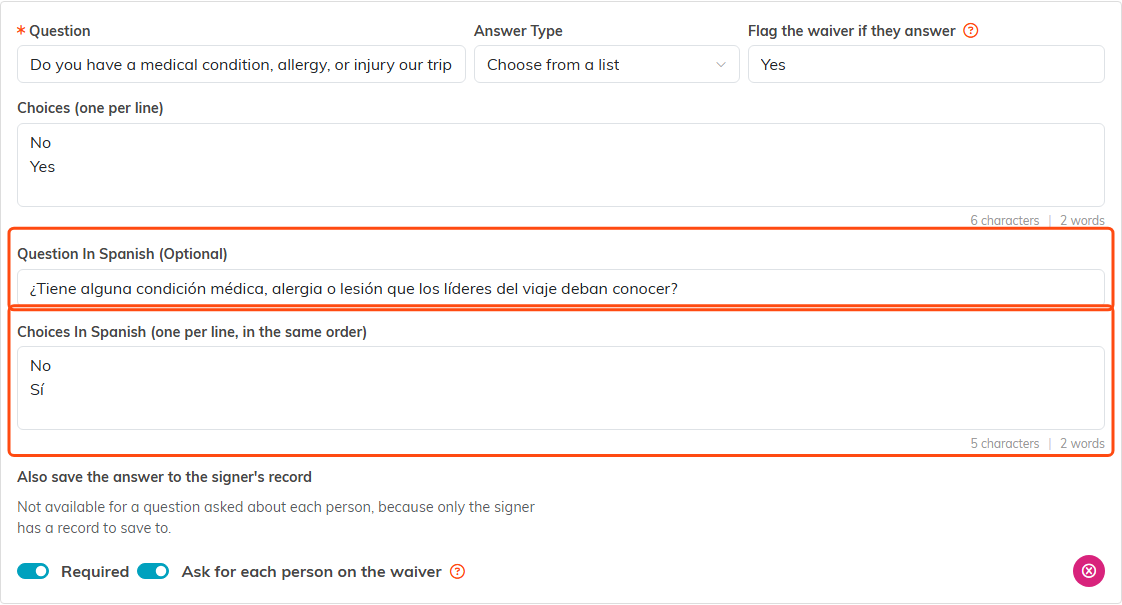
Each question takes its Spanish wording under the English.
4. Publish
When your wording is ready, open Publish and click Publish. This locks in a version, so the exact document people signed is preserved even if you change the wording later. Once you have published once, that button reads Publish A New Version. Everyone who already signed keeps the version they agreed to, and new signers get the updated one. A Spanish version is published along with the English, and the tab tells you whether people can sign in both languages or English only.

The Publish tab tells you what is still missing. Nobody can sign until you press it.
Share your waiver
Publishing reveals a Share section on the same Publish tab, with everything you need to get people signing:
- A Signing link with a Copy button. Email it, text it, or post it anywhere.
- A Spanish signing link, when the published version has Spanish. It opens the same page already in Spanish.
- A Scan To Sign QR code, branded with your logo, for flyers, a sign-in table, or a screen at your event. Download PNG for everyday printing and Download SVG for large signage.
- A Kiosk link, if you turned on kiosk mode, that resets to a fresh blank form after each person signs. That is the one to open on a shared tablet at check-in.
Handing out the link or QR code is what invites someone to sign. A waiver is not tied to a specific event sign-up, so you decide who gets the link and when.
What signing looks like for the person
They open your link and see the waiver name, your intro line, and a short form:
- Your details. Name is always asked. Email, phone, date of birth, address, and emergency contact appear only if you turned them on.
- Anyone else this covers. If you allow children, they use Add A Person here.
- Please read this carefully. The waiver text itself.
- A few questions. Anything you added.
- Sign here. They draw their signature or type their full name and tick the box agreeing to sign electronically. If you turned on Ask to join the mailing list, an optional You can email me about news and events box sits here too, marked as not part of the waiver; ticking it subscribes them to General Email Communications. Then they click Sign This Waiver.
They get a thank-you screen. If Email them a copy of what they signed is on and they entered a valid email address, we send them a copy of exactly what they signed. With that setting off, no copy is sent and the form does not offer one.
On a waiver with a Spanish version, an English / Español switch at the top changes every label, button and message, and someone who signs in Spanish gets their copy in Spanish. If you publish a new version while someone has the page open, their signature is not accepted against the old one: the page loads the new version and asks them to read it and sign again.
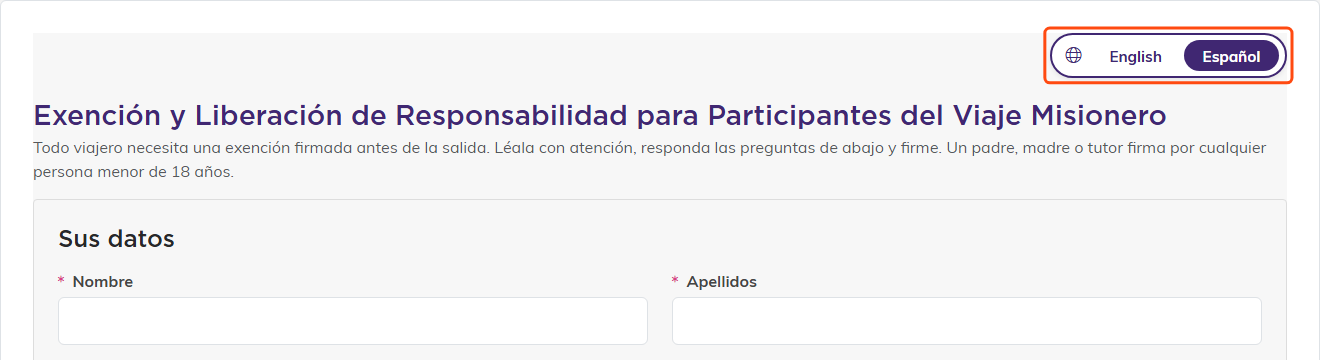
With Español picked, the whole page changes language.
Children and guardians
If you allow children and require a guardian, an adult signs for anyone under 18, and the guardian's name is required; their relationship and phone are optional. Argenta works out who is a minor from the date of birth, so a child cannot sign for themselves.
The form checks this before anyone signs. When the date of birth in Your details is under 18, the signer is told so: on a waiver that needs a guardian, the parent or guardian puts their own details there and adds the child with Add A Person, and on a waiver that does not allow children, it cannot be signed for anyone under 18. A date of birth in the future is refused. After signing, the page goes back to the top so the thank-you is in view.
When waivers expire
If you set Expires After (months) to a number, each signature is stamped with its own expiry date the moment it is signed. Set it to 0 and signatures never expire.
Changing this setting later only affects waivers signed from that point on. Anything already signed keeps the expiry it was signed with. Expired signatures show an "Expired" tag in your list. There is no automatic reminder, so when someone needs to renew they simply open the link and sign again, which creates a fresh record.
Find and review signed waivers
- Operations > Signed Waivers is your full list of everyone who has signed. Search by the signer's or a child's name or email. The Show filter narrows it to Flagged for review, Includes a child, Expired, or Still valid, and Date Signed filters by when. Export the list to a spreadsheet any time.
- Click any row to open the full record: who signed, who is covered, their answers (flagged ones stand out), the signature itself, the exact wording they agreed to, a note that they ticked the optional news-and-events box (shown only when they did), and a Record details block showing the Waiver version, the date, and a Tamper check (SHA-256) code. Use Print / Save as PDF for your files.
- A waiver signed in Spanish says so: Signed in reads Spanish, and the wording they agreed to is shown in Spanish.
- Inside one waiver, its own Signed Waivers tab shows only the people who signed that waiver.
- On a person's own record, the Waivers item in the workspace menu lists every waiver they signed or are covered by, such as a child on a parent's waiver, with a flag on any that is flagged for review.
Because waivers are shared by link rather than tied to a sign-up roster, there is no built-in "who has not signed yet" report.
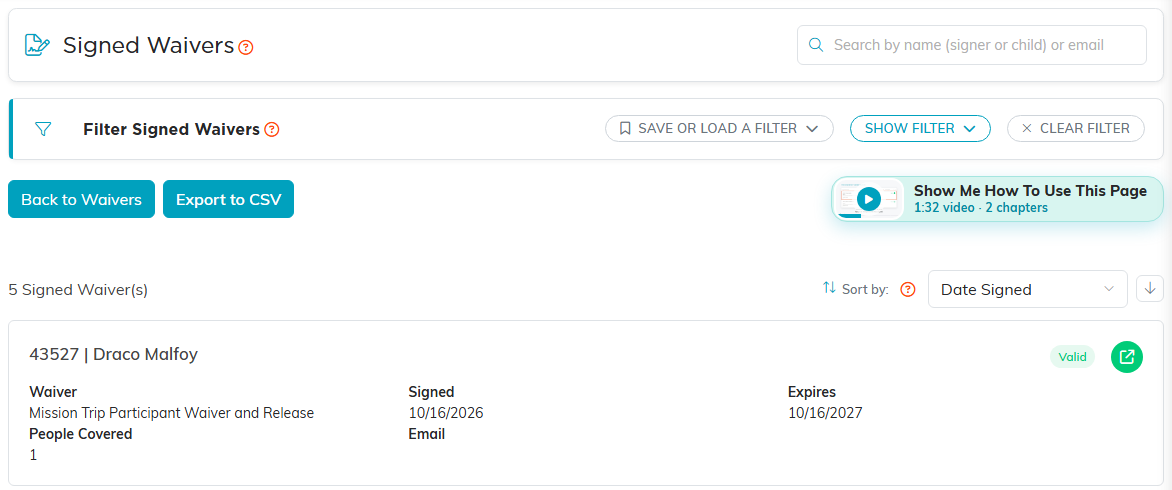
Search by the signer or the child, and export the lot to CSV.
Edit, take offline, or delete a waiver
- Edit. Open the waiver, change any tab, then publish again to make your changes live. Signatures you have already collected are never altered.
- Take it offline. Untick Active on the Waiver Details tab. The link stops accepting new signatures, and all of your signed records stay exactly where they are.
- Delete. You can delete a waiver only while nobody has signed it. Once there is a signature the waiver cannot be deleted, because a signed waiver is a legal record. Untick Active instead.
- Signed waivers themselves cannot be edited or deleted, by design. They are your proof that someone agreed.
Frequently asked questions
Do people need an Argenta login to sign? No. The signing link is public. Anyone can open it and sign from any phone, tablet, or computer.
Is a typed name really a signature? Yes. Before signing, the person ticks a box agreeing that their electronic signature has the same legal effect as signing on paper. With every signature Argenta records that consent, the exact document they agreed to, the date and time, the device, and a tamper-check code.
Can one person sign for their children? Yes. If you allow children on the waiver, an adult adds each child and signs once to cover everyone.
What happens if I edit the waiver after people have signed? Nothing changes for them. Each signature stays attached to the exact version that person agreed to. Your edits go live for new signers when you publish a new version.
Can I send a reminder or ask someone to re-sign? Not automatically. Share the signing link again and they can sign a fresh copy whenever they need to renew.
How do I stop using a waiver without losing the signatures? Untick Active on the Waiver Details tab. That stops new signatures while keeping every signed record intact.
For every other public link your organization hands out, see Where to Find Public Form URLs in Argenta.
