Knowledge Base Article
Overview, Working with Mission Trip Enrollments
This article covers the Mission Trip Enrollment Workspace: how to open an enrollment, what's on each tab, how to edit it, and how deleting works. To create a new enrollment, see Add A Mission Trip Enrollment.
Open an enrollment
From the left menu, go to Mission Trips > Enrollments. Find the enrollment with the search box or filters, then click the green open icon to open the Mission Trip Enrollment Workspace.

The search box and the filter bar sit above the enrollments.
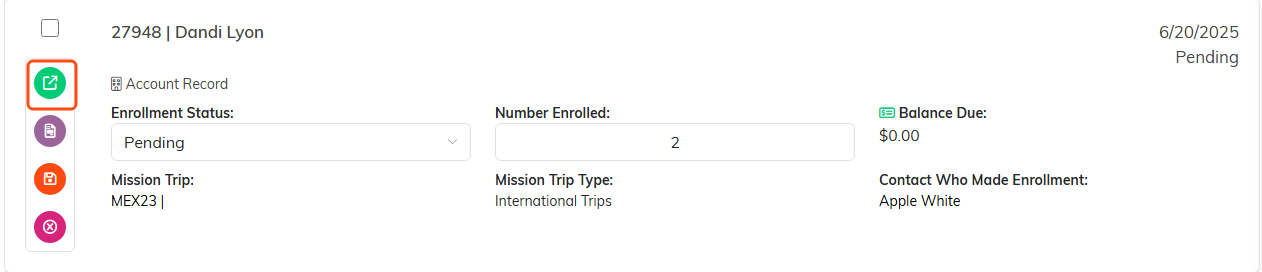
The green icon opens the enrollment workspace.
The enrollment workspace tabs
The workspace opens on the Enrollment Details tab and includes these sections:
- Enrollment Details - the main enrollment record.
- Participants - the people on this enrollment.
- Billing - number enrolled, total cost, total payments, and balance due, plus where you add enrollment fees, additional fees and forfeitures, and enrollment credits.
- Payments & Refunds - the enrollment's payments and refunds, and where you add them.
- Adjustments - a history of headcount changes (date, adjusted number, and who made it).
- Vehicles, and Requests (available for GMT teams).
- Enrollment Files and Enrollment Notes.
- Record Permissions - who can view or edit this enrollment.

Every tab in the enrollment workspace.
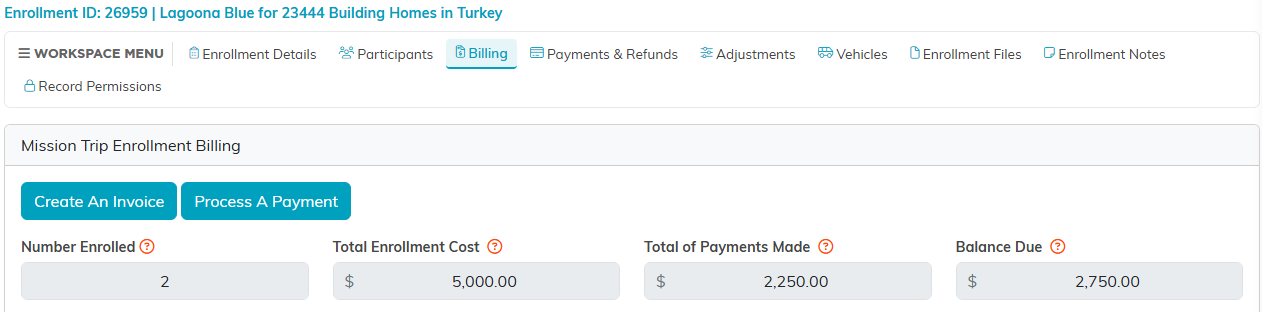
The Billing tab opens with the four running totals.
Edit the enrollment
On the Enrollment Details tab, update the fields you need, then click Save All Changes & Continue or Save All Changes & Exit. You can add files and notes from the Files and Notes tabs. For step-by-step help, see Add Related Files and Add A Note.
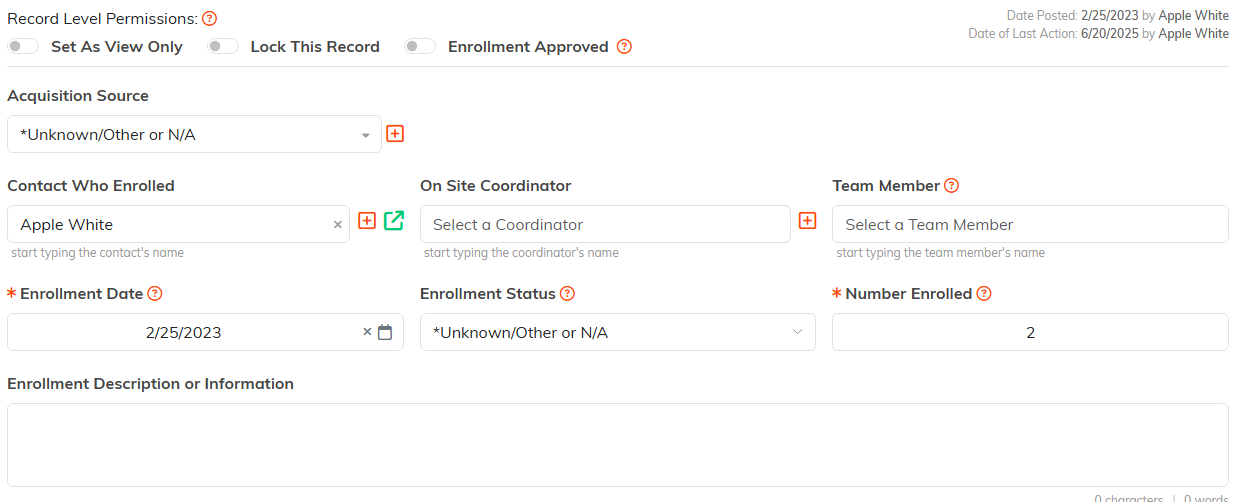
The Enrollment Details tab holds the main record.

Save when you are done.
On the Billing tab you edit fees, forfeitures, and credits inline and click the save icon. On the Payments & Refunds tab, open a payment or refund with its open icon to edit it, where you can also post it to the General Journal by choosing a Fund, a Deposit or Checking account, and a Chart of Accounts account.
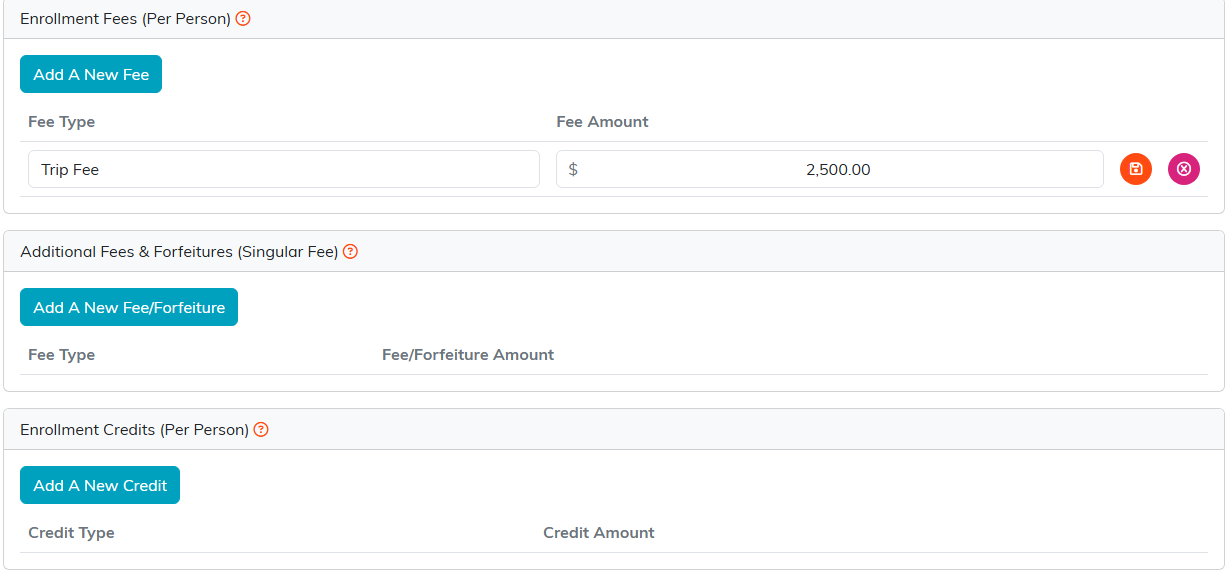
Each row on Billing edits in place and carries its own save icon.
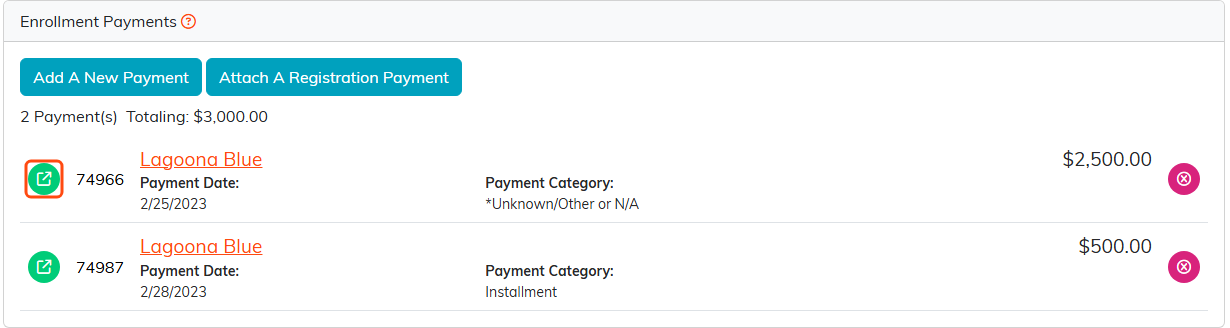
Open a payment or a refund with the green icon on its row.
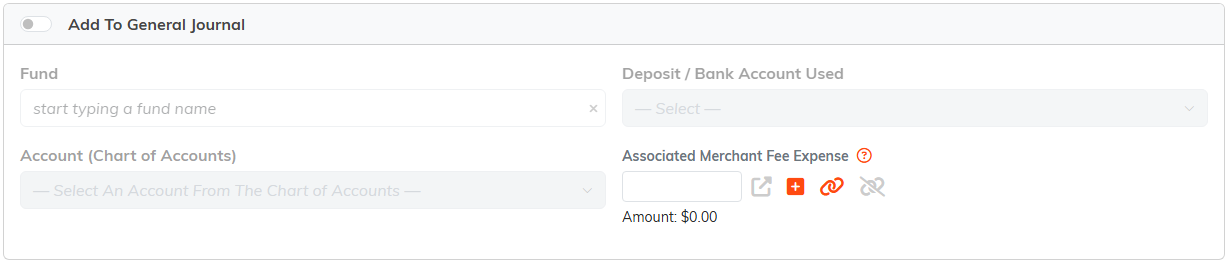
The general journal pickers live on the payment itself.
Deleting records
Wherever you see a delete icon you can remove that record, and you'll be asked to confirm. A few rules to keep in mind:
- An enrollment can be deleted only while no money has touched it: Argenta refuses the delete if it has payments, refunds, credits, additional credits, reserved credits, participant forms, additional fees or forfeitures, or an invoice with a total. Deleting an untouched enrollment also removes its fees, payment schedule, adjustments, vehicles, requests, notes and files, and takes its people off the trip's Participants list (their own records stay).
- On the Billing tab you can delete enrollment fees, additional fees and forfeitures, and enrollment credits.
- On the Payments & Refunds tab you can delete a payment or refund. Deleting a refund also removes its General Journal entries, notes and files, the same as deleting it from Refunds Payable. Be very careful not to delete credit card payments processed by Stripe.
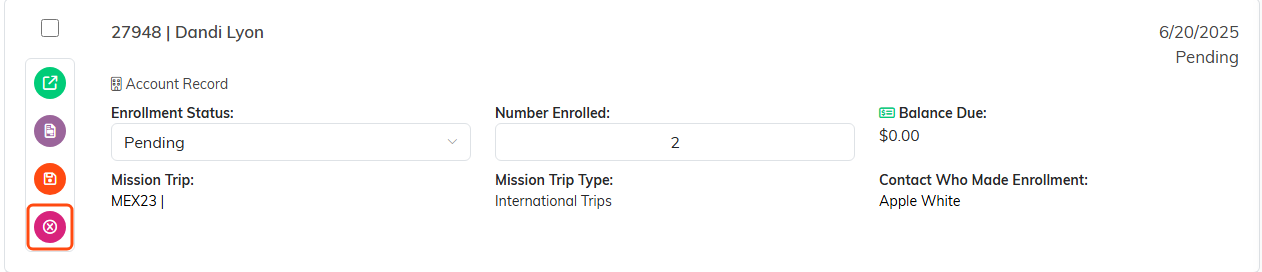
The delete icon sits at the bottom of the row's icon stack.
Deletion is permanent and can't be undone.
