Knowledge Base Article
Overview, Working with Projects
Every project in Argenta has its own workspace holding the task list, the team, the discussions, the files, and the billing. This article covers how to open a project, work in it, and delete things safely. To create one, see Add Projects.
Open a project
- Choose Workflow & Productivity > Project Management.
- Find the project by searching or by using the filter panel. You can narrow by manager, status, priority, group, type, category, your organization's chapter, division, or department, and by a date range.
- Click the green open icon on the project card.
The dropdown in the title bar switches between List View, Board View, Calendar View, and Timeline View if you would rather find the project by stage or by date.
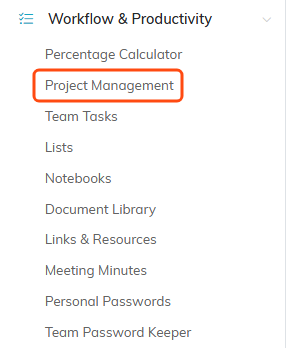
Project Management sits under Workflow & Productivity in the main menu.

Each project is a card. The green open icon on the left opens its workspace.
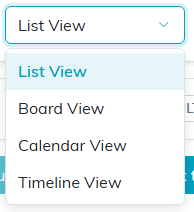
The title bar dropdown switches between the four ways of seeing the same projects.
Working in the workspace
The workspace menu runs across the project and each page owns one part of the work: Project Details, Project Tasks, Sprint Planning, Project Checklists, Project Team, Project Discussions, Meeting Minutes, Time Tracking, Client/Customer Billing, Specifications, Project Spark, Connections, Notifications, Project Files, Project Notes, Contact Log, and Record Permissions.
Each page saves separately, so save before you move between them.
- Project Details: edit the fields and click Save & Continue to keep working or Save & Exit to return to the list. Cancel & Exit leaves without keeping your latest changes. The Save icon (a floppy disk) at the top right saves at any time.
- Project Tasks: click Add Task to add work, and tick a task's checkbox to complete it. This list is what drives the project's progress meter.
- Project Team: rows are editable in place. Change a member's role or hours, then click the orange save icon on that row.
- Project Discussions: click New Thread to start a conversation, or open a thread and click Reply. Editing a thread lets you change its topic and category, lock it against new replies, or set it view only.
- Project Checklists: create a named checklist, then add its items and tick them off as they are done.

The workspace menu. Each page owns one part of the project.

The buttons at the foot of Project Details.
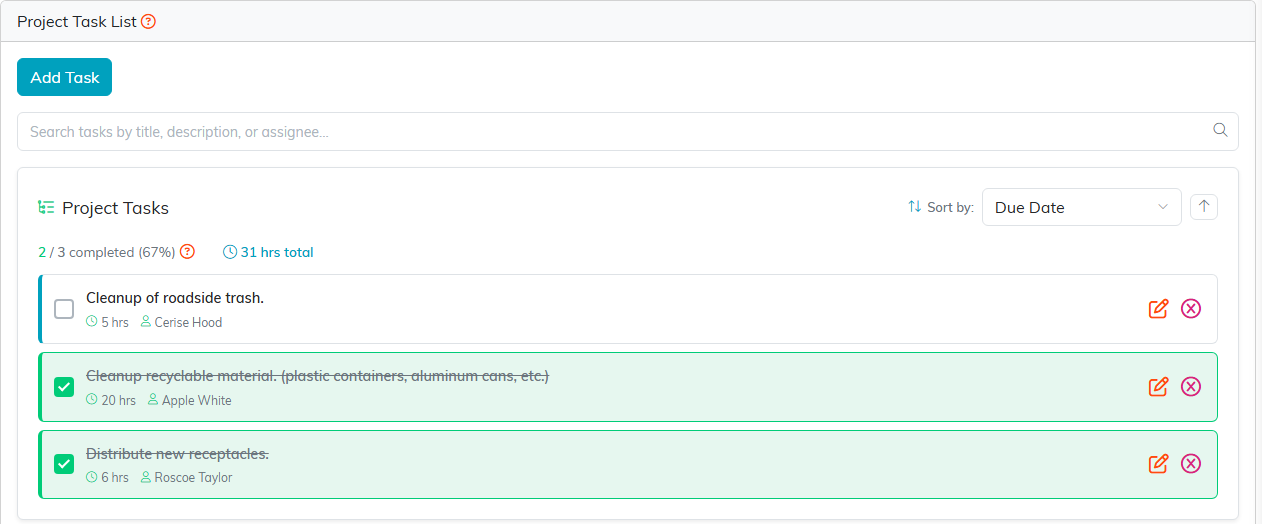
Project Tasks. Ticking a task's checkbox completes it and moves the progress meter.
Controlling who sees a project
Two switches at the top of Project Details cover the record itself. Set As View Only lets others see the project without editing it, and Lock This Record restricts access to it. Finer control lives on the Record Permissions page of the workspace.

Both switches sit at the top of Project Details.
Files and notes
Attach documents on Project Files and record information on Project Notes. Step by step help is in Add Related Files and Add A Note to the Notes Section.
Deleting
Wherever you see a delete button you can remove that record. Argenta asks you to confirm first. Deleting cannot be undone, so be sure before you answer yes. Deleting a project also deletes its discussion threads.
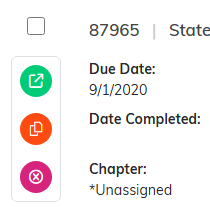
The pink delete icon on a project card. Argenta asks you to confirm before it removes anything.
- A task removes it from the task list, which changes the project's progress percentage.
- A discussion thread takes the whole thread with it, including every reply.
- A checklist deletes every item inside it. You can also delete a single item and leave the rest.
- A team member removes them from this project only. Their constituent record is untouched.
- The project itself takes its tasks, team, discussions, checklists, files, and notes with it. Its meeting minutes are kept, just no longer linked to any project. If you only want it out of the way, set the status to Cancelled/Void instead and keep the history.
