Knowledge Base Article
Add Member Payments
Membership Payments track the dues and other payments your members make. Argenta records each one as a payment you can post to your general journal, refund, and receipt.
Add a membership payment
- Go to Membership > Membership Payments. This is the full list of your membership payments.
- Click Add New. An Add A New Payment box opens asking for four required things: Who Made The Payment, the Payment Type, the Payment Date and the Amount. Because you came in on the Membership Payments list, Payment Type arrives already set to Membership Payment, and leaving it that way is what keeps the new payment in this list.
- Click Add Payment & Enter Details. The payment is created and the payment workspace opens on the Payment Details page. Cancel & Exit closes the box without adding anything.
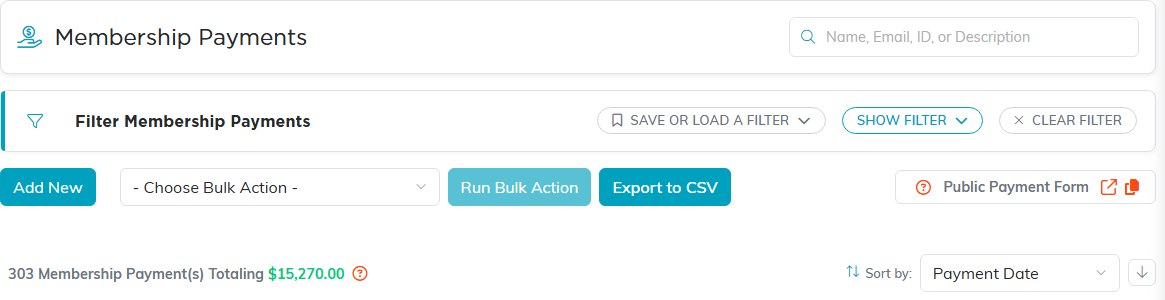
The list totals every membership payment it is showing you.
Payment Details fields
- Record Level Permissions: the Set As View Only and Lock This Record switches.
- Payment Amount (required).
- Paid by Constituent (required): the member making the payment. Search by name; you can open their record or add a new constituent right from the field.
- Membership Being Paid: on a membership payment, Argenta fills this in from the member's record, showing the membership level, its years and the Member ID. If the member holds more than one membership, pick the one this payment is for. If the constituent is not a member yet, add them as a member first so the payment counts toward their membership.
- Add To General Journal: turn this on to post the payment as a deposit, then choose the Fund, the Deposit / Bank Account Used (use *Undeposited Funds if you plan to group checks into one deposit later), and the Account from your chart of accounts.
- Payment Date (required, defaults to today).
- Receipt Was Given: a switch to note a receipt was handed over. Use the Send Receipt button to email the member a receipt, or Print Receipt to open it in a new tab, where Print / Save as PDF prints it or saves a PDF.
- Payment Method, Payment Point of Entry, Payment Type, and Payment Category: pick from the drop-downs (add a new category with the orange add icon (admins and master builders only)).
- Check #/Reference # for your records.
- Chapter, Division, Department (plus District, Precinct for political teams).
- Recurring Schedule: turn on Make this a recurring payment and pick a Frequency (Weekly, Bi-Weekly, Monthly, or Annually). Argenta adds each following payment on that schedule, counting from the payment date, and charges the card when the member pays by card. The series is listed under Membership > Recurring Membership Payments.
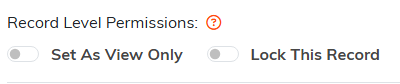
The two permission switches on the payment record.
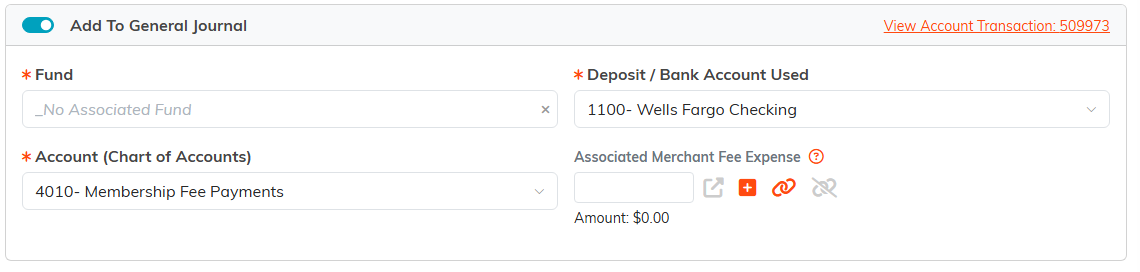
Turn the switch on and the three required accounting fields appear.

Payment Date, Payment Amount and Paid by Constituent are the required ones. Payment Name is optional, and a payment that arrived without one can be left that way.

The membership this payment counts toward, filled in from the member's record.

Send Receipt emails the member. Print Receipt opens it to print or save as a PDF.

The orange add icon (admins and master builders only) beside Payment Category adds a new one on the spot.

Use these when you report on payments by part of your organization.
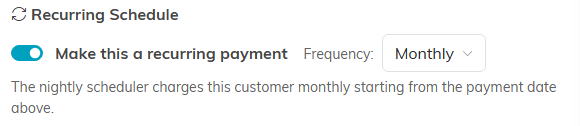
Set the frequency and Argenta charges from the payment date above.
If the payment came through Stripe, any related merchant fee shows here and the related invoice, if there is one, links out. Save with Save All & Continue or Save All & Exit.

Copy & Add New saves you retyping the next payment.
The rest of the workspace
Every tab has a short Show Me How To Use This Page video at the top right; click it to watch, and use its chapters to jump to the part you need.
The payment workspace has these tabs beyond Payment Details:

Six tabs in all, with Payment Details open.
- Connections: link the payment to a booking, campaign, invoice, program or property lease (see Connections below).
- Refunds: see the refunds on this payment and record a new one (see Refunds below).
- Payment Files and Payment Notes: attach files (Add Related Files) and notes (Add A Note).
- Record Permissions: name the users who can still edit the record when it is view only, or open it when it is locked.
Connections
The Connections tab ties the payment to the other records it belongs with. There is one card for each kind of record, and each card holds one connection. To connect a record, start typing in the card's search box, pick the record, and click Connect. It saves the moment you click; there is nothing else to save.
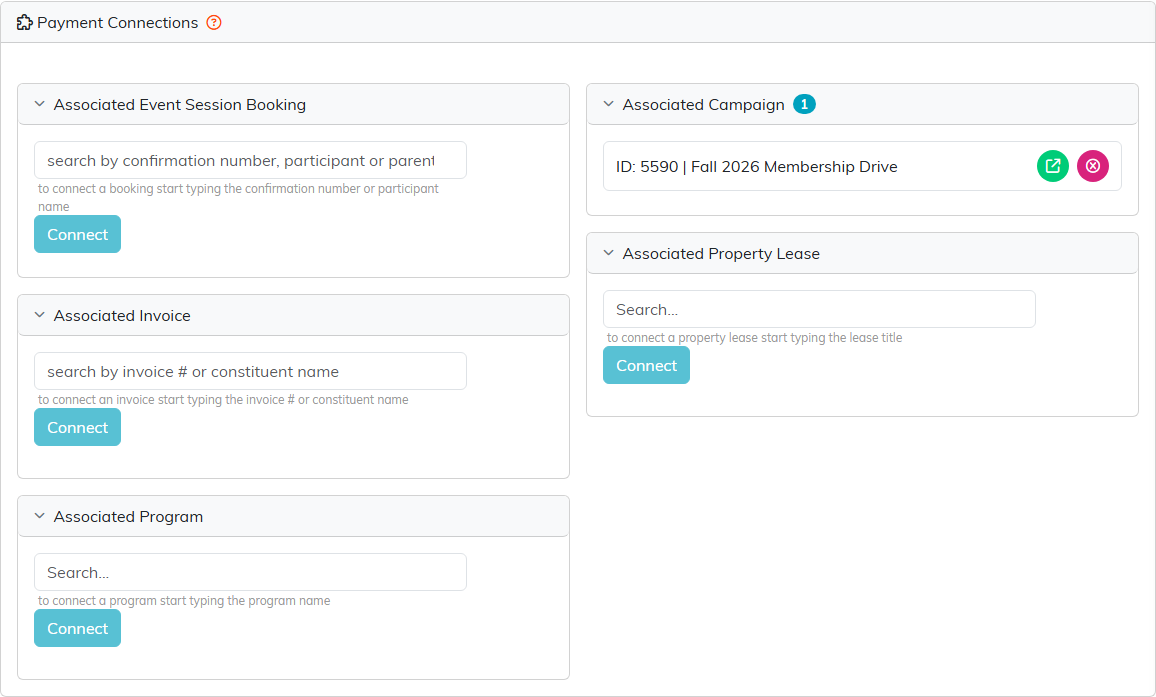
A connected card shows the record with a green button to open it and a pink button to remove the connection.
- Associated Event Session Booking: the booking this payment pays for, from your Event Session Bookings. Search by confirmation number, participant or parent. Once the payment is on a booking, the button reads Move: pick a different booking and the payment comes off the first one and goes on the new one. Moving refunds nothing and does not change the payment itself.
- Associated Campaign: the campaign the payment came in through, such as a membership drive. The payment then counts in that campaign's Actual Income.
- Associated Invoice: the invoice this payment pays. Connecting one does the same as choosing the invoice on Payment Details: the payment takes the invoice's payment type, its general journal entries and card fee move with it, and the invoice's status is brought up to date.
- Associated Program: the program the payment supports. The payment then counts under Payments in the program's Actual Income.
- Associated Property Lease: the lease the payment is rent or another charge on. The payment then shows on the lease's Payments tab.
To take a connection off, click the pink remove button on its card and confirm. Only the link is cleared; the campaign, invoice, program or lease itself is not deleted. A booking has no remove button; move the payment to the booking it belongs on instead.
Refunds
The Refunds tab lists every refund recorded on this payment, and its header counts them and adds up what they come to. Each refund shows its date, amount and description, a Partial tag when it returned only part of the payment, and the fund and accounts it was posted to. A refund never deletes the payment; both stay on the record.

A partial refund, posted to the same fund and accounts as the payment.
Click Issue A Refund to open the Issue A Refund form. Nothing is recorded until you click Apply This Refund, and Cancel closes the form without saving.
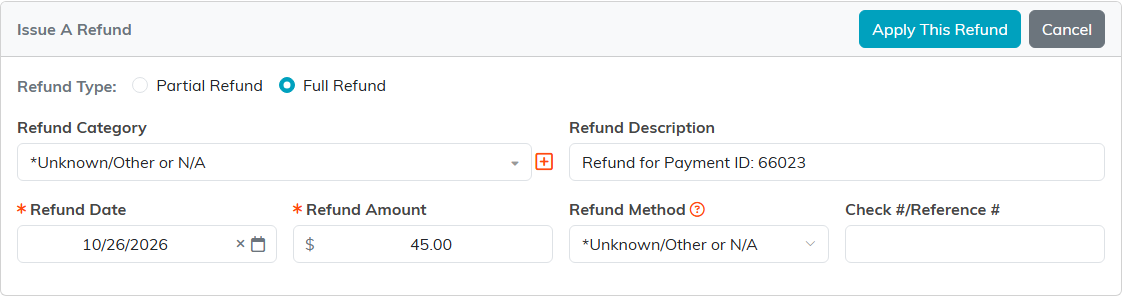
The form opens on Full Refund with what is left to refund already filled in.
- Refund Type: Full Refund fills in everything still refundable on the payment. Choose Partial Refund and type a smaller amount to send back part of it. Argenta goes by the amount, so anything less than what is left is saved as a partial refund.
- Refund Category: why the money went back, such as Cancellation or Wrong Amount Charged. Admins and master builders can add a new category with the orange add icon.
- Refund Description: starts as "Refund for Payment ID:" and the payment's number. Change it to say what the refund was for.
- Refund Date (required, defaults to today).
- Refund Amount (required, more than $0.00). The refunds on a payment can never add up to more than was paid.
- Refund Method: how the money went back. On a payment that came in by card through Stripe, choosing Credit Card sends a real refund back to that card. Any other method only records what you did outside Argenta, so you still write the check or hand over the cash yourself.
- Check #/Reference #: the number of the check you sent, or another reference, so the refund can be matched up later.
When the payment is in your general journal, its refunds are posted there too, to the same fund and accounts. Each refund has a button to open it and, unless it is locked, one to delete it. For refunds across your whole organization, see How To Manage Refunds in the Argenta General Financials Module.
