Knowledge Base Article
Add Member Visits
A member visit records an interaction between your organization and one of your members, whether they came in, attended an activity, or checked in with you.
Record a member visit
- Go to Membership > Member Visits. This is the list of all logged visits.
- Click Add New. Argenta asks for the Date of Visit and the Member first, both required, then you click Add & Enter Details. The visit is created and the Member Visit Workspace opens on the Visit Details page, where the category, the team member who visited and what happened are recorded.
- Fill in the details and save.
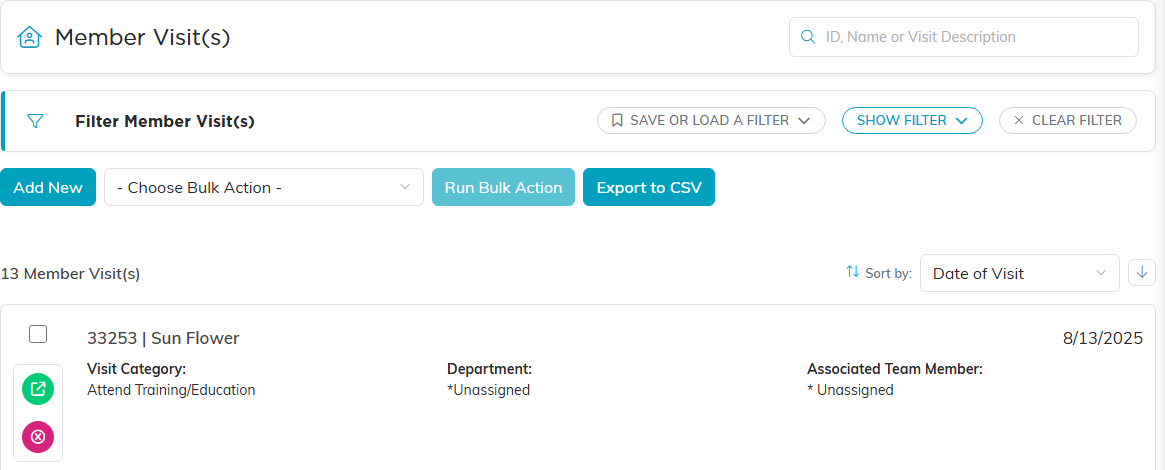
Add New sits under the filter bar on the Member Visits list.
You need at least one member on file before you can add a visit.
Visit Details fields
- Record Level Permissions: the Set As View Only and Lock This Record switches control who can see or edit this visit.
- Date of Visit (required): type a date or use the date picker. It starts empty, so the visit will not save until you set it.
- Member (required): start typing the member's name and pick them.
- Visit Category: the type or reason for the visit. Add a new option with the orange add icon (admins and master builders only) if you need one.
- Visit Description: any details about the visit.
- Chapter, Division, Department (and District, Precinct for political teams).
- Associated Team Member: the team member who handled the visit.
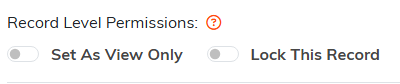
The two permission switches sit at the top of Visit Details.
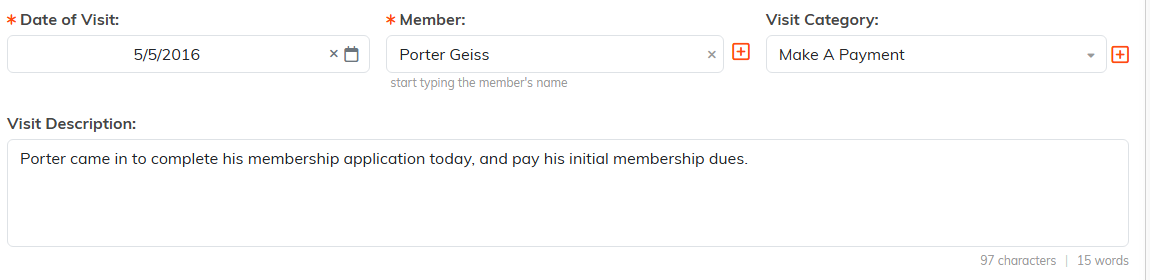
Date of Visit and Member are the two required fields, marked with an orange asterisk.

Tie the visit to a part of your organization and to the team member who handled it.
Save with Save All Changes or Save All & Exit Record.

The buttons at the foot of Visit Details.
The rest of the workspace
The Member Visit Workspace has three more tabs beyond Visit Details:

Four tabs in all, with Visit Details open.
- Visit Files: attach related files (see Add Related Files).
- Visit Notes: add notes (see Add A Note).
- Record Permissions: name the users who can still edit the record when it is view only, or open it when it is locked.
For a quick reference on finding and exporting visits, see How to Record Member Visits.
