Knowledge Base Article
How to Add a Volunteer Shift to an Event
In Argenta a volunteer shift at an event is a volunteer task. Each task holds one volunteer, so a shift that needs three people is three tasks. You connect each task to the event as a whole, or to the event's session it supports, such as the registration session or the lunch. An event with no sessions needs only the first.
Add the shift
- In the menu on the left, open Volunteerism and choose Volunteer Tasks.
- Click Add New.
- Enter the Start Date & Time, the End Date & Time and a Volunteer Task Title, such as
Registration Desk - Afternoon. All three are required. - Click Add & Enter Details. The task opens on its Task Details page.
The Add A New Volunteer Task page and every tab of the task have a short Show Me How To Use This Page video at the top right, and so does every tab of the Event Workspace; click one to watch, and use its chapters to jump to the part you need.
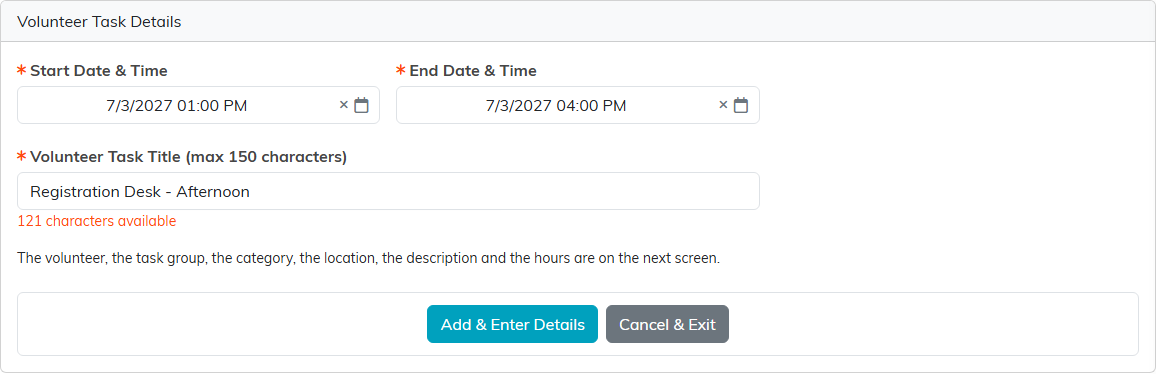
An afternoon registration shift for the conference.
Fill in the details
On Task Details, choose the Volunteer if you already know who is covering the shift. Leave it unassigned if you want volunteers to sign up for it on your public sign-up page. Set the Task Category, add a description, and click Save All & Continue.

One task, one volunteer.
Every field on the task is explained in Add Volunteer Tasks.
Connect the shift to the event's session
- Click Connections in the task's workspace menu.
- In Associated Event Sessions, start typing the session's name or its event's name. Each match shows the session's ID, start date and time, name and event, so sessions with the same name can be told apart.
- Pick the session from the list.
- Click Connect.
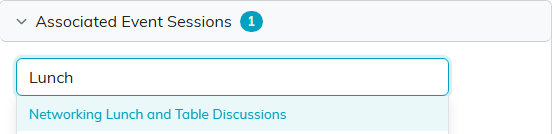
Finding the conference's lunch session by name.
The session joins the list under Associated Event Sessions, and its green icon opens it. If one shift covers several sessions, connect it to each of them. An event's sessions are listed on its Event Sessions page.
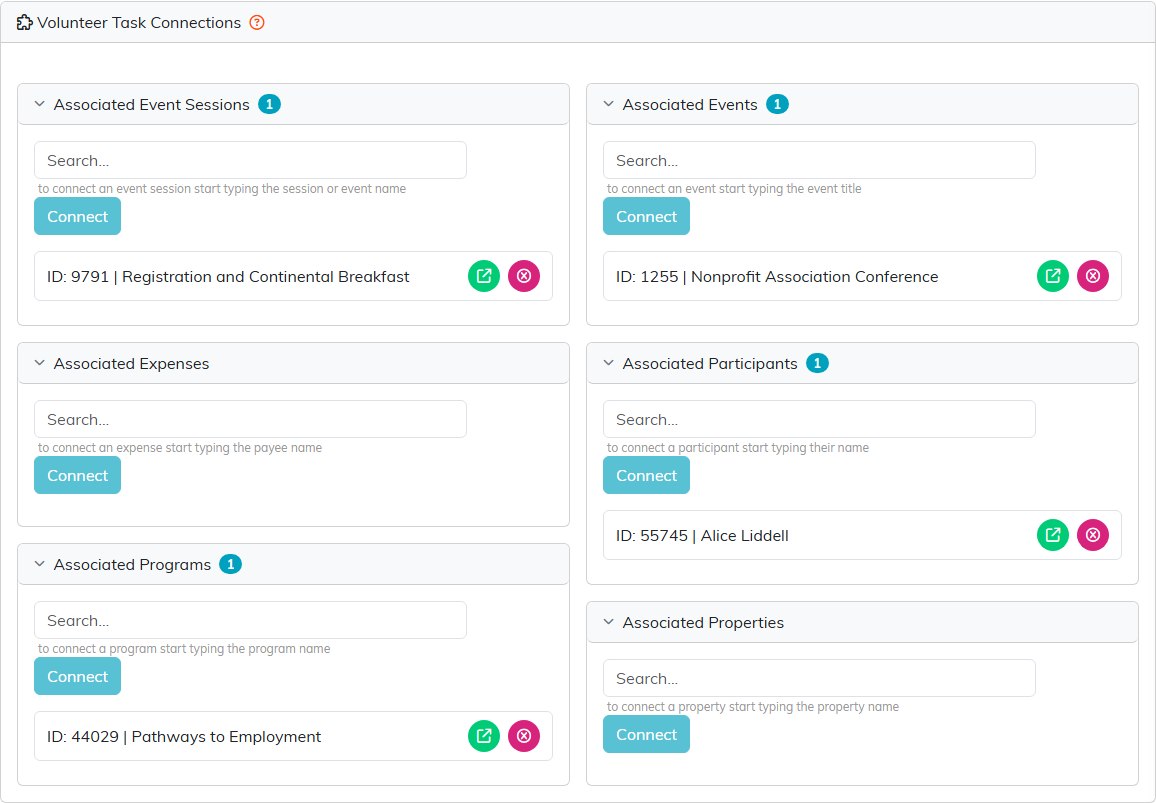
The morning registration shift, connected to the registration session.
Or connect the shift to the event itself
When the shift works the whole event rather than one session, or the event has no sessions, connect the task to the event instead. You can do it from either side.
- From the task: on its Connections page, start typing the event's title in Associated Events, pick the event and click Connect.
- From the event: open the event, click Connections, start typing the task's title in Associated Volunteer Tasks, pick it and click Connect. A whole task group connects the same way, in Associated Volunteer Task Groups.
The link shows on both pages. Connecting the same pair twice changes nothing, and removing it with the pink icon leaves the task and the event in place. Deleting the task, the group or the event removes its links with it.
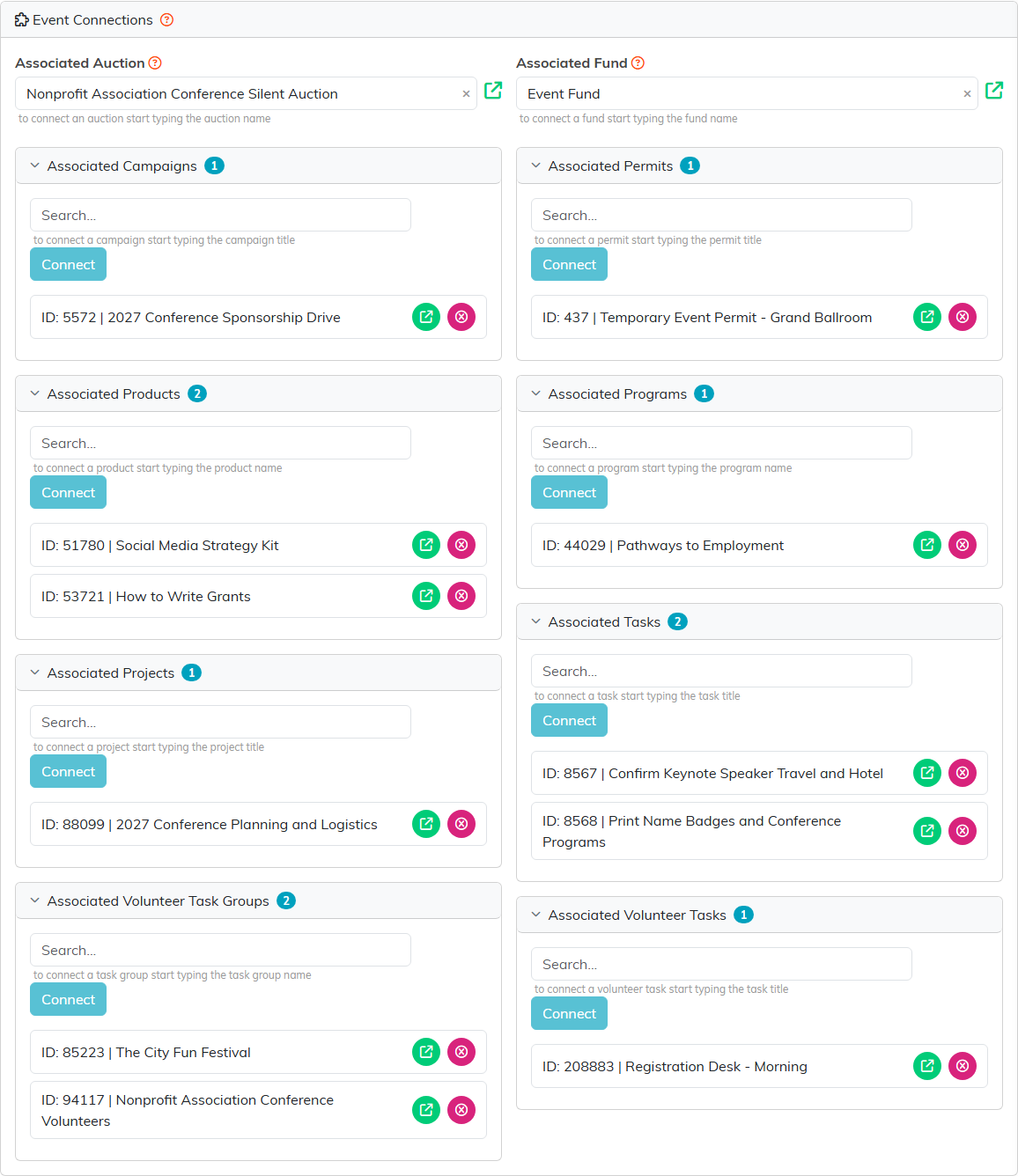
The conference's Connections page. Its volunteer task groups and shifts sit at the bottom.
More on the Connections page is in How to Connect a Volunteer Task to Sessions and Programs.
Shifts that need more than one person
Add one task for each person the shift needs. To repeat a task you have set up, click Copy & Add New at the bottom of its Task Details.
For a whole event's worth of shifts, put the tasks in a volunteer task group. The group's Tasks in This Group page copies a task as many times as you need in one step, and the group gets one public sign-up page that lists every open shift. See Add Volunteer Tasks To A Task Group and How to Design and Share a Task Group's Public Sign-Up Page.
