Knowledge Base Article
Add Volunteer Tasks To A Task Group
A task group holds the individual shifts volunteers sign up for. You can add a task from inside the group, or move a task you already have into it. Either way, the Tasks in This Group page lists every task in the group and lets you change them in one place.
Open Tasks in This Group
Open the task group and click Tasks in This Group in the workspace menu. The line above the list shows how many tasks the group holds and how many volunteer hours they add up to. Beside the group's name is a short Show Me How To Use This Page video that walks through everything below, with a chapter for each part.
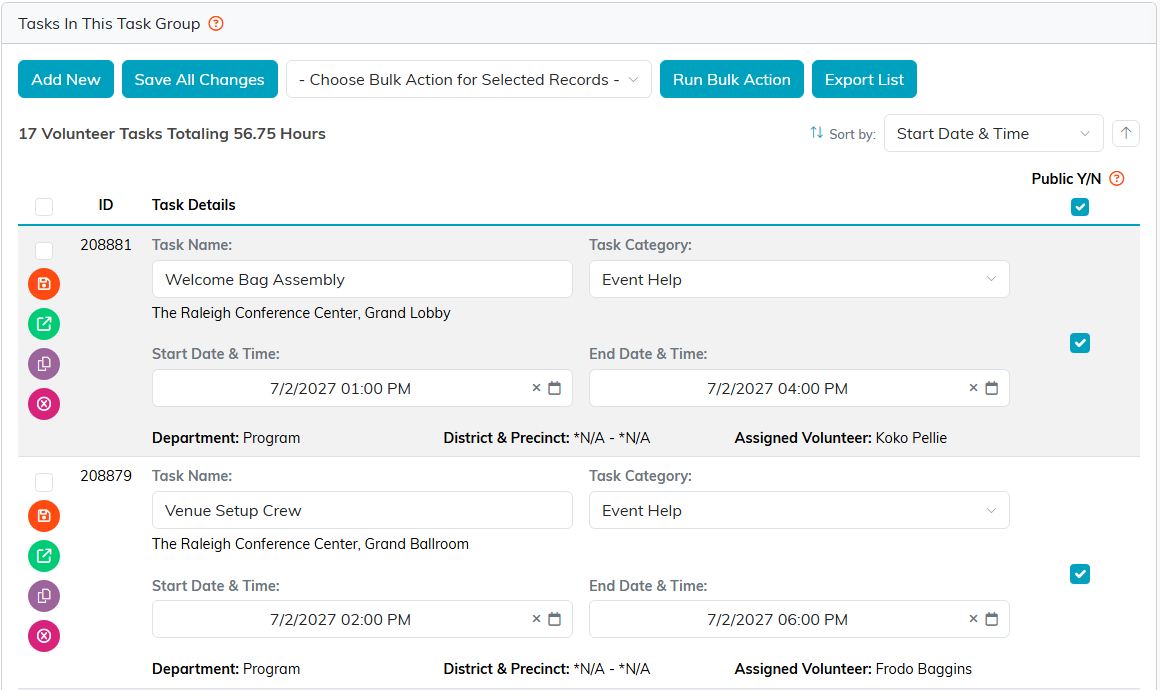
The 17 shifts of the conference volunteer group.
Add a task from inside the group
- Click Add New.
- Enter a Volunteer Task Title. It is required and holds up to 150 characters.
- Click Add & Enter Details. The new task opens on its Task Details page.
The new task takes its start and end date and time, its location, and its chapter, division and department from the group. Set the volunteer, the category and the hours on the next screen. Nothing is saved until you click Add & Enter Details, so Cancel & Exit leaves no empty task behind.
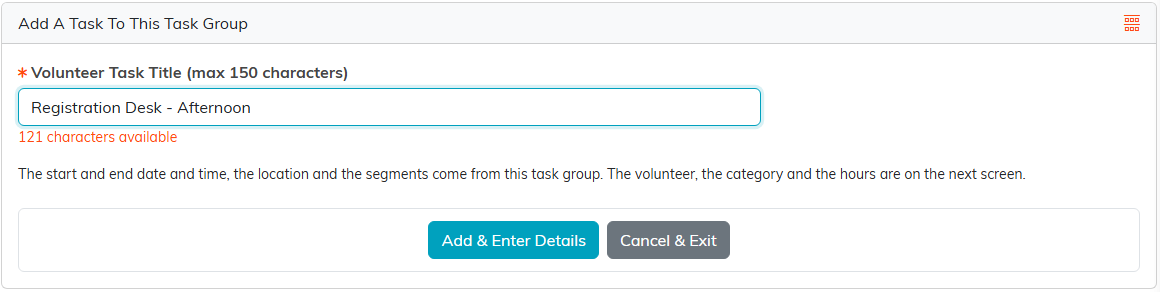
Adding an afternoon registration desk shift.
Change tasks right in the list
Each row lets you change the Task Name, the Task Category, the Start Date & Time and the End Date & Time. Select or clear the box under Public Y/N to show or hide the task on the public sign-up page. The box in the column heading changes every row at once.
The four icons at the left of each row work on that task alone:
- The orange icon saves the changes you made to that row.
- The green icon opens the task in its own workspace.
- The purple icon copies the task. Argenta asks how many copies to make, up to 100, which is the fastest way to add more spots to a shift. Each copy starts with no Outcome, whatever the original task's was.
- The pink icon deletes the task. Argenta asks you to confirm first.
To save the changes on every row at once, click Save All Changes.
Change many tasks at once
- Select the box beside each task you want to change, or choose a Select option from the Choose Bulk Action for Selected Records list.
- Choose Assign a Volunteer, Change Task Category, Change Date Range or Delete All Selected & Unlocked Records.
- Click Run Bulk Action.
Click Export List to download the tasks as a spreadsheet.
Move a task you already have into a group
- In the menu on the left, open Volunteerism and choose Volunteer Tasks.
- Find the task and click its green open icon.
- In Volunteer Task Group, start typing the group's name and pick it from the list.
- Click Save All & Exit.

Volunteer Task Group sits to the right of Task Category and Task Outcome.

Save All & Exit saves the task and returns you to the list.
To see who is covering each shift, open the group's Volunteer Roster.
