Knowledge Base Article
How to Design and Share a Task Group's Public Sign-Up Page
Every volunteer task group has its own public sign-up page. Volunteers open it from a link or a QR code, see every open shift in the group, and sign up without an Argenta login. The Public Form Design tab is where you share that page and decide how it looks.
Open Public Form Design
Open the task group and click Public Form Design in the workspace menu. Beside the group's name is a short Show Me How To Use This Page video for this page, with a chapter for each part below.

The workspace menu of the Nonprofit Association Conference Volunteers group.
Share the sign-up page
The Share The Public Sign-Up Form card holds everything you need to send people to the page.
- Public Link is a short link to the page. Click Copy to put it on your clipboard, ready to paste into an email, a newsletter or a social post. The line under it counts how many times the link has been opened.
- The QR code opens the same page from a phone camera. Click Download PNG for flyers and everyday printing, or Download SVG for large signs and banners. Scan the printed code once before you hand it out.
- Turn this short link off stops the short link from working, for example once every shift is filled. The card then shows the page's full address instead.
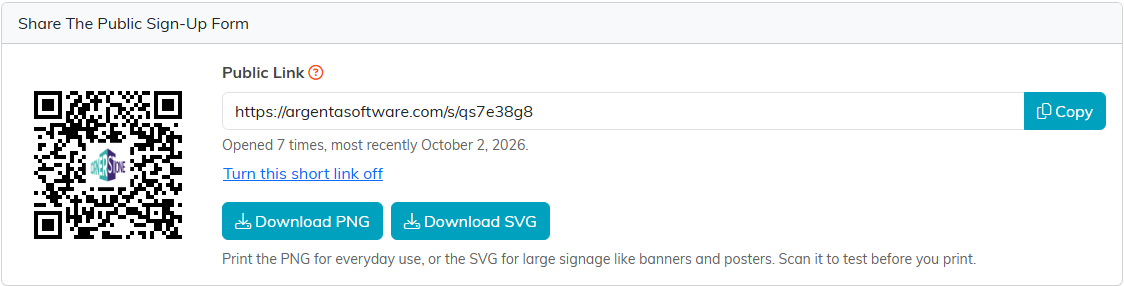
The short link and QR code for the conference volunteer page.
The Public Forms menu at the top right of every page in the group does the same job in fewer clicks. Click Open Public Task Group Sign-Up Form to see the page as a volunteer sees it, or Copy Task Group Sign-Up Form Link to copy the link.
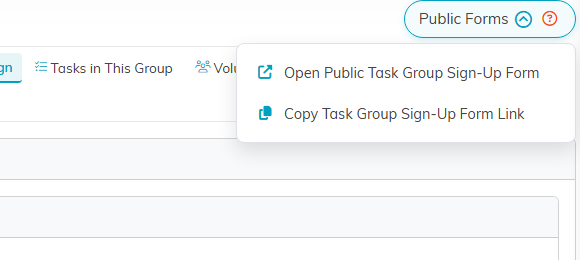
The Public Forms menu.
Choose a banner image
The Banner Image for Public Task Calendar card sets the picture across the top of the page.
- To use a new picture, click Upload and choose the file. To use one you already have, open its folder on the left.
- Click the picture. It appears under Current Banner on the right.
- Click Save All Changes at the bottom of the page.
To go back to no banner, click Remove Banner Image. It takes effect straight away, with no separate save, and the picture stays in your image library for other forms. A wide landscape photo works best, because the page crops the banner to a long strip.
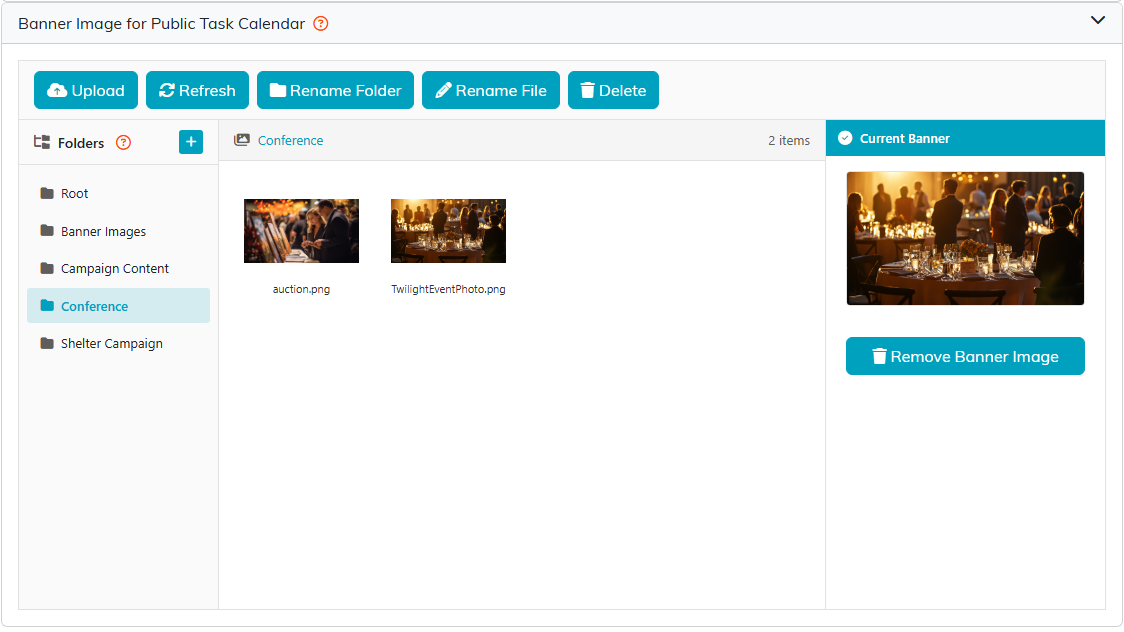
The image library, with the conference reception photo chosen as the banner.
Write the introduction
Public Form Content is the wording under the group's title on the public page. Tell volunteers what the group is for, when and where it happens, and anything they get or need to bring. The editor works like the rest of Argenta's editors, and Improve Body with AI can tidy a draft in the tone you pick.
Click Save All Changes when you finish.
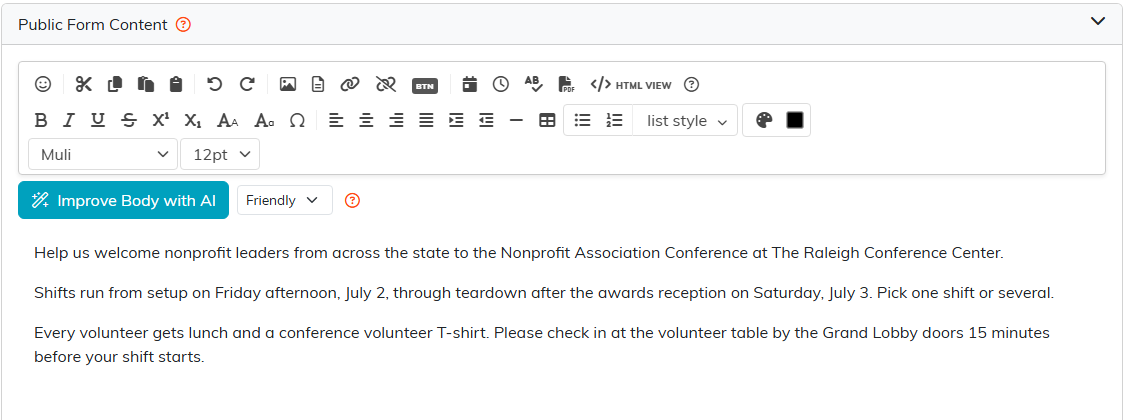
Three short paragraphs: what, when, and what volunteers get.
What volunteers see
The public page shows your logo, the banner, the group's title and your introduction. Below them, every open shift in the group is listed by day, with its time and location. Volunteers can search the shifts, or narrow them by time and by category.
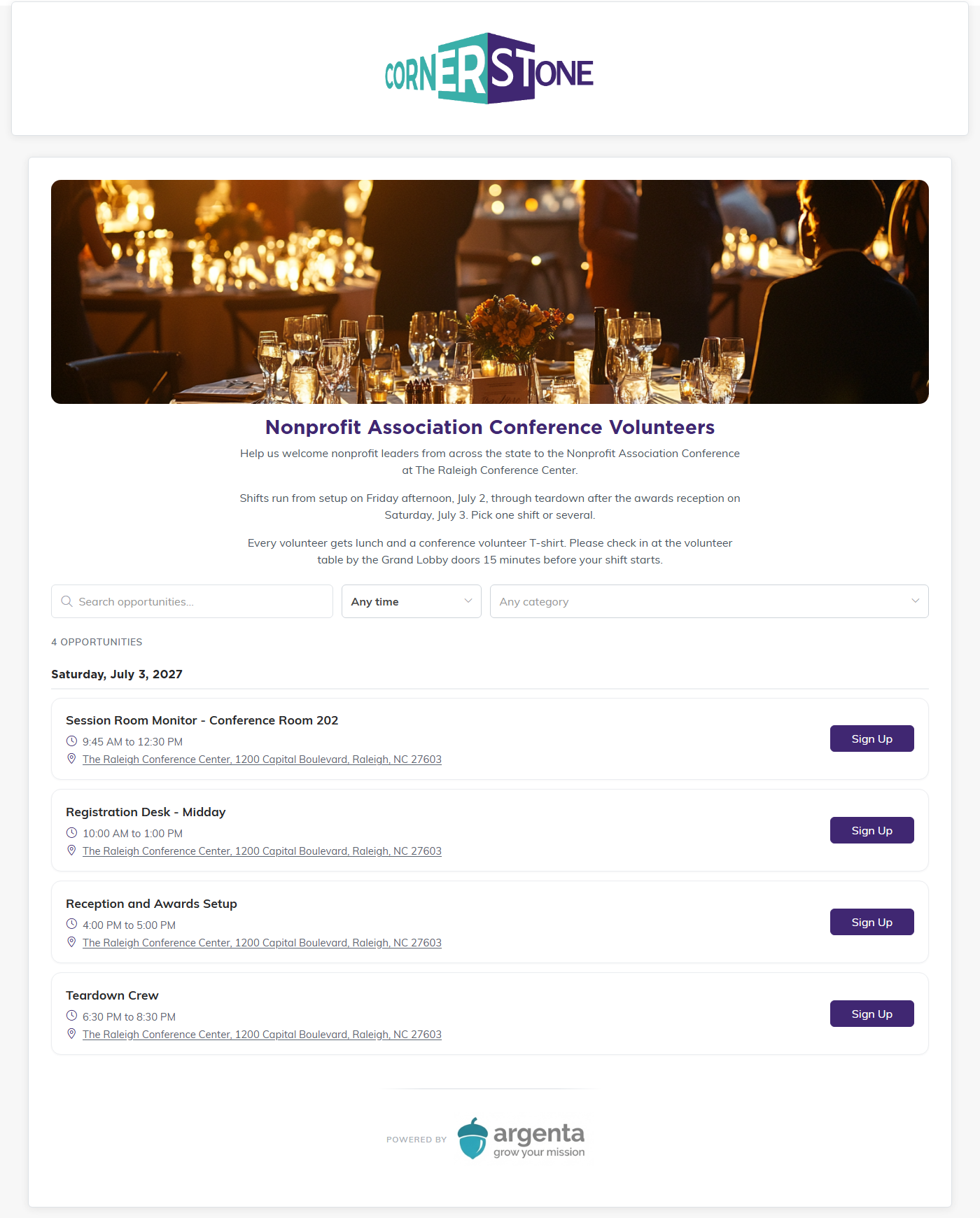
The conference volunteer page as a volunteer sees it.
A shift is listed only while it is open: it must be Open/Active, have Display On Public Calendar selected, and have no volunteer assigned. Once someone takes a shift, it leaves the page. The conference group has 17 shifts, and the page lists the 4 that still need a volunteer.
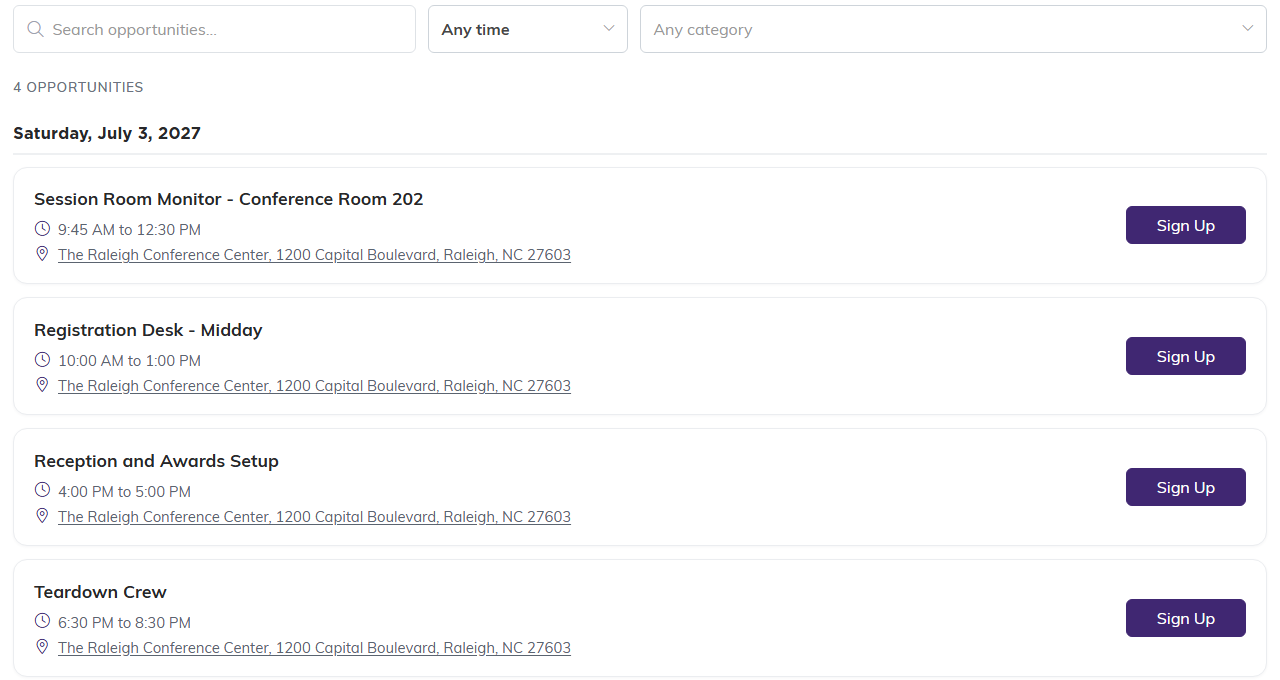
Only the shifts still waiting for a volunteer.
When a volunteer clicks Sign Up, a window shows the shift's day, time and location. Under them it shows the group's Public Form Content, then the group organizer's name and contact details for questions. The volunteer enters their name, phone and email, and can leave a comment for the organizer. Clicking Sign Me Up assigns them to the shift and emails them a confirmation. Argenta also sends them a reminder before the shift.
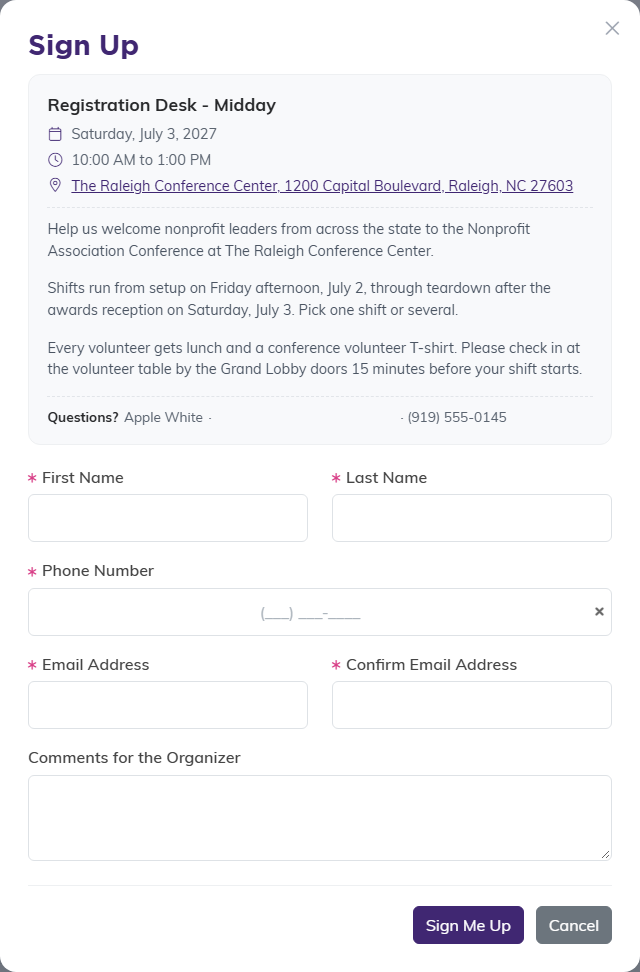
Signing up for the midday registration desk.
To set the details on the group itself, see Working With Volunteer Task Groups.
