Knowledge Base Article
How to Send an In-Kind Donation Receipt
Argenta emails an in-kind donor a receipt for their gift. A person sends it: you open the donation record and click Send Receipt. Nothing goes out on its own, so a gift stays unreceipted until someone sends it.
In-kind receipts are email only. Cash gifts are receipted from their own record and can also be printed, which is covered in Add Fiscal Donations.
Send a receipt
- From the left-hand menu, choose Fundraising > In-Kind Donations. If your organization tracks programs, the same list is on the Programs menu.
- Find the gift in the list and open it. The record opens on the Donation Details tab.
- Click Send Receipt at the bottom of the record. The envelope icon in the record's title bar does the same thing.
- Click Save All & Continue or Save All & Exit. Sending sets Receipt Given to Yes, and saving is what keeps that change.
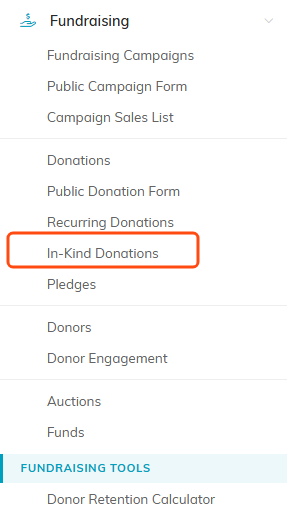
Step 1. In-Kind Donations sits under Fundraising, just above Pledges.

Steps 3 and 4. Send Receipt sits with the save buttons at the bottom of the record.
Argenta confirms the send on the record: The receipt for (the donor's email address) is queued to send. That line stays on the page after the confirmation box closes, so you can still see what happened.
The donor needs an email address
The receipt is an email, so the donor's record needs an email address on it. If there is none, Argenta refuses the send and tells you: Argenta is unable to send this receipt. The donor has no email address on file. Add an email address to the donor's record, then send the receipt.
If the gift has no donor on it yet, Argenta says You must select a valid donor before sending a receipt. Choose the donor in the Donor field, save the record, then send.
What the receipt says
The receipt is headed In-Kind Donation Receipt and thanks the donor for their gift to your organization. It shows your Tax ID when one is on your organization's record, and it lists:
- Donor's Name and Email Address
- Donation Received, the date from the donation record
- Description of Donation, taken from the Donation Description field on the record
- Given In Honor/Memory Of and the honoree's name, when the gift is marked as a tribute
It states that no goods or services were provided in return for the contribution, and it closes by asking the donor to keep the receipt for their tax records.
Because the description is what the donor reads, fill in Donation Description before you send. A receipt that says nothing about what was given is not much use to the donor at tax time.
The receipt carries no dollar value
The receipt tells the donor that in keeping with IRS guidelines no dollar value has been assigned to the donation, and that they are responsible for determining its fair market value for tax purposes. For a non-cash gift the IRS puts that judgment on the donor rather than on your organization.
Total Approximate Value on the donation record is your own estimate, for your records and your reporting. It never appears on the receipt.
Receipt Given
Receipt Given on the donation record tracks whether the gift has been acknowledged. Sending a receipt sets it to Yes for you. You can also set it yourself, which is what to do when you acknowledged the gift some other way, such as a letter you wrote outside Argenta.
Setting Receipt Given to Yes by hand does not send anything. Send Receipt is the only thing that emails the donor.

Receipt Given sits with Thank You Sent and Given in Honor of.
Who else gets a copy
Argenta sends a copy of the receipt to your organization's donation notifications address, when that address is set and is not the donor's own. The copy names the donor in its subject line so you can tell it apart from the donor's own receipt. An administrator or a user with subscription manager rights sets that address under Email Settings in the settings menu, in the Email Address for Donation Notifications field.
Receipting a gift that belongs to a program
A program's in-kind gifts are receipted from the donation record, the same as any other in-kind gift. The program links you to it.
- Open the program from Programs > Program List.
- Click Connections in the Program Workspace menu.
- Find the gift in the Associated Donations In Kind panel and click the green arrow beside it. The in-kind donation record opens in a new tab.
- Click Send Receipt on that record.
Receipts cannot be sent from the program page itself, and connecting a gift to a program does not send anything on its own.

Step 2. Connections is where a program's in-kind gifts are listed.
If Send Receipt is not on the record
The Send Receipt button and the title bar's envelope icon do not appear when the record is view only for you, either because your own user account is view only or because the record itself is set that way. Ask someone with edit rights on the record to send the receipt. A locked record does not open at all, and says so when you try.
