Knowledge Base Article
How to Design Custom Public Forms
Public forms are designed on the record they belong to. Open the record, such as an event, a campaign or an auction, and go to its Public Form Design tab. The public donation form is not tied to a record; it has its own page, Public Donation Form, listed under both Our Public Interfaces and Fundraising in the menu.
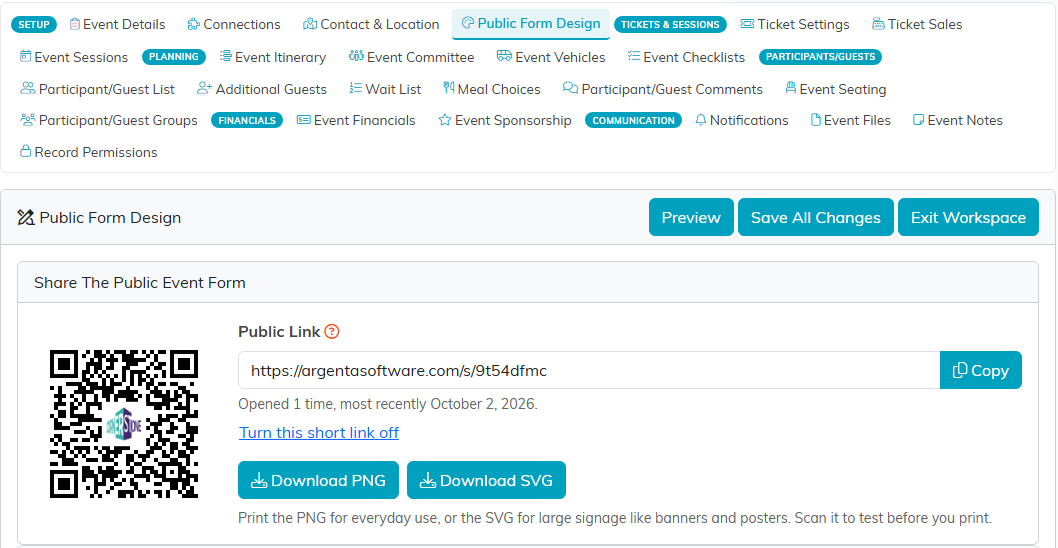
What you can change differs by form type, so the tab does not look the same everywhere. Most of them let you set the form's colors and write the form's own wording. After that they part company: an event's Public Form Design carries Default Form Fields and Notifications, while a campaign's carries Banner Image, Fundraising Leaderboard and Peer Fundraising instead. Open the tab on the record you are working on to see what that form offers. Many also start with a share card holding the form's public link, with a Copy button and a QR code to download.
Step-by-step guides for the forms that have one:
- How To Design Your Public Event Ticket Sales Form
- How to Design Public Donation Forms
- How to Design the Public Auction Form
A submission on a public form arrives in Argenta as it is made. If Argenta cannot match the person, it creates a new record. If it can, the record you already hold is protected: the form never renames them and never replaces the email address on file, and a different address they type is kept as a second email when that slot is empty. Blank fields can still be filled in.
