Knowledge Base Article
Overview of Argenta
This is your orientation to Argenta: what you are looking at when you sign in, what the buttons across the top do, and what lives in each module. It also points you at the articles that go deeper on each area.
One thing to know up front: no two Argenta accounts look identical. What you see depends on your plan, on what your Master Admin has switched on in Menu Settings, and on your own permissions. If something described here is missing for you, that is usually why.
Your dashboard
Signing in lands you on your dashboard. Reading down the page you will find:
- A greeting bar at the top with your name.
- On your calendar today, a reminder bar that only appears on days you actually have something scheduled.
- Any messages waiting for you.
- What Would You Like To Do?, a band of shortcuts into the jobs people start most often.
- A two-column body holding My To-Do List and My Quick Notes alongside the metrics panels for your dashboard view. Each column grows on its own, so a long task list will not squash everything else.
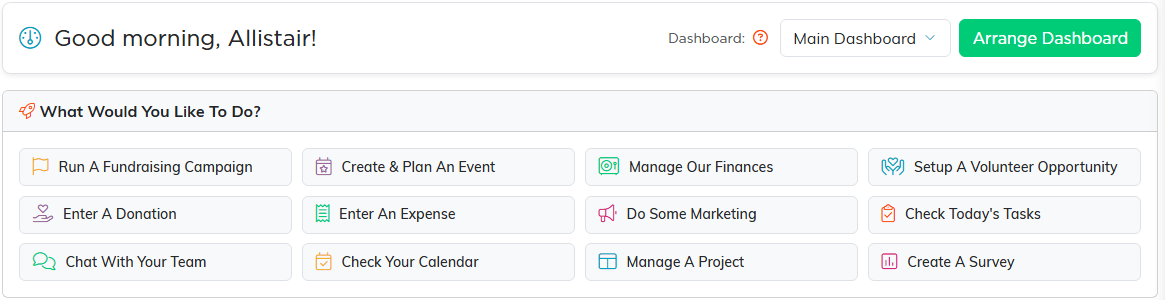
The greeting bar, then the shortcuts. Arrange Dashboard on the right lets you move the panels below into the order you want.
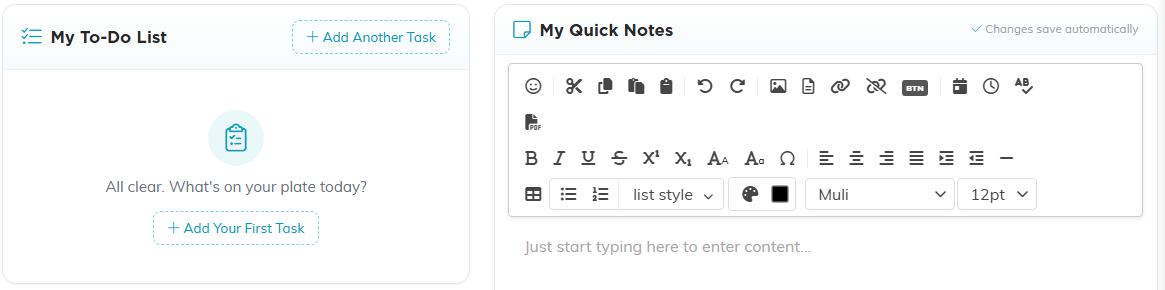
These two sit side by side. Each column grows on its own, so a long task list will not squash the other.
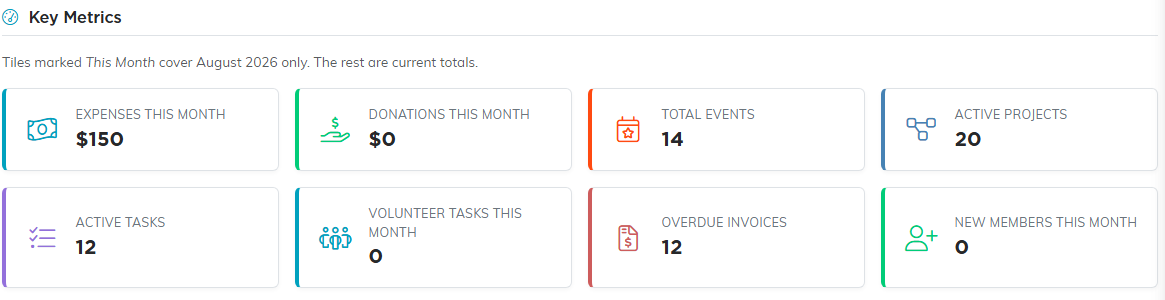
The metrics sit below the panels. Tiles marked This Month cover the current month only, the rest are running totals.
You can always get back here by clicking Dashboard, the first item at the top of the menu on the left.
Dashboard views
The metrics you see are driven by which dashboard views your account is given. The options are the Main Dashboard plus the Marketing Dashboard, Fundraising Dashboard, Volunteerism Dashboard, and Mission Trip Dashboard. Each one puts that team's key numbers in front of the people who need them, so a volunteer coordinator and a development director do not have to share one screen.
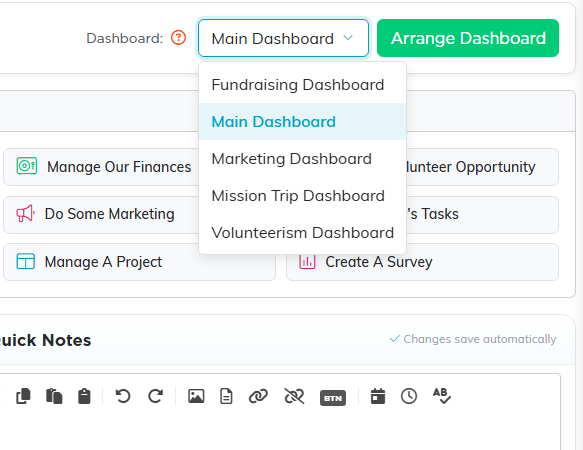
You will only see the views your account has been given, so this list is usually shorter than the full set.
Views are set per person on their user record, under Settings > System Users. Master Admins always have access to every dashboard, so if you open a Master Admin's record you will find the dashboard switches turned off; there is nothing to set, because they already see everything.
The bar across the top
Your own name sits at the top left. Next to it, with a green building icon, is your organization's name. That is a button: click it to open your team menu, described below. Showing the team name here means you can tell at a glance which account you are signed into, which matters if you work in more than one.

Two more buttons sit up here that are not covered below. Work with Ava opens the assistant, and Chatter is the team messenger.
Over on the right are the buttons you will use most:
- New Tab opens Argenta again in a second browser tab. Handy when you want a help article open next to the record you are working on, or need two modules at once.
- Report Center takes you straight to your reports.
- Help Center is where you reach us. See the next section.
- Settings, the gear, holds the account-wide setup. It only appears for Master Admins and Subscription Admins, because everything inside it is restricted to those roles anyway.
- Sign Out ends your session properly and returns you to the sign-in screen.
Inside the Settings menu you will find Subscription, Email Settings, Billing & Payments, System Users, Menu Settings, Import & Export, Activity Logs, and Help & Support. If you are setting Argenta up for the first time, work through them in order. See How To Get Started with Argenta.
The Help Center
Click Help Center at the top right and you get everything in one place:
- Submit A Support Ticket. Fill in your name, email, an optional phone number, and tell us what you need under How Can We Help You?, then click Submit This Support Request. You will get a ticket ID back, and you can upload screenshots or documents against the ticket once it is created.
- Schedule a discussion. On the same form, tick I Would Like To Schedule A Discussion with an Argenta Team Member and pick from the available dates and times if you would rather talk it through with someone.
- Report A Bug. If a page threw an error, tell us the Page Name and what happened in the Description, then click Submit Bug Report. The page name and a clear description are what let us reproduce it quickly.
- Change Your Password. Type your current password, then the new one, and click Change My Password. The new password is saved only if the current one is correct. It needs at least 8 characters, including one number and one special character.
- Chat with Ava, the Argenta Virtual Assistant, who can answer many common questions about the system.
- Knowledge Base, our library of how-to articles. Search by word or phrase, or filter by category.
- What's New in Argenta for upgrades and new features.
- Make A Payment for customization work, using our online form. We accept all major credit cards.
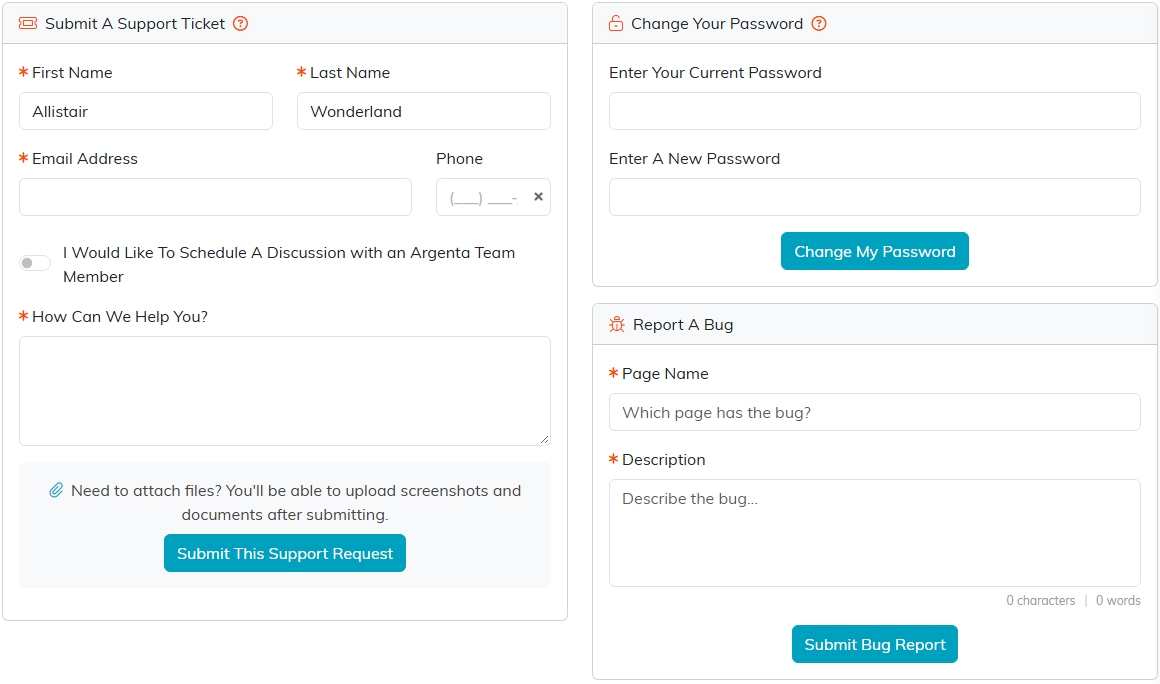
Your name and email arrive filled in. The note under the ticket form is your reminder that files go up after you submit, not before.
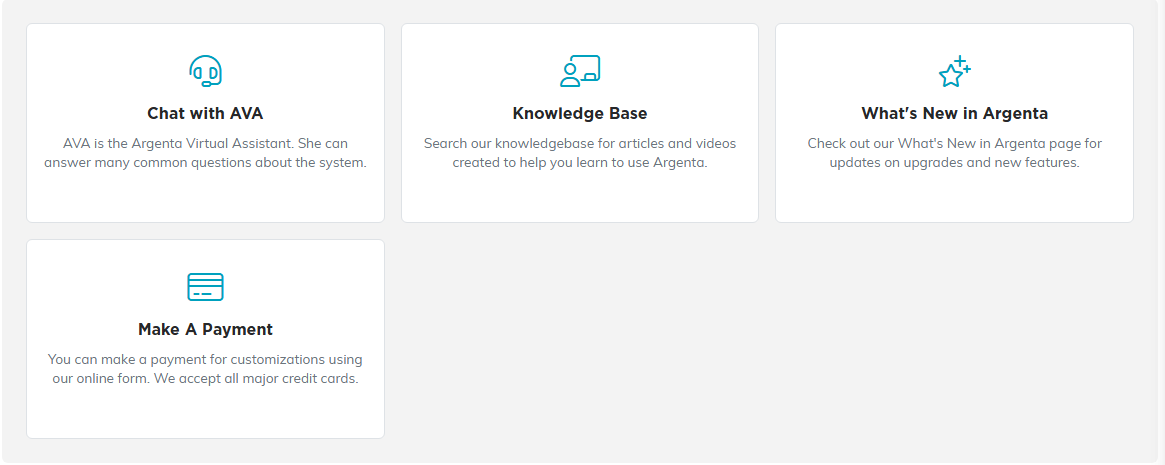
The rest of the Help Center sits underneath the forms as four tiles.
Your team menu
Clicking your organization's name at the top (the green building icon) slides out your team menu. This is where your organization's own records live, separate from the day-to-day modules:
- Our Team and Our Board Members, plus Board Engagement.
- Our Contracts, Our Permits, Our Policies & Procedures, and Our Websites.
- Organization Shared Calendar and Team Passwords.
- Chapters, Divisions, and Departments, the three ways to group your organization. See Add A Chapter, Add A Division, and Add A Department.
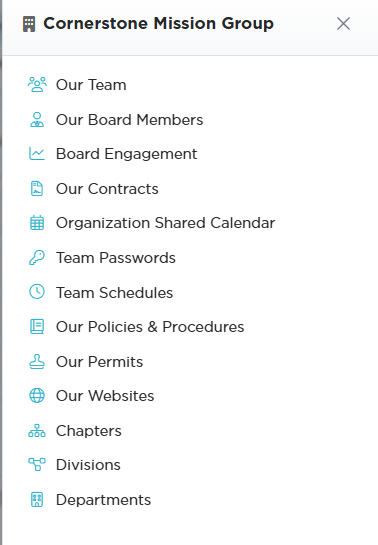
It slides in from the right. Team Schedules sits in here too, alongside the shared calendar.
The main menu on the left
The menu down the left is where you will spend most of your time. Records are grouped into modules by the job they belong to, though there is often more than one route to the same place. At the top you will find a few standalone items:
- Dashboard, back to your main screen.
- Classification Codes, the customizable types, categories, and groups used throughout Argenta. Nearly every dropdown you meet is one of these, which is why the choices are yours to shape rather than ours.
- Calendar Hub, a combined view of all your organization's calendars in one place.
Below those sit the modules. The usual set includes:
- Constituents (CRM), the heart of the system. Your constituent list plus every role a person can hold: donors, members, volunteers, board members, leads, participants, recipients, staff members, and more. Almost everything else in Argenta points back at a constituent record.
- Communication, the Mail Room and mailing lists, email templates, batches and queue, the email logs, announcements, and your contact log and follow-ups.
- Fundraising, campaigns, donations, recurring donations, in-kind donations, pledges, donors, auctions, and funds, along with your public donation and campaign forms.
- Grant Management, grants you receive and grants you give, grantors, applicants, applications, and the grant calendar.
- Event Management, your events, participants and guests, seating, sessions, ticket sales, and your public event form.
- Membership, members, member groups and training, membership payments, visits, and the archive.
- Volunteerism, volunteers, positions, needs, tasks and task groups, training, rosters, and the task calendar.
- Materials Management, donated goods in and out: material donations, inventory, distributions, and recipients.
- Products & Inventory, the products you sell or lend, vendors, orders, and stock.
- General Financials, your chart of accounts, transactions, deposits, invoices, and statements.
- Workflow & Productivity, projects, tasks, and lists.
- Marketing & Engagement, campaigns, leads, engagement tracking, and your websites.
- Operations, contracts, petitions, policies and procedures, surveys, waivers, and signed waivers.
- Staff & HR, your team members and everything that goes with them.
- Programs, the services you run and the people you run them for.
- Voting & Elections, for political organizations: voters, districts, precincts, voting issues, and delegates.
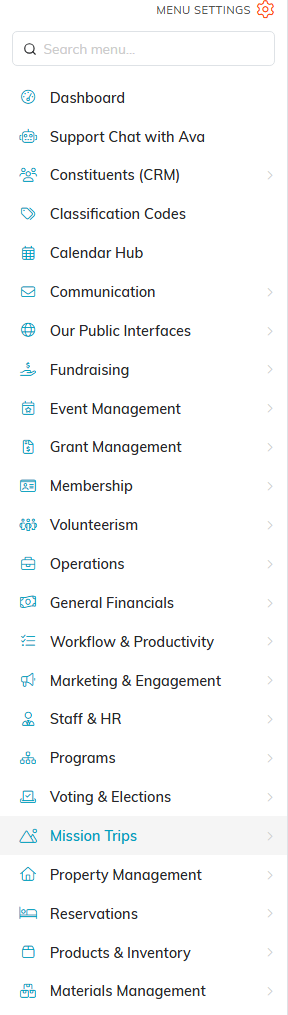
The search box at the top is the fastest way through this. Your own menu will be shorter or longer depending on what is switched on.
Our Public Interfaces and Operations are on every team's menu. Everyone sees Policies & Procedures under Operations; each other link there shows only to people who can open it. Waivers is for team admins, Signed Waivers also opens for Constituent, Event and Participant Managers (and constituent read-only users), Surveys for Survey Managers, Contracts for Contract Managers, and Petitions for Petition Managers on teams that use petitions. Mission Trips and Property Management start hidden and can be switched on in Menu Settings. Orientation & Training appears only for teams that have it.
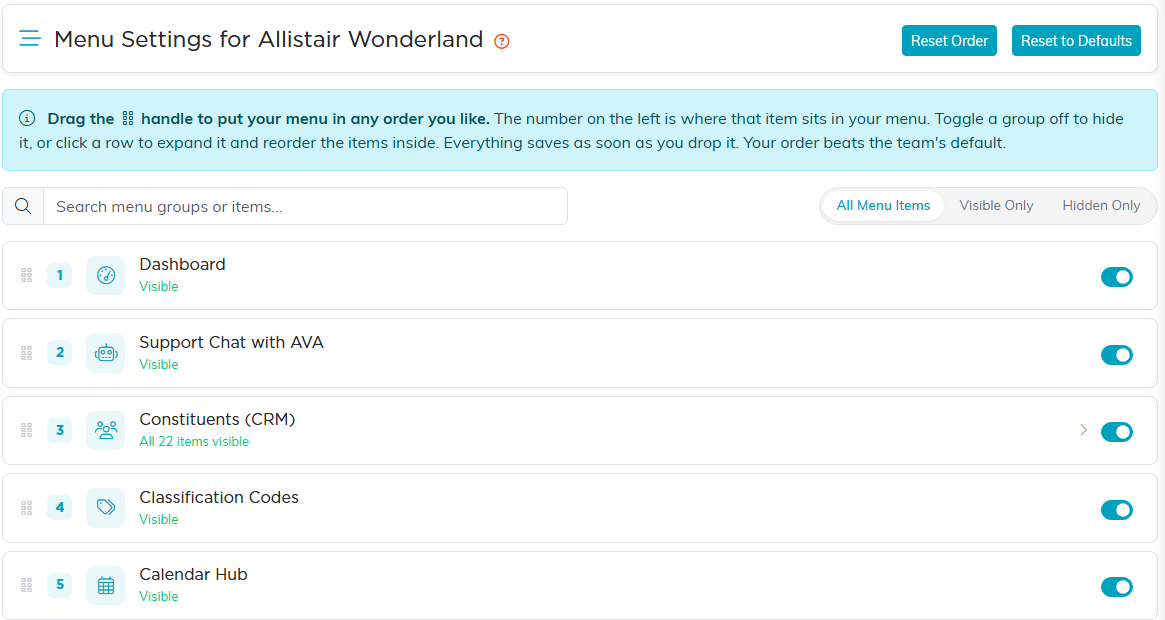
Drag a row to reorder it, or use the toggle to hide it. Nothing is deleted, and Reset to Defaults puts it all back.
Finding your way around
- Search menu. Rather than hunting through modules, type what you want into the search box at the top of the menu and jump straight there.
- Menu Settings. Master Admins and Subscription Admins can hide whole modules or single items for the team from Settings > Menu Settings. Hiding what your organization does not use is the single best thing you can do to make Argenta feel simple for your staff, and nothing is lost: you can switch it back on whenever you like.
- The orange question marks. Those little icons beside fields explain what that particular field is for. They are the fastest answer to "what goes in here?"
- The Knowledge Base. Our how-to library of articles, searchable and filterable by category, walking through how to add, edit, and use every part of Argenta.
