Knowledge Base Article
How to Create and Use Email Templates
What Are Email Templates?
Email templates are reusable designs you can send to your constituents. Argenta includes several pre-built templates, and you can create your own. Templates save time when you send the same type of email regularly, like newsletters, event announcements, or subscription follow-ups.
Where to Find Email Templates
You can get to email templates two ways:
- Communication > Email Templates from the main menu
- From the Mail Room, click Email Templates under Templates & Content

The Email Templates list.
Starting From a Ready-Made Design
Argenta ships a gallery of finished email designs you can build on, so you do not have to start from a blank page. From the Email Templates list, click Start From A Template.
The gallery filters two ways, and the two work together:
- Style is how the email looks. Classic leads with your logo and a colored banner. Editorial is photo-led, with room for a picture near the top. Letter has no banner, no picture and larger type, so it reads like a note from a person. Modular keeps the color in a bar along the top and stacks the content in blocks, which suits newsletters and anything with several items.
- Purpose is what the email is for: Thank You, Newsletter, Events, Fundraising, Volunteers and Welcome.
Every design comes in all four styles, so the same wording can arrive looking four different ways. Each preview is built with your own logo and brand color and run through the same wrapper a real send uses, so the thumbnail matches what lands in an inbox.
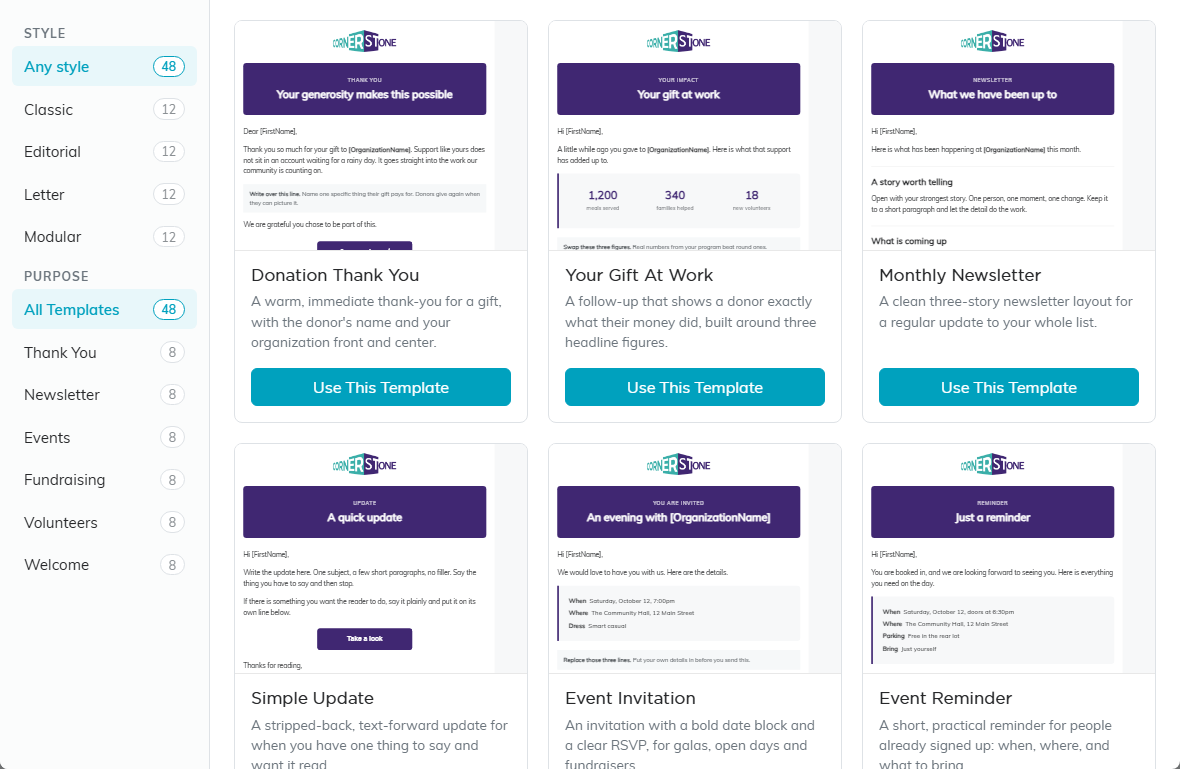
Filter by style down the left, then by purpose.
- Click a thumbnail to see the design full size. Click Back To Gallery to keep looking.
- Click Use This Template. Argenta builds the design into your account as a new template and opens it in the design screen, ready for you to edit.
Creating a New Template
- Go to the Email Templates list.
- Click Add New. Argenta asks for a Template Name first, then you click Add & Open The Designer.
- The template is created and you land on the template design screen, with two areas to work with:
- Template Details - name your template, assign it to a campaign, and set the department
- Template Design - build your email content using the visual editor
- Write your subject line and email body. The editor supports formatting, images, links, and merge fields.
- Save your template when finished.
Editing an Existing Template
From the Email Templates list, click the template you want to edit. This opens the design screen where you can update the content, change the associated campaign, or modify the department assignment.
Copying a Template
If you want to base a new template on an existing one, click the Copy button next to that template in the list. This creates a duplicate you can rename and edit without changing the original.
Sending an Email from a Template
- Open the template and click Use This Template. Argenta saves the template, then opens the New Campaign page with its subject, From address and content filled in.
- Choose who gets it: a Mail Room list, everyone who chose a topic, or one person.
- Preview it as any recipient and send yourself a test.
- Choose when it goes, and click Send.

Use This Template takes the email to New Campaign to send.
You can also start from the Mail Room: click Send Email and pick your template under Start From A Template. The full walkthrough is in How to Send an Email From the Mail Room.
Email Batches
Every send is filed as a batch under Email Batches (linked from both the Email Templates list and the Mail Room), where you track its delivery and can pause or cancel a scheduled send.
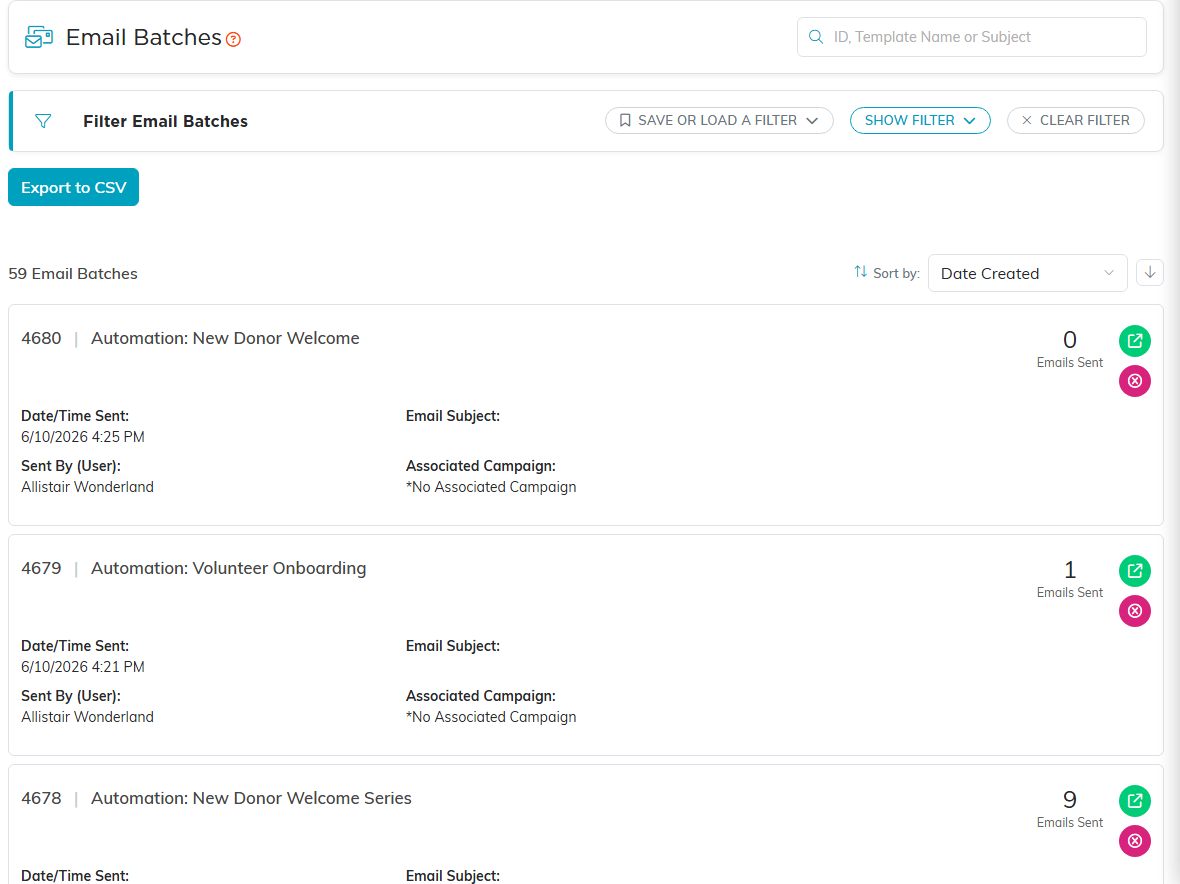
Every send lands here as a batch.
Tips
- Name templates clearly. Future you will thank present you. "Spring Gala Invite 2026" is better than "Template 3."
- Assign campaigns to your templates so you can track which emails belong to which marketing effort.
- Ask recipients to whitelist argentasoftware.com and argentamail.org so your emails reach their inbox.
- Test before sending. On New Campaign, use Send A Test to send yourself a copy first, and Check Links And Content to test the links.
