Knowledge Base Article
How to Add and Manage Staff Members
A staff member is someone who works for your organization. In Argenta, staff members start as constituents (your master contact list) and are then designated as staff. That keeps all your people in one place while giving staff the extra tools for HR, payroll, and management.
Adding a New Staff Member
- Go to Staff & HR > Staff Members.
- Click Add A New Staff Member.
- On the Designate A Constituent As A Staff Member screen, start typing the person's name and pick them from the matches.
- If they are not in your system yet, use the add icon beside the search box to create the constituent first.
- Click Add Staff Member & Enter Details.
You land in the Staff Member Workspace, ready to fill in their employment details.
Key Fields on Staff Member Details
Two fields carry an orange asterisk and are required: Date of Hire and Management Status. Manager/Supervisor is optional, so the person at the top of your organization can be saved with no manager.
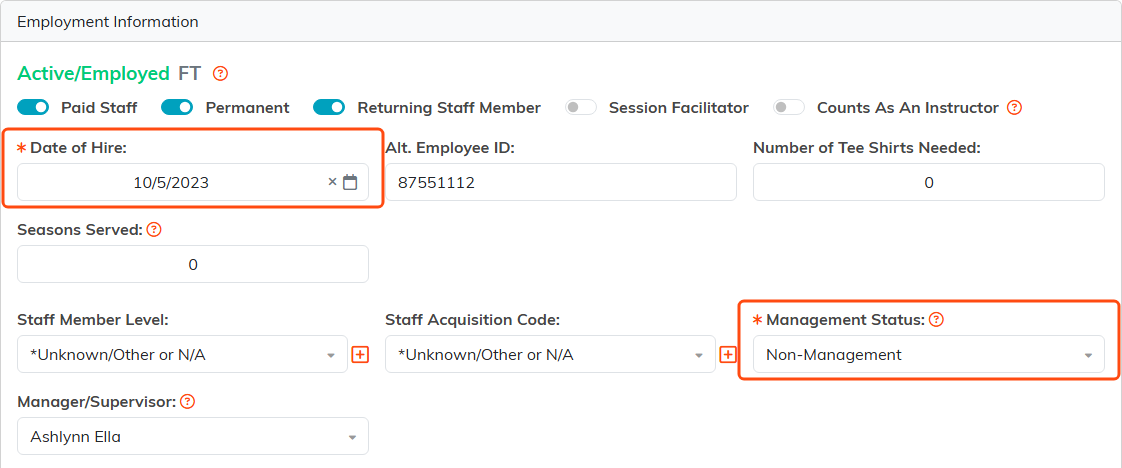
The two fields marked with an orange asterisk are the required ones. Their employment status sits above, in green while they are active.
- Date of Hire - when the person started
- Management Status - Non-Management or Manager. Worth getting right, because Argenta blocks termination for anyone set to Manager
- Manager/Supervisor - who this person reports to
- Alt. Employee ID - your own payroll or HR number for them, if you use one
- Staff Member Level - your own list of levels, which you can add to from the field
- Number of Tee Shirts Needed - handy for events and camps
- Seasons Served - how many seasons this person has served with you. Leaving it blank means you do not know, which is not the same as zero, and the Staff Members list can filter and sort on it as a from-and-to range
- Paid Staff, Permanent, Returning Staff Member, Session Facilitator - toggle switches that categorize the person
- Counts As An Instructor - counts the person toward an athlete's instructor requirement whatever role they hold on a session
Their employment status shows at the top of the card in green when Active/Employed and pink when Inactive/Terminated, with FT or PT beside it.
Assigning Their Position
The Staff Position card holds the primary position and a Secondary Staff Position for people who wear two hats. Start typing a title to find it, or use the plus icon to create a new position without leaving the page. Each one shows a read-only Level box.
Chapter, Division, and Department come from the position and appear as read-only badges marked "Assigned from position." To change them, edit the position. See How to Use Staff Positions in Argenta.
The Staff Member Workspace
The workspace menu covers everything tied to that person's employment:

The workspace menu runs across the top of the record.
- Staff Member Details - employment info, position, hire date, manager, and termination
- References - professional references
- Training - assigned training and progress
- Skills & Experience - qualifications
- Evaluations - performance reviews
- Previous Positions - roles they have held
- Payroll Info - compensation and payroll details
- Related Expenses - expenses tied to this person
- Background Checks - screening records
- Mission Trip Placement - trip assignments, for teams using Mission Trips
- Direct Reports - who reports to them
- Follow-Up, Notifications, Contact Log, Email Log - reminders and communication history
- Staff Member Files and Staff Member Notes - documents and internal notes
- Merge Records - combine this person's other staff member records into this one
- Record Permissions - who can view or edit this record
Open Full Constituent Record at the top right of the Details page jumps to their constituent record for addresses, phone numbers, and the rest.
Merging Duplicate Staff Records
One person can end up with more than one staff member record, for example one for each season they worked. Merge Records in the workspace menu brings them together.
- Open the record you want to keep. The record you are on is always the one kept, so to keep a different one, open that one instead.
- Click Merge Records. It lists the same person's other staff member records, each with its position, hire and termination dates, status, seasons served and mission trip placements.
- Click Merge Into This Record on the record you want to fold in, and confirm.
Everything on that record moves onto the one you kept: mission trip placements, background checks, references, previous positions, payroll, files, notes, contact log, follow-ups and the rest. Its position and dates are kept as a Previous Position, and then it is deleted. The kept record's own details do not change, and a merge cannot be undone.
A locked or view-only record only merges into one that is locked or view only for the same people. When they differ, the tab says so in place of the button; give both records the same setting and users, then merge.
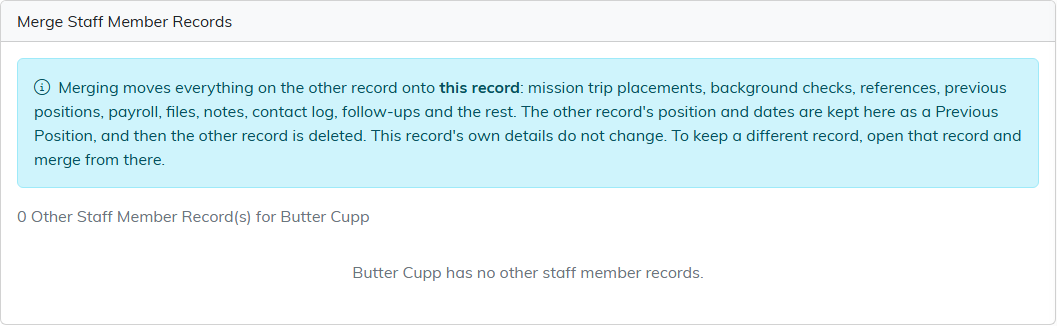
The Merge Records tab. Here this person has no other staff member records, so there is nothing to merge.
Who Can See Staff Records
Staff records are not open to everyone who can sign in. A user needs the Staff Manager permission, or has to be an administrator. That one gate covers the whole staff area: the staff list, the details page, positions, payroll, evaluations, background checks, and write-ups.
Knowing the web address does not get anyone past it. Someone without the permission who opens a staff page directly is refused and sent to an access denied page.
There is one deliberate exception. A staff member can open the Acknowledgement page of a write-up that is about them, so they can sign it. Anyone who is not a staff manager, an administrator, or the person that write-up concerns is refused.
Among the people who do have access, you can go further on a single record. The Record Permissions tab on a staff member controls who can view or edit that one person, and can set the record to view only or lock it. See How To Set Record Level Permissions.
Finding and Filtering Staff
Search by ID, name, or email. The status dropdown offers Active Staff (the default), All Staff, and Inactive/Terminated Staff. The filter panel goes deeper: full or part time, temporary or permanent, new or returning, rehire eligible, management status, date hired, chapter, division, department, manager, education level, and more. Export the results to CSV whenever you need them outside Argenta.
Terminating a Staff Member
Fill in the Termination card on Staff Member Details, then click Terminate Employment at the bottom of the page. Anyone whose Management Status is Manager has to be switched to Non-Management first. Full steps are in How To Terminate A Staff Member in Argenta.
