Knowledge Base Article
How to Use Staff Positions in Argenta
Staff Positions are the roles your organization needs filled, whether or not anyone is currently in the seat. Defining them once lets you assign staff to them, track pay ranges, keep the job description in one place, and see what a role looked like after the person in it moves on.
Position vs. Staff Member
This is the question that comes up most, so here it is plainly. A Position is the role itself, like "Development Director." A Staff Member is the person filling it. A position exists even when nobody holds it, which is how you track open roles and plan for hiring.
Chapter, Division, and Department are set on the position, not on the person. When you assign someone to a position they inherit those three, shown on their record as read-only badges labeled "Assigned from position." To change them, edit the position.
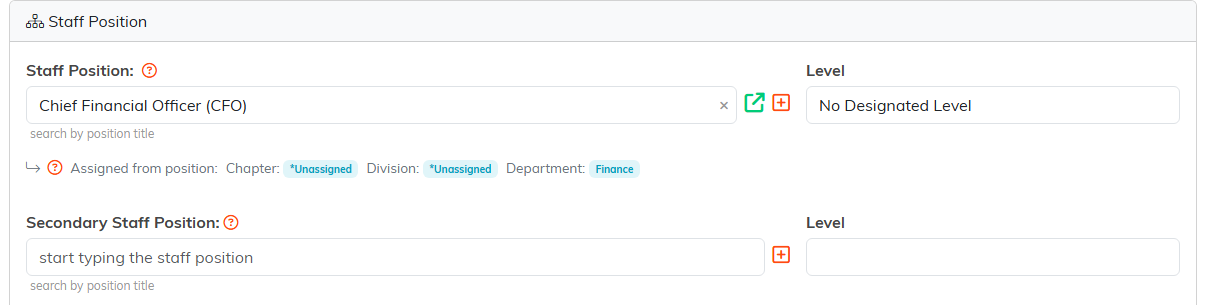
The three badges read "Assigned from position" because they belong to the role.
Where to Find Staff Positions
Go to Staff & HR > Staff Positions. You can search by ID or position title, and export the list to CSV.

Search by ID or position title from the header.
Adding a Position
Click Add A New Staff Position. A short form opens asking for the Staff Position name. Enter it and click Add & Enter Details, and Argenta creates the position and opens the Staff Position Workspace so you can fill in the rest. Cancel & Exit leaves nothing behind. One field is required, marked with an orange asterisk: Staff Position (the job title). The Starting Pay Range and Ending Pay Range are never blank: an empty one reads and saves as 0. An Ending Pay Range above 0 cannot be lower than the Starting Pay Range; Argenta refuses that when you save. Full steps and the complete field list are in How To Add Staff Positions.

The three required fields carry an orange asterisk.
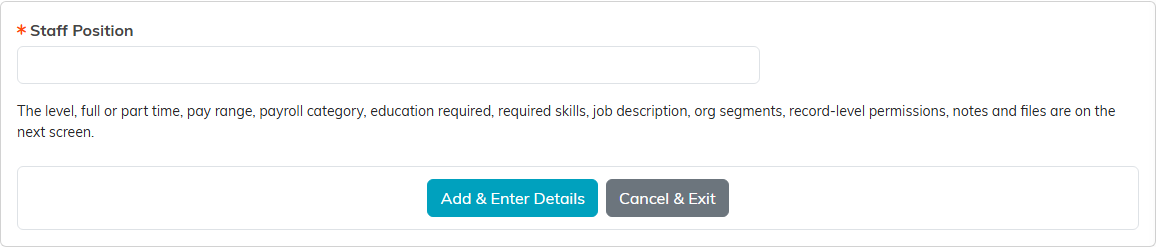
Only the position name lives here. Nothing is saved until Add & Enter Details.
Tracking Open and Filled Positions
Each position has a Position Filled switch on its Position Details page. You do not set it yourself: it turns on when someone is given the position, as primary or secondary, on their staff record, and back off when they move off it or are terminated. The status dropdown above the list then lets you narrow things down:
- All Positions - everything, and the default view
- Open Positions - roles still to be filled
- Filled Positions - roles with someone in them
You can also sort by Staff Position, Staff Position ID, Open/Filled Status, FT/PT Status, or Filled By Staff Member.
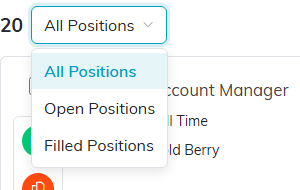
The status dropdown above the list narrows it to open or filled roles.
Staff Position Levels
A position can carry a Staff Position Level, which is useful for grouping roles into seniority tiers, pay grades, or whatever structure fits your organization. The dropdown sits on the Position Details page next to Full Time or Part Time.
The levels are yours to define, not a fixed list Argenta ships with. To add one, click the orange plus icon beside the dropdown and enter the new level, for example "Entry Level" or "Executive." It then appears for every position. If you do not see the plus icon, your account does not have permission to build new codes.
Once a staff member is assigned to a position, the level shows on their record in the read-only Level box next to the position.

The orange plus adds a level. No plus means your account cannot build new codes.
Assigning a Staff Member to a Position
You do this from the person's record, not from the position:
- Go to Staff & HR > Staff Members and open the staff member.
- On Staff Member Details, find the Staff Position card.
- Start typing the position title and pick it from the matches. The plus icon beside the field adds a brand new position without leaving the page.
- Click Save All Changes.
Chapter, Division, and Department fill in from the position automatically.

Save All Changes on the staff member's record once you have picked the position.
Secondary Positions
Some people wear more than one hat. A Secondary Staff Position field sits just below the primary one on the same card and works the same way, with its own read-only Level box. When the person is terminated, both the primary and the secondary position are written to their Previous Positions page, so the full history survives.

Secondary Staff Position sits just below the primary one on the same card.
Full Time and Part Time
Each position is marked Full Time or Part Time on its details page, and the staff member's record shows FT or PT beside their employment status. You also set the Payroll Category and the Per value (what the pay range is measured against, such as hourly or annual) at the position level.

FT or PT reads beside the employment status on the staff member's record.
