Knowledge Base Article
Add Products
Argenta tracks your products and the inventory behind them. Once a product exists you can order it, lend it out, sell it, and let Argenta keep count. Everything starts with adding the product.
Add the product
Choose Products & Inventory > Products from the menu on the left to open your Products screen, then click Add New. A short form opens asking for the Product Name. Enter it and click Add & Enter Details, and Argenta creates the product and opens the Product Workspace on Product Details, where you fill in the rest. Cancel & Exit leaves nothing behind.
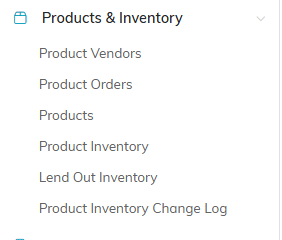
Products is the third item under Products & Inventory.

Add New opens a short form for the product name.
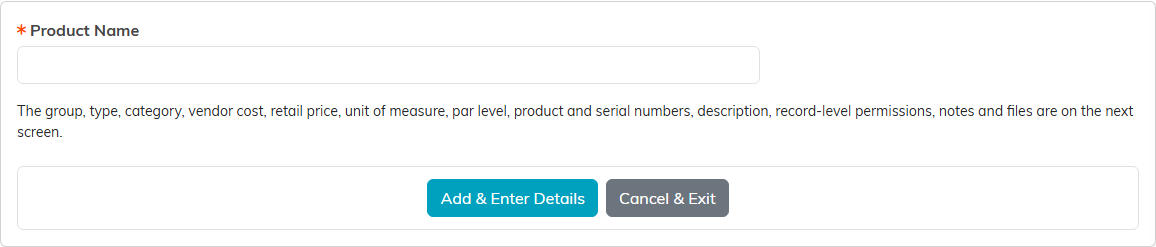
Only the product name lives here. Nothing is saved until Add & Enter Details.
The required fields
Product Name and Unit of Measure carry an orange asterisk and have to be filled in. Vendor Cost is never blank: an empty one reads and saves as 0.
- Product Name, what you call the product.
- Vendor Cost, the amount you pay for it.
- Unit of Measure, how the product is counted. Pick it from the drop-down.
Your Retail Price opens for editing once you turn on Product Is for Resale; an empty one saves as 0.

Product Name is one of the two fields with an orange asterisk.

Unit of Measure carries the other asterisk. Vendor Cost is never blank.
The four switches
- Active Product keeps the product in circulation.
- Product Is for Resale turns on when you sell the item, which makes Your Retail Price editable.
- Product Can Be Lent Out marks the item as something you loan.
- Track In Inventory brings the product into your inventory counts.

All four switches sit on one line, just under the description.
The rest of the fields
- Vendor is who you buy it from. Start typing the name and pick from the list. If the vendor does not exist yet, see Add Vendors.
- Product Description is where you describe the item.
- Markup is worked out for you from the vendor cost and retail price, so it is read only.
- Product Group, Product Type, and Product Category organize your catalog for filtering and reporting. Pick from the list or add a new one on the spot.
- Vendor's Product Number is the supplier's part number, worth filling in because it makes ordering and reconciling far easier.
- Serial Number for items that carry one.
- Par Level is the minimum quantity you want on hand, your cue to reorder.
- Record Level Permissions holds the Set As View Only and Lock This Record switches, which control who on your team can edit the product.

The orange plus beside each one adds a new entry on the spot.

Par Level is your reorder cue.

Record Level Permissions sits at the top of the page.
Save it
Use Save All Changes & Continue to stay on the product, or Save All Changes & Exit to save and go back to the Products screen. Copy & Add New opens a Copy This Product window that builds duplicates from the one you are on, which saves real time when you stock the same item in several sizes or colors. Cancel & Exit leaves without saving.

Save, or use Copy and Add New to build the next size or color.

The rest of the product record is on this bar.
What comes next
Adding a product does not give it any stock. Quantities are handled separately in Add Product Inventory, either by entering them yourself or by fulfilling a vendor order.
