Knowledge Base Article
Add Product Inventory
Inventory arrives in Argenta two ways: by fulfilling a vendor order, or by entering it yourself. This article covers doing it yourself. For the order route see Add Product Order.
Choose Products & Inventory > Product Inventory from the menu on the left to open your inventory list. A product has to exist in your catalog before it can have inventory, and it needs Track In Inventory switched on.
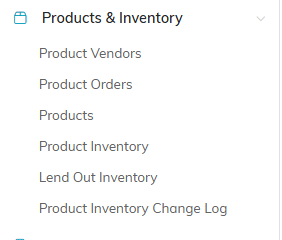
Product Inventory is the fourth item under Products & Inventory.
Add inventory for several products at once
- Click Add Inventory Manually at the top of the list.
- This opens Argenta Inventory Management, Add Inventory With No Vendor Order, which lists your products together on one screen.
- Fill in the QTY field for each product you are adding stock to. You can do one, a few, or all of them.
- Click Add These Items. The button sits at both the top and the bottom of the list, so you do not have to scroll back up.
The quantities are added and you land back on the Product Inventory screen. This is the quickest route when a delivery arrives that was never raised as an order.

Add Inventory Manually is the first button at the top of the list.
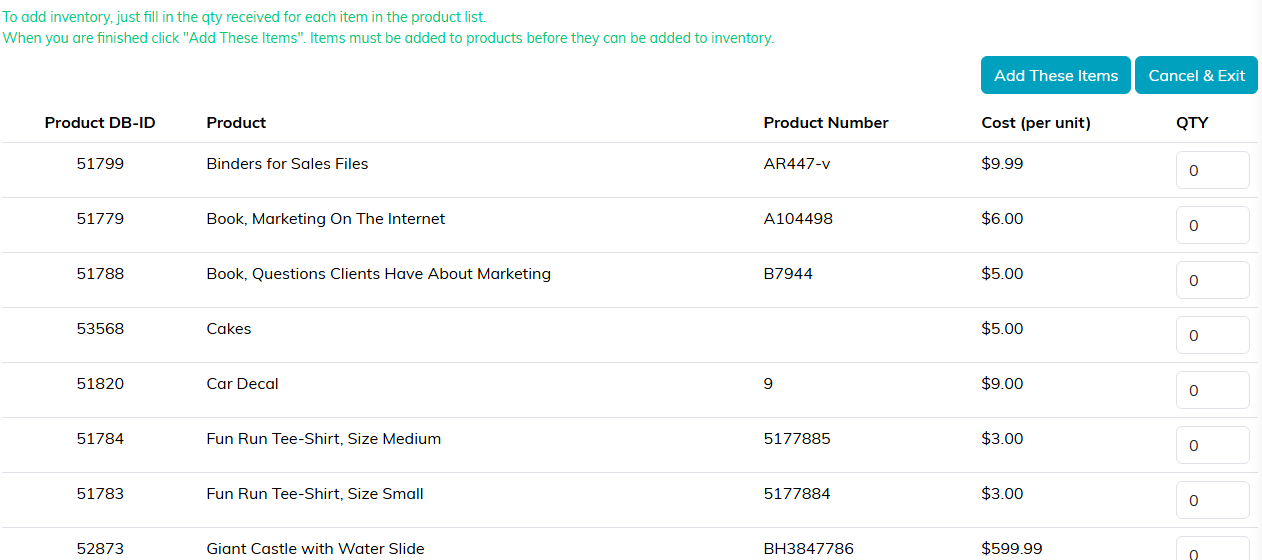
Every product on one screen, with Add These Items at the top and the bottom.
Change the quantity on one product
- Find the product in the Product Inventory list and click Manually Change Inventory. The screen notes that the change will be logged.
- You land on Change Product Inventory Manually, showing the product, its unit of measure, and the Current QTY On Hand.
- To increase the count, put the number in Enter QTY To Add To Inventory and click Add to Inventory.
- To decrease it, put the number in Enter QTY To Remove From Inventory and click Remove from Inventory.
- Cancel & Exit leaves without changing anything.
Note that you enter the amount of the change, not the new total. Adding 5 to a shelf of 20 gives you 25.
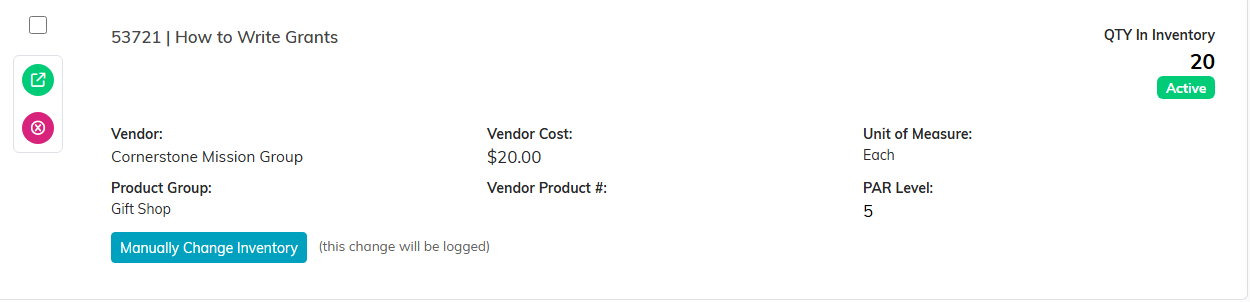
The note beside the button tells you the change will be logged.
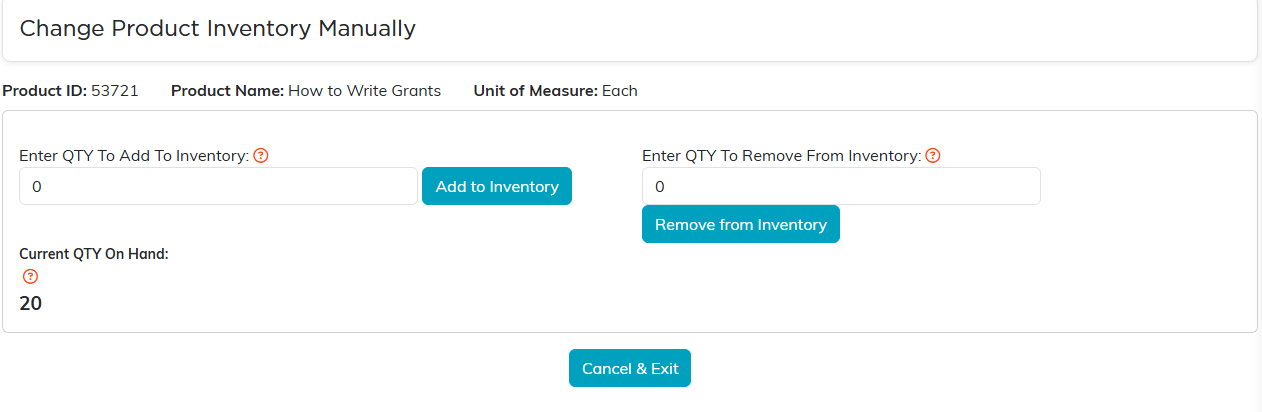
You enter the amount of the change, not the new total.
Every change is logged
Manual changes are recorded, which is what makes the count defensible later. Click Inventory Change Log at the top of the Product Inventory screen to open Products & Inventory > Product Inventory Change Log. Each entry shows the product, the date, and who made the change, newest first.
- Search by Product ID or name to follow one item.
- Click a Product ID to open that product's record in a new tab.
- Export to CSV for a full audit trail.
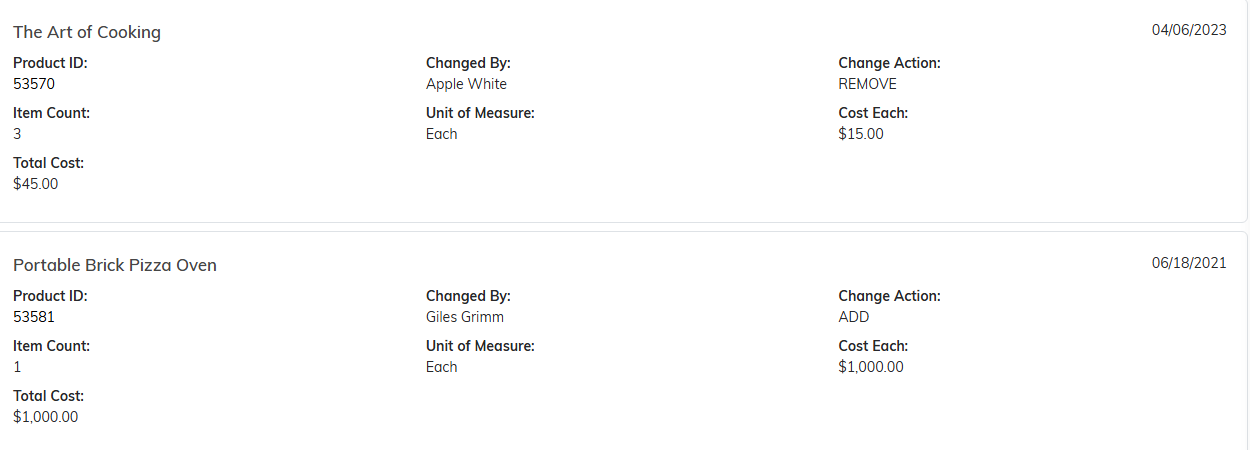
Newest first, with the person who made each change.
If a product is missing from the list
Almost always, the product does not have Track In Inventory turned on: only tracked products are listed. Running out does not remove a product; it stays on the list with a quantity of 0.

Track In Inventory is the switch to check first.
