Knowledge Base Article
Add Volunteer Positions
A Volunteer Position is a role in your organization that a volunteer fills, such as a board seat, a shift lead, or a committee chair. Your Volunteer Positions list shows every position you have created, filled or open, so you can see at a glance which roles still need someone in them. Positions also let you spell out the credentials and responsibilities that go with each role.
To get started, select Volunteerism > Volunteer Positions from the Argenta main menu on the left side of the screen. This opens your Volunteer Positions list. From there, click the Add New button.
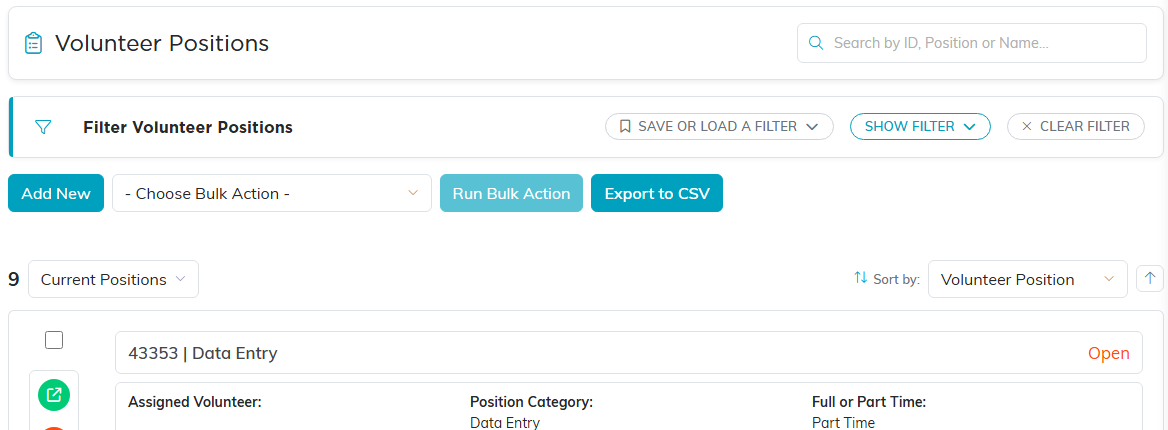
The Volunteer Positions list, filled and open roles together.
Argenta asks for the position title first. Name the role the way a volunteer would recognize it, then click Add & Enter Details. The title is the only thing this step needs, and it can be up to 150 characters. Cancel & Exit takes you back to the list.
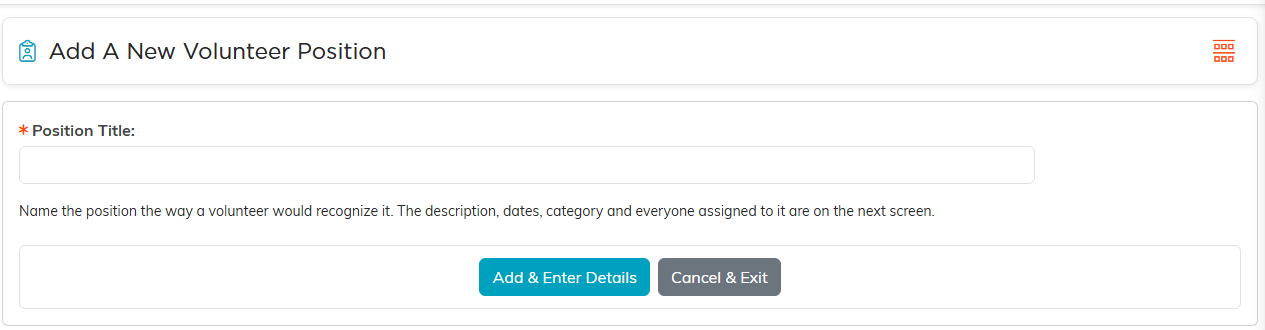
The title is all this step asks for.
Argenta then opens the Volunteer Position Workspace on the Position Details page. This is where you fill in everything else about the role.

The Volunteer Position Workspace opens on Position Details.
Position Details
Record Level Permissions. Two switches sit at the top of the page. Turn on Set As View Only to let others see this position without changing it, or turn on Lock This Record to keep it from being viewed or updated by anyone who is not a master admin, its creator, or specifically granted access. You can grant that access on the Record Permissions page.

The two switches at the top of the page.
Position Status. Choose Active/Current or Archived/Closed. Archive a position when the role no longer exists rather than deleting it, so your history stays intact. Once a position is archived, its Archive Date appears beside the status.
Volunteer Position / Job Title. Enter the name of the role. This field is required.

The orange asterisk marks the job title as required.
Start Date and End Date. Enter the dates the position runs, by typing them or using the date pickers. Leave the end date empty for an ongoing role. The end date cannot be earlier than the start date, though a one-day position can start and end on the same day.
Current Availability. Choose This Position Is Open or This Position Is Filled. This is what drives your at-a-glance view of which roles still need volunteers.

Leave the end date empty for an ongoing role.
Full or Part Time. Choose Full Time or Part Time.
Category. Select a category for the position. If the one you want is not there, you can add your own.
Volunteer In This Position. Start typing the volunteer's name and select them from the matches. The person must already be a volunteer in Argenta before you can assign them here. For help with that, see Add Volunteers. You can clear the selection or jump straight to the volunteer's record from the same field.

The orange plus (admins and master builders only) adds a category. The green button opens the volunteer's record.
Reporting To (Team Member Manager). Start typing to find and select the team member who manages this position.
Chapter, Division, and Department. If the position belongs to a specific chapter, division, or department, select it from each list.
District and Precinct. Political organizations will also see District and Precinct. Select the district first, then the precinct.

Reporting To and the organizational fields.
Job Description. A free-form field for the responsibilities, credentials, time commitment, and anything else a volunteer should know before taking the role.

Job Description is free-form.
Saving Your Position
Click Save All Changes & Continue to save and keep working, or Save All Changes & Exit to save and return to your Volunteer Positions list. Copy & Add New copies this position into a new one, which is the fast way to set up several similar roles. Cancel & Exit leaves without saving.

Copy & Add New is the fast way to set up several similar roles.
The Rest of the Workspace
Besides Position Details, the Volunteer Position Workspace has Position Files for attachments such as a signed role agreement, Position Notes for your running commentary, and Record Permissions for controlling who can see and edit the record. For help with those, see Add Related Files and Add A Note to the Notes Section.
For a full walkthrough of working with the positions list itself, including filtering, exporting, and bulk actions, see Overview, Working With Volunteer Positions.
