Knowledge Base Article
Add A Payroll Distribution
Argenta lets you record payroll distributions and, if you want, post them straight into your General Financials system. This article covers how to enter one and how it lands in your General Journal.
To get started, select Payroll Distributions from the Staff & HR area of the left sidebar, then click Add New.
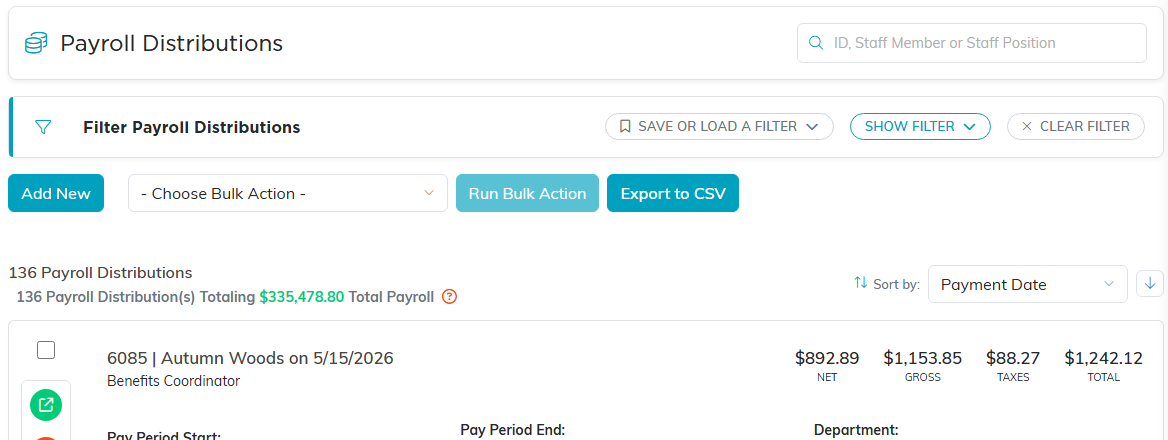
The Payroll Distributions list, with the total payroll above it.
On the Add A New Payroll Distribution screen, pick the Staff Member you are paying (required), then click Create Distribution & Enter Details. This creates the distribution and opens the Payroll Distribution Workspace, which has five tabs: Distribution Details, Connections, Payroll Files, Payroll Notes, and Record Permissions.
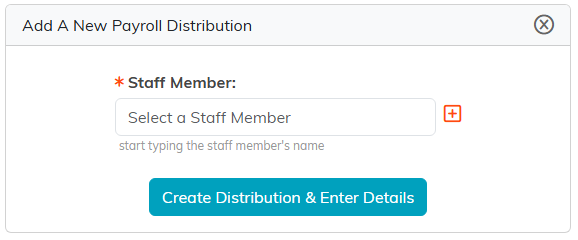
Pick the staff member, then Create Distribution and Enter Details.

The five tabs in the Payroll Distribution Workspace.
Distribution Details
Enter the pay period and payment details here:
- Staff Member, Payment Date, Pay Period Start Date, and Pay Period End Date – the staff member and the dates carry over from the add screen; adjust them if needed. (Payment Date is the day you run payroll.)
- Regular Hours / Overtime Hours and Regular Pay / Overtime Pay / Commission Pay (and the month the commission is for).
- Tax fields: Federal Income Tax, State Income Tax, Medicare Tax, Social Security Tax, Employer Taxes Paid, Employee Taxes Paid, Fed Unemployment Tax (FUTA), State Unemployment Tax (SUTA), and Total Other Deductions.
- Gross Pay (Regular + Overtime + Commission) and Net Pay (Gross Pay minus total taxes and other deductions). If you post to the General Journal, Net Pay matters: it is the amount that comes out of your bank account.
- Payment Method (required) and Check/Ref. Number.

The staff member and dates carry over from the add screen.

Payment Method is required.

Hours and pay.
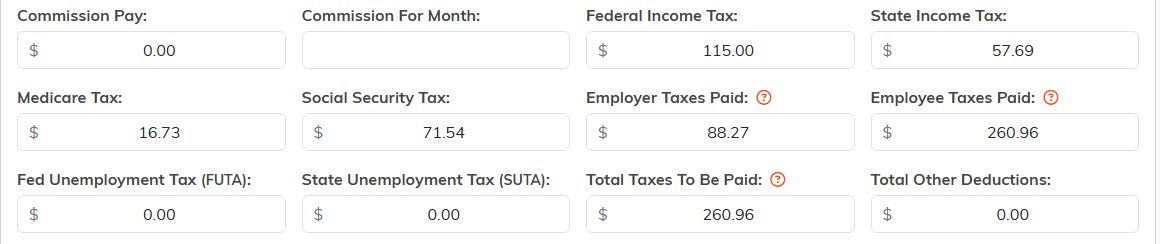
The commission and tax fields.

Net Pay is what leaves your bank account. Total Payout is shaded because it is calculated.
Posting to the General Journal
Turn on Add Payroll Distribution To The General Journal to record the payroll automatically. Then choose:
- Fund – the fund recorded on the net pay line. The other lines go to your no associated fund placeholder, and so does the net pay line if you leave this blank.
- Deposit Account Used for Payment (required) – the checking or asset account you pay from.

The Fund and Deposit Account fields appear once this is on.
Argenta pre-selects the right payroll accounts from your Chart of Accounts and does the journal work for you. You can change the account numbers, but not the account names, because payroll postings are specific. Argenta records it like this:
- Deposit Account Used for Payment – credited with the net pay, the money that actually leaves your bank.
- Payroll Expenses: Wages (Expense) – the employee's gross pay.
- Payroll Expenses: Taxes (Expense) – the payroll taxes your organization pays: the employer's share of Medicare and Social Security, plus FUTA and SUTA. The employee's own share is not here, because it is already inside the gross pay on the line above.
- Payroll Taxes Payable: Federal (Liability) – the total federal taxes owed (federal income tax, all Medicare and Social Security, and FUTA).
- Payroll Taxes Payable: State (Liability) – the total state taxes owed (state income tax and SUTA).
- Payroll Taxes Payable: Other (Liability) – whatever you entered in Total Other Deductions, which is money held back from the employee and owed on to somebody else. This line is only added when Total Other Deductions is not zero.
If the posting is refused
Argenta checks the entry before it reaches your books, and if something is wrong it tells you what, and saves nothing. You will see one of these:
- No Deposit Account Used for Payment picked. That is the bank account the employee’s net pay comes out of, so choose the account this payroll was actually paid from.
- The figures do not add up. Gross Pay less the taxes and deductions has to equal Net Pay. The message names the amounts that disagree so you can find the one that is wrong.
- There is a Total Other Deductions amount but no Payroll Taxes Payable: Other account. Add that account to your Chart of Accounts, or clear the deductions amount.
When everything is filled in, click Save Changes & Exit to save the distribution and return to your list (or Save Changes & Continue to keep working on it).
Use the Payroll Files tab to attach a copy of the check or a time sheet (see Add Related Files), and the Payroll Notes tab to add notes (see Add A Note To The Notes Section).
