Knowledge Base Article
Add Lend Out Inventory
The Lending Library tracks items you loan out and expect back. Before you can lend anything, the item has to exist as a product and have stock behind it. That is two steps, and this article covers both.
Step 1: add the item as a product
- Choose Products & Inventory > Products from the menu on the left.
- Click Add New. Argenta asks for the Product Name first, which is all it needs to start, then you click Add & Enter Details. The product is created and the Product Workspace opens on Product Details.
- Fill in the two required fields, each marked with an orange asterisk: Product Name and Unit of Measure. Then enter the Vendor Cost; an empty one reads and saves as 0.
- Turn on Product Can Be Lent Out. This is the switch that makes the item available to the Lending Library, and it is the one people forget.
- Leave Active Product on, and turn on Track In Inventory so the item is counted.
- Click Save All Changes & Continue or Save All Changes & Exit.
Repeat for each item you want to lend.
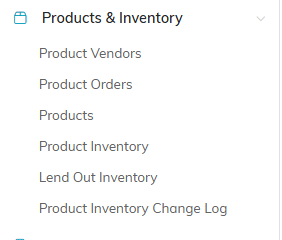
Start in Products, not in Lend Out Inventory.

Add New asks for the product name first.

Unit of Measure is required. Vendor Cost is never blank; an empty one saves as 0.

Product Can Be Lent Out is the one people forget.
Fields worth filling in for lending
- Vendor is optional. If the item came from a supplier, choose them here so the product shows on that vendor's Products tab. See Add Vendors.
- Serial Number earns its keep here. When a borrower returns a piece of equipment, the serial number is how you confirm you got the same one back.
- Vendor's Product Number for the supplier's part number.
- Product Description, Product Group, Product Type, and Product Category to organize the catalog.
- Par Level for the minimum quantity you want on hand.
A new product starts with Product Is for Resale on, which makes Your Retail Price editable. If you only lend the item and never sell it, turn it off.

Vendor is optional. Leave it empty if the item did not come from a supplier.

Serial Number earns its keep the day something comes back.
Step 2: give the items a quantity
A product record on its own has no stock, so a brand new product cannot be lent yet.
- Go to Products & Inventory > Product Inventory.
- Click Add Inventory Manually. This opens Argenta Inventory Management, Add Inventory With No Vendor Order, which lists your products on one screen.
- Enter the QTY for each item you are stocking. You can do them all in one pass.
- Click Add These Items, which sits at both the top and the bottom of the list.
You land back on Product Inventory with the quantities in place. If you ordered the items from a vendor instead, fulfilling that order adds them for you. See Add Product Order.

Add Inventory Manually sits at the top of the Product Inventory list.
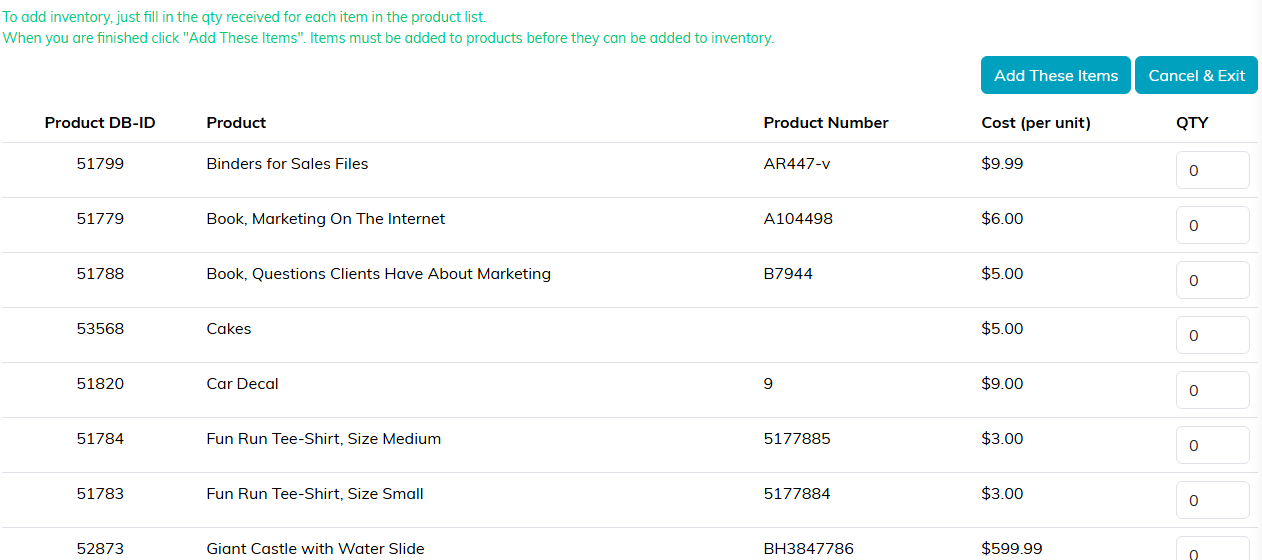
Add These Items sits at the top and the bottom, so you never scroll back.
Now you can lend
With the products created and stocked, you are ready to loan them out. See Using the Lending Library.
