Knowledge Base Article
Add Paid Time Off Requests
Argenta has a built-in place for your staff to request paid time off and for managers to track and approve those requests. Go to Staff & HR > Time Off Requests.
Adding a Request
- On the Time Off Requests list, click Add New. Argenta asks for four things first, all required: the Staff Member, the Total Hours, and the Start Date and End Date of Time Off.
- Click Add & Enter Details. The request is created and the Time Off Request Workspace opens, where the category, the reason and the approval are handled.
- Fill in Request Details. Fields with an orange asterisk are required.
- Click Save All Changes & Continue, or Save All Changes & Exit to save and go back to the list.

Add New sits above the list. Each card carries a status badge.

The save buttons at the foot of the request.
Request Details
- Staff Member (required) - who the time off is for
- Request Category - your own list of reasons, such as vacation or medical leave. Use the orange plus icon (admins and master builders only) beside the field to add a category you do not see
- Status of Request - set by the approval process, not typed in here
- Total Hours (#) (required) - how many hours the request covers
- Start Date of Time Off and End Date of Time Off (both required)
- Time Off Reason or Additional Information - anything the approver should know
At the top of the page, Set As View Only and Lock This Record restrict who can change or even see the request. Fine-grained access is on the Record Permissions page.
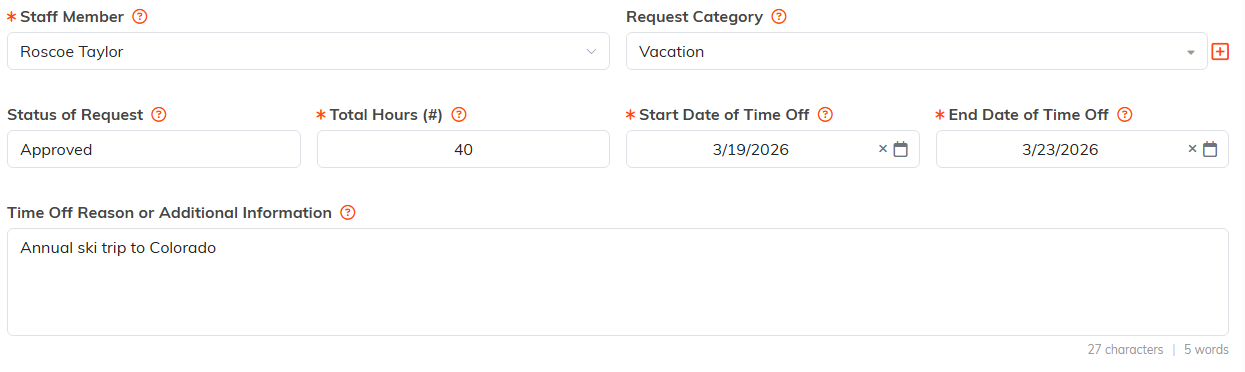
Request Details. The orange plus (admins and master builders only) beside Request Category adds a category.

Both switches sit at the top of Request Details.
Approving a Request
Approval lives on its own Approval page in the workspace, not on Request Details.
- Open the request and go to Approval.
- Tick I Approve This Request.
- Choose your name under Approved by Manager and set the Approved Date.
- Save.
Only the staff member's manager (or a master admin or staff manager) can approve. Everyone else with access, including the person who requested the time off, can open the Approval page and see whether it was approved and by whom, but the controls are locked for them. Once saved, the page shows a callout naming the approver and the date, so there is a clear record of who signed off.
An approval covers one person, a number of hours and a set of dates. If anyone changes the Staff Member, Total Hours, Start Date or End Date of an approved request on Request Details, Argenta asks first and then sends the request back to Open/Pending, so it has to be approved again. Other edits leave the approval, and the name of the manager who gave it, exactly as they were.

Once saved, a callout names who approved it and when.
The Request Workspace
- Request Details - the request itself
- Approval - the manager sign-off
- Request Files - supporting documents such as a doctor's note. See Add Related Files
- Request Notes - internal notes. See Add A Note to the Notes Section
- Record Permissions - who can view or edit this request
Save the request before adding files or notes to it.

The five pages of the request workspace.
Finding Requests Later
Search the list by ID, staff member name, or email. The status dropdown filters to Open/Pending Time Off Requests, Closed/Approved Time Off Requests, or All Time Off Requests. You can export the list to CSV.
To see approved time off laid out by date instead of as a list, use the Team Time Off Calendar.
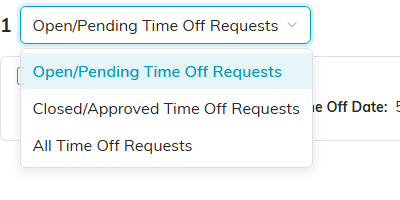
The status dropdown above the list.
