Knowledge Base Article
How To Manage Engagement in the Argenta Sales & Marketing Module
An engagement is a record of an actual interaction with someone: a call, a meeting, a site visit, a thank you. Logging them gives your whole organization a shared history to work from, instead of the version that lives in one person's inbox.
Getting to the Engagement list
From the main menu, choose Marketing & Engagement > Engagement. That shows every engagement your organization has logged, for every kind of record.
Several menus also have their own filtered doorway into the same page: Donor Engagement under Fundraising, Volunteer Engagement under Volunteers, Member Engagement under Membership, Staff Engagement under Staff & HR, and others. Those open the list already narrowed to that record type, and the page title changes to match. Each one remembers its own filter, so narrowing Donor Engagement leaves the main Engagement list as you left it.
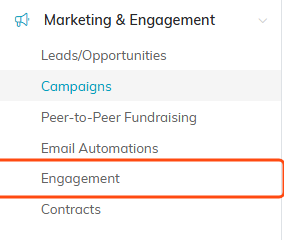
Engagement sits under Marketing & Engagement in the main menu.
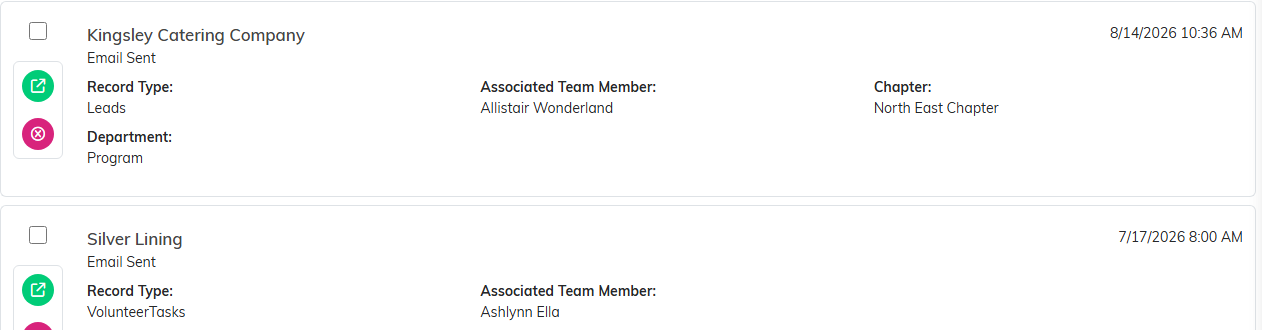
The list carries every engagement your organization has logged.
Log an engagement
- Click Add New. Argenta asks for three things first, all required: the Engagement Date, the Constituent and the Engagement Type. Nothing is saved yet, so Cancel & Exit leaves nothing behind.
- Click Add & Enter Details. The engagement is created and Engagement Details opens, where you add the team member and the description.
- Fill in the details:
- Engagement Date & Time. Required. When the interaction actually happened, not when you got around to typing it.
- Constituent. Required. Start typing the name and pick the person. The add icon on the field creates a brand new constituent without leaving the page.
- Engaged With (Team Member). Who on your side had the interaction.
- Engagement Type. Required. One of your own classification codes (call, visit, email, and so on).
- Record Type. Which relationship this engagement belongs to, so it shows up on the right filtered view.
- Description. What actually happened.
- Click Save All Changes & Exit, or Save All Changes & Continue to keep working in the record.
Write the description so a colleague could pick up the relationship without asking you. "Left voicemail" is worth almost nothing in six months. "Left voicemail, prefers email, asked about the scholarship fund" is worth a lot.
You can also log an engagement from inside a record. A lead's Engagement tab has its own Add New button, and the Contact Log can create one for you with its Mark Contact As An Engagement? field.

Add New sits at the left of the action bar.
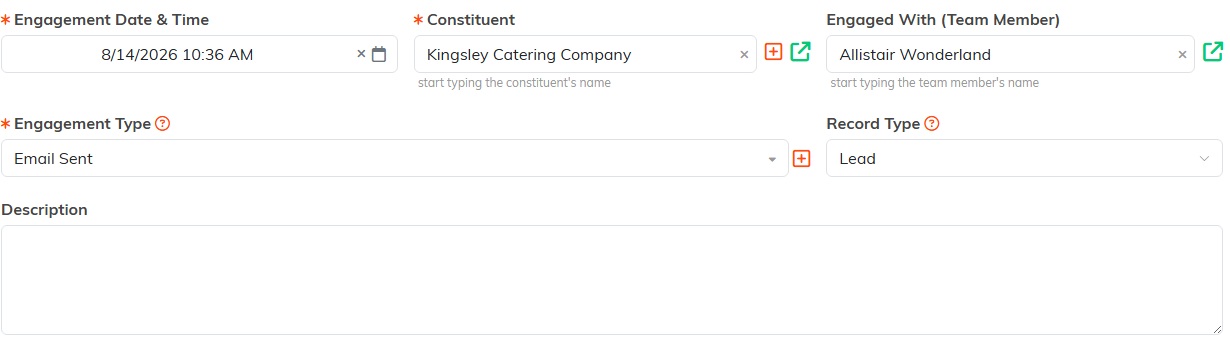
The three fields with an orange asterisk are the ones Argenta insists on.
Engagement types
Types are how you separate a phone call from a site visit from a thank you note. Click Engagement Types at the top of the list to open your classification codes in a new tab and manage the set your organization uses. Agree on a short list and stick to it, because a type list that grows without discipline stops being useful for reporting. See How To Manage Classification Codes in Argenta.

Engagement Types opens your classification codes in a new tab.
Find the engagements you need
Search by name or engagement type in the search box, or click Show Filter and narrow by:
- Record Type, so you can look at donors, leads, or another group on their own
- Engagement Type
- Chapter, Division, and Department, plus District and Precinct for political organizations
- Constituent, for one person's full history
- Engaged With Team Member, to see who has been talking to whom
- Engagement Date Range
Click Apply Filter to run it, or Clear Filter to start over. When you have come in through one of the filtered doorways such as Donor Engagement, an All Engagement button appears that drops the record type limit and shows everything.
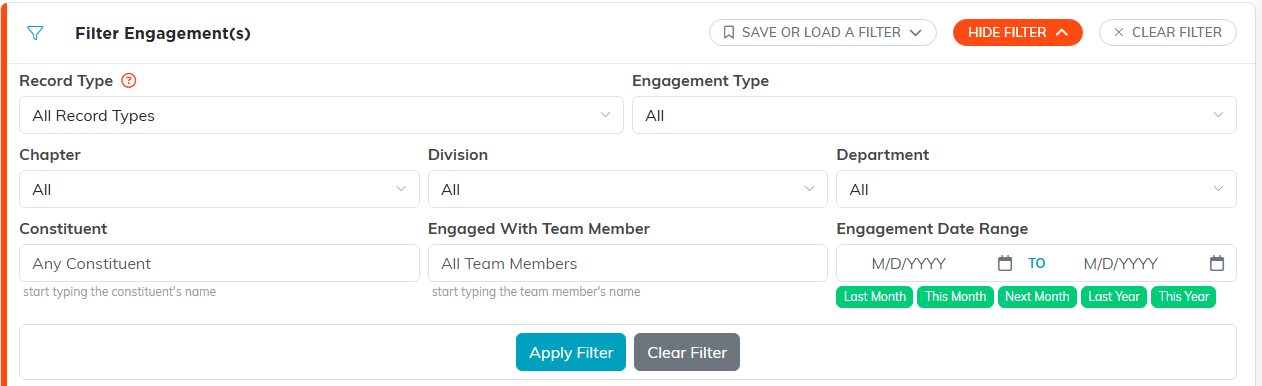
Show Filter opens the whole set. Apply Filter runs it.
Work on several at once
Tick the records you want, choose an option from the - Choose Bulk Action - dropdown, then click Run Bulk Action. The available actions are:
- Change Associated Team Member for Selected Records
- Change Classification Code for Selected Records
- Create A Mailroom List With Selected Records
- Add Selected Records To An Existing Mailroom List (these two Mail Room actions only appear for users with the Mail Room Manager permission, and for Master Admins)
- Delete All Selected & Unlocked Records
The select and unselect options at the top of that same dropdown (select everything matching your filter, or just this page) take effect the moment you pick them and do not need the Run Bulk Action button.
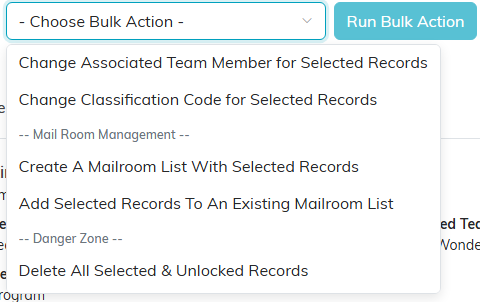
The bulk actions available on engagements, with delete under its own divider.
Getting real value out of it
- Log it the same day. Engagements written up at the end of the month are thin and often wrong.
- Filter by team member before someone goes on leave, so their relationships get covered instead of going quiet.
- Filter by date range to find the gaps. People nobody has spoken to in a long while are usually where lapsed donors come from.
- Export the filtered list with Export to CSV when you want to work through it offline or hand it to someone.
Related reading: What Are Engagements and How Do They Track Constituent Activity? and Add Bulk Engagements.
