Knowledge Base Article
How To Manage Classification Codes in Argenta
Classification codes are the dropdown lists behind almost every field in Argenta: document categories, event types, donation categories, volunteer needs, lead status codes. Set them up the way your organization actually talks, and everyone picks from the same list instead of typing their own version of the same thing.
Where to find them
Click Classification Codes in the main menu. You get every code type in Argenta, more than 200 of them, laid out as tiles and grouped alphabetically.
- Search. Type in the box at the top right to narrow the tiles. The number beside it shows how many matched.
- The A to Z bar. Click a letter to jump to that group. Letters with nothing under them are greyed out.
This page is for master builders and administrators. Everyone sees Classification Codes in the menu, but anyone else is refused when they open it; ask an administrator on your team to add the choice you need.
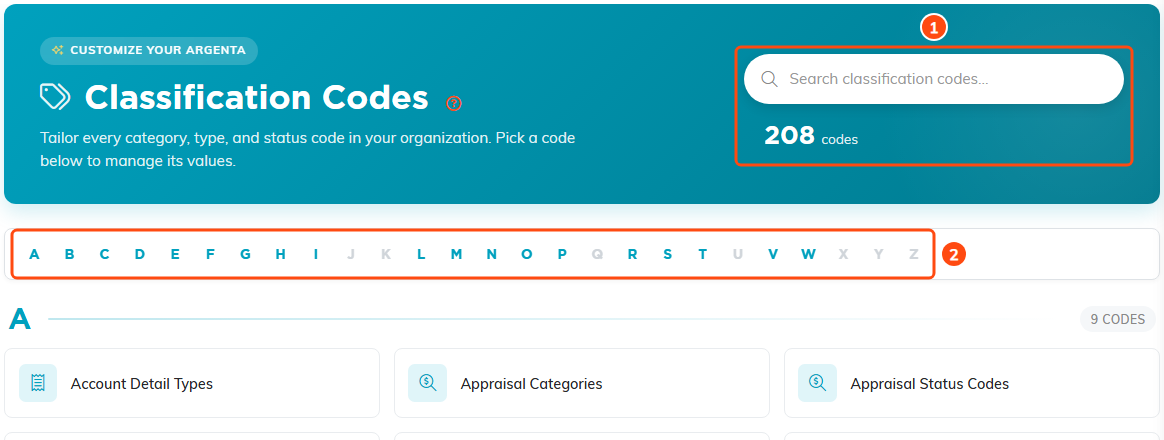
1 search the tiles, and the number underneath shows how many matched. 2 jump to a letter. Letters with nothing under them are greyed out.
Add a new code
- Go to Classification Codes and click the tile for the list you want, for example Document Categories or Event Types.
- Click the add tile at the top of the grid. It is named for whatever you are editing, so on Document Categories it reads Add A New Document Category.
- Type the name. Nearly every list holds 150 characters and a handful are shorter, so the box counts down from the limit for the list you are on.
- Click the button in the modal (it is also named for what you are adding, such as Add Document Category) or just press Enter.
The new value is live right away, everywhere that dropdown appears.
Add one without leaving the record you are on
You do not have to walk over to Classification Codes every time. Wherever a classification code dropdown sits on a record, master builders and administrators see a small orange plus icon next to it. Click it, type the new value, click Save, and it drops straight into the list you are standing in.
Why you cannot rename a code, and what to do instead
There is no rename, and that is deliberate. Once a code is sitting on hundreds of records, changing the words underneath them quietly rewrites your history and your reports along with it.
The safe way to change a name:
- Add a new code with the name you want.
- Move the records off the old code onto the new one. On a list page, tick the records and use the Change Classification Code for Selected Records bulk action.
- Remove the old code once nothing is using it.
Remove a code you no longer use
- Open the code list and find the value you want gone.
- Click the circle x on its tile.
- Confirm when Argenta asks.
If nothing is using the code, it comes off your organization's list as soon as you say yes.
Two things will stop you, both on purpose:
- Your records still use it. Argenta names what is holding the code in your own words rather than table names, for example 12 donors and 3 volunteers, and asks you to change those records to a different option first. Nothing is changed. On a list page, the Change Classification Code for Selected Records bulk action moves them in one go.
- It is a system code. Values marked with a lock and a System badge are part of how Argenta works. They have no delete button at all.

Hover a tile to bring up its remove button. The dashed tile at the top adds a new value, and anything marked SYSTEM has no remove button at all.
Removing a code takes it off your organization's list. It does not go digging through other organizations' data.
Good habits
- Set your codes up before you start entering data. Reworking a taxonomy after a thousand records are sitting on it is a much bigger job than getting it right on day one.
- Pick a naming convention and hold to it. "Annual Fund" every single time beats "Annual Fund" some days and "annual fund gifts" on others.
- Prune once a year. Codes nobody picks anymore just make the dropdown longer for everybody.
- Remember these feed your reports. Clean codes are the difference between a report you trust and one you have to explain.
Every change is logged
Adding or removing a code writes an entry to the Activity Log with your name and the time, so you can always see who changed the taxonomy and when. See How to Use the Activity Log to Track Record Changes.
Classification codes also show up as filter options on nearly every list. See How To Filter Lists in Argenta.
