Knowledge Base Article
How To Filter Lists in Argenta
Nearly every list in Argenta works the same way, whether you are looking at constituents, donations, programs, or invoices. Learn the controls once and you know them everywhere.
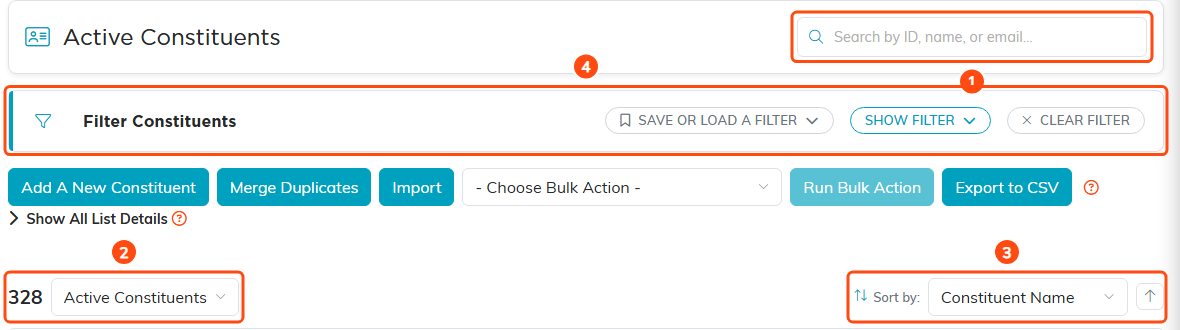
The top of any list page. 1 search, 2 the record count and view dropdown, 3 sorting, 4 the filter panel.
Search
The search box sits at the top right of the list. What it searches depends on the list, and the grey text inside the box tells you: some search a name, others take an ID too. Results narrow as you type. Click the x in the box to clear it.
If a search finds nothing, the list says so rather than just looking empty. Where the view dropdown narrows the search as well as the list, it also names the view you are searching and gives you a button to search every record instead, and your search term stays in the box when you press it. Read that line before deciding a record has been deleted: an exact ID search while the view is set to Active finds nothing at all if that record is inactive or prospective.
While a list is fetching results, whether from the search box, a filter, a sort or a page change, the rows dim for a moment and clicks on them are ignored. That is the list telling you the rows on screen are on their way out, so a click in that moment would land on a row that is about to be replaced. Wait for the dimming to lift and the rows you see are the ones you get.
The view dropdown
Above the list on the left you will see the number of records and, on most lists, a dropdown beside it. That dropdown switches between the common views for that list, usually something like Active records versus All records. If you cannot find a record you know exists, check here first. It is very often set to Active and the record you want is closed or inactive.
Sorting
On the right is Sort by: with a dropdown and a small arrow button beside it. The dropdown picks the field to sort on, and the arrow button flips between ascending and descending each time you click it. The fields on offer differ by list, and they are a short deliberate set rather than every column.
The filter panel
Below the title is a collapsible panel named for whatever you are looking at, such as Filter Programs or Filter Constituents. Click the heading, or the Show Filter pill on the right of it, to open it.
- Set as many fields as you want. Most accept several values at once, so you can pick three statuses instead of one.
- Click Apply Filter.
- Click Clear Filter at the bottom of the panel to drop your selections and start over.
On the Constituent List, the Status field in the panel and the view dropdown above the list both filter the same thing. Pick All, Active or Inactive in the panel and Argenta lists those constituents and moves the view dropdown to match, so the heading above the list always agrees with the filter in force. Until you pick one, the panel’s Status shows whichever status the view dropdown is on.
There is a second Clear Filter, a small pill in the panel header. It does exactly what the button at the bottom does: each one wipes your search text, the view dropdown, and the sort along with the filter fields, and puts the list back the way it looked when you arrived. Use whichever is nearer, especially when a list is behaving strangely and you are not sure why.
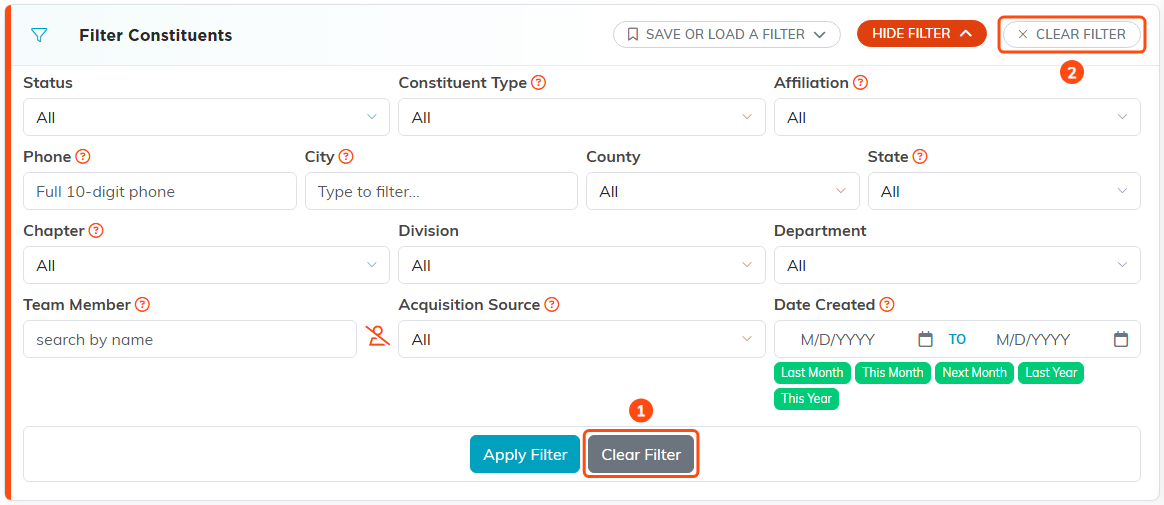
The two Clear Filters, 1 and 2, do the same job: each clears your filter selections, search and sort, and puts the list back the way it opened.
Filters and search work together. A filter plus a search term gives you the records that match both.
Saving a filter you use often
If you rebuild the same filter every Monday, save it instead.
- Set the filter up the way you want it.
- Click Save or Load a Filter in the panel header.
- Click Save This Filter, give it a name, and click Save Filter.
Your saved filters live in that same menu under My Saved Filters, ready to load in one click. Saved filters are per list, so a filter you build on Constituents shows up on Constituents and nowhere else.
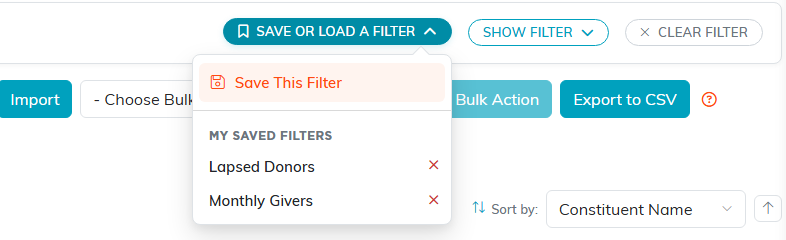
Your saved filters sit under the same menu you saved them from.
Administrators get one extra choice in the save box: Make available to all users on this team. Tick it and the filter appears for everyone under Shared Filters, tagged with the name of the person who shared it, so your whole team can work from the same definition of, say, lapsed donors. You can delete filters you created, including shared ones. You cannot delete someone else's.
Argenta remembers where you were
Your filter, sort, search, and the view dropdown stay put as you move around and come back within the same browser tab, so you do not have to rebuild your view every time you open a record. That includes All: a list you switched to All Partners or All Recipients is still on All when you come back, rather than dropping to Active. Open the list in a brand new tab and you get a clean slate.
The flip side is worth knowing: if a list looks emptier than you expected, an old filter is usually still applied. Open the panel and click Clear Filter.
Exporting what you filtered
Click Export to CSV to download exactly the records your current filter and search produced, not the whole table. CSV files open in Excel. The button only appears if you have export permission or are an administrator, so talk to an administrator on your team if you do not see it. Being set to view only does not hide it. Every export is written to the Activity Log with your name and the time.
Acting on several records at once
On lists that support it, tick the checkboxes beside the rows, pick something from the Choose Bulk Action dropdown, and click Run Bulk Action.
The same dropdown holds the selection shortcuts:
- Select Records Only on This Page. Just what you can see.
- Select All Records That Meet The Current Filter Criteria. Every matching record across every page, not only the page in front of you. A banner appears telling you how many are selected. Check what your filter is doing before you use this one.
- Unselect Records Only on This Page and Unselect All Records to back out.
After a whole-set selection you can still untick individual rows, and the rest of the selection holds.
Moving through long lists
Long lists are paged. The controls at the bottom step forward and back or jump to the first or last page, Page 3 of 12 tells you where you are, and the Top button scrolls you back up.
Related
Many filter dropdowns are built from your own classification codes. See How To Manage Classification Codes in Argenta.
