Knowledge Base Article
How to Connect a Task to Campaigns, Events, Grants, Programs and More
A task's Connections page links the task to the other records it belongs with, so you can jump between them. Open the task and click Connections in the workspace menu. The page has seven panels: Associated Campaigns, Associated Expenses, Associated Participants, Associated Properties, Associated Events, Associated Grants, and Associated Programs. Each panel lists the records already connected, with their ID and name.
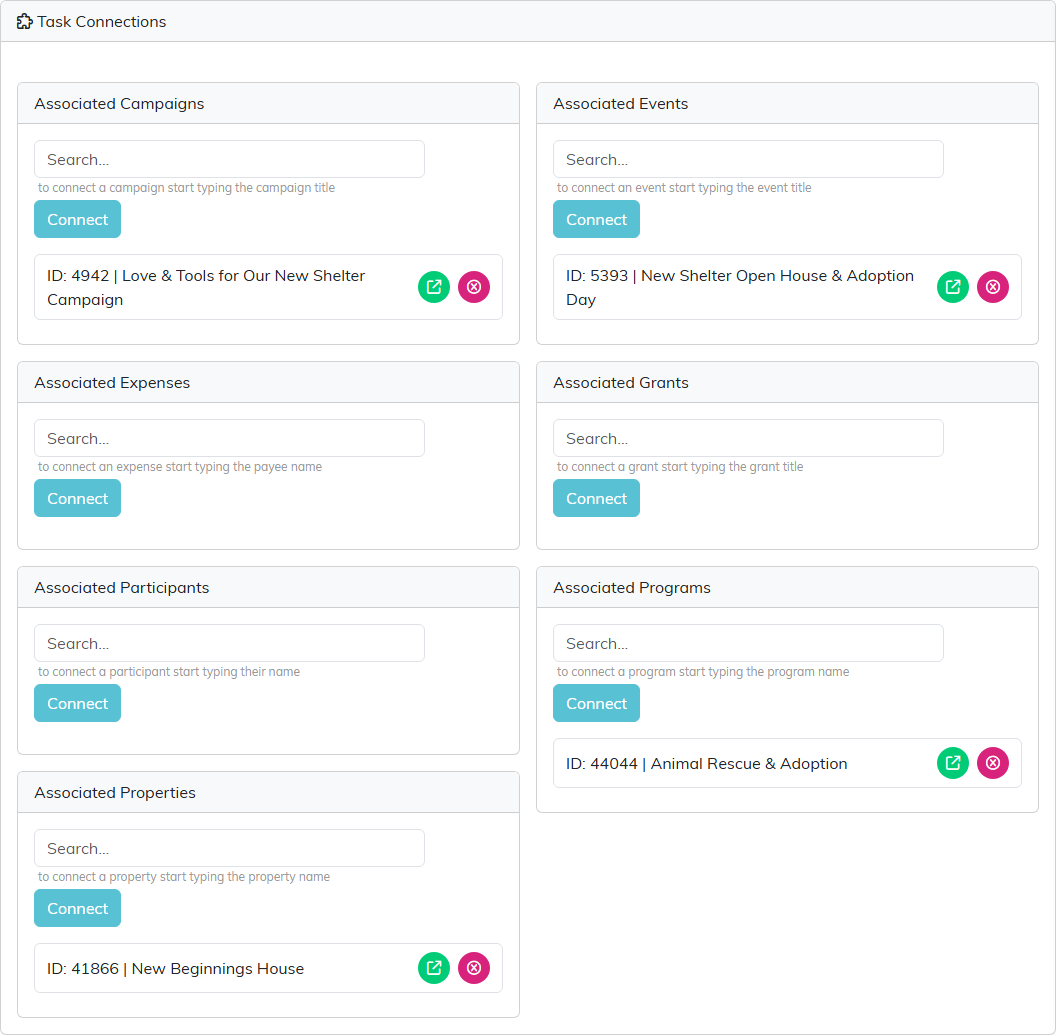
The flyer task connected to its campaign, the open house event, a program, and the shelter property.
Connect a record
- In the panel you need, start typing in the search box. Each panel says what to type: a campaign, event, or grant title, an expense's payee name, a participant's name, or a property or program name.
- Pick the record from the list that appears. Typing the full name is not enough; you have to pick it.
- Click Connect.
If the record is already connected, Argenta tells you and does not add it twice.
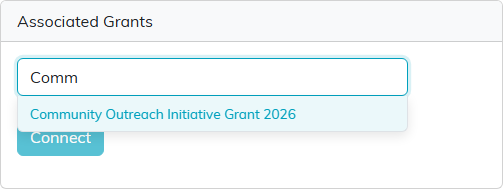
Pick the grant from the list, then click Connect.
Open or remove a connection
- To go to a connected record, click the green icon beside it.
- To disconnect a record, click the pink icon beside it and confirm. The record itself is not deleted; only the link to this task is.
If the task is set as view only or locked and you are not on its Record Permissions lists, you can see and open the connections, but the search boxes and remove icons do not appear.
A campaign or event can be connected to tasks from its own side too; see How to Connect a Campaign to an Auction, Fund, Project, Events, Programs and Tasks and How to Connect an Event to Campaigns, Products, Projects, Permits, Programs and Tasks.
