Knowledge Base Article
How to Connect a Campaign to an Auction, Fund, Project, Events, Programs and Tasks
The Connections page ties a campaign to the rest of your work: the auction that raises money for it, the fund its gifts are credited to, the project it pays for, and any events, programs and tasks that belong to it. Connecting a record here never changes the record itself, and removing a connection never deletes anything.
Open Connections
Open the campaign and click Connections in the workspace menu.
The Connections page has a short Show Me How To Use This Page video at the top right; click it to watch, and use its chapters to jump to the part you need.
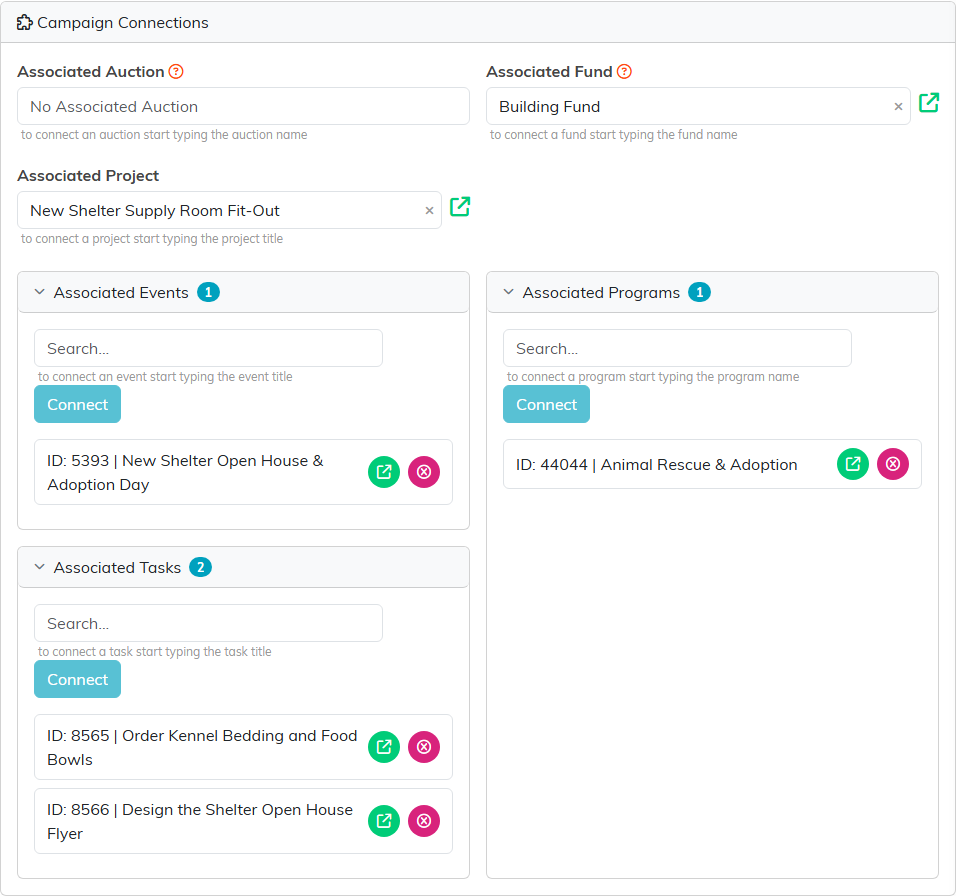
A campaign's connections: one auction, fund and project at the top, then as many events, programs and tasks as you need.
Pick an auction, fund and project
The three fields at the top each hold one record. Start typing in the box and pick from the list that appears.
- Associated Auction: the auction raising money for this campaign. An auction can point at only one campaign, so picking a different auction here unlinks the one that was connected before. If the auction you pick is already linked to another campaign, you are asked first, with that campaign named, and it moves here only if you answer Yes. Other auctions can still name this campaign as their Related Campaign on their own Connections tab. When more than one does, the box shows one of them and lists the others under it, and choosing an auction here keeps only the one you choose.
- Associated Fund: the fund this campaign's income is credited to. A gift made through the campaign's public donation form is booked to it. This is the same setting as Associated Fund on Campaign Details, so changing it on either page changes both. Only active funds appear in the search.
- Associated Project: the project this campaign supports. It is the same link as the project's Associated Campaigns panel, so connecting or removing it on either page shows on the other.
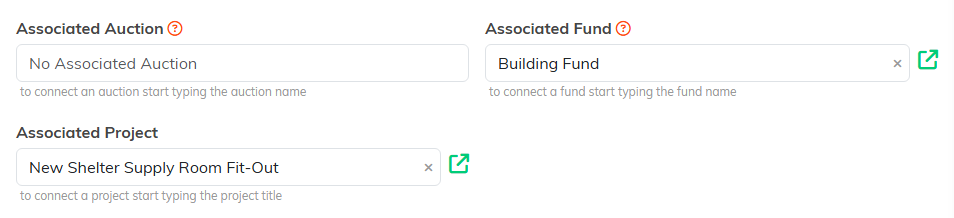
Each of these three holds one record. The green icon beside a filled field opens that record in a new tab.
There is no Save button for these three. Each one saves the moment you pick, and a green Saved check appears under the fields to confirm it. To disconnect one, click the x in its box.
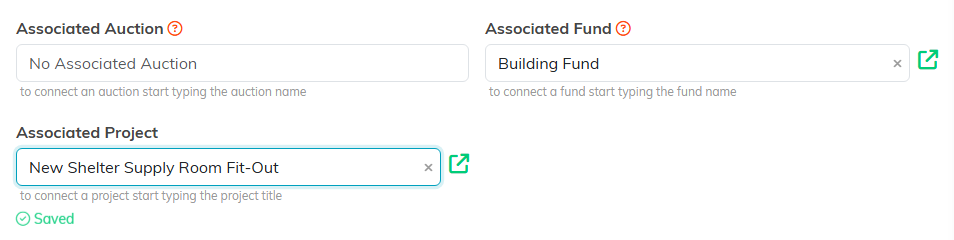
The green Saved check is your confirmation. It fades after a few seconds.
Connect events, programs and tasks
Below the three fields are three panels, Associated Events, Associated Programs and Associated Tasks. Each one can hold as many records as you need, and the number beside its title shows how many are connected. Click a panel's title to fold it up or open it again.
- Start typing in the panel's Search box: an event title, a program name or a task title.
- Pick the record from the list.
- Click Connect. The record joins the list below, shown with its ID and name.
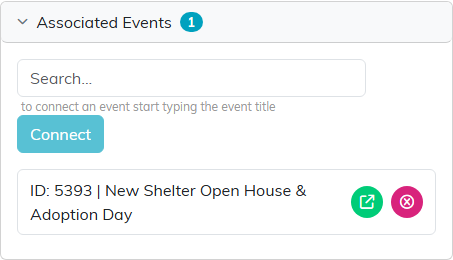
The event this campaign is building toward.
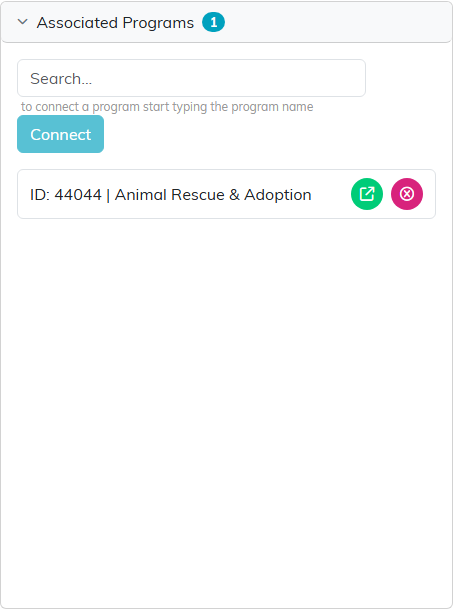
The program the campaign's money will support.
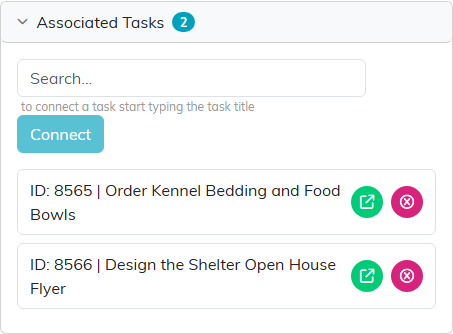
Tasks keep the campaign's to-do list with the campaign.
Each connected record has two icons. The green open icon opens the record in a new tab. The pink remove icon takes the connection away.
Remove a connection
Click the pink remove icon beside the record. Argenta asks you to confirm. Click Yes to remove the connection, or No to keep it. Only the link goes: the event, program or task itself stays exactly as it was.
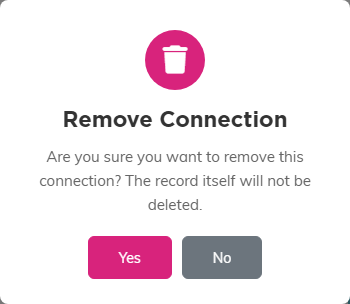
Removing a connection never deletes the record.
For a tour of every page in the Campaign Workspace, see Overview, Working with Campaigns.
