Knowledge Base Article
How to Connect an Event to Campaigns, Products, Projects, Permits, Programs and Tasks
Connections ties an event to the other records it belongs with: the auction you run at it, the fund its money goes to, and the campaigns, products, projects, permits, programs and tasks around it. Each link shows from both sides, so opening the campaign shows the event too.
Open Connections
Open the event and click Connections in the Setup group of the workspace menu.
Connections has a short Show Me How To Use This Page video at the top right; click it to watch, and use its chapters to jump to the part you need.
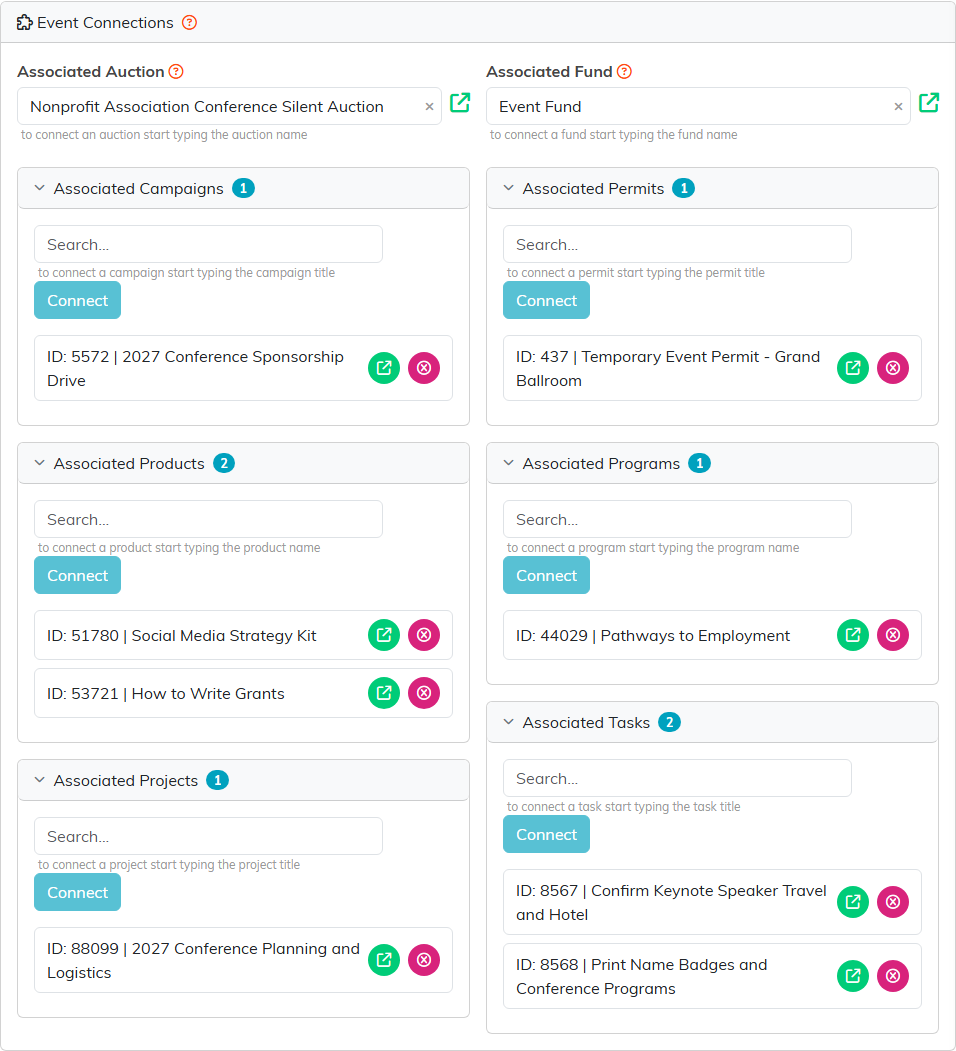
A conference tied to its silent auction, its sponsorship campaign, its planning project, its venue permit and the tasks that get it ready.
Auction and fund
- Associated Auction is the auction you are running at this event. The box holds one auction, and picking one, or clearing the box, unlinks every other auction from the event. If the auction you pick is already linked to another event, you are asked first, with that event named, and it moves here only if you answer Yes. An auction can also be linked from its own Associated Event or by an import, so if more than one points at this event, the others are named under the box.
- Associated Fund is the fund the event's money belongs to. Ticket sales are recorded against it, which is how your fund reports pick them up. Only active funds come up in the search. Clear the box and it goes back to No Associated Fund.

Start typing a name and pick it from the list.
Both boxes save the moment you pick something. There is no save button: watch for the green Saved check under them.

The Saved check means the change is already stored.
Campaigns, products, projects, permits, programs and tasks
Each of these has its own panel, and an event can have as many of each as you need. The number beside a panel's title is how many are connected.
- In the panel's search box, start typing the record's name and pick it from the list.
- Click Connect. It saves straight away.
Each connected record shows its ID and name. The green icon opens the record. Click a panel's title to fold it away.
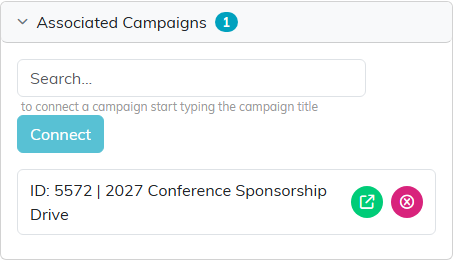
The campaign that raises sponsorships for the conference.
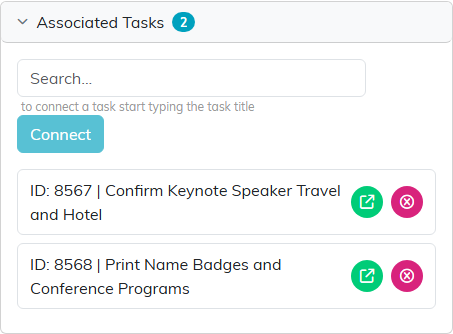
Two tasks the planning team is working through before the day.
Remove a connection
Click the pink icon beside a connected record and answer Yes. Only the link is removed. The campaign, task or other record itself is not deleted.
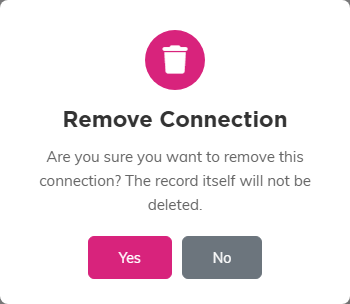
Argenta asks first, and reminds you the record stays.
To work from the auction's side instead, see How to Connect an Auction to an Event. For a map of the whole event workspace, see Overview Part 1 of the Argenta Event Management System.
