Knowledge Base Article
How to Export and Read Your Event Session Bookings List
The Export List button on Event Session Bookings downloads your bookings as a spreadsheet, with everything the family filled in on the booking form. Each row is one booking, not one lesson, so a 4-lesson pack is one row. This article covers how to export the list, what each row means, and what the file can and can't tell you about lessons, season passes and money.
You see Export List only when your user has Can Export Lists To Excel set to Y, or you are an admin.
Export the list
- Click your organization's name at the top of the screen.
- Click Event Session Bookings.
- Optional: narrow the list with the search box or the filters. The file holds only the bookings the list is showing, in the order you sorted them.
- Click Export List. A file named
Event Session Bookings.csvdownloads, ready to open in Excel or Google Sheets.
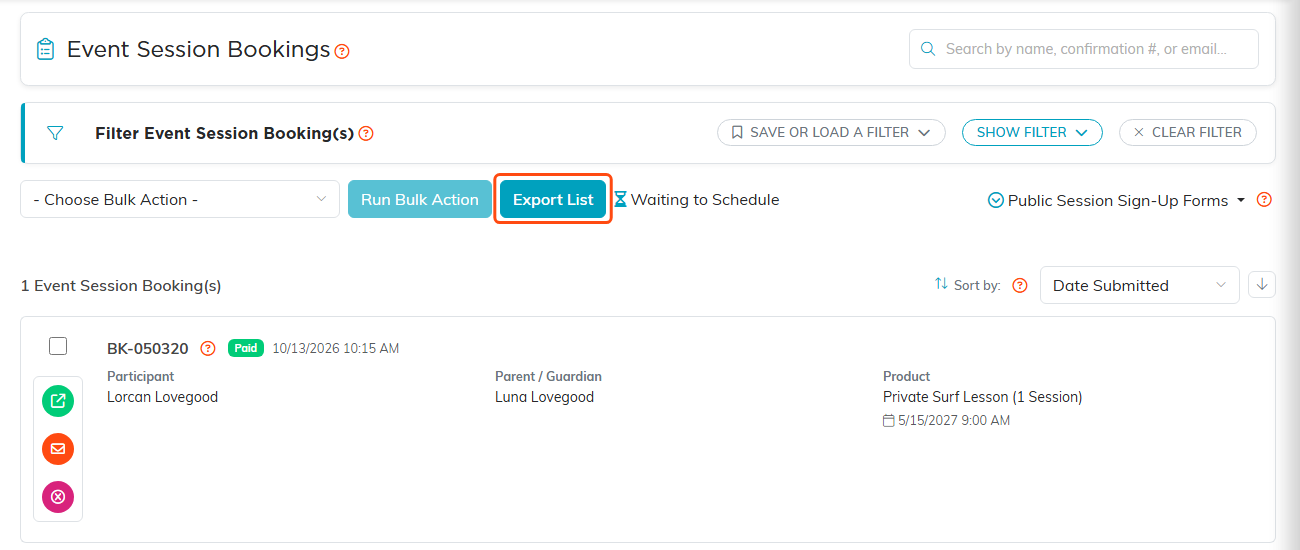
Export List sits beside the bulk actions.
Choose which bookings go in the file
To filter, click Show Filter, set what you need, and click Apply Filter. Then click Export List.
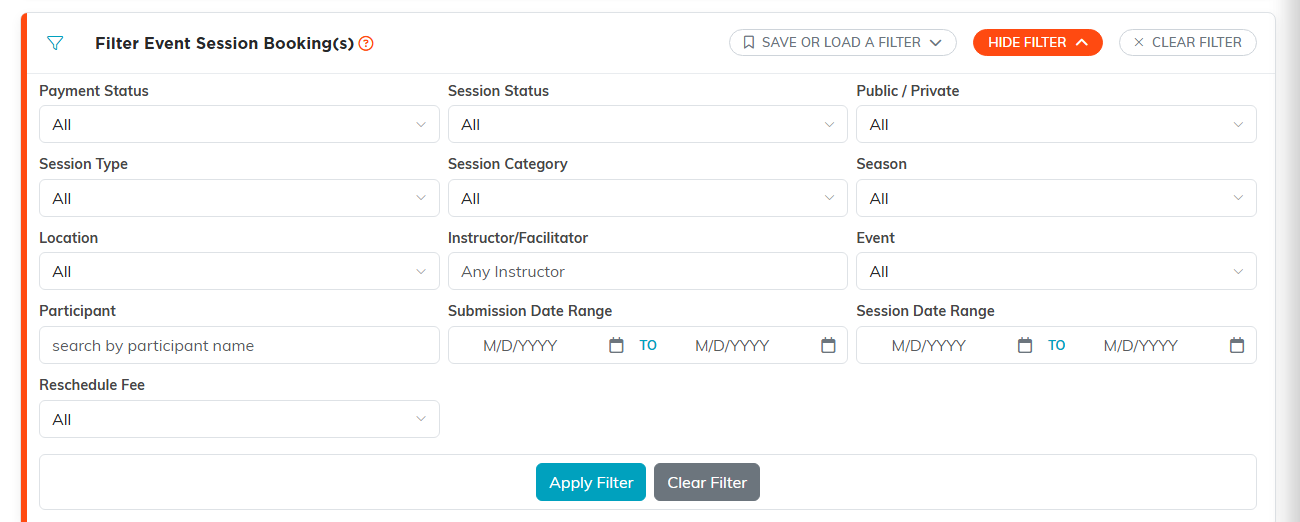
Every filter here also narrows the export.
- The file holds finished bookings only. A booking form a family started and never finished is not in it.
- Session Date Range finds a pack by any of its lessons, not only its first one.
- Payment Status set to Paid also keeps bookings made with a promo code. The file's Payment Status column tells them apart.
- Reschedule Fee set to Paid, never rebooked is the one filter that exports unfinished bookings: families who paid the reschedule fee and never picked a new lesson.
One row is one booking
To count bookings, count the rows. To count lessons, add up the Session Count column instead, because a pack is a single row.
- Session Count is how many lessons the booking was bought for.
- All Sessions (Pack) lists the lessons scheduled on the booking so far, earliest first. Each one shows the session name with its date and time in parentheses, and a
|separates them. - A pack that still has lessons to schedule lists fewer lessons than its Session Count. Those bookings also show on Waiting to Schedule.
- Session, Session Start, Session End and Location describe one lesson on the booking. On a pack, that is not always the first lesson, so read the dates from All Sessions (Pack).
- On a single-lesson booking, All Sessions (Pack) can be blank. Its lesson is in Session and Session Start.
Season passes
- Buying a season pass is not a booking, so passes sold are not in this file. To see them, use Family Balances.
- A lesson a family paid for from their season pass is an ordinary row, and its Payment Status reads Paid. The file does not say it came from the pass; the booking's own page does.
Total Price is not money received
Total Price is the price on the booking, not what was collected for it. Adding up the column overstates your income:
- A lesson paid from a season pass shows its price, but that money came in once, when the family bought the pass.
- A rescheduled booking reads Paid, but the payment stays on the original booking.
- A booking a promo code covered in full can show the full price or $0.00, even though no card was charged. A code that took only part of the price off leaves the lower price on the booking, which is what the family pays by card.
For money actually received, use the Program Revenue by Product report. It counts each season pass once, on the day it was paid for.
Payment Status shows one of four values. Waitlist comes first: a waitlisted booking reads Waitlist even if it was paid.
- Paid: paid by card, from a season pass, or paid on an earlier booking that was rescheduled.
- Promo: a promo code covered the whole booking.
- Unpaid: nothing has been paid yet. A booking whose promo code took only part of the price off reads Unpaid until its card payment comes in, then Paid.
- Waitlist: on the waitlist.
What else is in the file
- The booking: Confirmation #, Submitted, Completed, Product and Promo Code.
- The participant: name, pronouns, date of birth, height, weight, address and email.
- The parent or guardian: name, email and phone.
- Access and health: multiple instructors, wheelchair, slots needed, mobility aids, medical conditions, food allergies and medical notes.
- Communication, sensory sensitivities and behavioral notes.
- Surfing experience and additional notes.
- The first and second choice instructor, the waiver and the photo and video release.
The file holds medical and contact details for children. Store it somewhere private and delete copies you no longer need.
