Knowledge Base Article
How to Use Family Balances and Season Passes
A family balance holds the value of the season passes a family buys, so they can book lessons now and pay for them later from the pass. Families see what they have left in the Participant Portal and use it there to pay for lessons. Staff can see every family's balance, add to it or take from it, and read its full history.
Family Balances are turned on for your organization by Argenta. Viewing balances and adding adjustments needs Finance Manager or Admin access.
Set up a season pass product
A balance is filled by buying a season pass, which is a product you sell.
- Open the product in its Product Workspace, or create a new one.
- Turn on Product Is for Resale and Active Product, and enter Your Retail Price. That is what the family pays.
- Turn on Sell as a Season Pass.
- In Balance Added Per Pass, enter the value one pass adds to the family's balance. It can be more than the price; for example, a pass that costs $560 can add $600.
- Optional: in Number of Sessions Included, enter how many lessons the pass covers. When you do, families see their balance as sessions instead of dollars. One session is worth the Balance Added Per Pass divided by the number of sessions.
- Click Save All Changes & Continue.
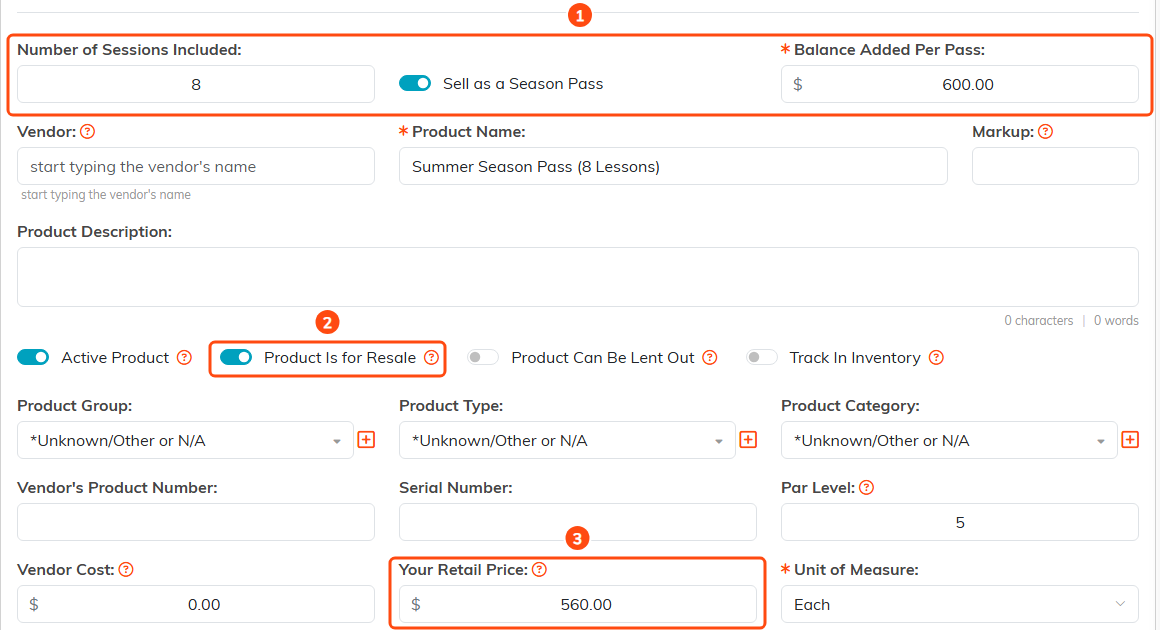
A pass that costs $560, adds $600 and covers 8 lessons.
A season pass is on sale to families when it is active, for resale, and has a price and a Balance Added Per Pass above zero. Families buy passes on your public season pass page or with Buy a season pass in the Participant Portal, and the value goes on their balance once the payment goes through.
See every family's balance
- Click your organization's name at the top of the screen.
- Click Family Balances.
The list shows each family that has at least one entry, with their Balance, Email, Phone, Last Activity and number of Entries. To narrow it, choose Families With Money Left or Families At Zero in the list menu, or type a family name, email, phone or ID in the search box. Use Sort by to order the list by Family Name, Balance or Last Activity.
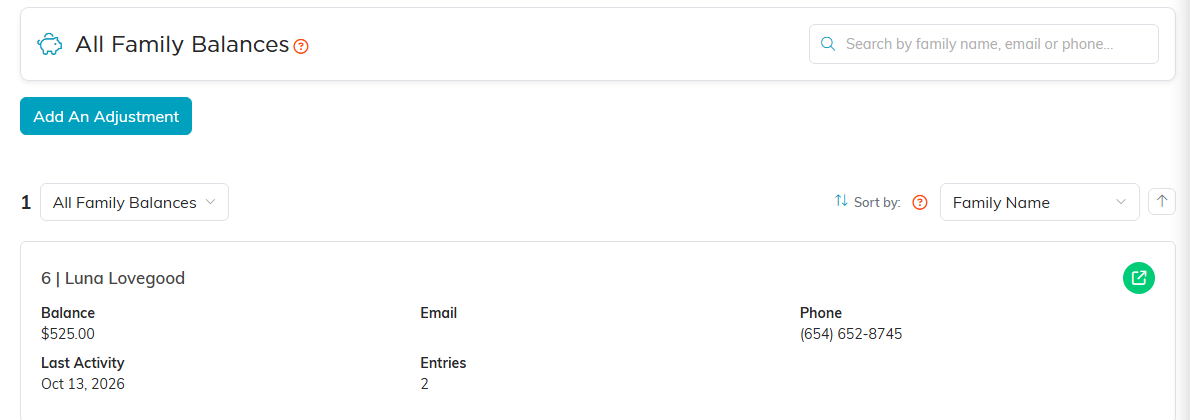
Each card is one family.
Add to or take from a balance
Use an adjustment when a family paid for a pass some other way, such as at the front desk, or when a balance needs correcting.
- Click Add An Adjustment, on the list or on a family's balance page.
- In Family, start typing the parent's name or email and select them. The balance belongs to the parent, never the athlete. If you opened the window from a family's page, the family is already filled in.
- Select Add to the balance or Take from the balance.
- In Amount, enter the dollar amount.
- In Note, say why. The family sees this note in their portal.
- Click Save. A message confirms the family's new balance.
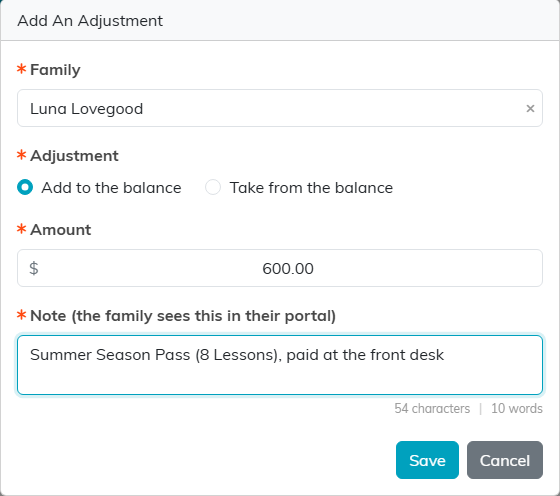
An adjustment for a pass paid at the front desk.
A balance can never go below zero. If taking an amount would do that, nothing is changed.
Read a family's history
To open a family's balance page, click the Open icon on their card. The Balance card shows the amount and, when your passes include sessions, how many sessions the family sees in their portal. History lists every entry, newest first, with the Date, What happened, the Note, the Amount, the Balance After and who made it (By).
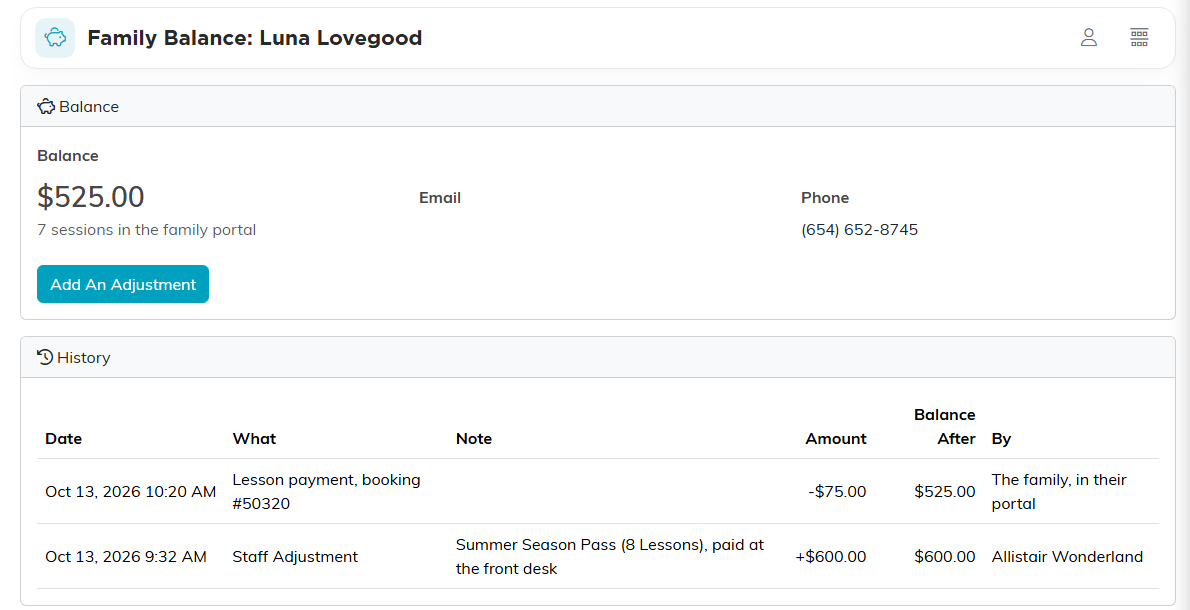
One family's balance and every change to it.
The What column names each kind of entry: the season pass that was bought, a lesson payment, a canceled lesson that was credited back, or a Staff Adjustment. A lesson the family paid for themselves shows The family, in their portal under By.
What the family sees
When a family signs in to the Participant Portal, a card at the top of their home page shows Season pass sessions left, or Your balance in dollars when your passes do not include sessions. Any part of a session left over shows as dollar credit next to the sessions. History on the card opens their balance page, which lists every entry with its note.

The card on the family's home page.
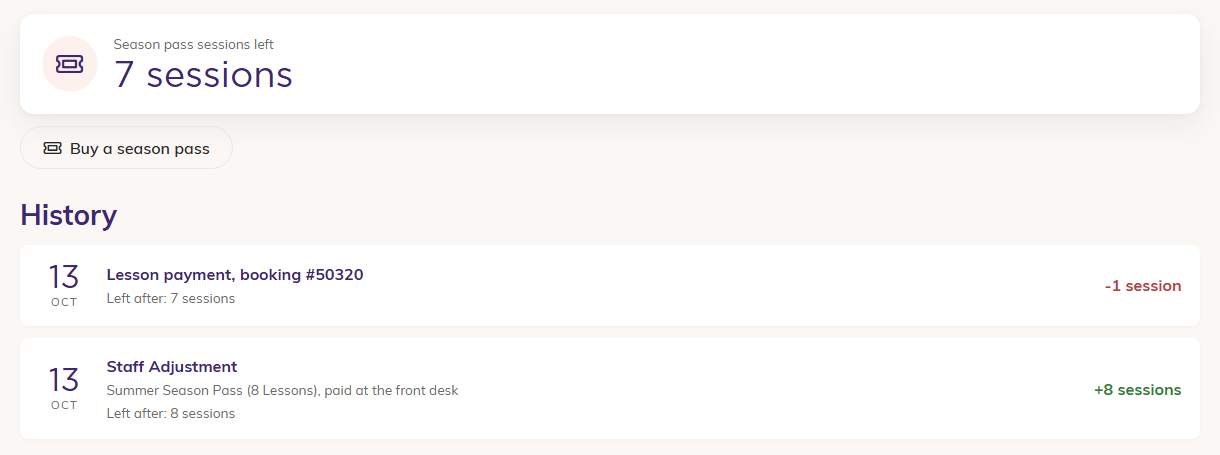
The family's own history, with the note staff wrote.
How a family pays for a lesson from their balance
Families pay from their balance only after signing in to the Participant Portal; the public booking form never takes money from it. On the booking form's payment step, a family with a pass can click Have a season pass? Sign in to use a session for this lesson. They sign in and land on that lesson's payment page.
- When passes include sessions, the family clicks Use 1 session for this lesson. A session pays only for a lesson priced at exactly one session, such as a one-to-one lesson; any other lesson is paid by card.
- When the balance is in dollars, the family clicks Pay $X from my balance. If the balance does not cover the whole price, they can click Use my balance and pay $Y by card; nothing comes out of the balance unless the card payment goes through.
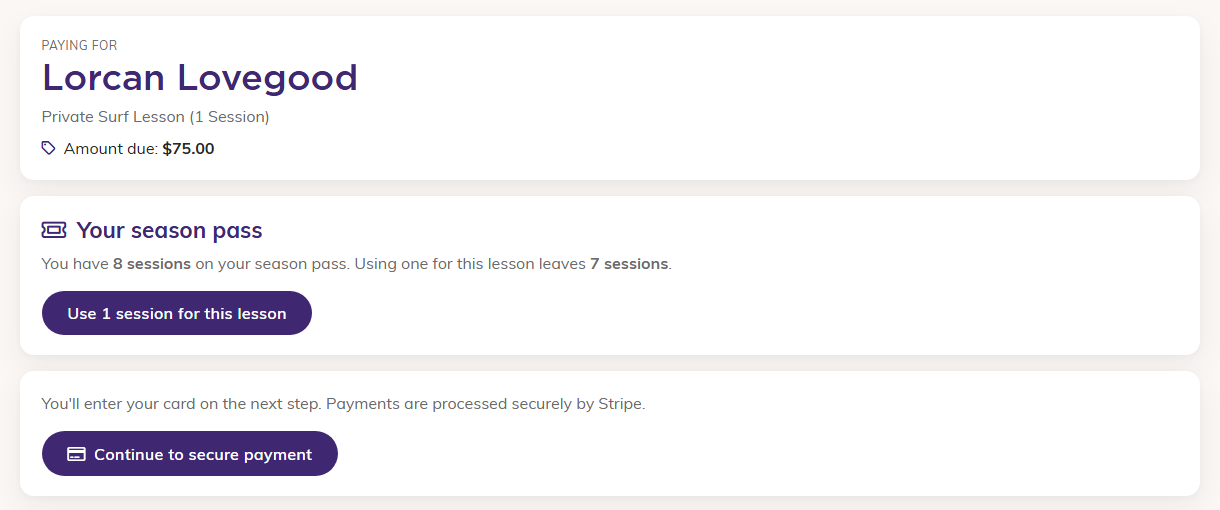
The family chooses the season pass or a card.

The confirmation the family sees.
The lesson then reads Paid on your bookings, and its booking page says it was paid from the family balance.
Canceled lessons
When a lesson the balance paid for is canceled, the amount the balance paid goes back on it. This happens when the family cancels from the portal or the cancel link, and when staff tick Cancelled on the participant in the session's roster and save. It also happens when you issue weather make-up credits for a session on the Weather Make-Up Credits page: a family whose single lesson on that session was paid from their balance gets it back on the balance, with an email saying so, instead of a make-up code. The family's history shows "Lesson canceled, booking #" with the booking number.
- Only a booking for a single lesson is credited back. A booking that holds several lessons is not.
- Only the part the balance paid comes back. A part paid by card is not refunded to the balance.
If staff untick Cancelled to put the participant back, the credit is taken back off the balance. If the family has already spent that credit on another lesson, the change is refused and the participant stays canceled; move or reschedule the other lesson instead.
