Knowledge Base Article
How to See Program Revenue by Product
Program Revenue by Product shows what people paid you for each product, event and session fee over a date range, less refunds. Use it when you need revenue by product: how much your season passes, lesson packs, events or camps brought in this year.
Open the report
- Click Report Center at the top right of the screen.
- Open the Product Reports card and click Program Revenue by Product.
Run it
- In Payment Date Range, set the first and last date to include. The report opens on this year to date. To pick a common range in one click, use Last Month, This Month, Next Month, Last Year or This Year.
- Click Run Report.
To start again from the default range, click Reset Report.
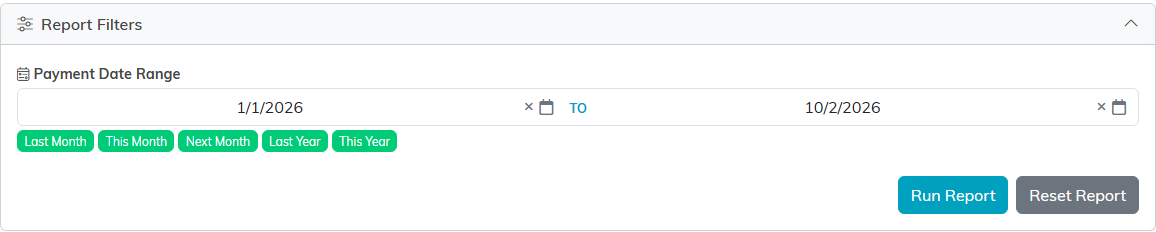
The date range picks which payments count.
Read the totals
The line above the totals names the range the figures were run for. Under it:
- Net Program Revenue is everything paid for products, events and session fees, less refunds.
- Total Received is every program payment and ticket order in the range. Payments that are not program revenue, such as membership dues or grant funds, are left out; see below.
- Refunds is the money given back in the range.

The year to date at a glance.
See where the money came from
- Where It Came From splits the total into groups, such as each kind of product, Events, Session Fees and Other Payments, with each group's amount and share.
- By Product lists each product, event or session fee with the amount received and how many payments or orders made it up, largest first.
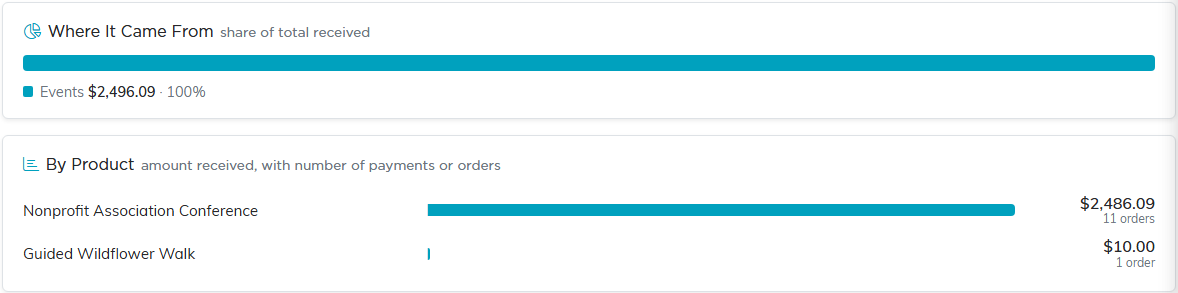
Most of the year's program revenue came from the conference.
What counts, and when
- Amounts are what people paid, before card processing fees.
- A season pass is counted once, on the day the pass was paid for. Lessons booked against the pass later are not counted again.
- Event amounts are per order, and one order can include several tickets or raffle entries.
- Refunds are counted on the date they were made, so a refund this month for a sale last year lowers this month's figures. A refund still counts after the payment or ticket order it gave money back on has been deleted: a refunded payment lands under Other Payments, and a refunded ticket order under Events as Refunds on deleted ticket orders.
- Other Payments are payments in the range that no booking, season pass purchase or invoice line ties to a product, and that are not session fees, so the report cannot place them under a product. They are listed as Payments not tied to a product, so Total Received still covers every program payment.
- Some payments are not program revenue at all, so they are left out of every figure unless a booking, season pass purchase or invoice line ties them to a product: membership dues, campaign sales, sponsorships, delegate payments, lease payments, grant funds, bank fees, expense refunds, software and IT expenses, merchant fee profits and Stripe test charges.

The same rules are printed at the foot of the report.
Export it
Click Export To CSV or Export To Excel for a spreadsheet with one line for each product the screen lists and the totals, or Export To PDF for a one-page summary to share. Each export names the date range the figures were run for.

Three ways to take the figures with you.
For every report in Argenta, see Where to find the Argenta Report Center.
