Knowledge Base Article
Argenta Chatter: Complete Guide
Chatter is real-time team messaging built into Argenta. Channels, direct messages, reactions, threads, files, status, and Ava, without leaving the platform or paying for a separate chat tool.
Open Chatter from the left navigation. The sidebar holds your channels and people, and the main area shows the conversation you are in.
Argenta Support sits on its own at the very top of the sidebar, above every section. That is how you reach us: write there and it comes straight to the Argenta team. It is deliberately kept out of Favorites, My Groups and Direct Messages so it never appears twice, and there is no need to star it, because nothing outranks it. This works the same in the phone app as it does in a browser, and our reply comes back to that same conversation wherever you opened it.
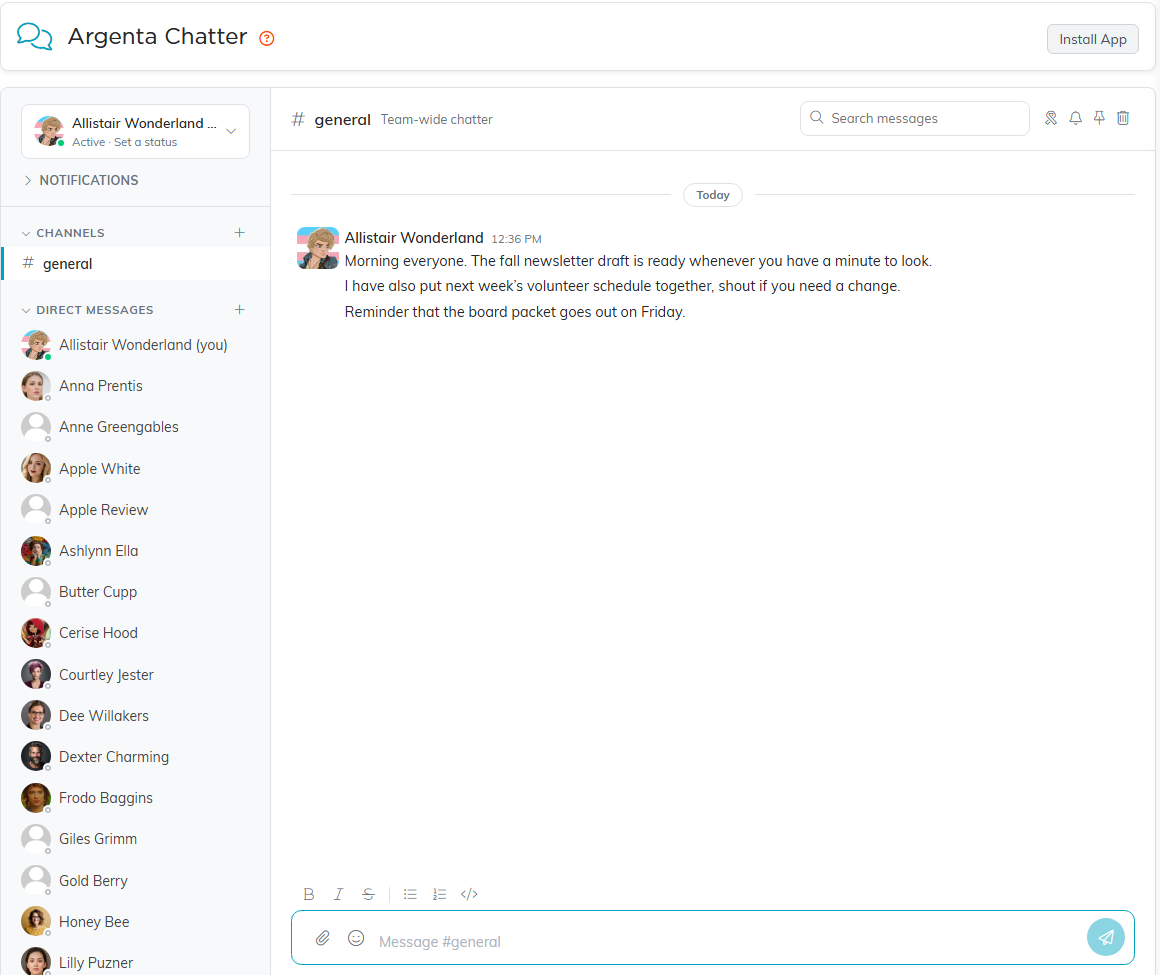
Chatter, with your channels and people on the left and the conversation on the right.
Channels
- Create one: click the plus sign next to Channels and give it a name, plus an optional description.
- Public or private: a hashtag icon means public, visible to everyone on the team. A lock icon means private, visible only to invited members.
- General: every team starts with a team-wide general channel.
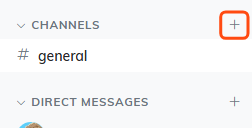
The plus sign next to Channels is how you create one.
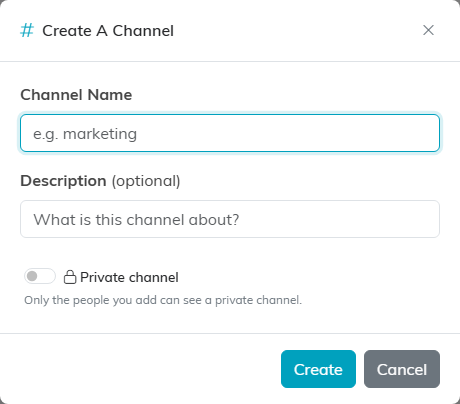
Name it, describe it if you want, and flip the switch to make it private.
Direct And Group Messages
Click any teammate under Direct Messages for a private one-to-one conversation. Use the plus sign next to Direct Messages to start a group conversation with several people at once.
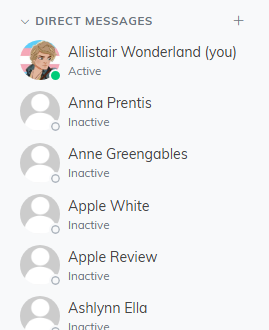
Everyone on your team is listed here. The plus sign starts a group conversation.
Your Own Sidebar Groups
You can sort the people in your sidebar into groups of your own rather than living with the built-in sections.
- Make one with Make a group, give it a name such as Money people, and it appears under My Groups.
- Fill it with Choose who goes in this group and tick the people you want in it. An empty group reads Nothing in here yet.
- Anyone you put in a group leaves the section they were in, so nobody is listed twice.
- A group can be renamed, moved up or down the sidebar, or deleted.
- Your groups are yours alone. Nobody else on the team sees them.
The plus sign next to My Groups is how you make one.
Sending A Message
- Type in the box at the bottom and press Enter to send.
- Press Shift + Enter for a line break without sending.
- Click the smiley next to the paperclip to add an emoji. The picker opens with the cursor already in a Search emoji box, so you can type a word like cake and press Enter to drop in the first match.
- Click the microphone next to the smiley to say your message instead of typing it. Talk, then pause. When you stop talking, Chatter writes your words into the box where your cursor was, with punctuation added and any ums and false starts taken out. Nothing is sent until you press Enter, so read it over first. Say new line or new paragraph to start a new line. To cancel while it is listening, click the microphone again or press Esc. The first time, your browser asks to use your microphone; allow it. The gear beside the microphone opens your voice settings in a new tab: your writing style, your own dictionary and your spoken shortcuts. See How to Dictate a Chatter Message and Save Your Voice Shortcuts.
- When someone else is writing to you, a line of bouncing dots appears just above the message box.

The message box. The paperclip attaches a file, the smiley adds an emoji and the microphone takes dictation.
Scheduling A Message
To send a message later, write it in the message box, then click the clock next to the send button. The Schedule Message menu offers one-click times in your own time zone:
- Later today at 5:00 PM, offered until 4:00 PM.
- Tomorrow at 9:00 AM.
- The coming Monday at 9:00 AM, except on a Sunday, when Tomorrow already is Monday.
- In a direct message to someone in their quiet hours, When their quiet hours end comes first.
For any other time, pick a date and time under Custom Time and click Schedule. A message with files attached cannot be scheduled. Remove the files to schedule it, or send it now.
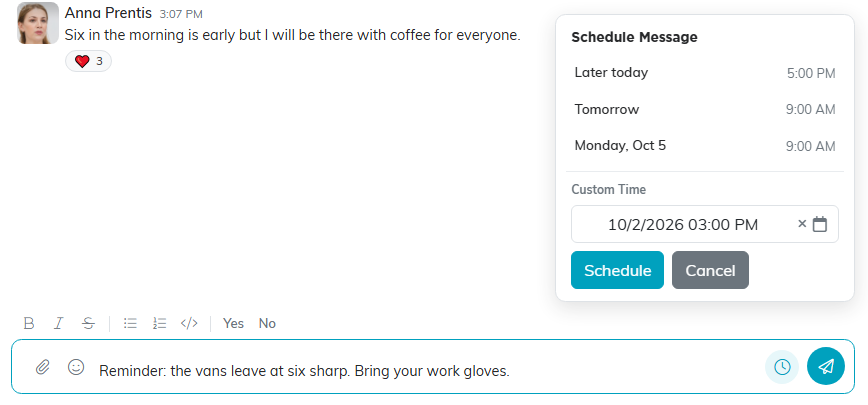
Write the message first, then pick when it goes out.
Your scheduled messages wait in a bar above the message box of that conversation. Only you see them until they are sent. Click the bar to open the list, and use the buttons on each message:
- The paper plane sends it now.
- The pencil puts it back in the message box to change, and takes it off the schedule. Send or clear anything already in the box first.
- The trash can deletes it, after you confirm.
If a scheduled message could not be sent, the bar says so and the message is marked Didn't send, so you can send it now or delete it. A scheduled message cannot be set up in an Argenta Support conversation.
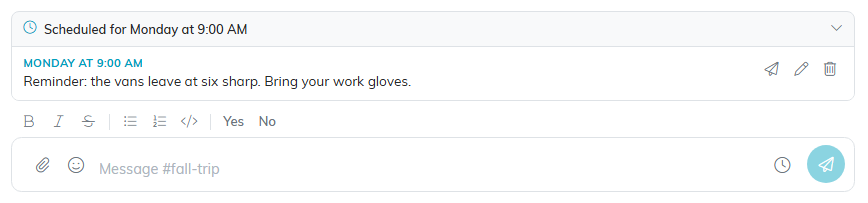
A message waiting to go out on Monday morning.
Formatting Your Message
The row of buttons above the message box formats what you type, in two groups:
- Bold, Italic and Strikethrough for emphasis.
- Bulleted list, Numbered list and Code for structure. Code is for pasting a snippet, an ID or anything else that should not be read as a sentence.
After those sit Yes and No, which are not formatting. Each one answers a question in a single click: it types the word for you and sends it, so you do not have to. They are on the box you write a new message in, and not on the box you edit an already-sent message in, where answering Yes would not mean anything.

The formatting bar sits above the message box. Yes and No are at the end, after the formatting buttons.
Formatting happens as you type, so there are no codes or symbols to remember. Select the words you have already written and click a button to format them, or click the button first and then type. On a list, each time you press Enter you get the next bullet or number, so a numbered list counts itself. Press Tab on a list item to indent it into a sub-point, and Shift + Tab to bring it back out. The indenting is kept when the message is sent and when it is edited afterwards, so an outline still reads as an outline.
Remember that Enter sends the message. To keep writing on a new line, or to finish a list and carry on underneath it, use Shift + Enter.
The Code button handles a snippet inside a sentence. For a whole block of it, such as SQL, a diff, or a command and what it printed, use a code block instead. Type three backticks (```) on a line of their own, press Shift + Enter, put your lines in, then close with three more backticks on their own line. Everything between the two lines comes through exactly as you typed it: a line starting with a dash or an asterisk stays a dash or an asterisk instead of turning into a bullet, and your spacing is kept. This is the one piece of formatting you type rather than click. If you forget the closing backticks, the block just runs to the end of the message.
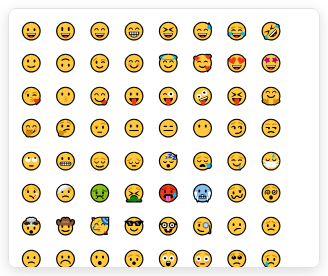
The emoji picker, opened from the smiley next to the paperclip.
Reactions
Hover over a message and click the smiley to react. There is a full set of everyday emoji plus the standard heart colors, and a Search emoji box at the top for finding one by name. Click an existing reaction to add or remove your own.

Hover any message and its tools appear on the right.
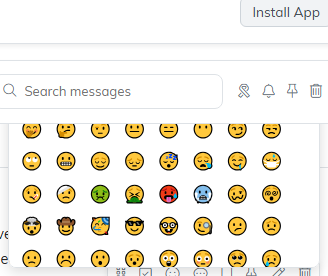
The reaction picker, with the everyday emoji and the heart colors.
Threads
Threads keep side conversations out of the main channel. Hover a message and click the reply icon, or click the replies link under it, and a thread panel opens on the right. The original message then shows a short replies link so people can find the discussion. Enter sends, Shift + Enter adds a line break, same as the main box.
Point at one of your own replies in the thread panel to edit or delete it, the same as a message in the channel. If you delete a message that has replies, it stays in place as This message was deleted., so the thread and its replies are not lost.
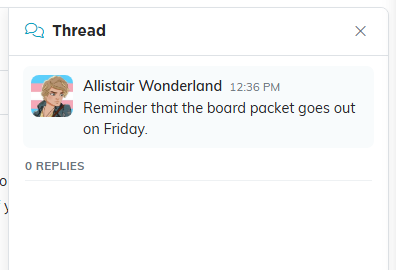
The thread panel opens on the right with the original message at the top.
Mentions
Type @ and pick a name. The mention shows in green and that person gets notified.
A mention only reaches someone who can see the channel. Anyone on your team can be mentioned in an open channel, but in a private channel the person has to be a member: mention someone who is not, and they are not notified and it does not show in their mentions, so add them to the channel first. Mentioning yourself never notifies you.
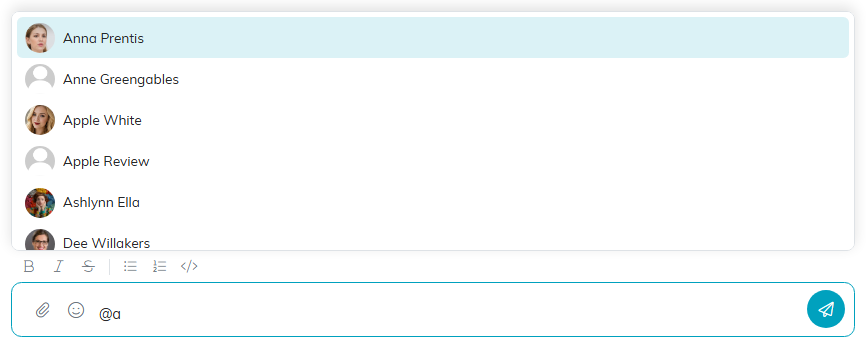
Type the at sign and the list of people appears. Pick a name from it.
To address the whole channel rather than one person, type @channel, @team, @here or @everyone. The token shows in the brand teal and everyone in the channel is notified, on the phone app as well as in the browser. All four behave exactly the same way, so use whichever one reads best in your sentence.
The token only counts when it stands on its own. It needs a space in front of it, or the start of the line, and it ends where the word ends, so @teamwork is ordinary text and an email address carrying one of the words is left alone.
Notifications
Emails are only for things aimed at you: @mentions, a message addressed to the whole channel, and direct messages. The message card covers every new message in a conversation you belong to except your own; the browser pop-up and the sound also skip a channel you have muted.
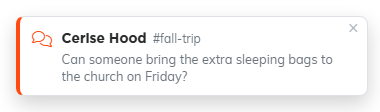
- Wherever you are in Argenta, a new message in any conversation you belong to slides in at the top right as a card showing who sent it, where, and the start of what they said. Click it to open that conversation in a new browser tab, so the page you were working on stays where it was. If you are already on the Chatter page, or your browser blocks the new tab, the conversation opens in the tab you are on instead. The card stays on screen until you click it or close it with the X, and doing either clears every card, in every tab you have open. Opening Chatter clears them too: clicking the Chatter pill clears them straight away, and so does coming back to a Chatter tab you already have open. Opening a conversation closes any cards already up for it, and a message that arrives after that gets a new card. Up to five cards stack at once, and when another arrives the oldest makes way. The card is not shown for your own messages. It does appear for a channel you have muted, for the conversation you have open, and during your quiet hours, because muting and quiet hours silence only the browser pop-up and the sound.
- Wherever you are in Argenta, a new message also raises a browser pop-up, unless you are already looking at that conversation in Chatter, the channel is muted, or you are in your quiet hours.
- If you are offline, you get an email instead when the message is a direct message to you or names you, unless you have muted that conversation or turned off Email Notifications. A message addressed to the whole channel sends the phone notification to everyone in the channel, but the email and the text still go only to people named individually.
- A Chatter pill sits in the top bar on every page, so you can see messages are waiting without being in Chatter. It is always there, and a count appears on it when you have unread messages. Hover it to see how many are waiting and how many of those mention you by name. Click it to open Chatter in a new browser tab, so the page you were working on stays open.
- The count is your total unread across the Chatter conversations you can open, and it counts nothing else. When a new message arrives the number pulses, and it keeps a soft ring while anything is still unread.
Two switches at the top of Chatter control this: Sound On and Pop-ups On. These two switches cover Chatter and nothing else, and Chatter starts with pop-ups on. Neither one turns off the message card, which needs no setting. Turning Pop-ups On asks your browser for permission to show them. Until you answer, an Allow pop-ups in this browser button sits under the switch. If your browser is blocking notifications, a line under the switch says so; allow notifications for this site in your browser settings to turn them on. Turning the sound off also silences the alert Argenta raises when it is closed, though that alert still appears on screen. Both switches apply to this browser only; the phone app carries its own notification settings.
Quiet Hours
Quiet Hours hush your Chatter notifications at night, on weekends, or both. Open Notifications at the top of Chatter and turn on Quiet Hours.
- Set the nightly window with From and To. It starts at 9:00 PM to 8:00 AM.
- Turn on All Weekend to stay quiet all day Saturday and Sunday.
Each change saves straight away, and a line under the switches says when you are quiet. The times are your own: your browser's time zone is saved with them.
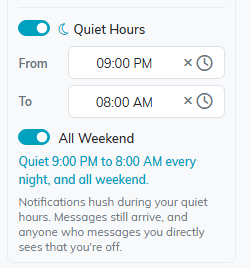
Quiet every night and all weekend.
While you are in your quiet hours:
- Messages still arrive, and the unread count still goes up.
- The browser pop-up and the sound stay silent, on every page of Argenta. The message card still appears, so you can see that something has come in.
- No email, text or phone notification is sent to you.
- Anyone who opens a direct message with you sees that you are in quiet hours and when you are back, and that their message will arrive without a notification.
Muting A Noisy Channel
Open the channel and click the bell at the top right. While it is muted you can still read everything, you just stop getting browser pop-ups, sounds and emails from it. The message card still appears. Muted channels show a bell-with-a-slash in the sidebar, and clicking the bell again unmutes. Muting affects only you.

The bell at the top right mutes the channel. Search, saved and pinned sit beside it.
Favorites
Click the star on any channel or person in the sidebar to favorite them. Starred items move to a Favorites section near the top, so the handful of conversations you actually live in stay above your channels and direct messages. Only the pinned Argenta Support conversation sits higher. The sidebar sections collapse too, which helps once you have a lot of channels.
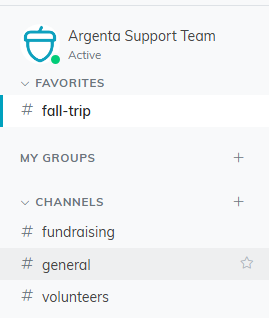
A starred channel moves up to Favorites. Point at any row to see its star.
Saved Messages
Hover a message and click the bookmark icon to save it. Open Saved Messages from the sidebar to see everything you have saved across every channel, and click an item to jump to it in context. The trash icon removes it from the list without touching the original message.
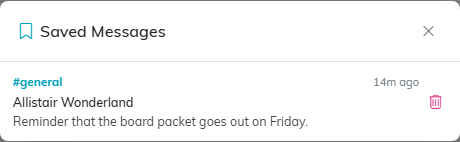
Saved Messages gathers everything you have bookmarked, with the channel it came from.
Selecting Several Messages
Hover any message and click the Select messages icon to put the channel into selection mode. A circle appears beside every message, and a bar across the top counts what you have picked.
Click another message to add it, or click a selected one to drop it. From the bar you can Delete the whole batch at once, or drag the selection onto another channel in the sidebar to move it there. The X on the left leaves selection mode without changing anything.
You can delete your own messages, and a master admin can delete anyone’s. If you select a mix, only the ones you are allowed to delete go and the rest stay where they are.
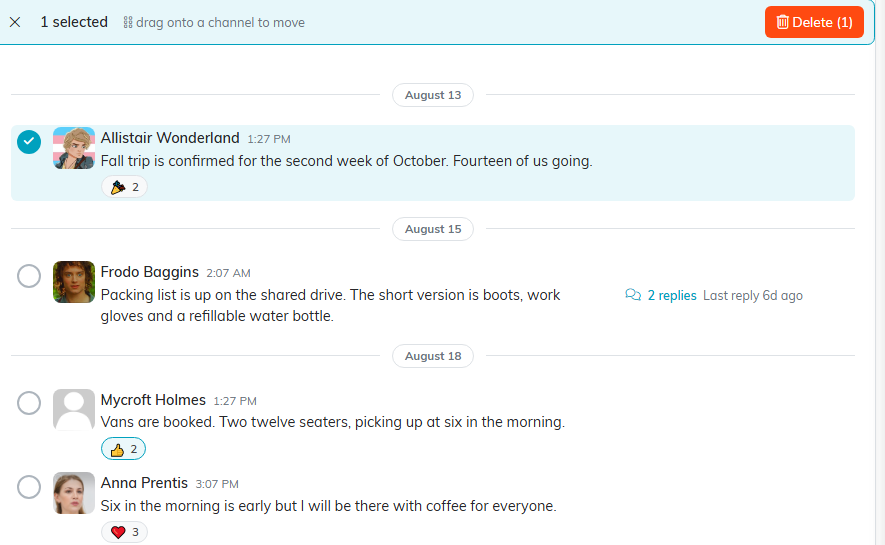
Selection mode. The bar counts what you have picked and carries the Delete button.
Search And Pins
Use the search box in the channel header to find messages across your channels, then click a result to jump to it. Each result shows the words around your search term with the term in bold, so you can tell the right message from the wrong one before you click.
Opening a result keeps your search. The list closes, but click back into the search box and the same results are still there, so picking the wrong one does not cost you a retyped search. The X in the search box clears the term and the results.
To pin something important, hover the message and click the pin icon. Open the pinned panel from the channel header to see everything pinned in that channel.
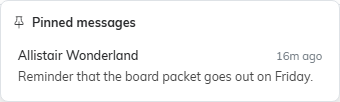
The pinned panel shows everything pinned in that channel.
Files And Images
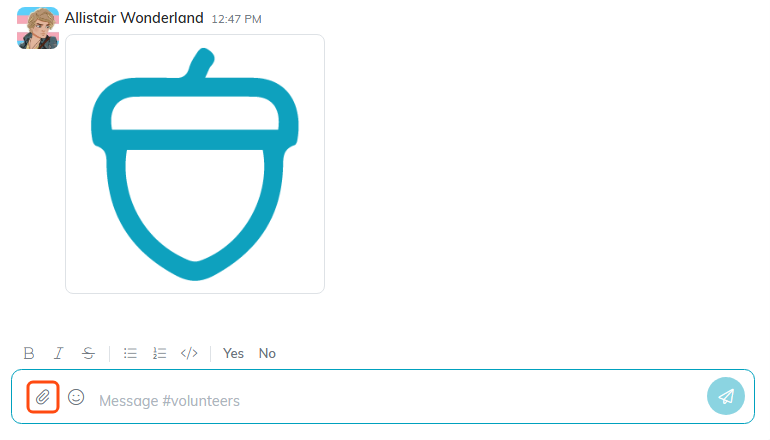
Click the paperclip to attach a file, an image, an audio clip (MP3, M4A, WAV and the like), or a video (MP4, or MOV from an iPhone). The phone app takes audio clips too. You can also drag a file straight onto the conversation, or copy a screenshot or a file and press Ctrl+V while the conversation is open, and it attaches the same way. Images show inline, audio clips arrive as a player you can press play on, and other file types appear as a download link.
Voice Messages
A voice message arrives as a small player inside the conversation. Press play to listen to it.
If you move to another channel or conversation while a clip is still playing, it keeps playing. A small bar appears at the top of the screen showing what is playing, with a pause button, a stop button, and how far through the clip you are. Pressing play on the original message again hands playback back to it and the bar goes away.

Your Profile
Open the menu under your name at the top of the sidebar and choose Update My Profile. From there you can:
- Upload or replace your photo.
- Set a Chatter Display Name to show instead of your full name.
- Add a Title, a short line about who you are.
Your full name comes from your Argenta record. Clicking a teammate's avatar or name opens their profile card, with a Message button to start a direct message. Ava does not have one.
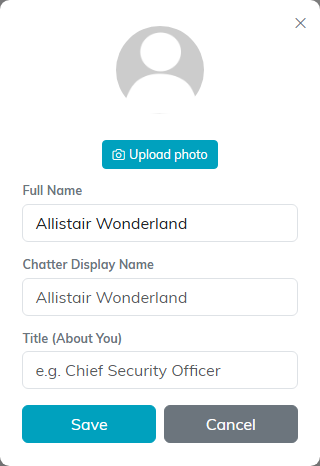
Your photo, display name and title. The full name is greyed out because it comes from your Argenta record.
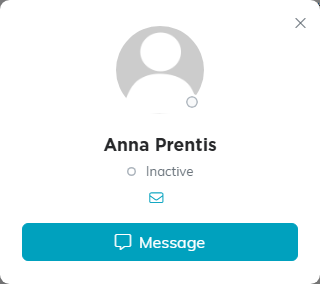
A teammate's profile card. Message opens a direct message with them.
Status And Presence
A colored dot shows whether someone is online (green), away (amber), or offline (gray). Argenta Support is the one exception and always shows as Active, whether or not anyone is signed into that account on your team, because you can write there and reach us either way. From the menu under your name you can set yourself Active or Away, pick a status emoji for what you are doing (coffee break, lunch, working from home, heads down, in meetings, on a call, commuting, traveling, on vacation, out sick, and more), and add a short status message.
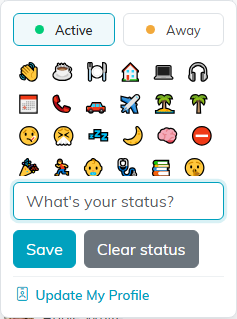
The menu under your name holds your status, your emoji and Update My Profile.
Ask Ava In A Channel
Type @ava in any channel to ask the AI assistant a question inside the conversation. The answer posts back into the channel, so the whole team sees it rather than one person having to relay it.
You can also message Ava directly. Open a direct message with her and just ask, no @ava needed, and she answers in that conversation.
Install The App
Click Install Mobile App. On a phone this takes you straight to the App Store or Google Play. On a computer, Argenta asks which phone you have.
- Android: takes you to Argenta on Google Play.
- iPhone or iPad: takes you to Argenta on the App Store.
- On a computer: the link at the bottom of that window installs Argenta as a desktop app.
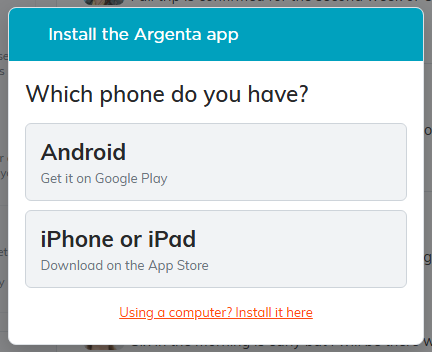
On a computer, Install Mobile App asks which phone you have.
View-Only Users
View Only Access is about record data, not chat, so a view-only user has full Chatter. They post, reply, react, pin, attach files, and manage channels and members exactly as everyone else does.
Turning Chatter Off For Someone
Everyone on your team has Chatter. A Master Admin can turn it off for one person, and back on, from Chatter Admin.
- Click the gear at the top of Chatter. Chatter Admin opens with everyone on your team, each marked In Chatter or Removed.
- Find the person, then click the Remove From Chatter icon on their row, or the Restore To Chatter icon to give it back. Argenta asks you to confirm first.
A removed person who opens Chatter is told that a Master Admin turned it off. Nobody can remove themselves, and your team's Argenta Support account always stays.
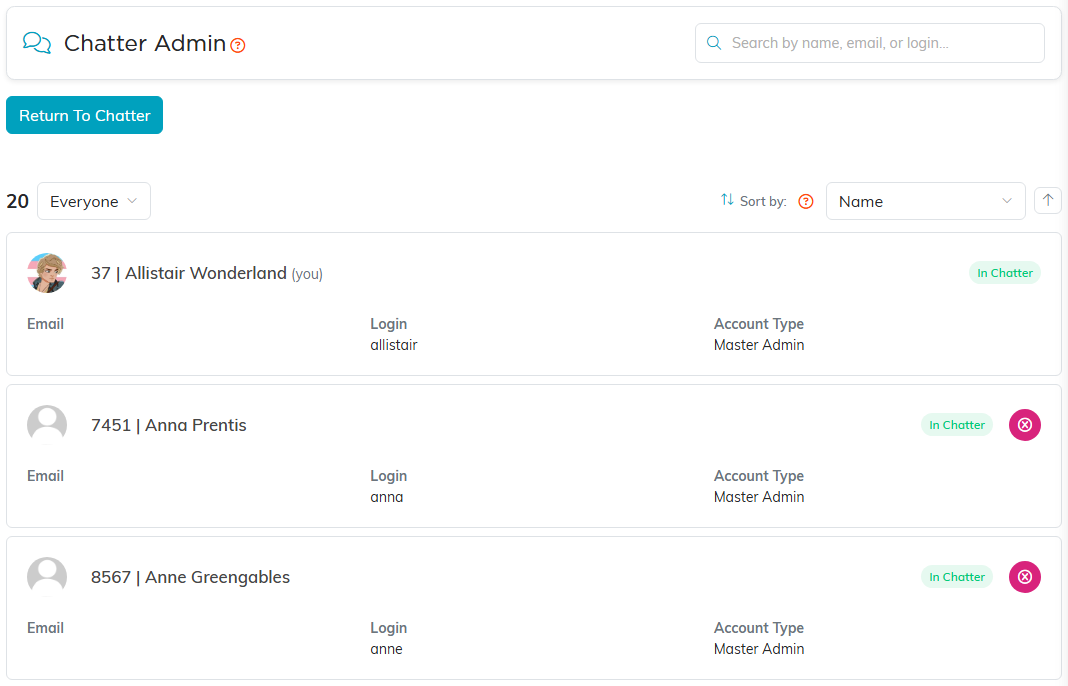
Chatter Admin. The pink icon removes someone; your own row has none.
Who Can Do What
Master admins can delete any message, delete any channel (which also removes the files shared in it, unless another conversation still uses them), add or remove members on any private or group channel, and turn Chatter off or on for a person from Chatter Admin.
Everyone else can create channels, post, react, pin, save, edit and delete their own messages, and manage the members of channels they created.
