Knowledge Base Article
How to Dictate a Chatter Message and Save Your Voice Shortcuts
In Chatter you can say a message instead of typing it. Click the microphone, talk, then pause. Chatter writes your words into the message box, tidied up, and waits for you to send it. You can also save the names you use and spoken shortcuts for text you type often, so dictation spells things your way and can write your signature for you.
Dictating a Message
- Open Chatter and the conversation you want to write in.
- If the box already has text, click where your words should go.
- Click the microphone beside the smiley. The first time, your browser asks to use your microphone. Allow it.
- Say your message. While Chatter listens, the microphone turns into a stop button with a ring around it.
- Pause when you are done. After about two seconds of quiet, Chatter writes your words into the box. In a long message it waits a little longer, so you can stop to think.
- Read it over, then press Enter or click send. Nothing is sent until you do.
If you type in the box while Chatter is listening, what you typed stays and your spoken words go at the end.

1: the microphone. 2: your voice settings.

While Chatter listens, the microphone becomes a stop button.
What Dictation Tidies Up
- It adds punctuation and capital letters.
- It takes out um, uh, words said twice and sentences you started over.
- It keeps a clear correction. Say Tuesday, actually Wednesday and you get Wednesday.
- Say new line or new paragraph to start one.
- A list you count off out loud is written as a list.
It never adds words of its own, answers a question you dictated or changes what you meant. If the tidying fails, you get your words as they were heard. The names on your Chatter screen, such as the people in the conversation, help it spell them right.
Canceling
To stop without adding anything, click the microphone again or press Esc. This works while Chatter is listening and while it is writing your words. Sending the message or switching to another conversation also cancels it.
If Chatter hears nothing for about 8 seconds after you click the microphone, it stops on its own and your message box is left as it was.
Starting Dictation with a Keyboard Shortcut
Save a keyboard shortcut and you can start dictating without reaching for the microphone.
- Open Voice & Dictation on your User Settings page. Your Voice Settings below shows the way.
- On the Keyboard Shortcut card, click Choose Shortcut.
- Press the key or combination you want, such as F8 or Ctrl + Shift + Space. It shows under Dictation shortcut right away. To back out instead, press Esc or click Cancel.
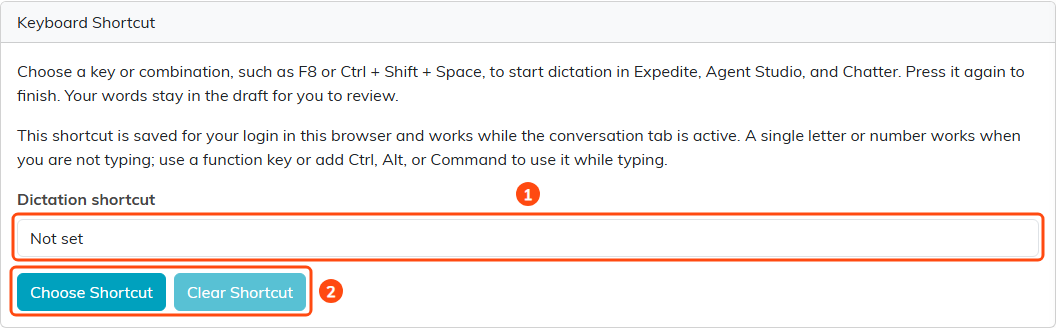
1: your shortcut, or Not set. 2: Choose Shortcut and Clear Shortcut.
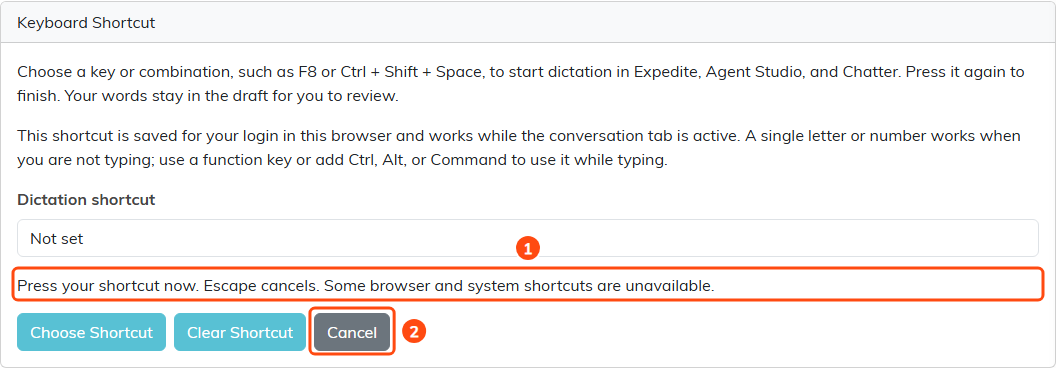
1: the card waits for your keys. 2: Cancel.
To use it, open a Chatter conversation and press your shortcut. Chatter starts listening, just as if you had clicked the microphone. When you finish talking, press the shortcut again and your words go into the message box without waiting for a pause. Esc still cancels.
- While you are typing in the message box, a single letter or number just types. To use your shortcut mid-message, choose a function key such as F8, or a combination with Ctrl, Alt or Command.
- Space on its own is not allowed, so add Ctrl, Alt or Command to it. Keys your browser or computer already uses, such as F5 or Ctrl + C, are refused with a message. Press a different one.
- The shortcut is saved for your login in this browser only. On another computer or browser, choose it again there.
- It works in the tab you are looking at, and not while a pop-up window is open.
- To remove it, click Clear Shortcut.
Limits
- One recording can last up to 5 minutes.
- You can dictate one message at a time, up to 12 times a minute. Go faster and Chatter asks you to wait a moment.
If the Microphone Does Not Work
- Allow microphone access in your browser, then try again. Your browser is blocking the microphone for Argenta. Turn it back on in the browser's settings for this site, then click the microphone again.
- No microphone was found. Connect a microphone or headset and try again.
- The microphone is busy. Another program, such as a video call, is using it. Close that program and try again.
- This browser cannot record audio. Open Chatter in an up-to-date browser.
Dictating on a Phone
The microphone also works in Chatter in your phone's web browser. On a small screen the message box sits on its own line, above the microphone and the other buttons.
Your Voice Settings
Click the gear beside the microphone. It opens Voice & Dictation on your User Settings page in a new tab, so your message stays where it was. You can also get there by clicking your name at the top of any page, then User Settings.
Your dictionary and snippets belong to your login alone. Nobody else on your team sees them or dictates with them.
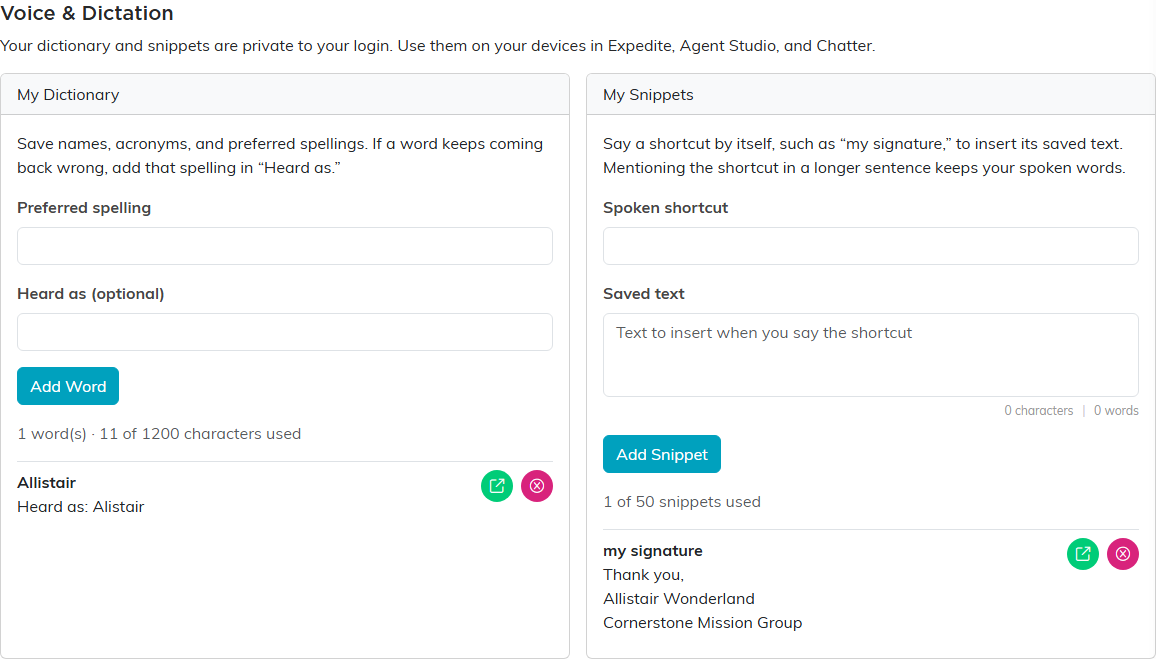
A saved word and a saved snippet.
Choosing a Writing Style
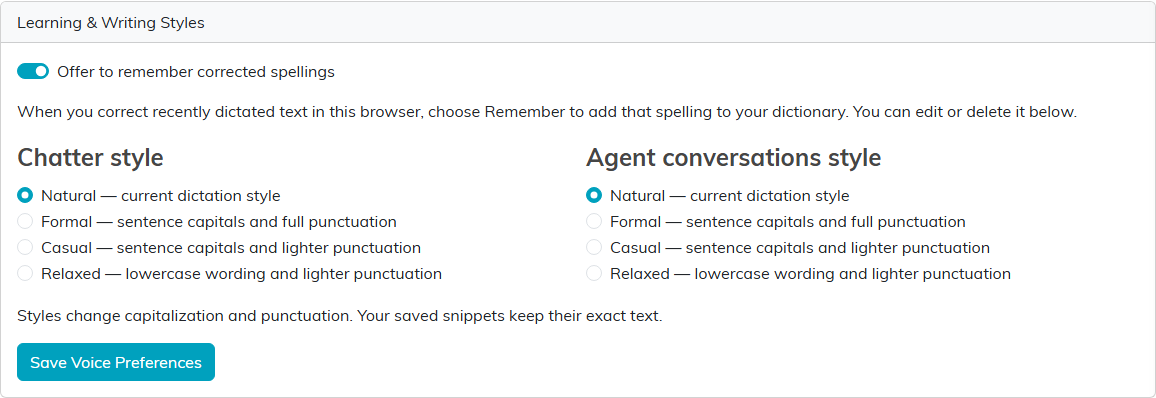
The Learning & Writing Styles card at the top of Voice & Dictation sets how your dictated words are capitalized and punctuated. You choose one style for Chatter and a separate one for your conversations with an agent in Agent Studio.
- Natural: the usual dictation style. Everyone starts here.
- Formal: sentence capitals and full punctuation.
- Casual: sentence capitals and lighter punctuation, so a short chat message has no period at the end.
- Relaxed: lowercase wording and lighter punctuation. Names, acronyms, links and numbers keep their capitals.
Pick a style under Chatter style and under Agent conversations style, then click Save Voice Preferences. Your next dictation uses them. A style never changes the text of your snippets.
Letting Dictation Learn Your Corrections
When Offer to remember corrected spellings is on, which it is unless you turn it off, dictation notices when you fix a word it just wrote. Click away from the message box or send the message, and a card above the box asks whether to remember your spelling the next time dictation hears that word. Editing a dictated message after you send it works the same way.
- Click Remember to add the word to your dictionary, where you can change or remove it like any other.
- Click Dismiss to leave your dictionary alone.
Nothing is saved unless you click Remember, and a word already in your dictionary is never offered again. Only corrections made in the same browser, to text you have just dictated, are offered.
Adding a Word to Your Dictionary
Add the names, acronyms and spellings dictation gets wrong.
- In Preferred spelling, type the word the way you want it written.
- Click Add Word.
From then on, dictation spells it your way. Your words share 1,200 characters in all, and the line under Add Word shows how many you have used. To change a word, click its green button. To remove it, click the pink one.
Correcting a Word Dictation Keeps Getting Wrong
If dictation writes a word one particular wrong way every time, teach it the fix.
- Click Correct Misspelling.
- In Misspelled word, type the wrong spelling dictation keeps producing.
- In Correct spelling, type the word the way it should be written.
- Click Save Correction, or Cancel to go back.
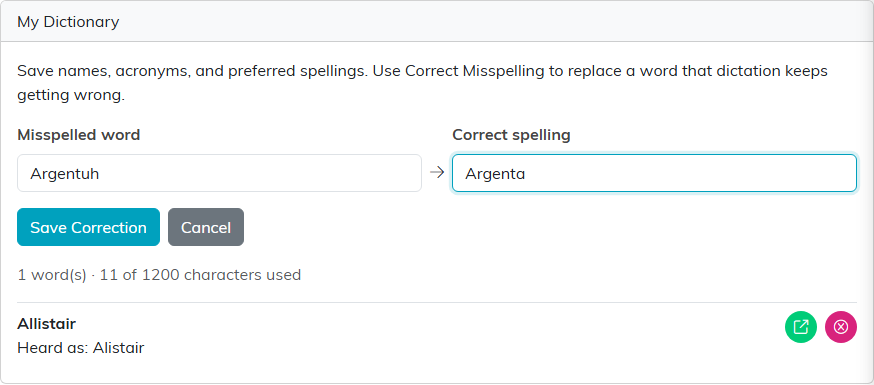
A correction ready to save: the wrong spelling dictation keeps writing, then the right one.
From then on, dictation writes the correct spelling where it used to write the wrong one. A correction counts toward the same 1,200 characters as your other words.
Saving a Snippet
A snippet is text you save once and insert by saying a short phrase, such as your signature or a reply you send often.
- In Spoken shortcut, type the words you will say, such as my signature.
- In Saved text, type what should go into your message. It can run over several lines.
- Click Add Snippet.
To use it, click the microphone and say the shortcut on its own, with nothing before or after it. The saved text goes into your message exactly as you saved it. Say the shortcut inside a longer sentence and Chatter writes the sentence as you spoke it instead.
You can save up to 50 snippets, each up to 4,000 characters.
For everything else in Chatter, see Argenta Chatter: Complete Guide.
