Knowledge Base Article
Discussion Threads — How to Use
Discussions give your team threaded conversations inside Argenta, like a message board. Post a topic, everyone replies in one place, and the whole thread stays searchable instead of scattering across inboxes.
Where To Find Them
There are four discussion boards, and they all work the same way:
- Team Member Discussions: under Communication in the sidebar. Open to all team members.
- Board Member Discussions: under Communication in the sidebar. Restricted to board members.
- Announcements: under Communication in the sidebar, for things the team needs to see rather than debate.
- Project Discussions: inside a Project Workspace, on the Project Discussions item, so the conversation sits with the project.
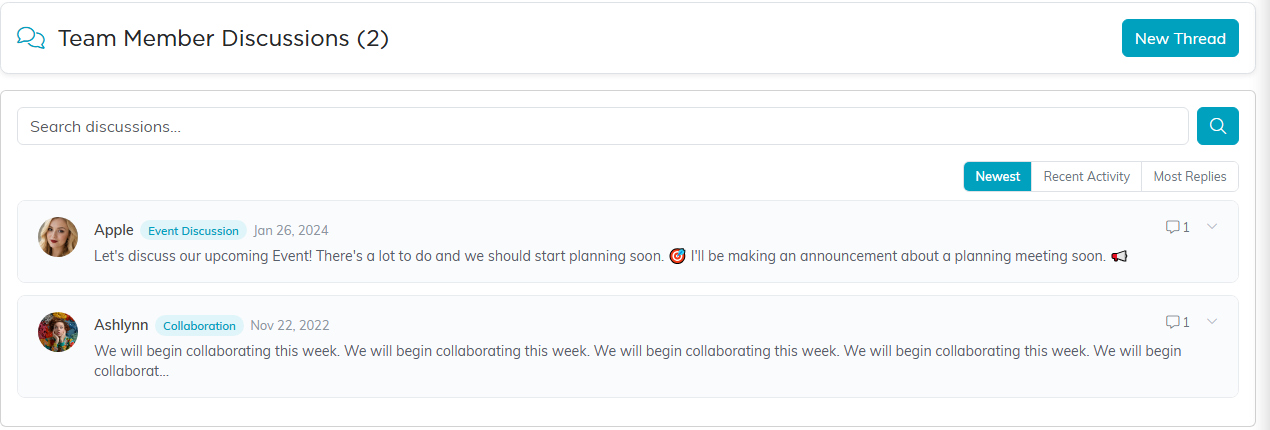
The discussion list, with New Thread at the top right.
A user with View Only Access can read every board they can reach but cannot start a thread, reply, edit or delete. An administrator is never treated as view only.
Start A Thread
- Click New Thread at the top of the page.
- Pick a category.
- Write your topic in the editor. You can format text, add links, and drop in images.
- Click Post Thread.
Reply
Click a thread to expand it and read the topic with all its replies. Click Add a Reply at the bottom, write your response, and post it.
Everyone already in the thread, the original poster and anyone who has replied, gets an email notification automatically. You do not pick recipients.
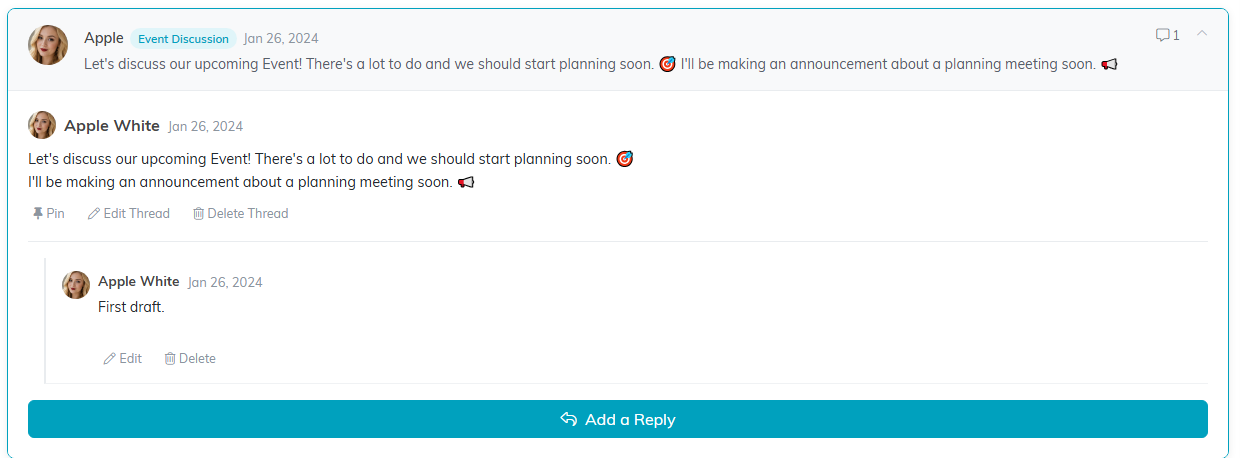
An open thread, with its reply and its Pin, Edit and Delete actions.
Find An Old Thread
Use the search box to search by topic content, author, or category. Type your term and press Enter, and a count tells you how many threads matched.
Sort The List
- Newest: most recently created first.
- Recent Activity: threads with the newest replies rise to the top. This is the one you usually want for an active board.
- Most Replies: busiest conversations first.
Pinned Threads
Admins can pin a thread so it sits at the top of the list no matter how the list is sorted. Pinned threads carry a Pinned banner with a pin icon. To pin or unpin, expand the thread and click Pin or Unpin. Admins only.
Locked Threads
The person who started the thread, or an admin, can lock it by opening Edit Thread and ticking Locked. Locking closes the thread to new replies. A locked thread shows a lock icon, and the reply option disappears. Useful once a decision has been made and you want the thread kept as a record.
Editing And Deleting
- You can edit or delete your own replies with the Edit and Delete buttons under your comment.
- Admins can edit or delete any reply.
- Thread authors and admins can delete a whole thread, which takes every reply with it.
- If somebody else has saved the thread or reply since you opened it, Argenta warns you and does not save over their version. Press the button a second time if you want yours to win. See What Happens When Two People Edit the Same Record at Once.
