Knowledge Base Article
How To Add Staff Positions In The Argenta Staff Management Module
A Staff Position is the job itself, separate from the person filling it. Defining positions once lets you assign staff to them, track pay ranges, keep a job description in one place, and see what a role looked like even after the person in it moves on.
Adding a Position
- Go to Staff & HR > Staff Positions.
- Click Add A New Staff Position. A short form opens asking for the Staff Position name. Enter it and click Add & Enter Details, and Argenta creates the position and opens Staff Position Details. Cancel & Exit leaves nothing behind.
- Fill in the details. Fields with an orange asterisk are required:
- Staff Position (required): the job title
- Starting Pay Range and Ending Pay Range (never blank: an empty one reads and saves as 0; an Ending Pay Range above 0 cannot be lower than the Starting Pay Range), plus Per to say whether that range is hourly, annual, and so on
- Full Time or Part Time
- Staff Position Level
- Payroll Category
- Position Filled: shows whether someone is in the role, and who. You cannot change it here: it turns on when the position is picked as someone's primary or secondary position on their staff record, and back off when they leave it or are terminated
- Chapter, Division, and Department, plus District and Precinct for political organizations
- Required Education Level
- Skills Required To Perform This Job
- Click Save All Changes, or Save All & Exit Record to save and go back to the list.
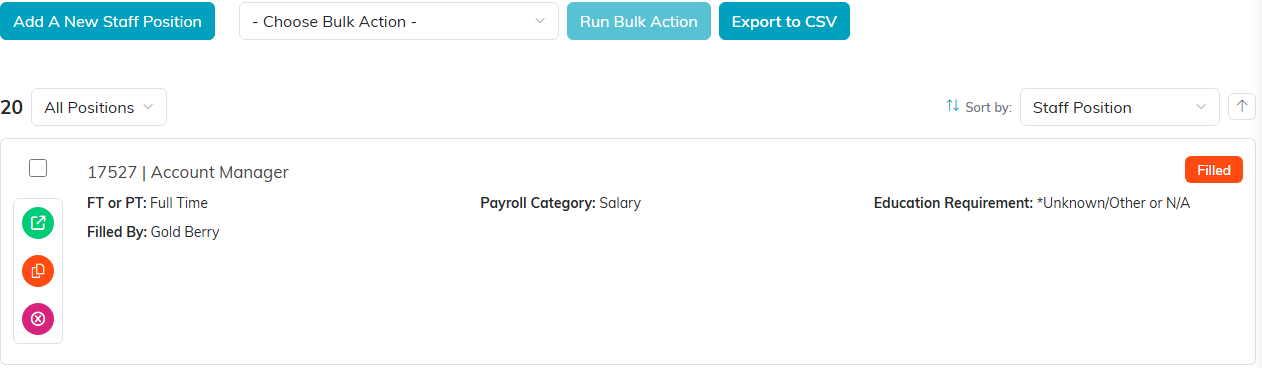
Add A New Staff Position sits above the list.

An orange asterisk marks a field you have to fill in.

Chapter, Division and Department place the role in your organization.

Skills Required To Perform This Job is free text.

The save buttons at the foot of the page.
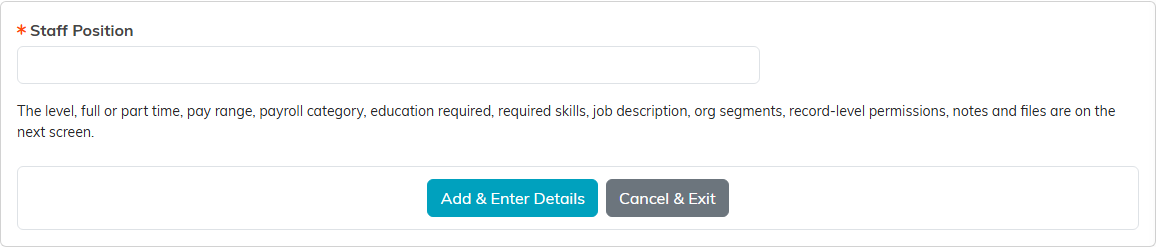
Only the position name lives here. Nothing is saved until Add & Enter Details.
The Job Description
Each position has its own Job Description page in the workspace. Keeping the description on the position means you can reuse it the next time you hire for the role instead of rebuilding it from an old email.
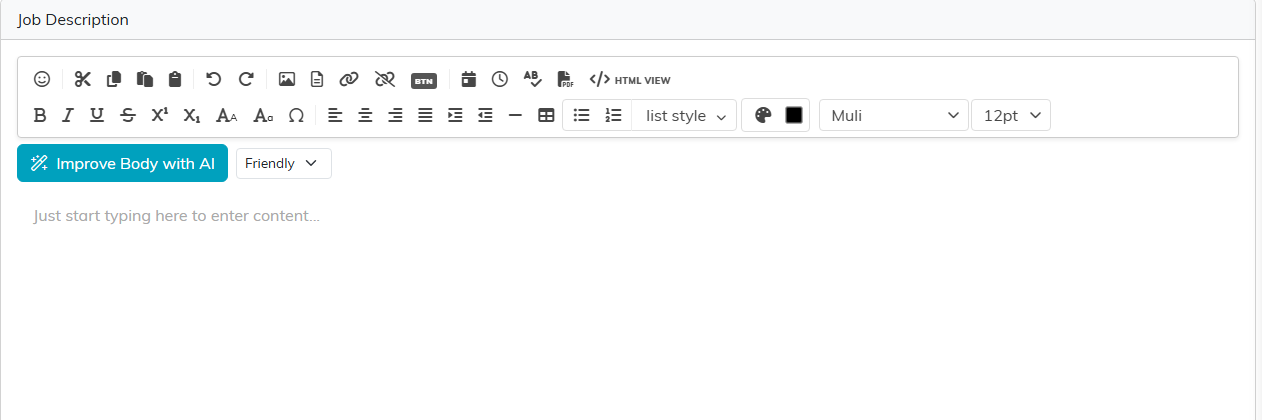
The Job Description page holds the full description for the role.
Files, Notes, and Access
A position also has Position Files and Position Notes pages for supporting documents, and Record Level Permissions at the top of the details page if you need to make a position view only or lock it.

The workspace menu for a position.

Record Level Permissions sit at the top of the details page.
Creating Several Similar Positions
If you need a number of near-identical roles, set one up the way you want it, then click the orange Copy & Add New icon on its row in the list. Argenta asks for the Number Of Copies to make, up to 100 at a time. Edit each copy from there rather than filling in the same pay range and department a dozen times.
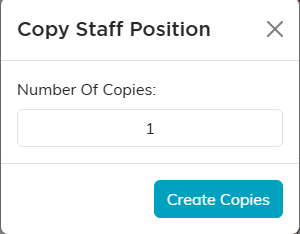
The copy icon asks how many copies to make.
How Positions Connect to People
You assign a position from the staff member's record, not from the position, and you can open the position straight from there. When someone is terminated, both their primary and secondary positions are written to their Previous Positions page automatically, so the role's history survives the person leaving.
For the wider picture, including position levels and tracking open roles, see How to Use Staff Positions in Argenta.
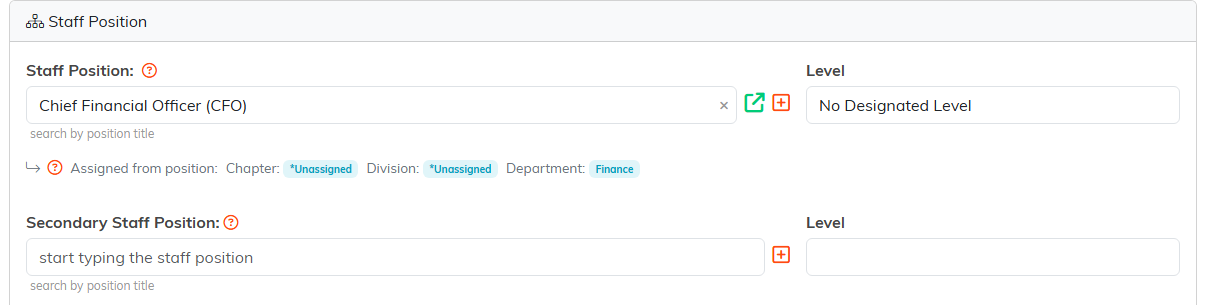
You pick the position on the staff member's record. The green icon opens the position itself.
