Knowledge Base Article
Can I preview how merge tags will look before sending an email?
Yes. On the New Campaign page, Preview As shows the email exactly as one person will get it, with every merge tag in the subject and the body filled in from that person's record. Nothing is sent and nothing is recorded on anyone.
How to preview your merge tags:
- Open the email on New Campaign: click Send Email in the Mail Room, or Use This Template on your template.
- Choose your audience under Send To. Preview As starts on the first person in it.
- To check someone else, pick them from the Preview As list, or search for anyone you can see. Your own record works.
- Click Desktop or Phone to see the email at that width, and Refresh after you edit.
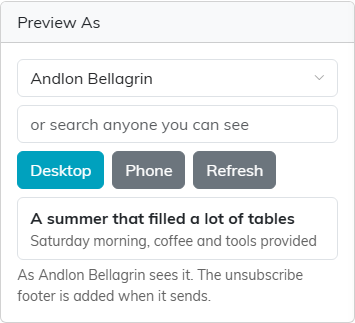
Pick a person, then switch between desktop and phone.
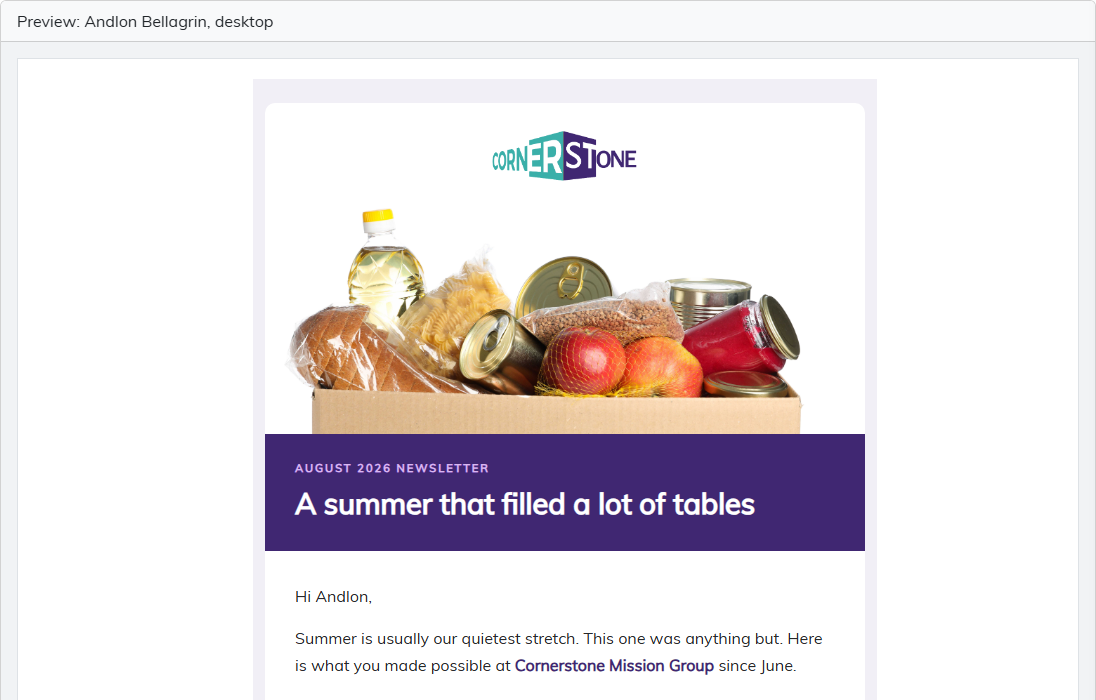
The greeting uses the previewed person's first name.
The Checks card on the same page also tells you whether every merge tag has a value, or a fallback, for the person you are previewing.
Seeing it in a real inbox
Under Send A Test, enter up to five addresses and click Send Test. The test is merged for the person you are previewing and arrives with [TEST] before the subject. It is not recorded on anyone and does not stop that person getting the real email.
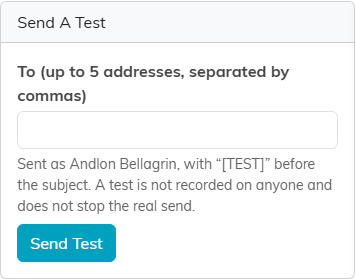
A test goes to the addresses you type, merged as the previewed person.
Tips for testing:
- Preview someone with a full data profile: donations, membership, mailing address, and phone number. This lets you check every tag at once.
- Preview someone who is missing some data to see how a blank tag reads. Give a tag fallback text, such as [FirstName|Friend], wherever a blank would leave a sentence dangling.
- Check both the subject line and the body: tags work in both places.
The full walkthrough is in How to Send an Email From the Mail Room.
