Knowledge Base Article
How to Use the Constituent Engagement Score Report
Here is the whole run-through, from opening the report to doing something useful with the results.
Open the report
Click Report Center at the top right of the screen, open Constituent Reports, and choose Constituent Engagement Score Report.
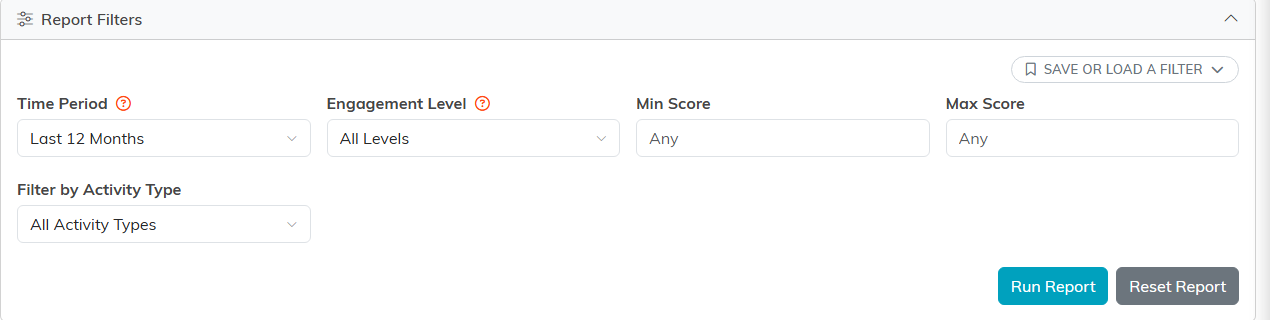
The filters: time period, level, a score range, and activity type.
Set your time period
The Time Period filter decides how far back the report looks. Everything is scored on activity inside that window, so this choice matters more than any other:
- Last 6 Months for recent movement.
- Last 12 Months, the default, for a normal annual view.
- Last 24 Months, Last 3 Years, or Last 5 Years for longer patterns.
Narrow it down
- Engagement Level limits results to one tier, such as Highly Engaged.
- Min Score and Max Score let you carve out an exact band, which is handy since there are no column sort controls.
- Filter by Activity Type is a multi-select list that starts on All Activity Types. Pick one or more and only people with all of those activities come back.
Run it
Click Run Report. Results come back sorted by engagement score, highest first. Reset Report clears your filters if you want to start over.
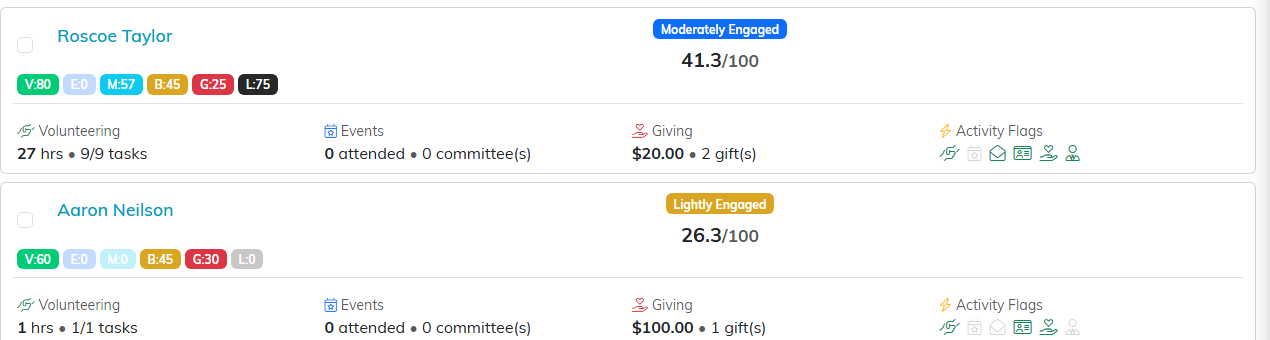
Each row shows the six dimension chips, the band, and the score out of 100.
Read the results
- The score and its level badge sit next to each name.
- Dimension Scores show as small badges: V for Volunteer, E for Event, M for Email, B for Membership, G for Giving, L for Leadership. That breakdown is where the interesting story usually is, since two people with the same overall score can have gotten there completely differently. Hover over a badge to see which score it is, or read the legend above the results, which the PDF prints too.
- Activity icons show which areas a person is active in: Volunteer, Event, Email, Member, Donor, and Leader.
- Click any name to open that constituent's record in a new tab.
Do something with it
- Export To CSV gives you the full data set including every dimension score and the raw numbers behind it.
- Export To PDF gives you a printable version of what is on screen.
- Tick the people you want and use the bulk actions to build a Mail Room mailing list, which is the fastest route from insight to actually sending something.
Export buttons only appear if you have the Can Export Lists To Excel permission or are an Admin.
For the scoring math behind every number here, see How is the Constituent Engagement Score Calculated.
