Knowledge Base Article
How to Track Background Checks for Volunteers and Staff
Background checks are recorded as their own records in Argenta, one per check, tied to the constituent it was run on. That covers volunteers, staff, board members, or anyone else in your system.
Go to Constituents (CRM) > Background Checks for the full list across your organization. A staff member and a volunteer each also have their own Background Checks tab, and those keep separate records of their own, which do not appear on this list.
Adding a Background Check
- On the Background Checks list, click Add New. A short form opens asking for the Background Check Date and the Constituent. Fill those in and click Add & Enter Details, and Argenta creates the check and opens the Background Check Workspace. Cancel & Exit leaves nothing behind.
- Fill in Background Check Details. Two fields are required: Background Check Date and Constituent.
- Click Save All Changes & Continue, or Save All Changes & Exit.
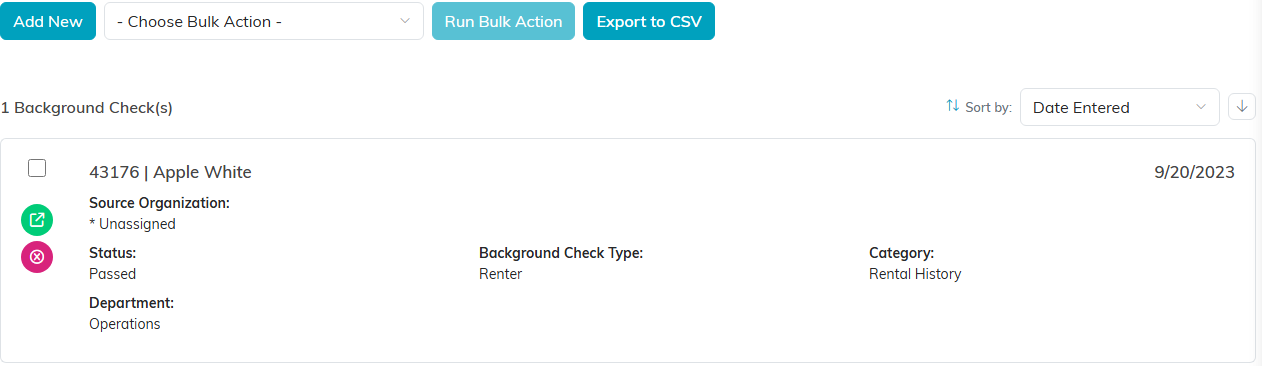
Add New sits above the list. Each card shows the status, type and category.

The buttons at the foot of the details page.
Delete This Record removes the check for good, together with the offenses, notes and files recorded on it.
The Fields
- Background Check Date (required) - when the check was run
- Constituent (required) - who it was run on
- Source of Background Check (Constituent) - who ran it. This is a constituent lookup, so add your screening provider as an organization constituent and you can pick them here
- Assigned To (Team Member) - who on your team is handling it
- Status - where the check is in your process
- Background Check Type and Background Check Category - how you classify checks
- Outcome of Background Check - the result
Status, Type, and Category are all your own lists rather than a fixed set Argenta ships with. Set them up to match your own policy, using the orange plus icon (admins and master builders only) beside each field to add an option you do not see.
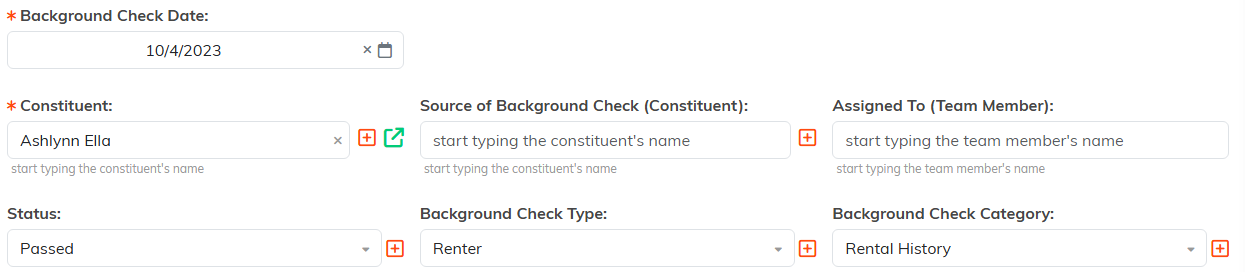
The orange plus (admins and master builders only) beside Status, Type and Category adds an option to that list.

Outcome is free text, so record it the way your policy words it.
Keeping Results Private
Background check results are sensitive. On the details page, Set As View Only stops others changing the record and Lock This Record stops them opening it at all. Grant access person by person on the Record Permissions page. Do this when you create the record, before the outcome goes in.

Set both before the outcome goes in, not after.
The Workspace
- Background Check Details - the record itself
- Related Files - the report from your provider, consent forms
- Notes - internal notes
- Record Permissions - who can view or edit

The four pages of the background check workspace.
Tracking Renewals
A background check record on this list holds the date the check was run, not a separate expiration date. If your policy renews checks on a cycle, work from the Background Check Date: search the list by ID or constituent name, sort by date, and export to CSV to see who is coming due. A check recorded on a volunteer's own Background Checks tab is different: it carries a Date Expires and an Expired flag, as How to Track Volunteer Background Checks explains.
