Knowledge Base Article
How to Track Volunteer Background Checks
Argenta keeps a background check history on every volunteer record, so you can see who has been cleared, when, and by whom before you put someone in front of the people you serve.
Where Background Checks Live
- Open the volunteer's record
- Click Background Checks in the workspace navigation

Background Checks sits in the volunteer's workspace navigation.
The list shows every check on file for that volunteer, with the date it was created, its status, the date it was completed, the team member who completed it, the source of the background check, and the details.
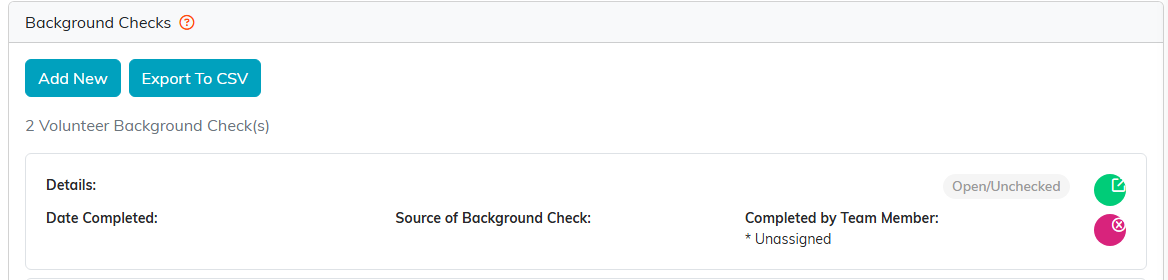
Every check on file for that volunteer, with its status on the right.
Recording a Background Check
- Click Add New. A short form opens asking for the Source of Background Check, the organization or service that ran it; the volunteer is already known from the record you are on. Fill it in and click Add & Enter Details, and Argenta creates the check and opens it. Cancel & Exit leaves nothing behind.
- Set the Status: Open/Unchecked, Passed, or Failed. A new check starts as Open/Unchecked, so you can create it when you send the request and come back once results arrive.
- Enter the Date Completed when the results come back.
- Enter the Date Expires if your own policy gives the check an end date. This one is optional, and Argenta does not work it out for you. It cannot be earlier than the Date Completed; Save refuses that with a message.
- Correct the Source of Background Check here if you need to.
- Use the Details field for everything else worth recording, including the type of check performed.
- Save.

A new check starts at Open/Unchecked.
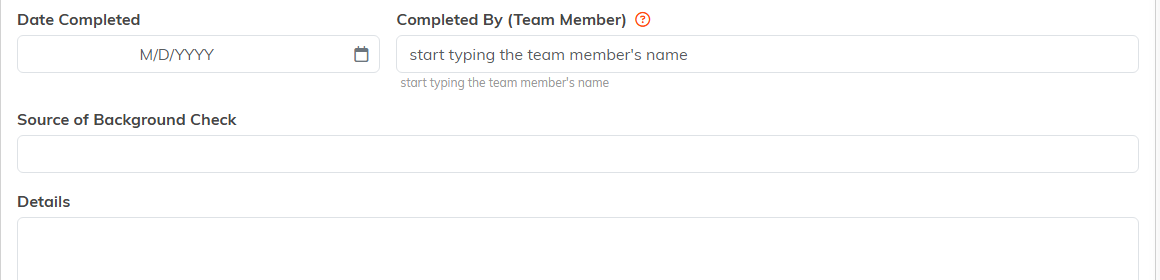
Completed By fills in automatically, so you always know who handled it.
Argenta records which team member completed the check automatically, so you always know who handled it.
Attaching Documentation
Each background check has its own Files and Notes pages. Upload the clearance letter or the provider's report to Files, and use Notes for your internal commentary. Record Permissions lets you restrict who can open the check, which is worth using given how sensitive these records are.
Recording the Type of Check
There is no separate field for check type, so note it in Details. The kinds most organizations track:
- Criminal background: national, state, or county level
- Sex offender registry: expected for youth-serving organizations
- Driving record: for volunteers who will drive
- Reference checks: verification from references
- Child abuse clearances: for child-serving roles
Expiry Dates and Rechecks
A volunteer background check holds a Date Expires alongside the date it was completed. Filling it in is your call: Argenta does not set an expiry period for you, and it does not stop anyone volunteering once a check runs out. What it gives you is a clear view of which checks have passed their date.
A check is good through the whole day it expires, and reads Expired from the day after. Leave the Date Expires box empty and the check never reads Expired.
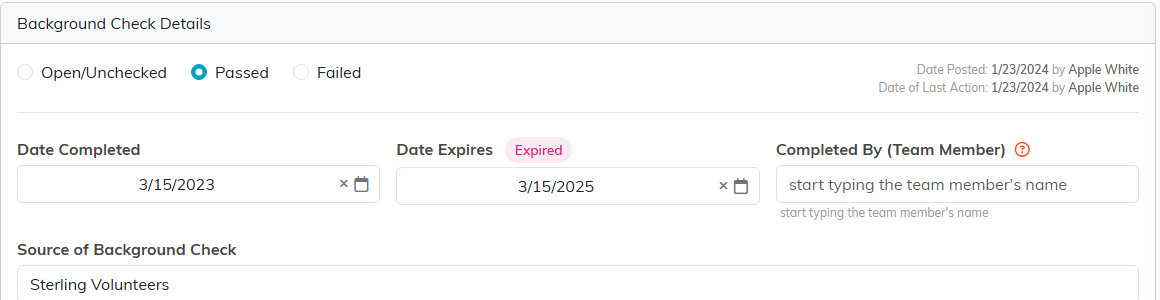
The Expired flag sits beside the Date Expires label on the check itself.
The volunteer's list of checks carries the same flag beside the status, so the whole history and what has run out read together in one place.
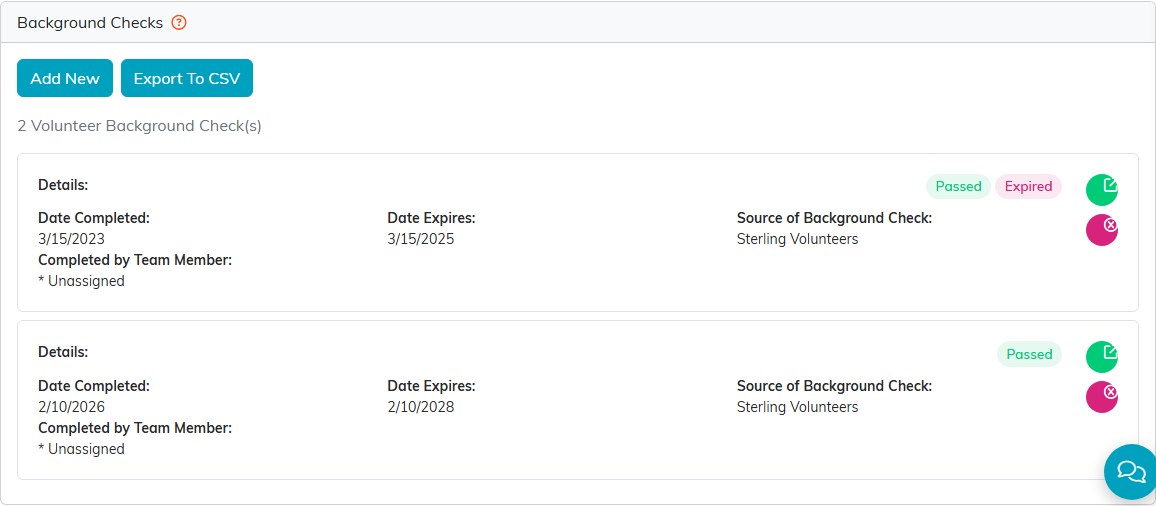
The top check has passed its expiry date. The one below it is still in date.
Many organizations recheck on a two or three year cycle. When you run a recheck, add it as a new check so the full history stays intact.
Exporting
The Export To CSV button above the list downloads that volunteer's background check history as a CSV file you can open in Excel. It carries a Date Expires column and an Expired column reading Yes or No, so you can sort a whole roster by what is due.
Export To CSV sits beside Add New, above the list.
Good Practice
- Check volunteers before they begin serving, not after
- Always record what kind of check was run in Details
- Keep the clearance document attached to the check itself
- Write down your rechecking policy so it survives staff turnover
