Knowledge Base Article
How to Set Up Auto-Recurring Transactions (Donations, Expenses, Deposits)
Argenta can track transactions that repeat, so you do not have to enter them by hand every time. You set the recurrence on the record itself, and you review what is scheduled in the Recurring lists under General Financials.
What can recur
- Donations (recurring gifts)
- Deposits (regular expected deposits)
- Expenses (recurring bills)
- Invoices (recurring billing)
- Membership payments
Make a donation recurring
- Open the donation. If it is not already recurring, click Make Recurring.
- In the Add A New Recurring Donation window, choose Monthly or Annually.
- Click Add Recurring Transaction.

Step 1. A donation tells you whether it is already recurring, with Make Recurring beside it.
Donors can also set a gift to recur themselves on your public donation form. For more, see How To Manually Enter Recurring Donations.
Make a deposit recurring
- Open (or add) the deposit under General Financials > Deposits.
- Turn on Deposit Is Recurring.
- Choose a Recurrence Frequency, then save.

Steps 2 and 3. Recurrence Frequency stays greyed out until Deposit Is Recurring is on.
Review and manage what is scheduled
Under General Financials you will find lists for each kind of recurring item: Recurring Donations, Recurring Deposits, Recurring Expenses, Recurring Invoices, and Recurring Membership Payments. Open any of these to see what is set up and when each one is next due, or stop future occurrences from a row. To change an amount or a date, open the row's record. A deposit, expense or membership payment also lets you change its frequency there; a recurring donation does not, so stop it and set up a new one instead.
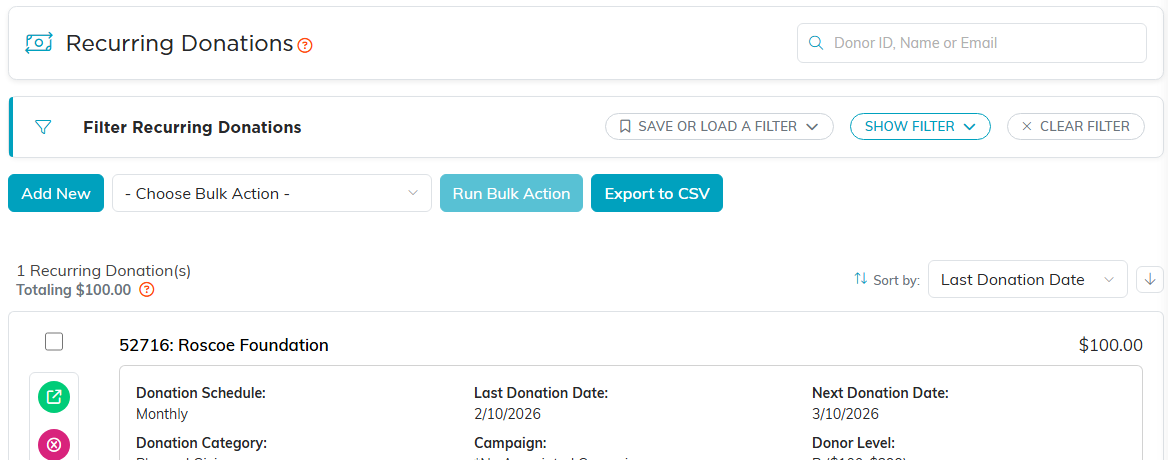
Recurring Donations. Each row shows its schedule and the next donation date.
