Knowledge Base Article
How to View Volunteer Hours and Service History
Once your volunteer tasks carry accurate times, Argenta can tell you what any one volunteer has given and what your whole program has given. Here is where to look.
Seeing One Volunteer's Service
Open the volunteer's record and click the Volunteer Tasks tab. It lists every task assigned to that volunteer, newest first, and each card carries the task category, the hours, the task group, the outcome, and the date it was assigned. Click the green open icon on a card to go to the task itself.
The count and the hours are totalled at the top of the tab. The cards stop at the 200 most recent and the page tells you when there are more, but those two totals always cover every task the volunteer is on. The hours are what is recorded on the tasks, open tasks included, so read the figure as hours planned or logged rather than hours confirmed as served.
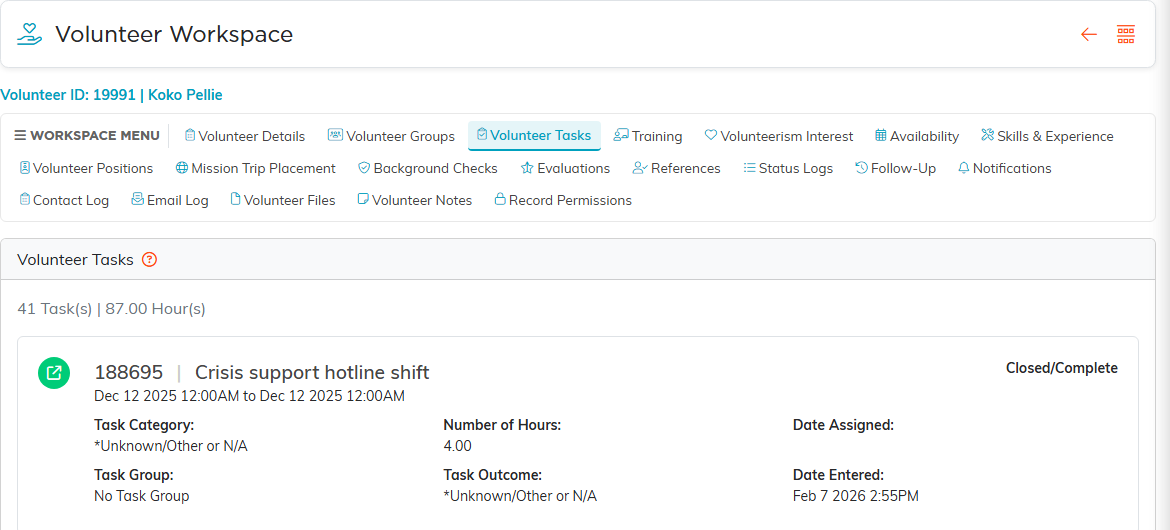
The Volunteer Tasks tab. The totals sit above the cards.
To narrow the same information by date, or to look at several volunteers at once, filter the task list instead:
- Select Volunteerism > Volunteer Tasks from the main menu
- Click Filter above the list
- Choose the person in the Volunteer field
- Set any date range you need
- Click Apply Filter
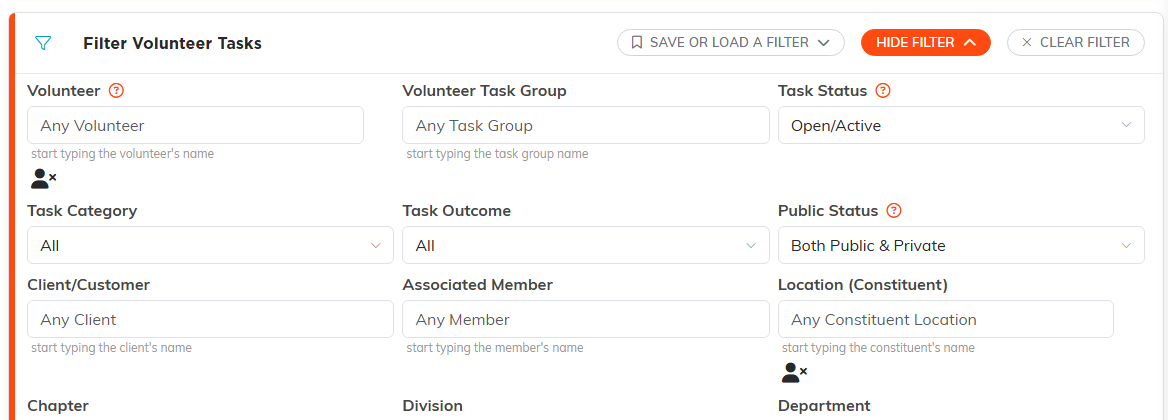
The filter panel. Pick the person in the Volunteer field and set your dates.
You now have every task that volunteer worked, with the hours on each. Click the Calendar button if you would rather see the same thing laid out by date.
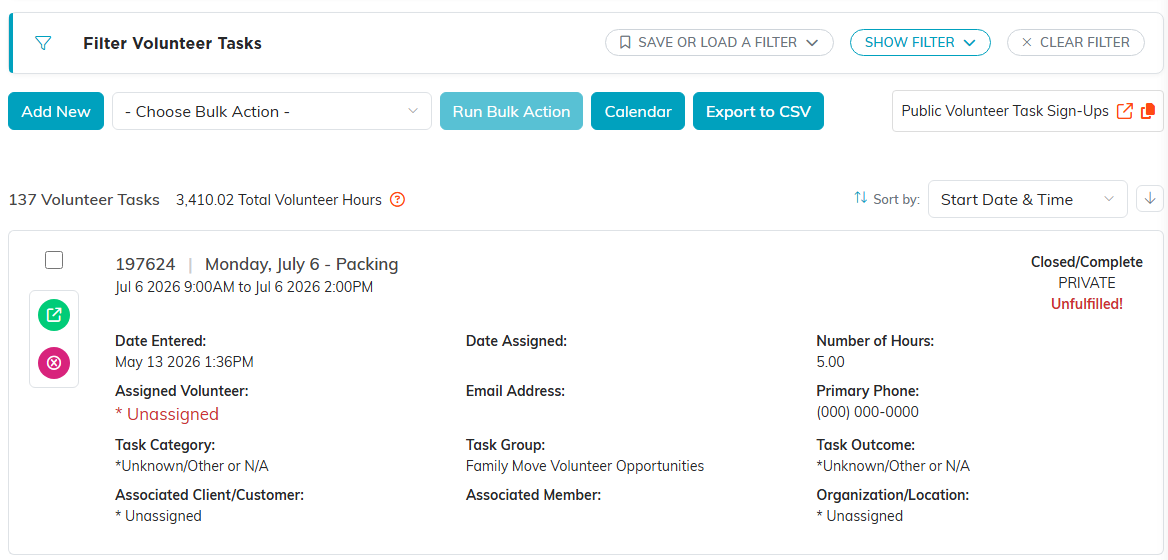
The filtered list gives you every task with the hours on each, and totals them at the top.
Reports for Hours and Service History
For totals across volunteers, go to your Reports section. Three reports cover this:
- Volunteer Service Hours Report, hours by volunteer
- Total Volunteer Training + Task Hours Report, task hours with training time counted in. Only training completed as a volunteer counts, not training taken as a board member or staff, or left unfinished
- Volunteering for Members Service Details Report, a detailed breakdown of service tied to membership
Set your date range and any filters, then run the report. Volunteer Service Hours Report and Total Volunteer Training + Task Hours Report leave out shifts marked This Task Was Unfulfilled, so a volunteer is not credited with hours for a shift nobody worked. Volunteer Service Hours Report is usually the one you want for recognition and year-end thank-yous. Total Volunteer Training + Task Hours Report is the one for grant applications and board reports.
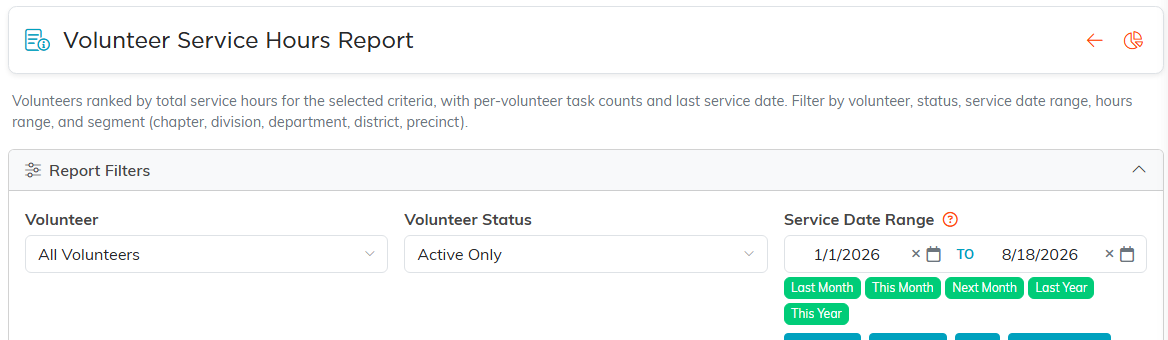
The hours report. Set the date range and any filters, then run it.

The report totals the figures for you above the detail.
Exporting the Numbers
All three reports have Export To CSV and Export To Excel, and Volunteer Service Hours Report also has Export To PDF, so you can hand the figures to a funder or drop them into a board packet. Export buttons appear for a Master Admin and for users who have export rights.

The export buttons on Volunteer Service Hours Report sit on the right, just above the results.
Turning Hours Into a Dollar Figure
Grant reporting often asks for the value of donated time rather than the raw hours. Keep your rate table under Volunteerism > U.S. Volunteering Rates and multiply against the totals from the reports above. That link appears for organizations that have U.S. Volunteering Rates turned on. For how hours get onto tasks in the first place, see How to Record and Track Volunteer Hours.
