Knowledge Base Article
How to Cancel or Manage Your Argenta Subscription
You can cancel your Argenta subscription yourself, right in the app, and you can review or update the rest of your subscription in the same place. Here is where everything lives.
Who can do this
You need to be signed in as a Subscription Admin or a Master Admin. Cancelling affects your whole organization, so no other role can reach it, and a view-only user cannot complete it.
Cancel your subscription
- Click Settings (the gear icon in the top right of Argenta), then choose Subscription.
- Scroll to the buttons at the bottom of the Subscription Overview card and click Cancel Your Subscription.
- Tell us why. Pick the reason that fits best from the list: it is too expensive, you are not using it enough, it is missing a feature you need, you are switching to another system, you had technical problems, you only needed it temporarily, your organization is closing or restructuring, or something else. You can add a sentence in your own words too.
- Read the one suggestion we make. Depending on the reason you picked you may see a single option that fits it: talking about a smaller plan, pausing your subscription for one, two or three months instead (billing stops and starts again on its own at the end, with an email before it does), hearing what is already on the way, or having support look at a problem. Take it, or click No thanks, continue cancelling. Carrying on is one click away on every screen.
- Confirm. The last screen confirms the cancellation.
You will see a confirmation, and Argenta signs you out. Your data is kept for 90 days in case you need to get to it or decide to come back, and is permanently deleted after that. Any email automations you had running stop sending to your contacts straight away, so nobody on your list keeps hearing from you after you have gone. Your recurring donations, membership payments, deposits, expenses and invoices stop as well: no donor or member is charged and no new recurring record is created. The enrollments stay as they are, so reinstating picks them up where they left off. To reinstate your subscription inside that window, get in touch through the contact form on our website.
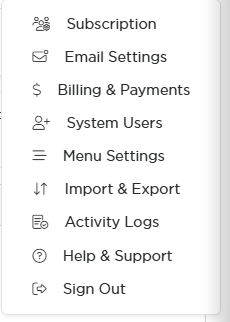
Everything in this article starts from the Settings menu.

Cancel Your Subscription sits at the bottom of the Subscription page.
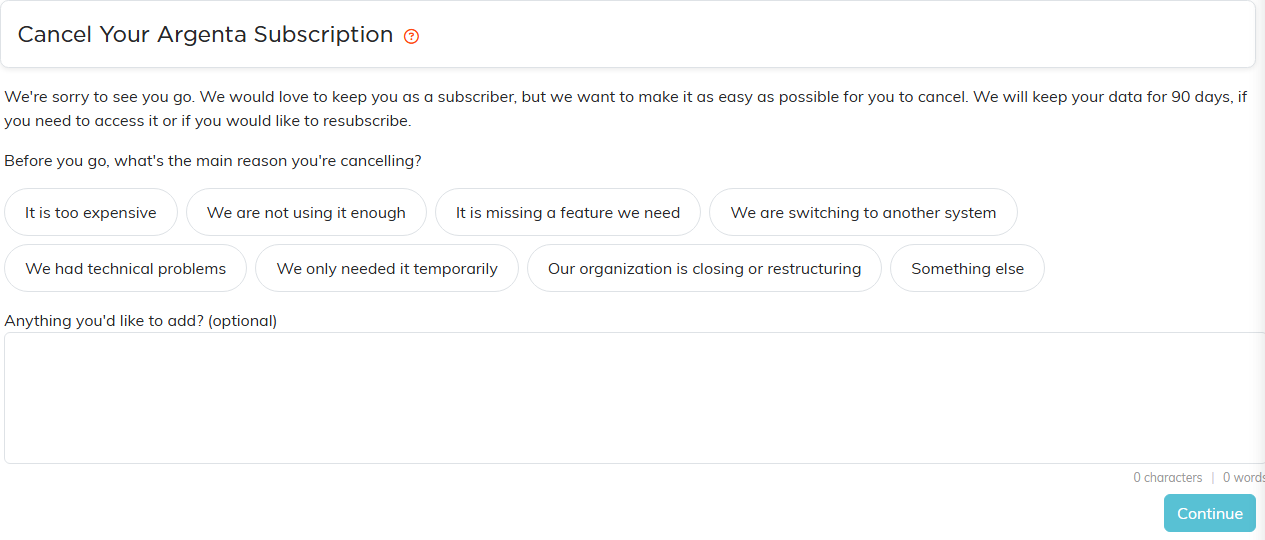
Pick a reason and Continue turns on. Nothing is canceled at this point.
Manage your subscription without cancelling
Everything below lives under Settings in the top right.

The tab strip across the top of Subscription Settings.
- Subscription. Your account number, team name, subscription start date, record count, and monthly fee, plus your organization's name, address, phone, EIN, and registration number. This is also where you set the Designated Subscriber, the person we treat as your main billing contact.
- Billing & Payments. Every subscription payment you have made, with a download icon on each row for that payment's receipt. The Pay Subscription Fee button here is also how you pay and how you put a new card on file.
- System Users. Add, edit, deactivate, or remove the people who can sign in. Your subscription type sets how many users you can have.
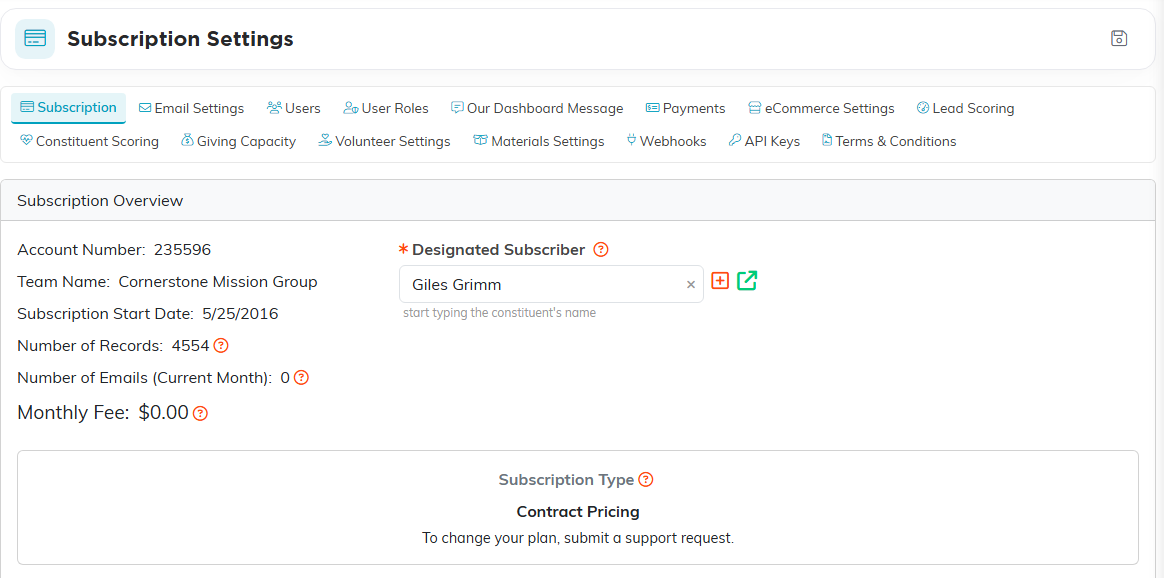
Your account number, record count, monthly fee, and Designated Subscriber all sit here.
Change your plan
On the Subscription page your plan is shown under Subscription Type. To change it, click Submit A Support Request and tell the Argenta team which plan you want; they make the change and adjust your billing. Your monthly fee is shown on that same page, so you can always see what you are paying today.

Your plan is shown here. To change it, submit a support request.
Update the card we charge
Go to Settings > Billing & Payments and click Pay Subscription Fee. Entering a card there saves it for future automatic charges. Full steps: Adding A Payment Method for An Argenta Subscription.
If you would rather talk to someone first
Click Help Center in the top right and submit a support ticket. Tell us what is not working, and we will look at it before you cancel. You can also reach us at [email protected].
